
 AsyaTicari
 AsyaRestoran
 AsyaOtel
 AsyaCrm
 AsyaKlinik
 AsyaSpor
 AsyaSSH
 AsyaEmlak
 AsyaFilo
 AsyaPuantaj
 AsyaİSG
 AsyaİHD
 Kolay Öğren
 · General
Practice
Choosing a reading text, timed reading, answering questions, speed / comprehension result; number line quiz and question editing.
The Practice screen is the main work area of Kolay Öğren: the student reads an approved text matching their grade, answers the questions, and reading speed (WPM) and comprehension percentage are recorded.
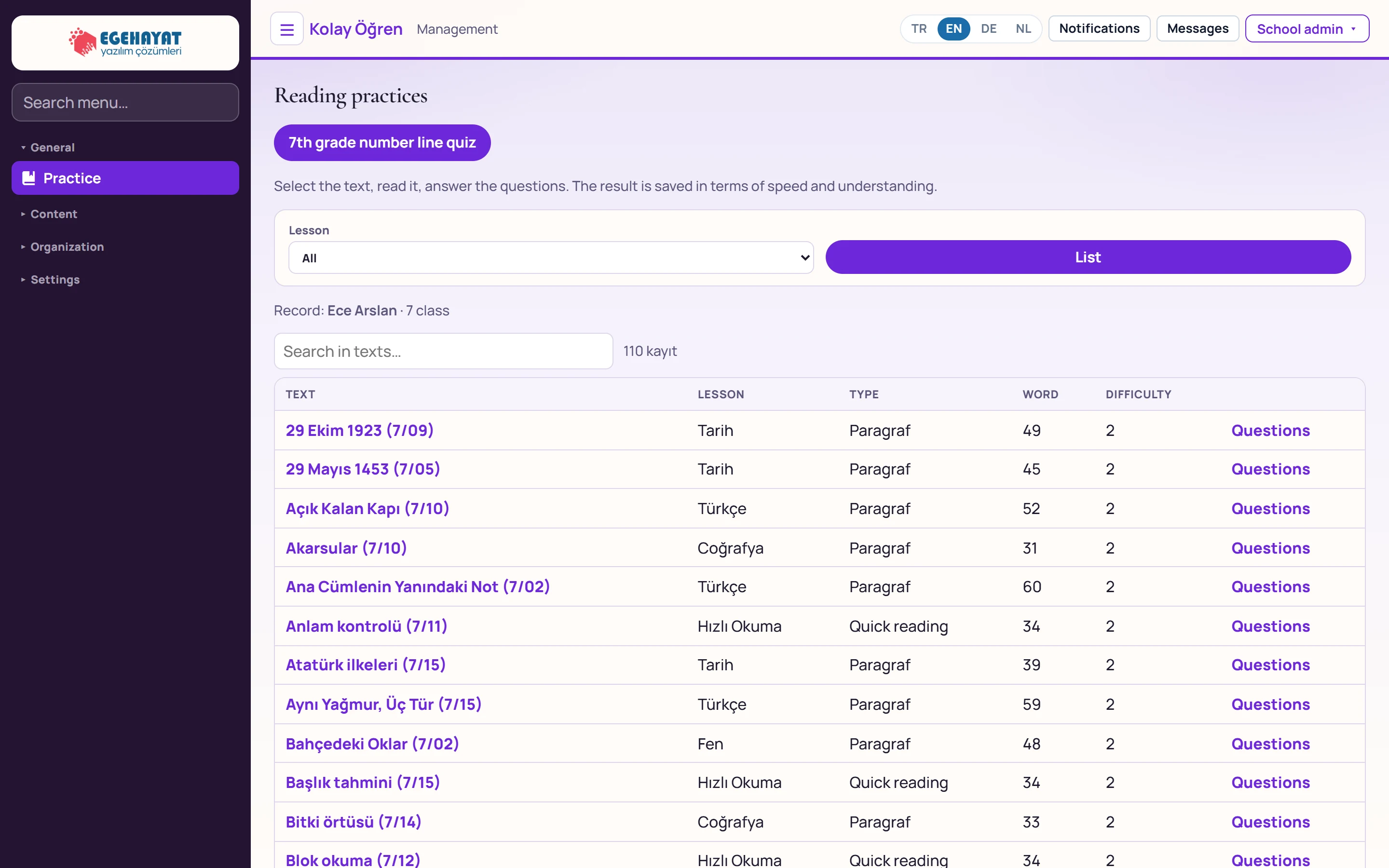
- 1Menu Left menu: General, Content, Organization and Settings groups. Use the box at the top to search the menu.
- 2Toggle menu Hides / shows the left menu; the choice is remembered in the browser.
- 37th grade number line quiz Opens the 7th grade number line quiz.
- 4Lesson Pick a lesson and filter the texts with «List».
- 5Search in texts… Searches the list instantly by title, lesson and type.
- 6Texts Approved texts for the student's grade. Clicking a row opens the reading screen.
- 7Notifications Notifications and messages; the number shows unread items.
- 8School admin User menu: Change password and Sign out.
An admin works with their own practice record (the «Kayıt:» line on screen). Teachers and parents additionally choose a Student at the top (see My students). The list shows approved texts of the student's grade; clicking a row or title opens the reading screen.
Lesson and academic year
Choose a lesson from Lesson and press List. For a 7th grade student, choosing Matematik opens the units and academic year (curriculum version) section:
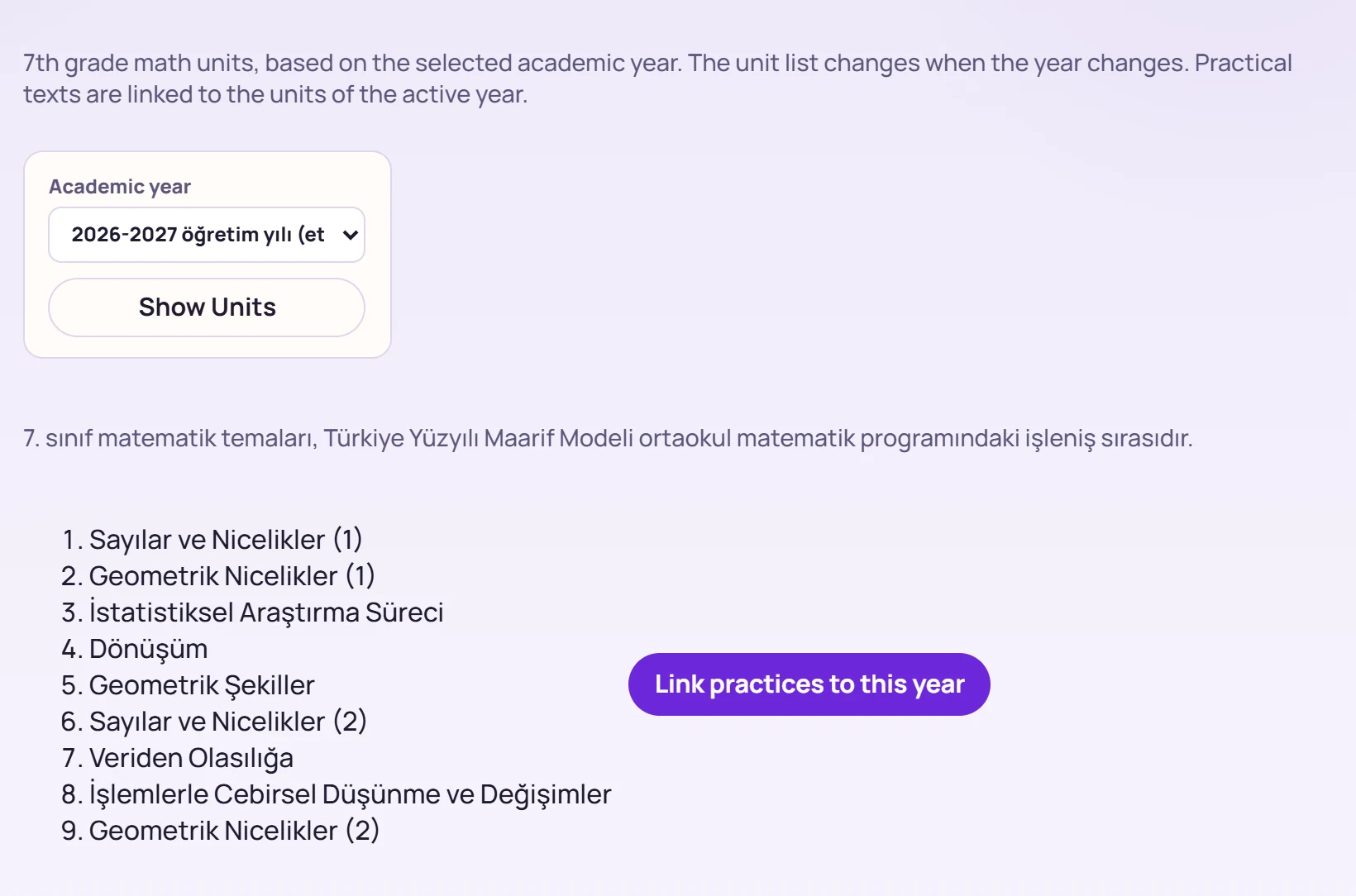
- 12026-2027 öğretim yılı (etkin) Academic year (curriculum version); the one marked «(etkin)» is used in practice.
- 2Units 7th grade mathematics units of the selected year.
- 3Link practices to this year Links the practice texts to the units of the selected year (admin / teacher).
Show Units loads the unit list of the selected year. Link practices to this year (admin / teacher) links the practice texts to that year's units and makes the year active.
Recent sessions
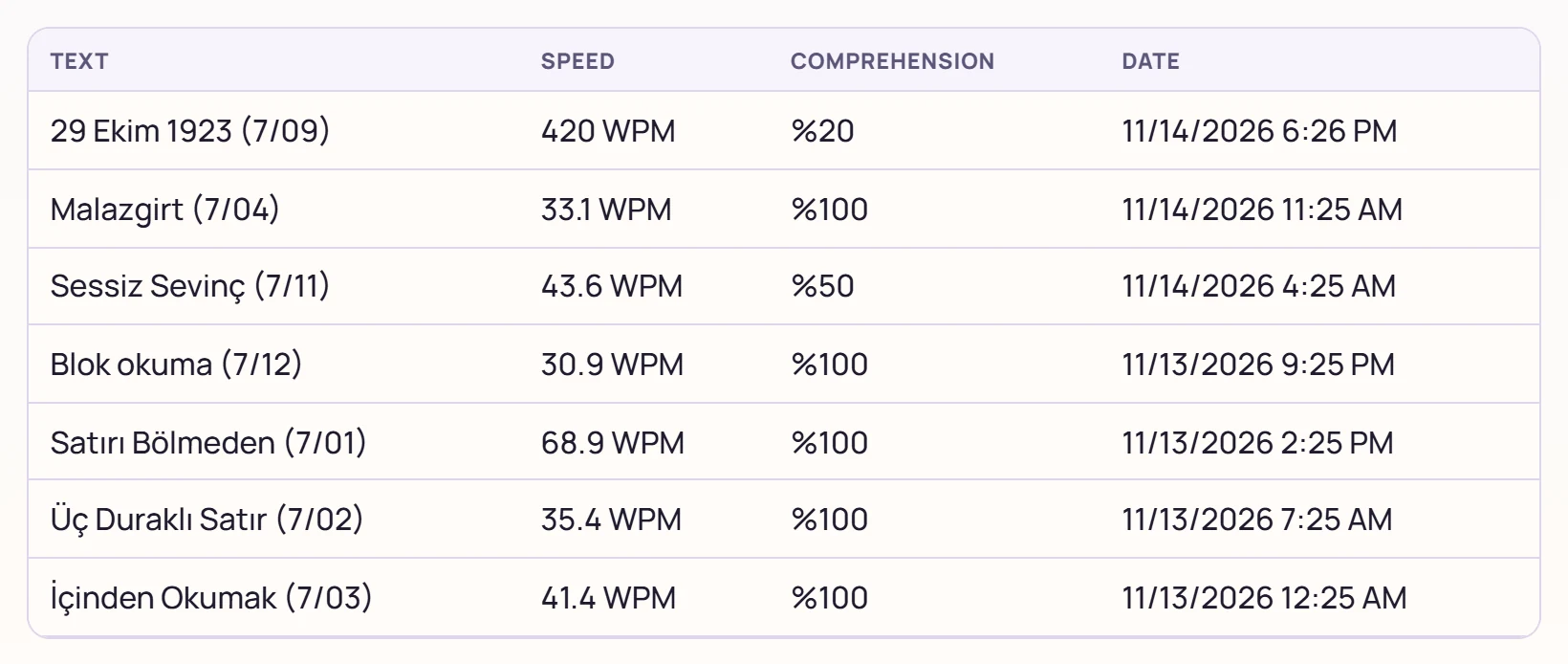
The selected student's last 10 practices: text, speed (WPM), comprehension percentage and date. Practices done in the Android app also appear here.
Reading
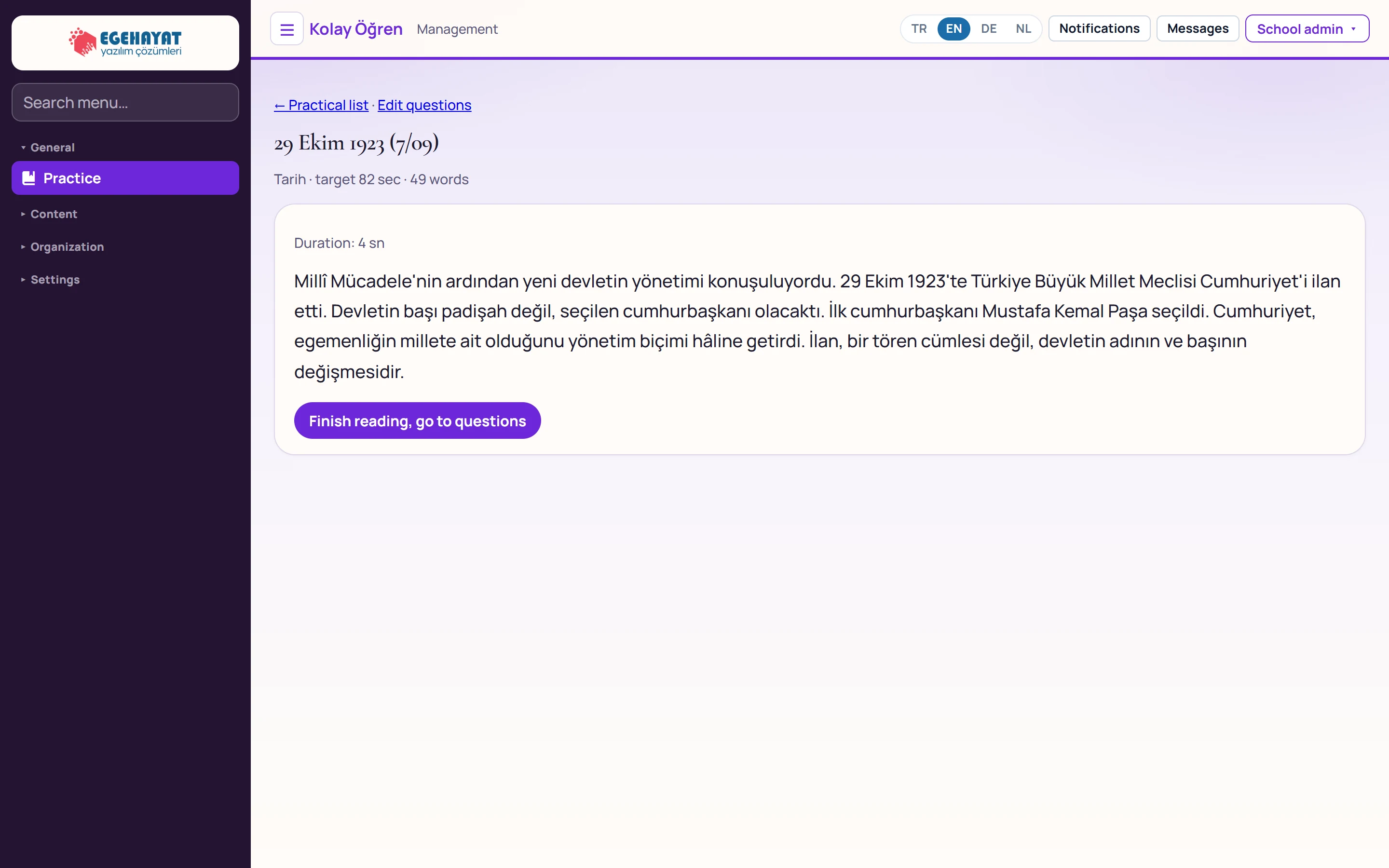
- 1Practice list Returns to the list; admins and teachers also see the «Edit questions» link.
- 2Info Lesson, target reading time and word count.
- 3Duration: 4 sn Reading time; starts when the screen opens.
- 4Text The text to read.
- 5Finish reading, go to questions Stops the timer and opens the questions.
The timer starts when the screen opens. After reading, press Finish reading, go to questions; the timer stops and the questions open.
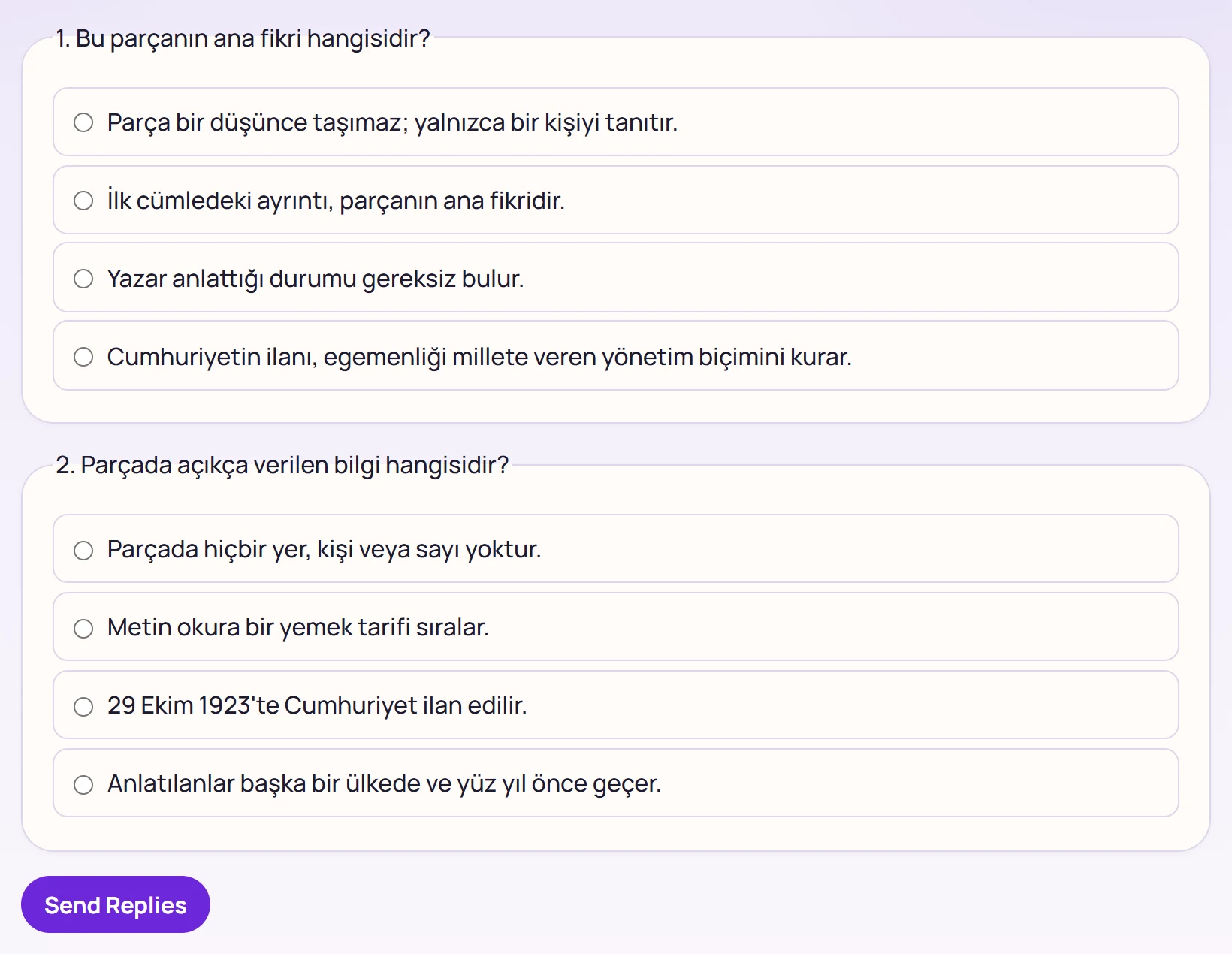
- 1Option Choose one option for each question.
- 2Send Replies Sends the answers; speed and comprehension are calculated and the result screen opens.
Choose one option per question and press Send Replies (all questions are required). With a teacher / parent sign-in there is also a Student list above the questions.
Result
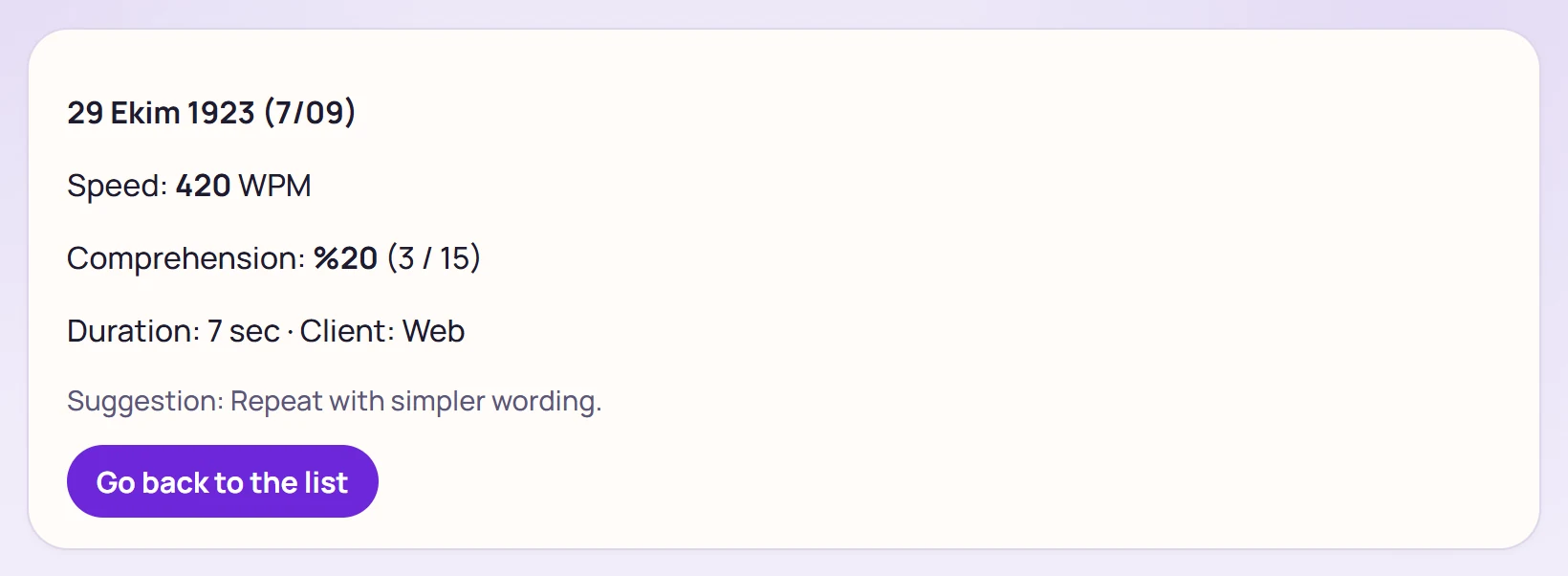
- 1Speed Words per minute (WPM) = word count × 60 / reading time.
- 2Comprehension Percentage of correct answers (correct / number of questions).
- 3Go back to the list Returns to the practice list.
Speed = word count × 60 / reading time (s). Comprehension = correct / number of questions. If the result is weak, the screen suggests retrying with an easier text. Go back to the list returns to the practice list; the session is added to Recent sessions.
Number line quiz
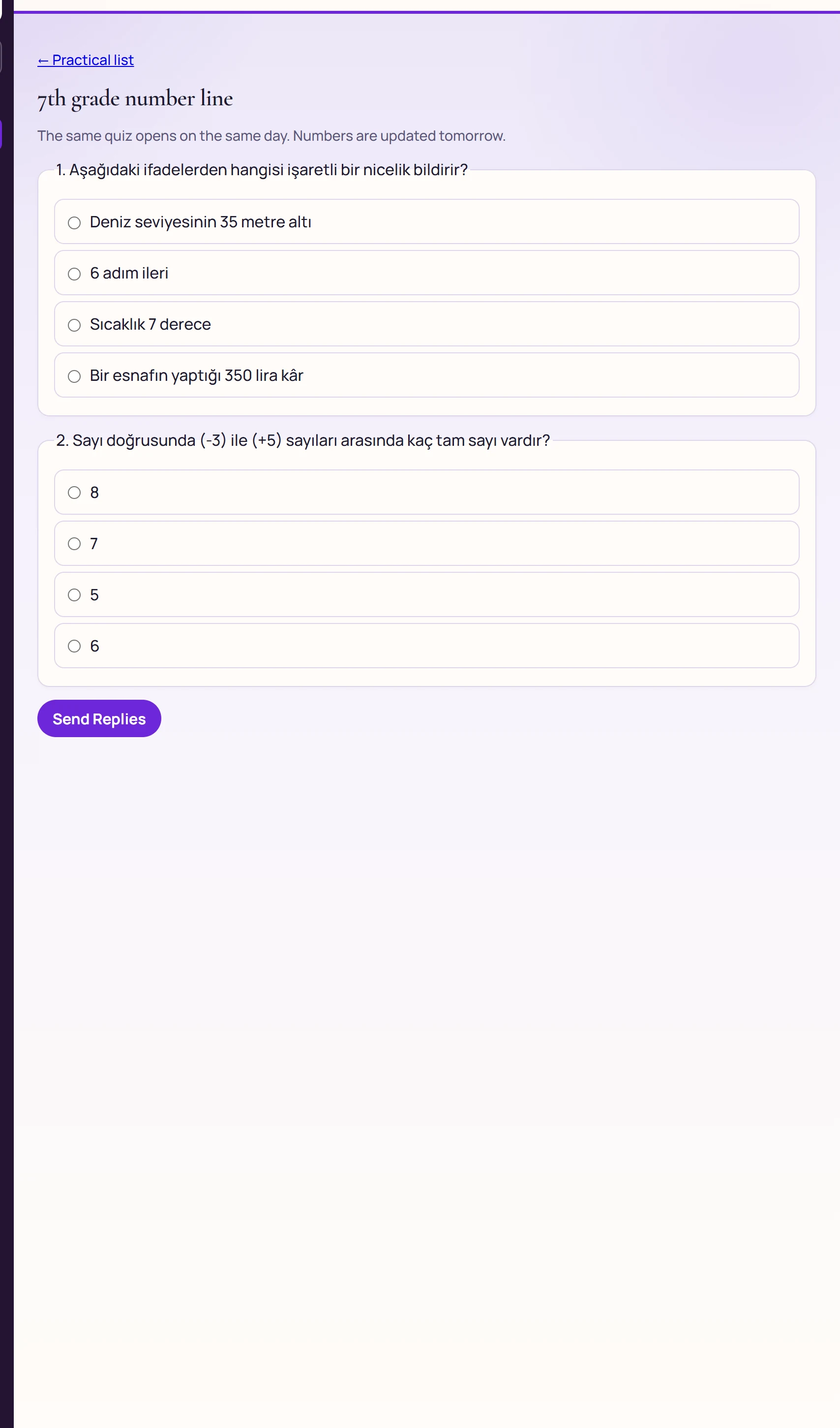
- 1Option Choose the correct value on the number line.
- 2Send Replies Sends the answers; the number of correct answers appears at the top.
Opened with the 7th grade number line quiz button at the top. The same questions come on the same day; the numbers change the next day. After sending, the number of correct answers is shown at the top.
Edit questions (admin / teacher)
Opened with the Questions link in the list or Edit questions on the reading screen.
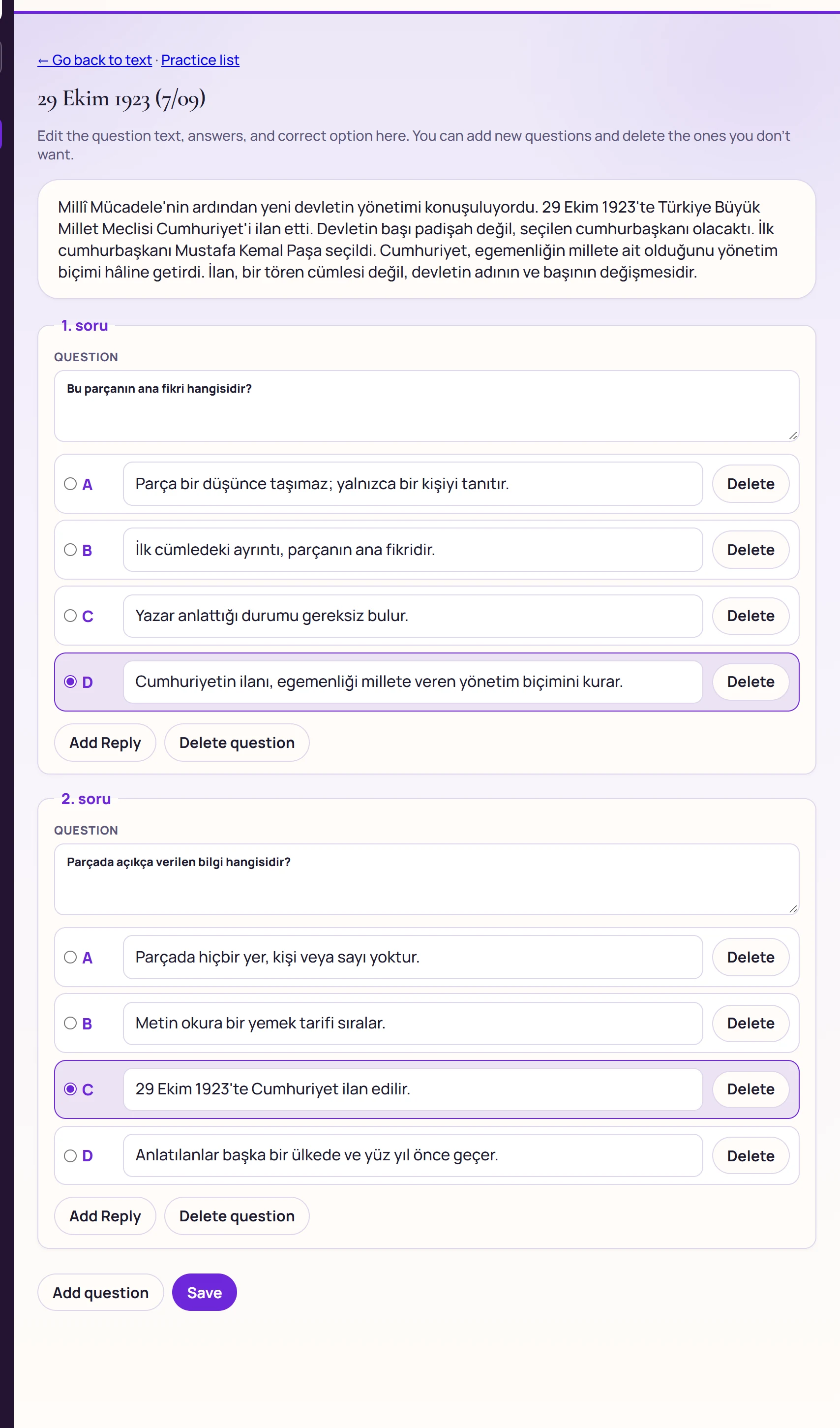
- 1Question Question text.
- 2Correct option Mark the correct answer.
- 3Option text Answer text; «Delete» next to it removes the option.
- 4Add Reply Adds a new option to this question.
- 5Delete question Deletes the question (permanent after saving).
- 6Add question Adds a new empty question.
- 7Save Saves all questions and options.
- Correct the question text and options; mark the circle next to the correct option.
- Add or remove options with Add Reply / Delete; manage questions with Add question / Delete question.
- Press Save. The message «Sorular kaydedildi.» (questions saved) appears.
Texts and their questions are in a shared catalogue used by all organizations; a question change affects everyone reading this text.
Step by step: a reading practice
- Open Practice; if needed choose Student and Lesson and press List.
- Click a text in the list and read it.
- Press Finish reading, go to questions, answer the questions, press Send Replies.
- See speed and comprehension on the result screen; Go back to the list.
Common messages
| Message | Cause | Solution |
|---|---|---|
| No approved text for the selected lesson in this student's grade. | No approved content for the lesson / level, or no student profile. | Choose another lesson or have the admin approve content. |
| Add a student first, then select them here. | The teacher / parent account has no students. | Add a student in My students. |
| Select a student for the practice record. | Teacher / parent sent answers without choosing a student. | Choose from the Student list above the questions. |
| Practice could not be saved. | Answers could not be saved. | Mark all questions and send again. |
| The text could not be opened. | Text not found or connection lost. | Return to the list and open it again. |
| At least two / at most six answers per question; at least one question must remain. | Question editing limits. | Fix the number of options / questions. |