
 AsyaTicari
 AsyaRestoran
 AsyaOtel
 AsyaCrm
 AsyaKlinik
 AsyaSpor
 AsyaSSH
 AsyaEmlak
 AsyaFilo
 AsyaPuantaj
 AsyaİSG
 AsyaİHD
 Kolay Öğren
AsyaSSH · General
Work orders
Work orders of the selected service branch: in service, completed, search and creating a new work order.
The Work orders screen lists all jobs of the selected service branch. When a vehicle or device arrives, open a new work order here; click a row to open the work order card.
asyassh · /
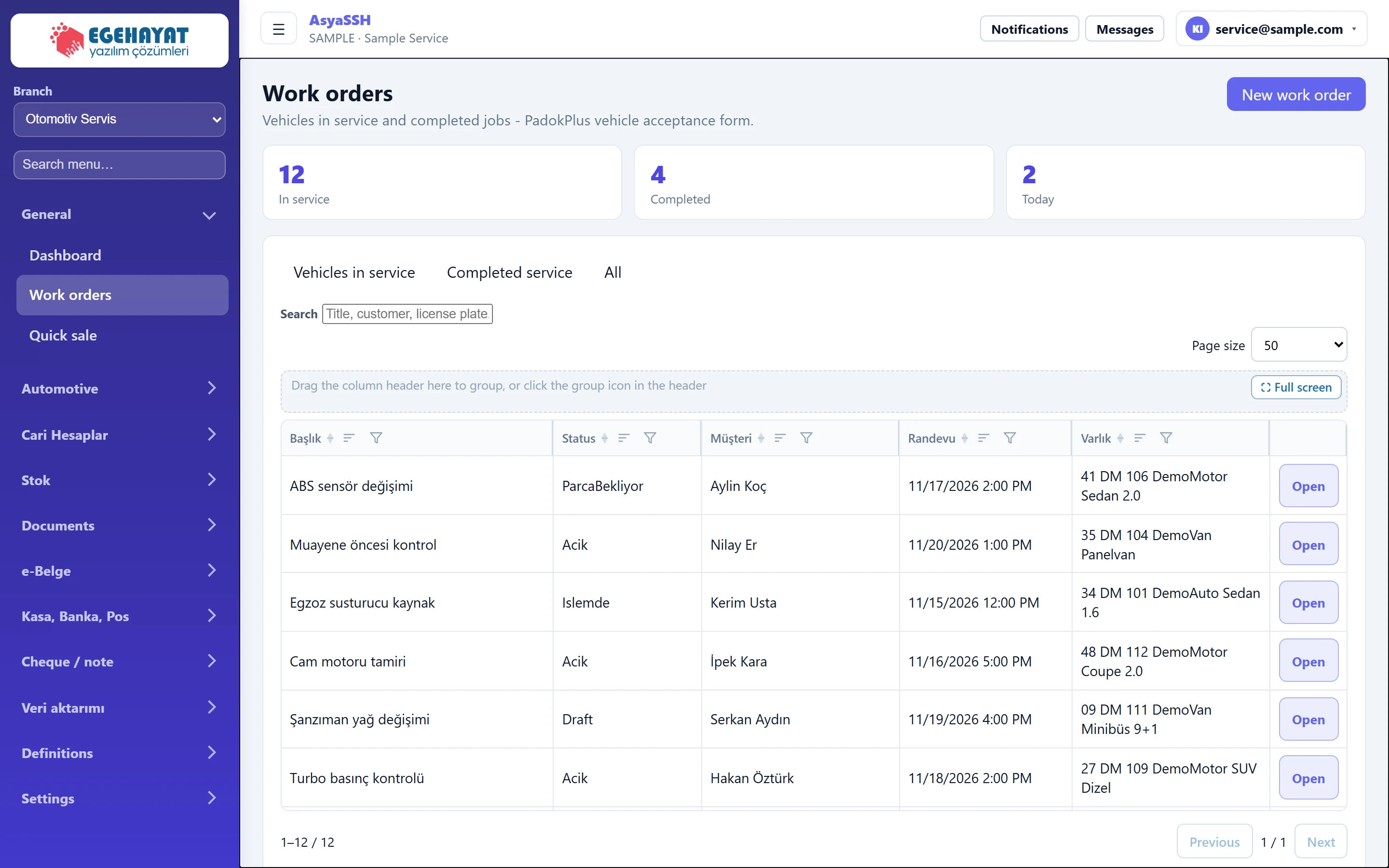
- 1New work order Shows / hides the new work order form.
- 212 In service: draft, open, in progress and waiting-for-parts jobs.
- 34 Completed: finished and cancelled jobs.
- 42 Jobs with an appointment today.
- 5Vehicles in service Tabs: in service, completed service, all.
- 6Title, customer, license plate... Searches by title, customer or plate / asset.
- 7⛶ Full screen Drag a column header here to group; full screen button.
- 8Status Sort, group and filter buttons in the header.
- 9ABS sensör değişimi ParcaBekliyor Aylin Koç 11/… Click a row to open the work order card.
- 10Open Row actions: Open.
Tabs and counters
- Vehicles in service: jobs with status draft, open, in progress or waiting for parts (In service counter).
- Completed service: completed and cancelled jobs (Completed counter).
- All: every work order of the branch.
- The Today counter shows jobs with an appointment today.
The Search box searches title, customer and asset (plate, device). In the grid you can sort and filter from the column headers, group by dragging a header into the grouping area, and choose the number of rows with Page size.
New work order
Part of the screenNew work order
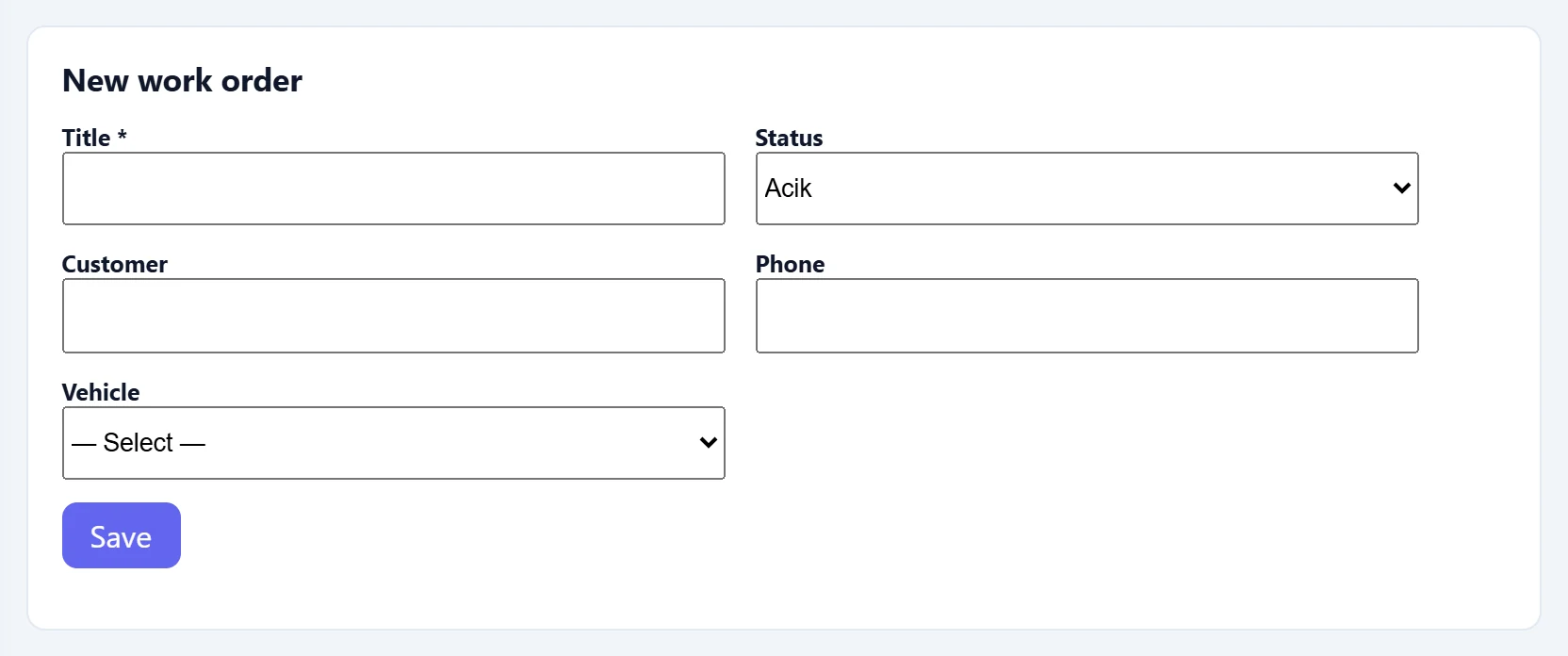
| Field | Sign in | Description |
|---|---|---|
| Title required | Text | Required. Short name of the job (e.g. "Brake pad replacement"). |
| Status | Choice list | Initial status; default Open. Options: Draft · Acik · Islemde · ParcaBekliyor · Tamamlandi · Iptal |
| Customer | Text | Customer name (free text). |
| Phone | Text | Customer phone. |
| Vehicle | Choice list | Vehicle from the vehicle list (plate — make model). |
- Press New work order.
- Enter a Title; optionally choose Status, Customer, Phone and (in the automotive branch) Vehicle.
- Press Save. The work order is created in the selected branch and its card opens; complete the details (appointment, diagnosis, labor / parts) on the card.
To pick a vehicle in the list, first create its card on the Vehicles screen.
Common messages
| Message | Cause | Solution |
|---|---|---|
| Title required. | The title is empty. | Enter a short name for the job. |
| No record found. | The server did not accept the record. | Check the data and try again. |
| List could not be retrieved. | The server could not be reached. | Refresh the page. |
| No work order | No records in this branch (or tab). | Switch to All or change the branch. |