
 AsyaTicari
 AsyaRestoran
 AsyaOtel
 AsyaCrm
 AsyaKlinik
 AsyaSpor
 AsyaSSH
 AsyaEmlak
 AsyaFilo
 AsyaPuantaj
 AsyaİSG
 AsyaİHD
 Kolay Öğren
AsyaSSH · General
Quick sale
Counter sales of spare parts and accessories with touch buttons; cash, POS, mixed and on-credit payment.
Quick sale is for counter sales without a work order (accessories, consumables, spare parts). Tap a product button or scan a barcode; the sale is deducted from stock and recorded as a cash / POS transaction. The menu item is only visible to users with quick sale permission.
The screenshot shows a service opening quick sale for the first time: no cash register / POS account and no button layout yet.
asyassh · /
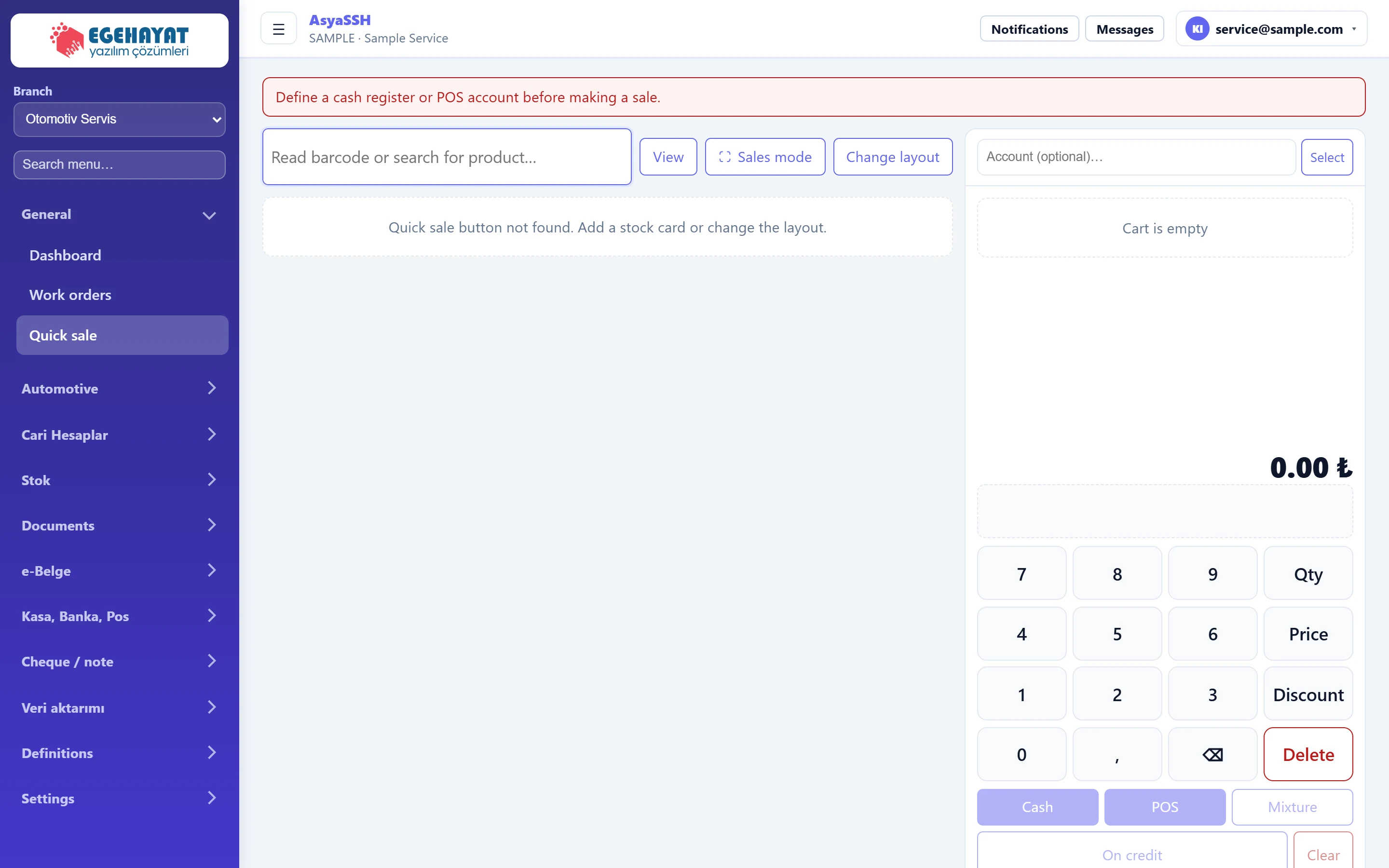
- 1Define a cash register or POS account before ma… No sale is possible without a cash register or POS account; define one first.
- 2Read barcode or search for product… Scan a barcode or type a product code.
- 3View View: button size and number of columns (personal).
- 4Sales mode Sales mode: hides the menu and switches to full screen.
- 5Change layout Change layout: define groups and product buttons.
- 6Select Account selection (required for sale on credit).
- 77 Keypad: quantity, price, discount and line delete.
- 8Cash Payment: cash, POS or mixed.
- 9On credit Sale on credit and clearing the cart.
First setup
- Open at least one cash register or POS account in the cash, bank and POS menu.
- Create stock cards for the products you sell (Stock → Materials).
- Define groups and product buttons with Change layout.
Making a sale
- Tap a product button or scan a barcode. Tapping the same product again increases the quantity.
- To change quantity, price or discount, select the line in the cart, type the number on the keypad and press Qty, Price or Discount.
- Finish with Cash or POS; use the mixed payment button for split payments. To sell on account, choose an account and press On credit.
Use View to set button size and number of columns for your screen; Sales mode hides the menu and switches to full screen.
Common messages
| Message | Cause | Solution |
|---|---|---|
| Define a cash register or POS account before making a sale. | The company has no cash register or POS. | Open an account in the cash, bank and POS menu. |
| Quick sale button not found. Add a stock card or change the layout. | The layout has no buttons. | Add buttons with Change layout. |
| Cart is empty | Nothing has been added. | Tap a product button or scan a barcode. |