
 AsyaTicari
 AsyaRestoran
 AsyaOtel
 AsyaCrm
 AsyaKlinik
 AsyaSpor
 AsyaSSH
 AsyaEmlak
 AsyaFilo
 AsyaPuantaj
 AsyaİSG
 AsyaİHD
 Kolay Öğren
AsyaRestoran · General
Sales screen
Entry to table, self-service and takeaway sales; open bill counts and paid add-on screens.
The Selling screen is the starting point of restaurant sales. From here you enter the table, self-service and takeaway channels; each card shows the number of open bills in that channel.
On sales screens (Selling, Table plan, bill, Self-service, takeaway…) the left menu is hidden and a slim touch-friendly bar remains at the top. The Selling button at the top left always returns here. The left menu is visible on normal pages such as definitions and commercial screens.
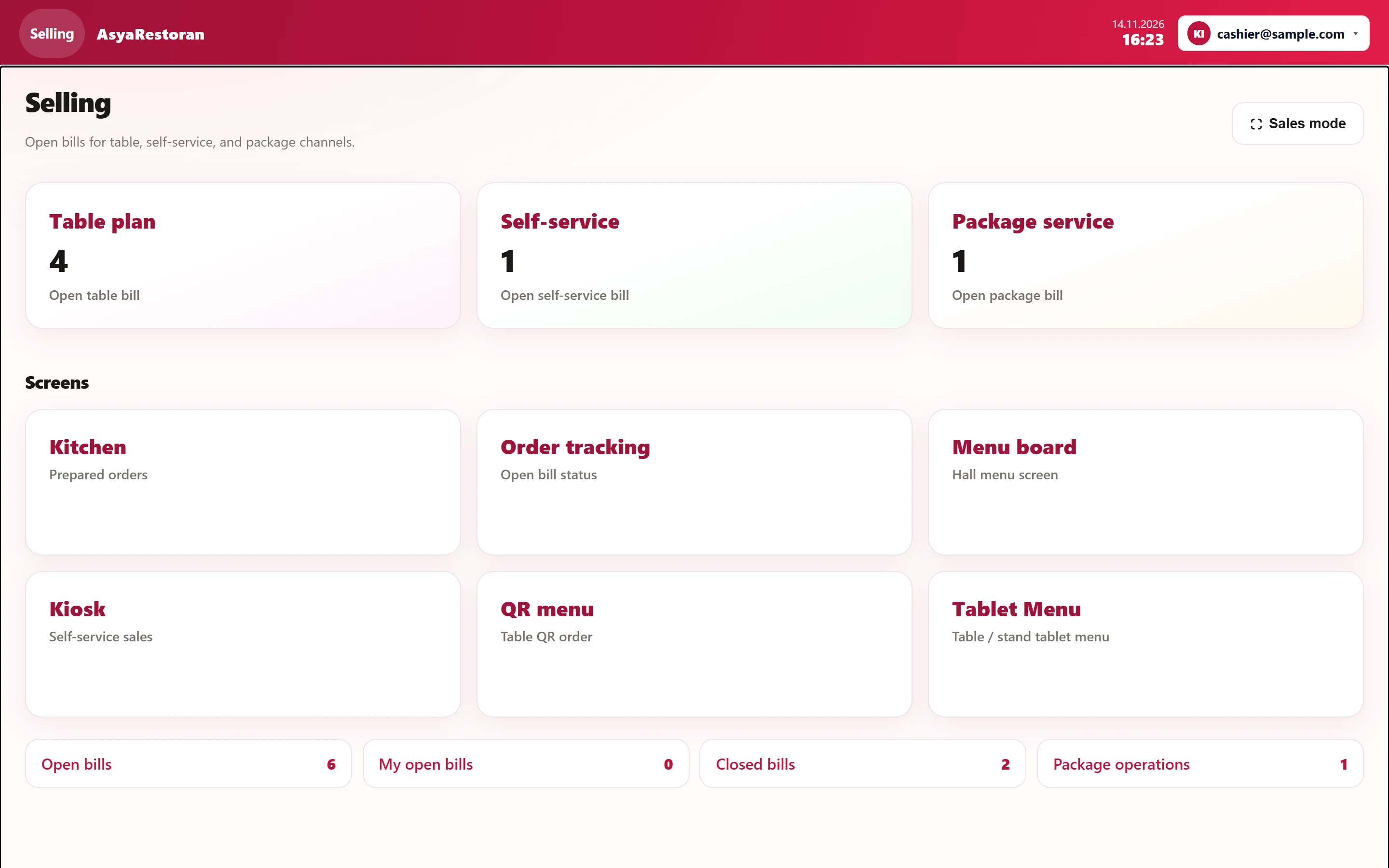
- 1Selling Returns to the sales home screen; the left menu is hidden on sales screens.
- 2Sales mode Sales mode: switches the browser to full screen.
- 3Table plan Halls and tables; the number is the open table bills.
- 4Self-service Self-service bills.
- 5Package service Takeaway (delivery / pick-up) bills.
- 6Kitchen Paid add-on screens: only those enabled for the company are shown.
- 7Open bills All open bills.
- 8My open bills Only the bills you opened.
- 9Closed bills Bills closed today.
- 10Package operations Delivery tracking of takeaway orders.
Screens
The cards under Screens (Kitchen, Order tracking, Menu board, Kiosk, QR menu, Tablet Menu) are paid add-on features. Only those enabled for your company are shown; a disabled feature has no card and no menu entry.
Sales mode switches the browser to full screen, hiding the address bar and tabs on the till PC or tablet.