
 AsyaTicari
 AsyaRestoran
 AsyaOtel
 AsyaCrm
 AsyaKlinik
 AsyaSpor
 AsyaSSH
 AsyaEmlak
 AsyaFilo
 AsyaPuantaj
 AsyaİSG
 AsyaİHD
 Kolay Öğren
AsyaRestoran · Selling
QR menu
Creating QR codes that guests scan with their phone to open the menu and order.
On the QR menu screen you create QR codes for guests to scan with their phone. Scanning opens the menu and the guest places an order. It is a paid add-on feature.
asyarestoran · /satis/qr
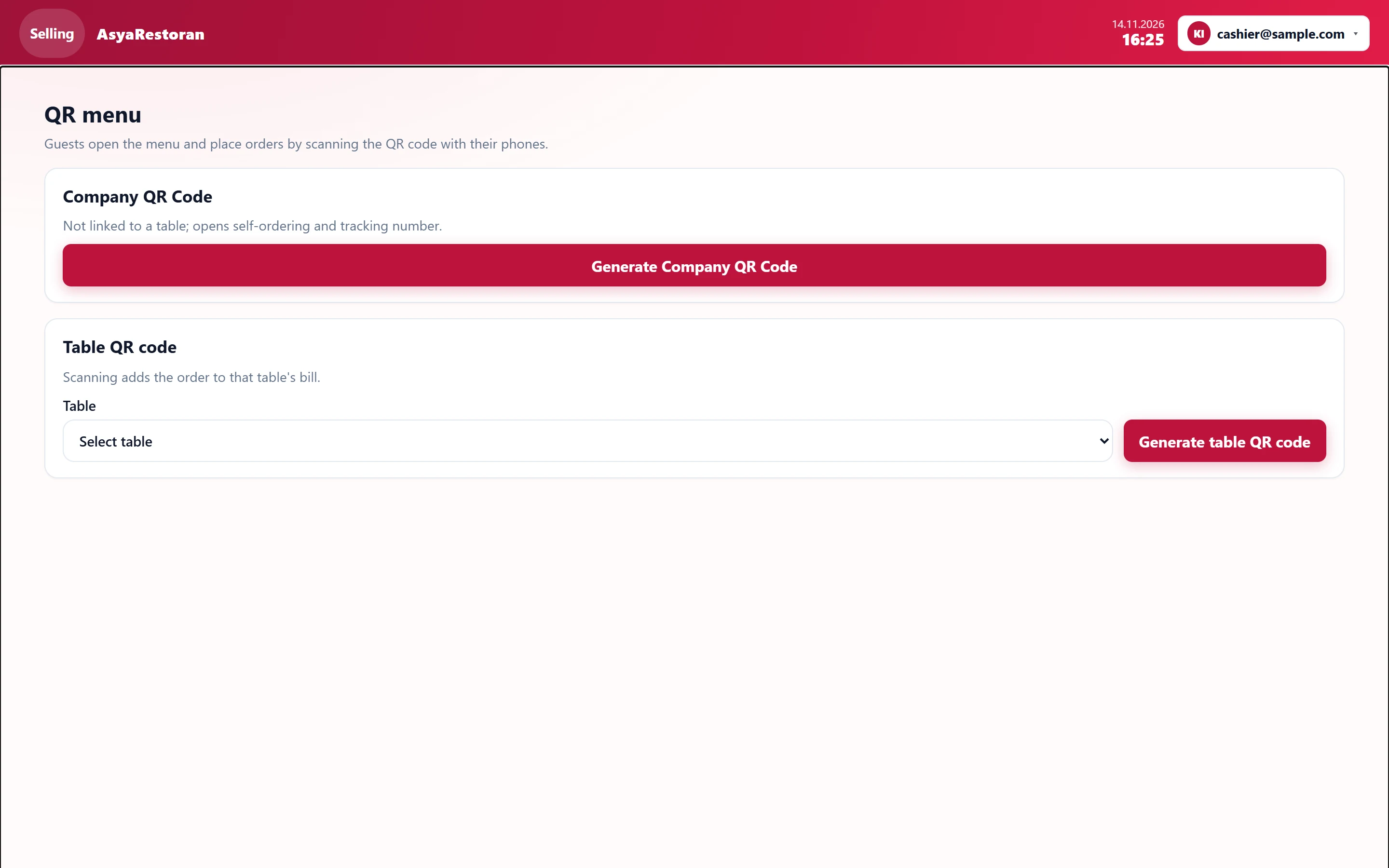
- 1Generate Company QR Code Creates a business QR code not tied to a table.
- 2Select table Table the QR code is printed for.
- 3Generate table QR code Creates the QR code of the selected table.
- The business QR code is not tied to a table; the order opens as self-service and the guest gets a tracking number.
- The table QR code is tied to a table; orders placed with it are added to that table's bill.
- For a table QR code choose the table in Table and press Generate table QR code (for the business code: Generate Company QR Code).
- The QR code and its link appear below.
Part of the screenCreated QR code
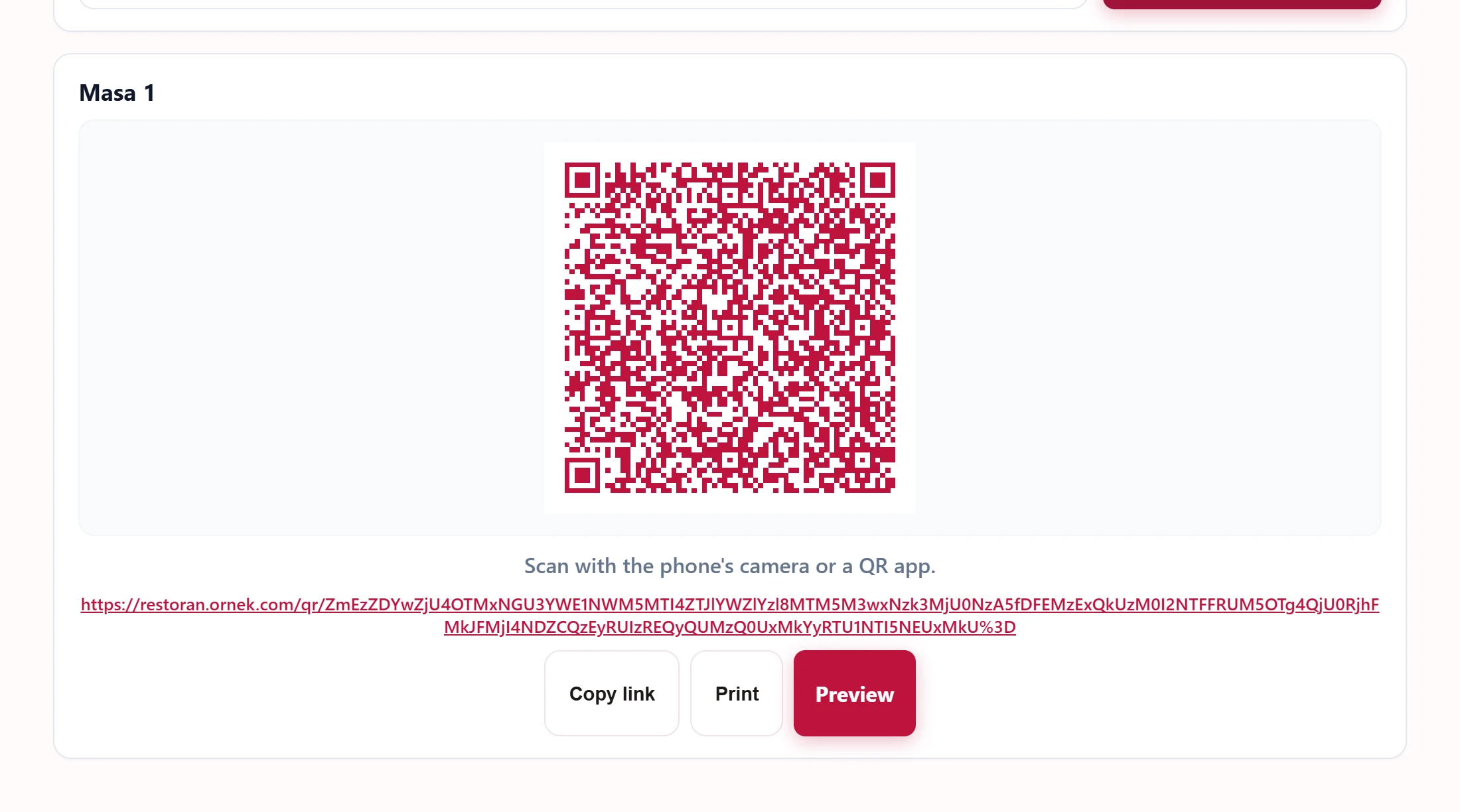
- 1 QR code: the guest scans it with the phone camera.
- 2https://restoran.ornek.com/qr/ZmEzZDYwZjU4OTMxN… Link of the QR code.
- 3Copy link Copies the link to the clipboard.
- 4Print Prints the QR code (table card).
- 5Preview Opens the menu the guest will see in a new tab.
- Print prints it as a table card; Copy link copies the link; Preview opens the menu the guest will see.
If a warning says no tables are defined, first define tables under Definitions → Halls and Tables.