
 AsyaTicari
 AsyaRestoran
 AsyaOtel
 AsyaCrm
 AsyaKlinik
 AsyaSpor
 AsyaSSH
 AsyaEmlak
 AsyaFilo
 AsyaPuantaj
 AsyaİSG
 AsyaİHD
 Kolay Öğren
AsyaRestoran · Definitions
Menu
Menu categories, menu items, portion prices, set menu selection groups and extras.
On Menu you define the categories and items (menu items) shown on the sales screens. Each menu item is linked to a stock card; stock and price come from that card on sale.
asyarestoran · /tanimlar/menu
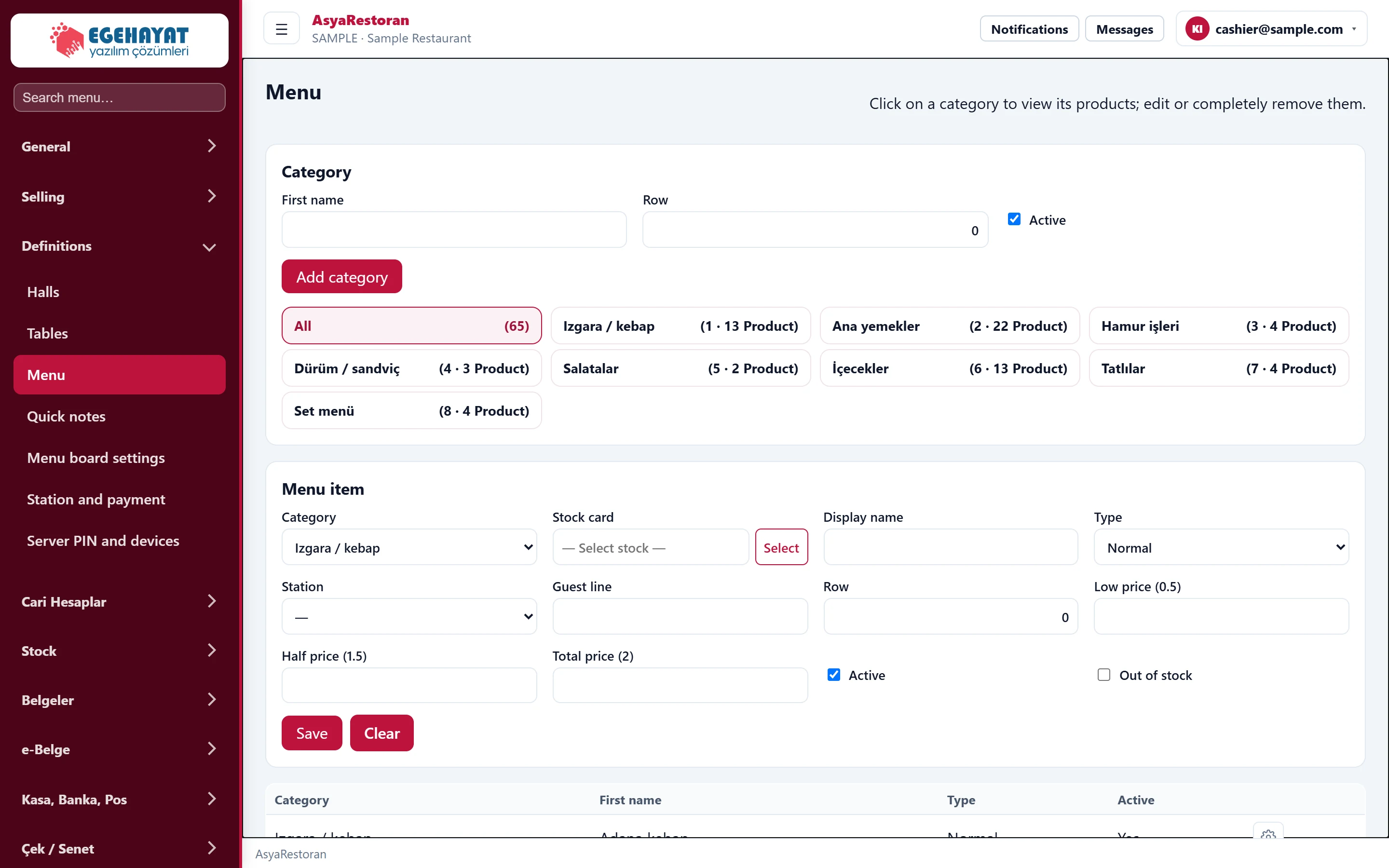
- 1All All items; the number of items in brackets.
- 2Izgara / kebap Click a category to list its items and edit the category.
Categories
Clicking a category button lists its items and opens the category for editing.
Part of the screenCategory form
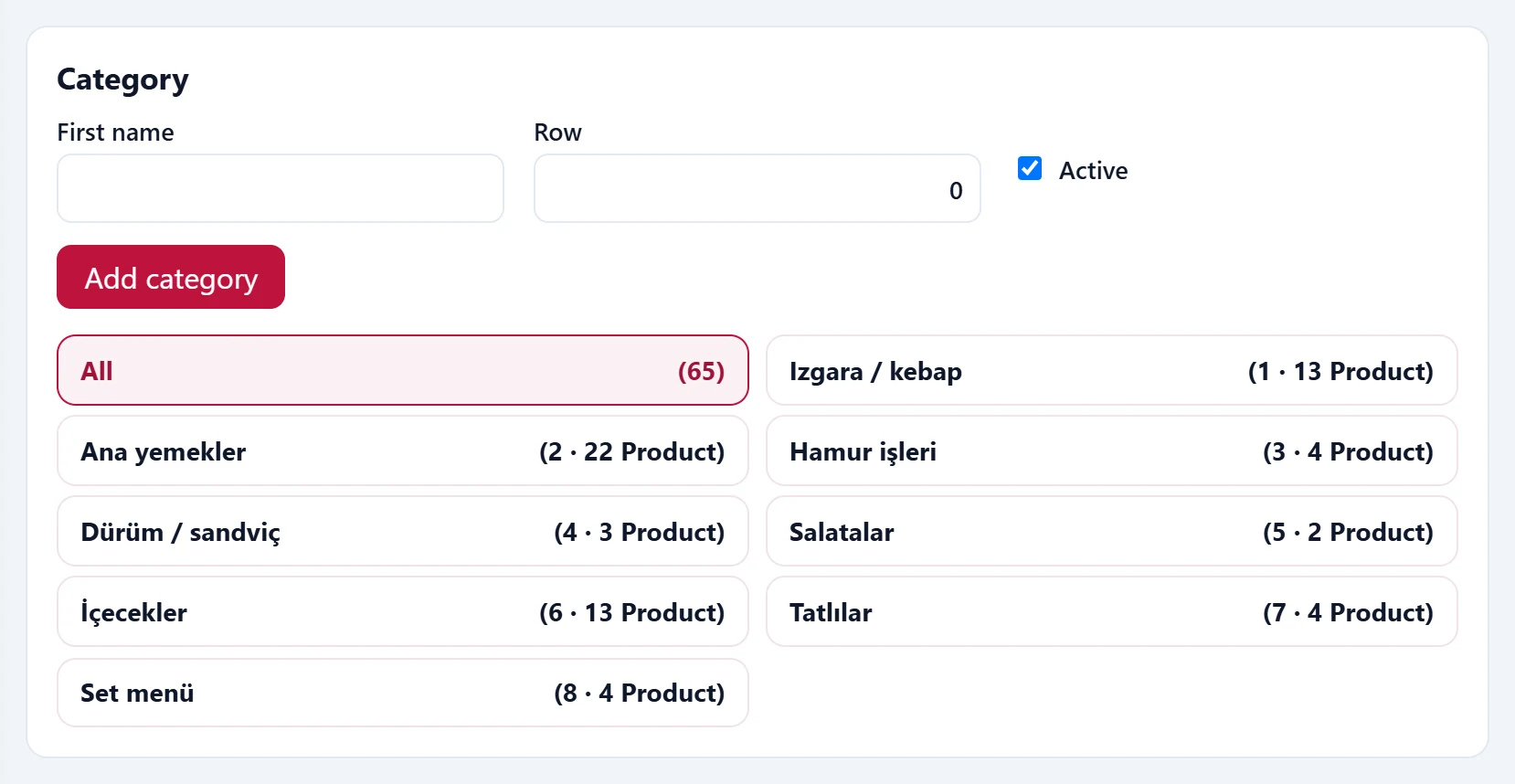
- 1Add category Saves the category.
| Field | Sign in | Description |
|---|---|---|
| First name | Text | Category name (required); becomes a tab on the sales screen. |
| Row | Text | Tab order. |
| Active | Checkbox | An inactive category is not shown on sales screens. |
Add category opens a new category. Delete category removes it; if it contains items you are asked whether to delete them too.
Deleting a category also removes all its menu items; this cannot be undone.
Menu item
The Edit action of a row loads the item into the form.
Part of the screenMenu item form
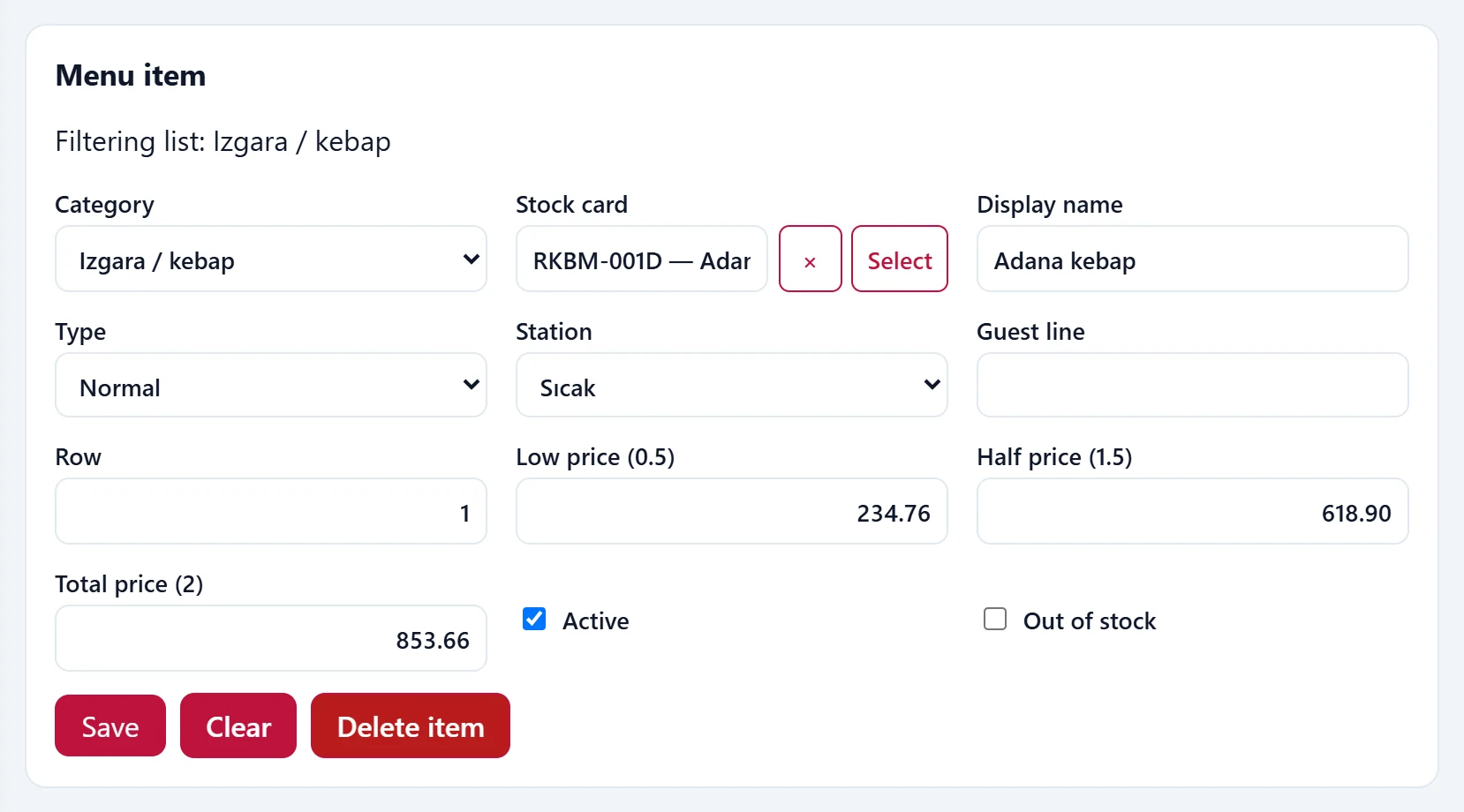
| Field | Sign in | Description |
|---|---|---|
| Category | Choice list | Menu category of the item (required). Options: Izgara / kebap · Ana yemekler · Hamur işleri · Dürüm / sandviç · Salatalar · İçecekler · Tatlılar · Set menü |
| Stock card | Text | Stock card deducted on sale (required); search with Select. Placeholder: «— Select stock —» |
| Display name | Text | Name shown on the menu; stock card name if empty. |
| Type | Choice list | Normal item or set menu (needs selection groups). Options: Normal · Set menu |
| Station | Choice list | Kitchen station the order goes to. Options: Sıcak · Soğuk · Bar · Pizza · Pasa |
| Guest line | Text | Short description under the item on the QR / tablet / kiosk menu. |
| Row | Text | Order on the menu. |
| Low price (0.5) | Text | Price of the "small" portion. |
| Half price (1.5) | Text | Price of the "one and a half" portion. |
| Total price (2) | Text | Price of the "double" portion. |
| Active | Checkbox | An inactive item is not shown in sales. |
| Out of stock | Checkbox | The item stays visible but cannot be sold; a warning appears when adding it. |
- Choose Category and stock card (both required).
- If needed, type the display name, station and guest line.
- Enter portion prices and press Save. Delete item removes the item from the menu.
Selection groups and extras
For set menus and items with choices, use the Selection groups / additional material section below the form.
Part of the screenSelection groups / extras
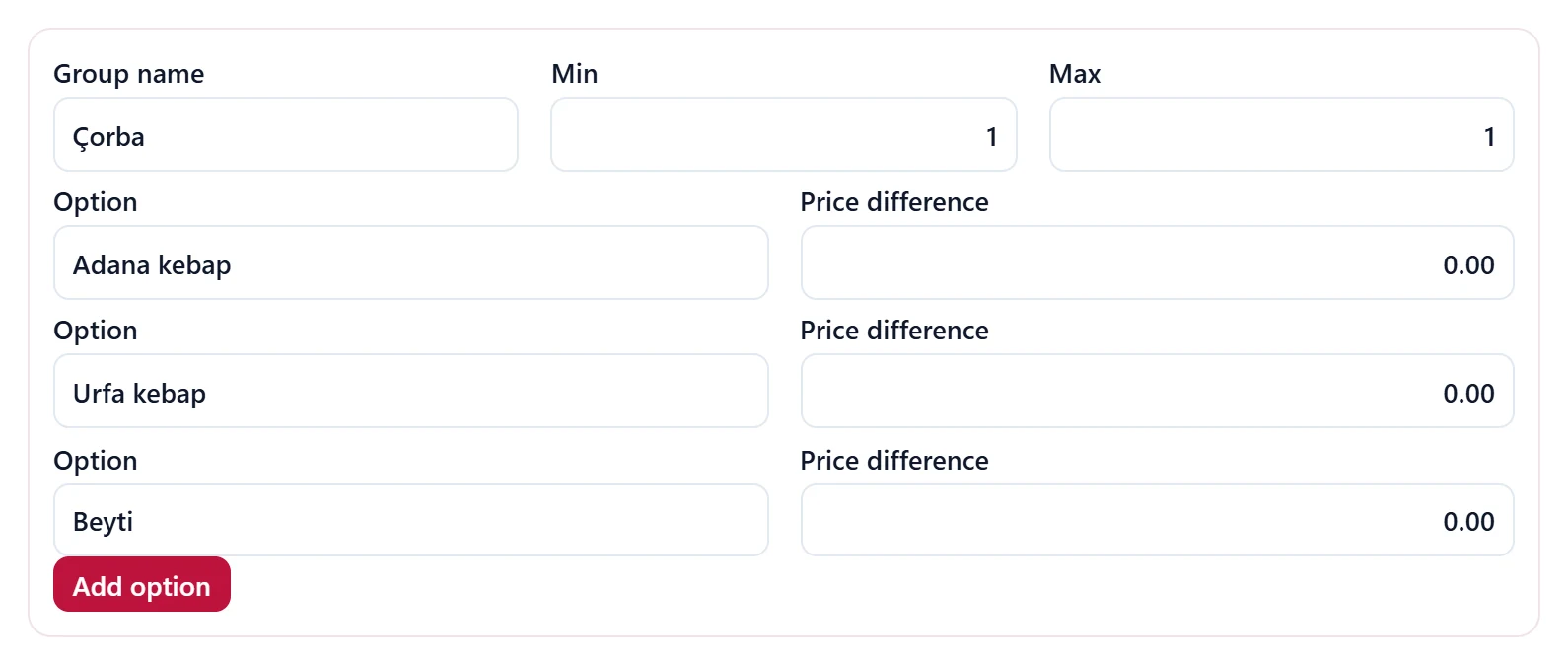
- 1Group name Group name (e.g. Main course).
- 2Min Minimum number of selections.
- 3Max Maximum number of selections.
- 4Price difference Price difference of the option (0 = no charge).
- 5Add option Adds a new option to the group.
- Add group opens a new selection group (e.g. Soup, Main course, Drink). Min / Max are the minimum / maximum number of options to choose on sale.
- Add option adds an option to the group; Price difference is its extra charge.
- In the extras section, Add is a paid extra and Remove an ingredient that can be left out (e.g. no onions). Add material adds a row.
- Save with Save composition.
Common warnings
| Warning | Cause | Solution |
|---|---|---|
| Category name is required. | The category name is empty. | Type the name. |
| Category and stock card are mandatory. | Category or stock card not chosen for the menu item. | Choose both. |