
 AsyaTicari
 AsyaRestoran
 AsyaOtel
 AsyaCrm
 AsyaKlinik
 AsyaSpor
 AsyaSSH
 AsyaEmlak
 AsyaFilo
 AsyaPuantaj
 AsyaİSG
 AsyaİHD
 Kolay Öğren
AsyaRestoran · Bills and payment
Bill and payment
Adding items, portions and notes, sending to the kitchen, moving tables, discount, split payment and closing the bill.
This screen changed recently. Screenshots will be retaken after the code change of 2026-11-14; the text is current, some images may look outdated.
The bill screen is the shared sales screen for table, self-service and takeaway orders. The bill is on the left, the menu on the right. It opens from an occupied table on the table plan, the Open button in Open bills, or the Continue button in the self-service / takeaway lists.
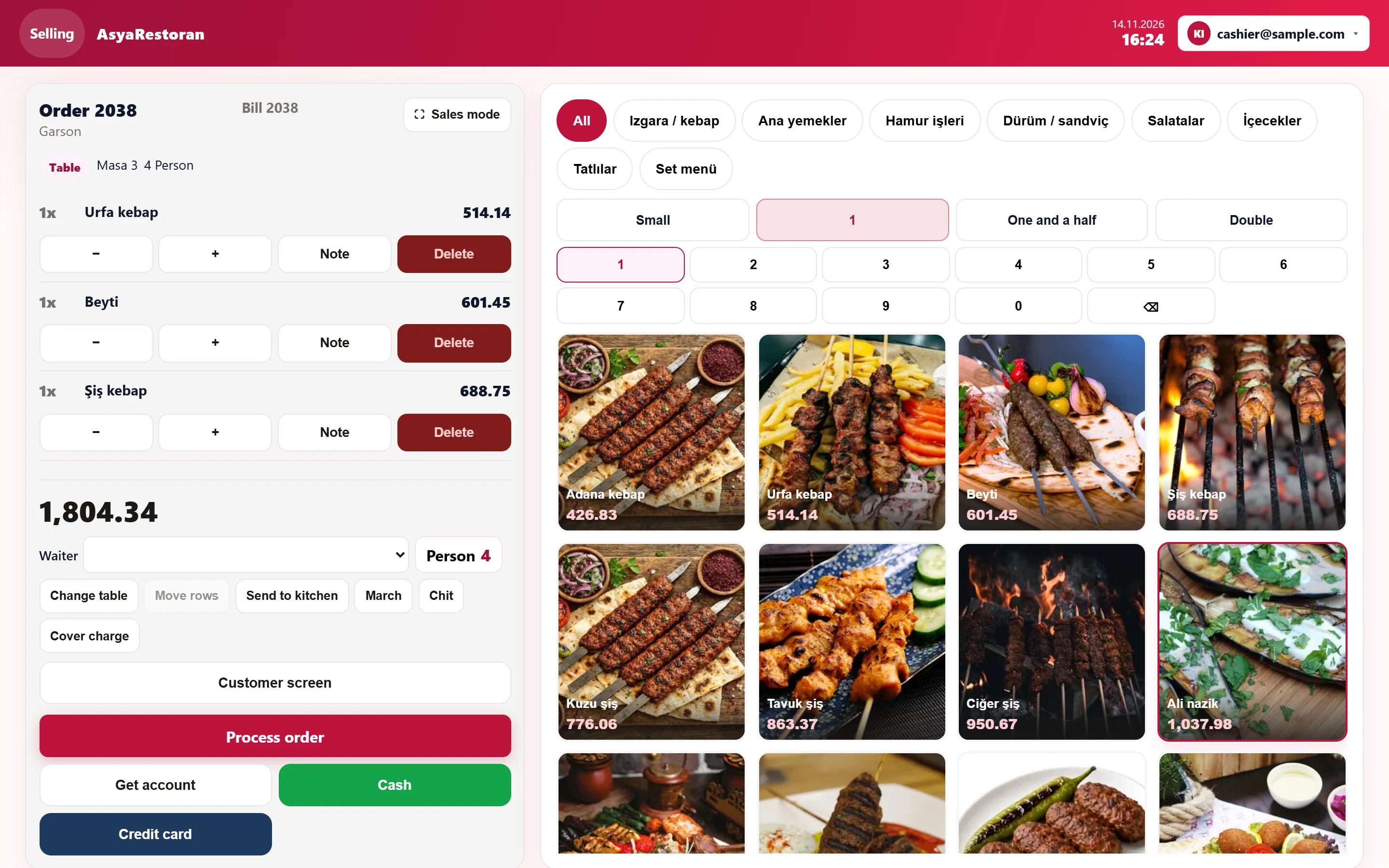
- 1Order 2038 Order / bill number and waiter.
- 2Table Service type, table and number of guests.
- 31x Bill lines.
- 4All Menu categories.
- 5Small Quantity / portion keys: choose before tapping the item.
- 6Adana kebap Menu items: tap to add to the bill.
- 7Process order Payment and closing the bill.
Adding items
- If needed, first press a quantity or portion key: Small (0.5), 1, One and a half (1.5), Double (2) or the number keys.
- Choose a category at the top (All shows everything).
- Tap the item image; a line is added to the bill.
If the item has selection groups or extras (set menu, pizza…), the selection window opens first:
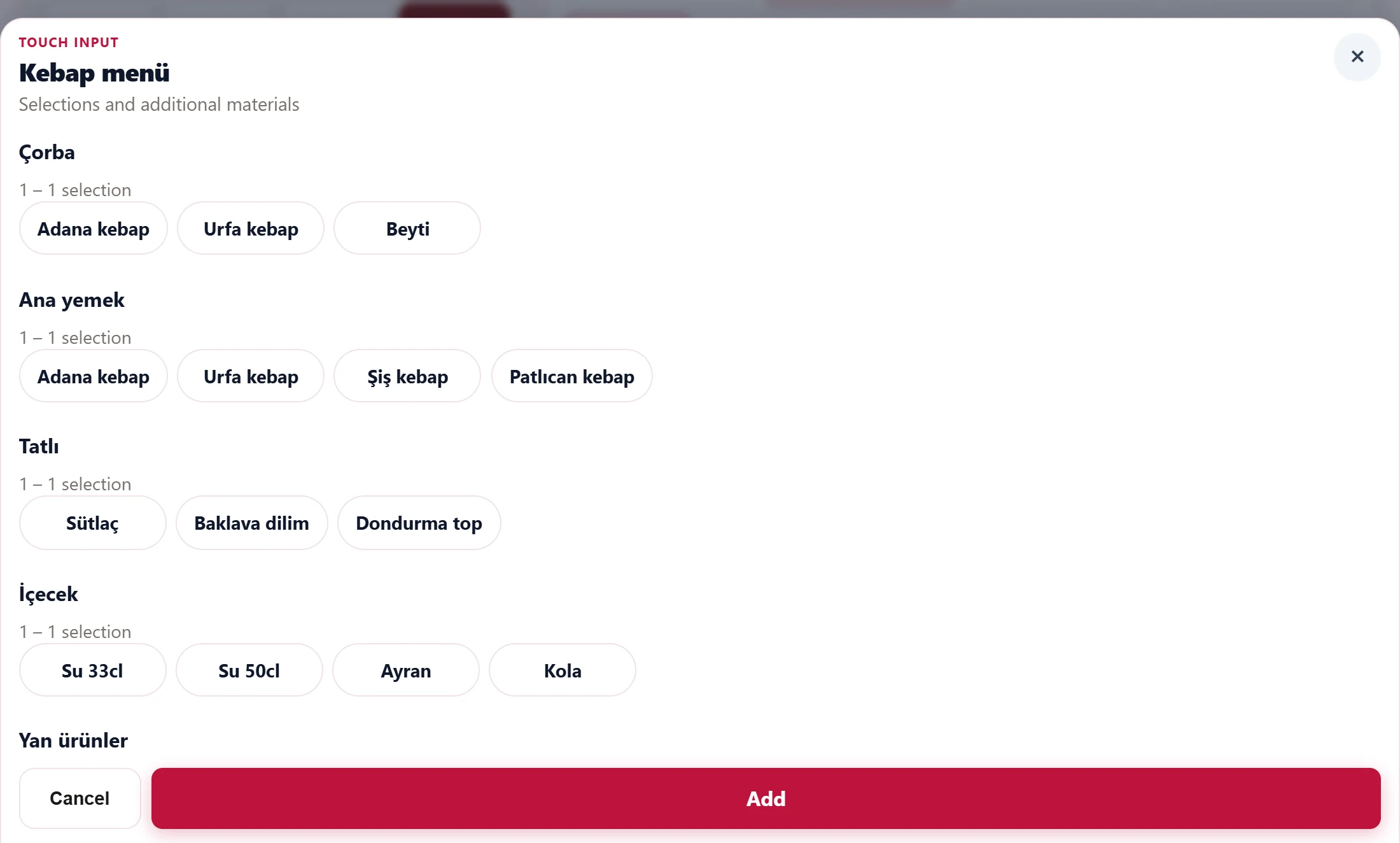
- 1Çorba Selection group: pick between the minimum and maximum count.
- 2Add Adds the item to the bill when the selection is complete.
- 3Close Closes without adding.
Each group shows its minimum / maximum number of choices; the item is not added until the required choices are made. Ingredients ticked under "what's in this item" are removed (e.g. no onions); the "extras that can be added" are paid extras. If the item has a mandatory quick note (e.g. sugar for coffee), it is not added until a note is chosen. If the item contains allergens, you are asked to confirm.
Bill panel
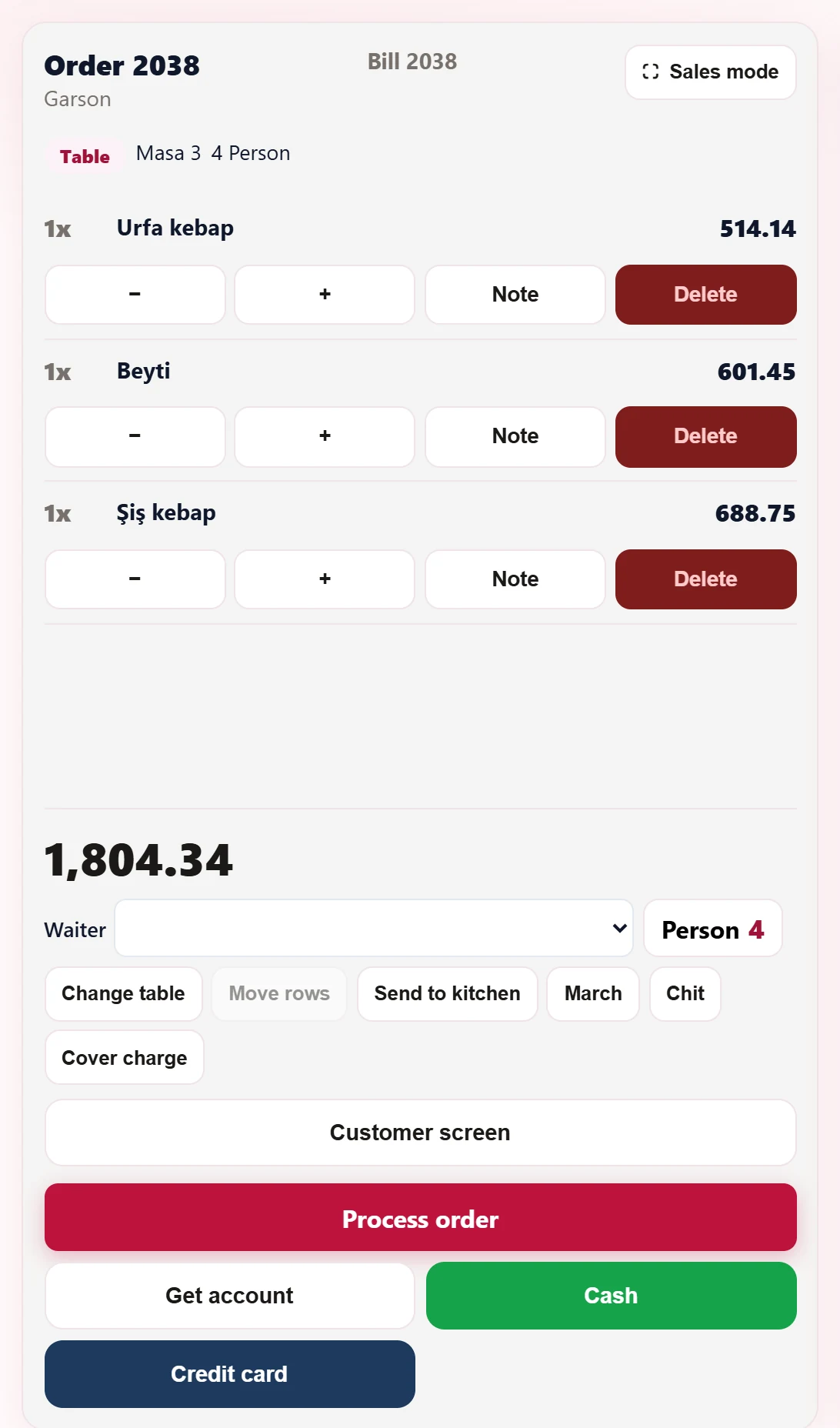
- 11x Line: tap to select; −/+ changes quantity, Edit / Note / Delete.
- 21,804.34 Bill total.
- 3cashier@sample.com Waiter of the bill.
- 4Person Changes the number of guests.
- 5Change table Moves the bill to an empty table.
- 6Move rows Moves the selected lines to another table.
- 7Send to kitchen Sends unsent lines to the kitchen.
- 8Send selected or pending lines Sends the selected (otherwise pending) lines to the kitchen as "march".
- 9Chit Opens the kitchen ticket in a new window.
- 10Cover charge Adds a cover charge line: guests × cover price.
- 11Process order Opens the payment window.
- 12Cash Takes the full remainder in cash and closes the bill.
- 13Credit card Takes the full remainder by card and closes the bill.
- Tap a line to select it; − / + change the quantity in steps of 0.5, Edit opens the choices, Note the line note, Delete removes the line.
- The Waiter list changes the bill's waiter; Person the number of guests.
- Send to kitchen sends all unsent lines to the kitchen. March sends the selected lines (or the pending ones) to the kitchen as "prepare now"; it requires the kitchen screen feature.
- Chit opens the kitchen ticket in a new window.
- Cover charge adds a cover line of guests × cover price (the price is set under Definitions → Station and payment; pressing again renews the line).
- Customer screen opens the customer-facing display in a separate window (if enabled).
Once a payment is taken on the bill, lines cannot be changed or deleted and no new items can be added.
Changing table and moving lines
Change table lists empty tables; the bill moves to the table you pick. For Move rows, first select the lines, then pick the target table. On a self-service bill, Move to table attaches the bill to a table.
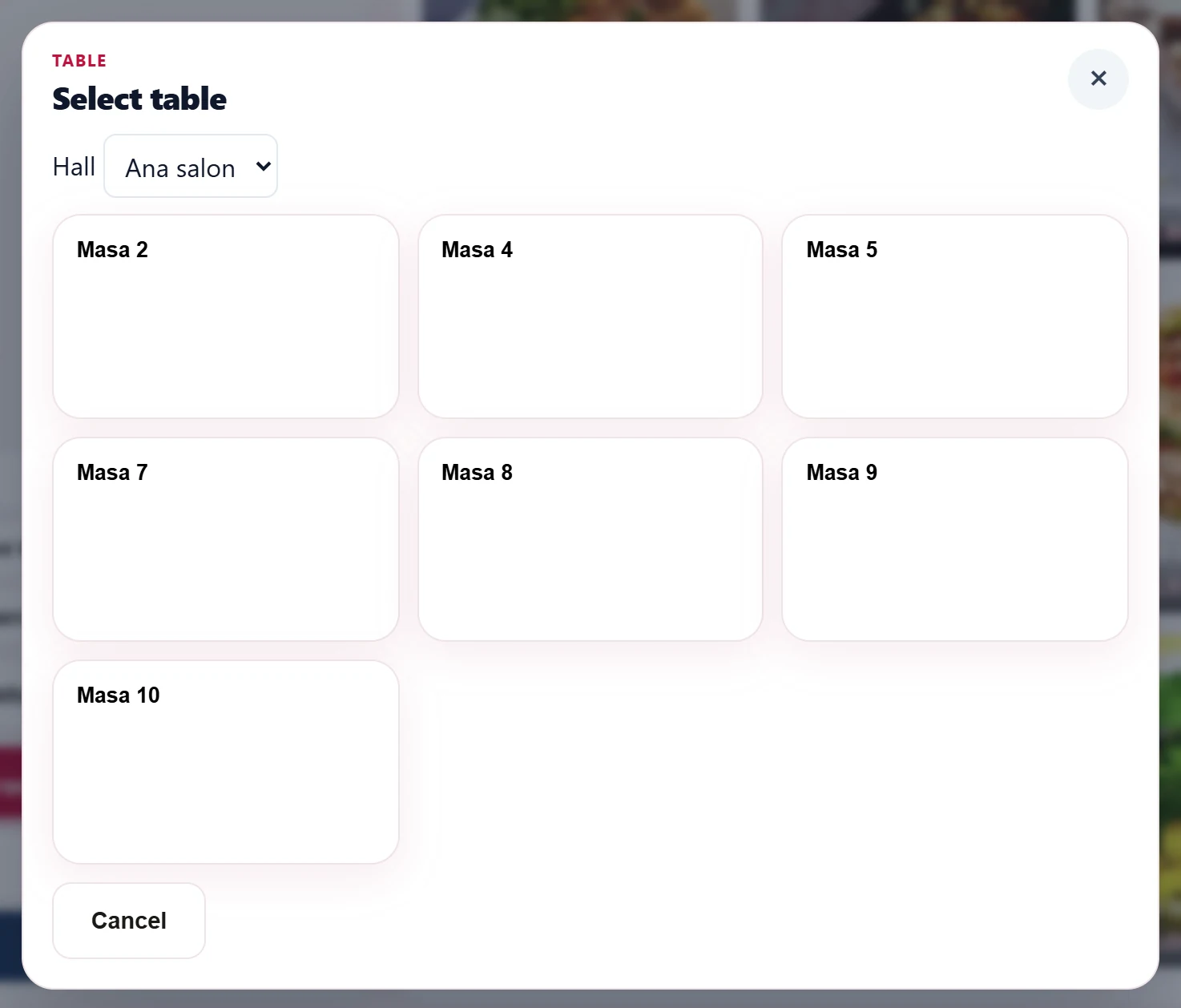
- 1Masa 2 Target table: tap to move the bill to this table.
- 2Close Cancels.
Delivery details for takeaway
On a takeaway bill the Delivery / Courier button opens the delivery details.
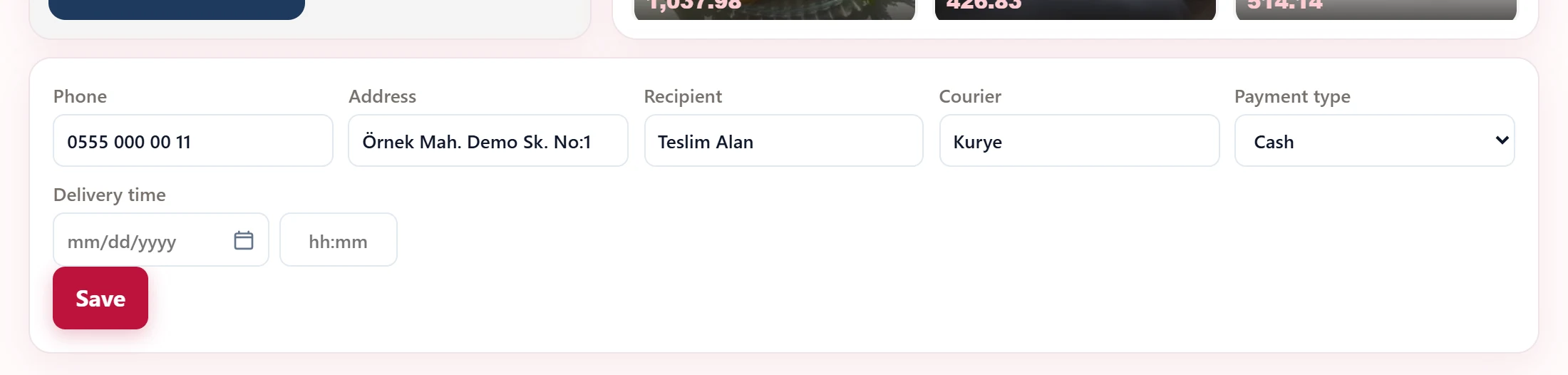
- 1Save Saves the delivery details.
| Field | Sign in | Description |
|---|---|---|
| Phone | Text | Customer's phone. |
| Address | Text | Delivery address. |
| Recipient | Text | Person receiving the order. |
| Courier | Text | Courier name; a takeaway bill cannot be paid and closed without a courier. |
| Payment type | Choice list | Payment method at the door (cash / card); information for the courier. Options: Cash · Card |
| Delivery time | Text | Date and time for a scheduled delivery. Placeholder: «mm/dd/yyyy» |
Taking payment and closing the bill
Cash or Credit card takes the full remainder in one payment and closes the bill; you then return to the Selling screen. For split payment, foreign currency, discount or customer account, open the payment screen with Process order or Get account.
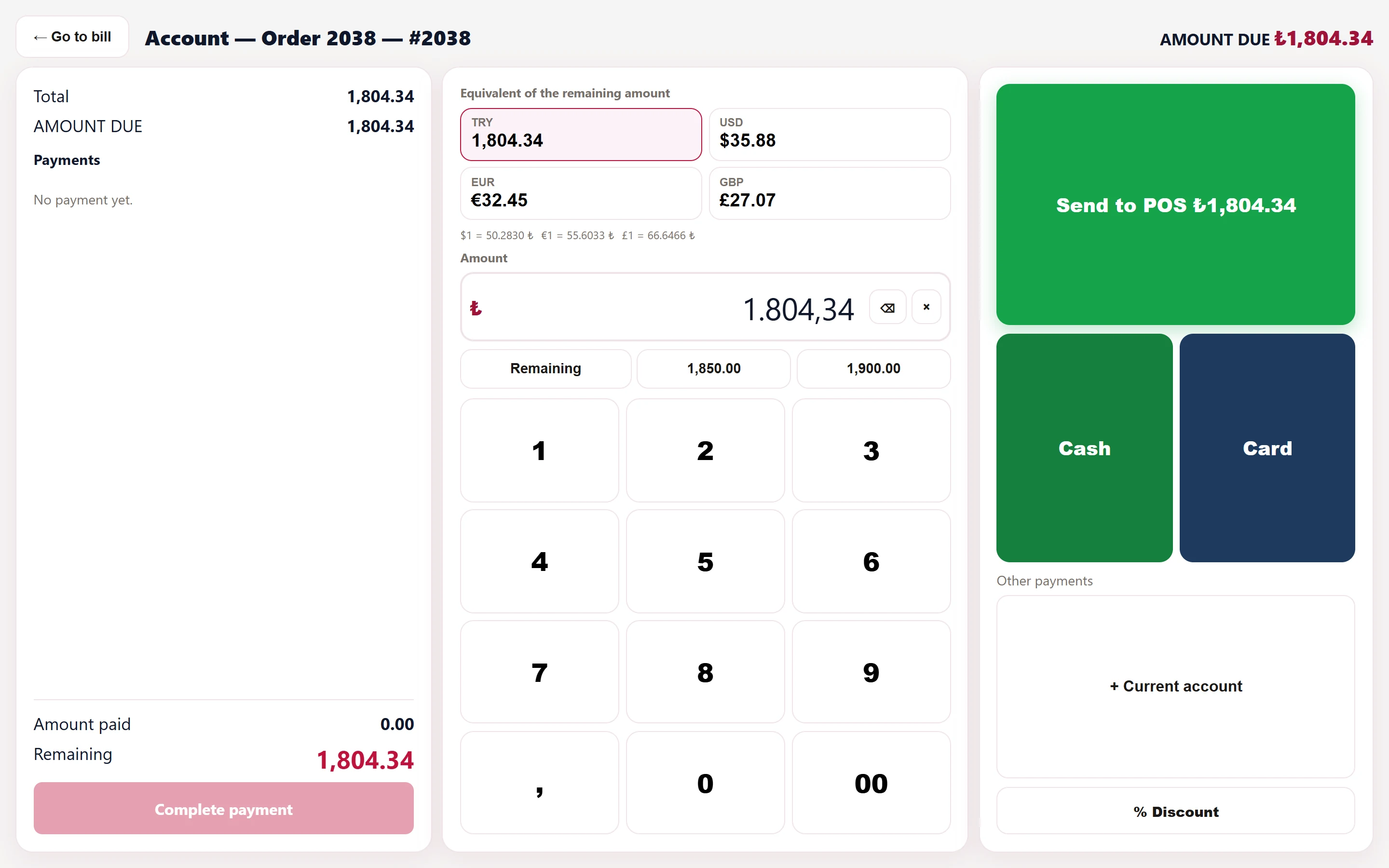
- 1← Go to bill Returns from payment to the bill.
- 2Payments Payments taken; each payment can be deleted.
- 3Complete payment Closes the bill when the remainder is zero.
- 4TRY Remainder in foreign currency; the chosen currency is filled into the amount.
- 5₺ Amount to take: typed on the keypad.
- 6Remaining Full remainder or quick amounts.
- 7Keypad Keypad.
- 8Send to POS ₺1,804.34 Sends the amount to the fiscal cash register.
- 9Cash Adds the typed amount as a cash payment.
- 10Card Adds the typed amount as a card payment.
- 11+ Current account Charges the remainder to the customer account of the bill.
- 12% Discount Applies a bill discount of the typed amount.
- Type the amount to take into Amount with the keypad. Remaining fills the full remainder; the buttons next to it fill quick amounts.
- Add the payment with Cash or Card. It appears in the Payments list on the left and Remaining decreases.
- To split the bill (e.g. per person), repeat steps 1–2 for each payment.
- When Remaining is zero, Complete payment is enabled; pressing it closes the bill.
Other actions:
- Equivalent of the remaining amount: the remainder in USD / EUR / GBP; choosing a currency writes the amount in that currency.
- % Discount: type the discount amount first, then press it; the amount is deducted from the bill.
- Send to POS: sends the typed amount to the workplace's fiscal cash register.
- + Current account: the remainder is charged to the customer account of the bill (an account must be linked).
- + Room account: if the company also uses AsyaOtel, the remainder is charged to an in-house guest's room account.
- Remove a wrong payment with Delete in the Payments list.
Complimentary and cancel permissions are granted per user in the waiter app (Definitions → Server PIN and devices); complimentary items and cancellations appear in the Reports → Cancel and complimentary report.
Common warnings
| Warning | Cause | Solution |
|---|---|---|
| Lines cannot be changed in a bill where payment has been received. | A payment was added to the bill. | Delete the payment if needed, then change the line. |
| Without a selection the item is not added to the check. | A required group of a set / choice item is empty. | Choose at least the minimum in each group. |
| Select a note to add the item. | A mandatory quick note is defined for the item. | Choose one of the notes. |
| This product is not available for sale. | The item is marked Out of stock. | Clear the mark under Definitions → Menu. |
| No pending items to send (all have been sent to the kitchen). | No unsent lines for March. | — |
| Courier is required for package bills. | No courier entered on a takeaway order. | Enter a courier under Delivery / Courier. |
| Cannot close without a zero remaining balance. | Payments are less than the bill. | Add the remainder as a payment. |
| The amount cannot exceed the remaining balance. | The typed amount is above the remainder. | Lower the amount or use Remaining. |
| Enter the discount amount first. | Discount pressed with an empty amount. | Type the amount and press again. |
| The discount amount cannot exceed the account amount. | Discount larger than the bill. | Enter a smaller amount. |
| There is no open cash register account for this workplace. Open the account from settings. | No fiscal register defined. | Define the cash register account for the workplace. |