
 AsyaTicari
 AsyaRestoran
 AsyaOtel
 AsyaCrm
 AsyaKlinik
 AsyaSpor
 AsyaSSH
 AsyaEmlak
 AsyaFilo
 AsyaPuantaj
 AsyaİSG
 AsyaİHD
 Kolay Öğren
AsyaPuantaj · Location and Device
Locations
Punch points: position and radius, punch rules, readers, tablets, screens, QR and the location dashboard.
Locations are the points where staff punch in and out (branch / kiosk, field or temporary). Each location has a position on the map and an accepted radius.
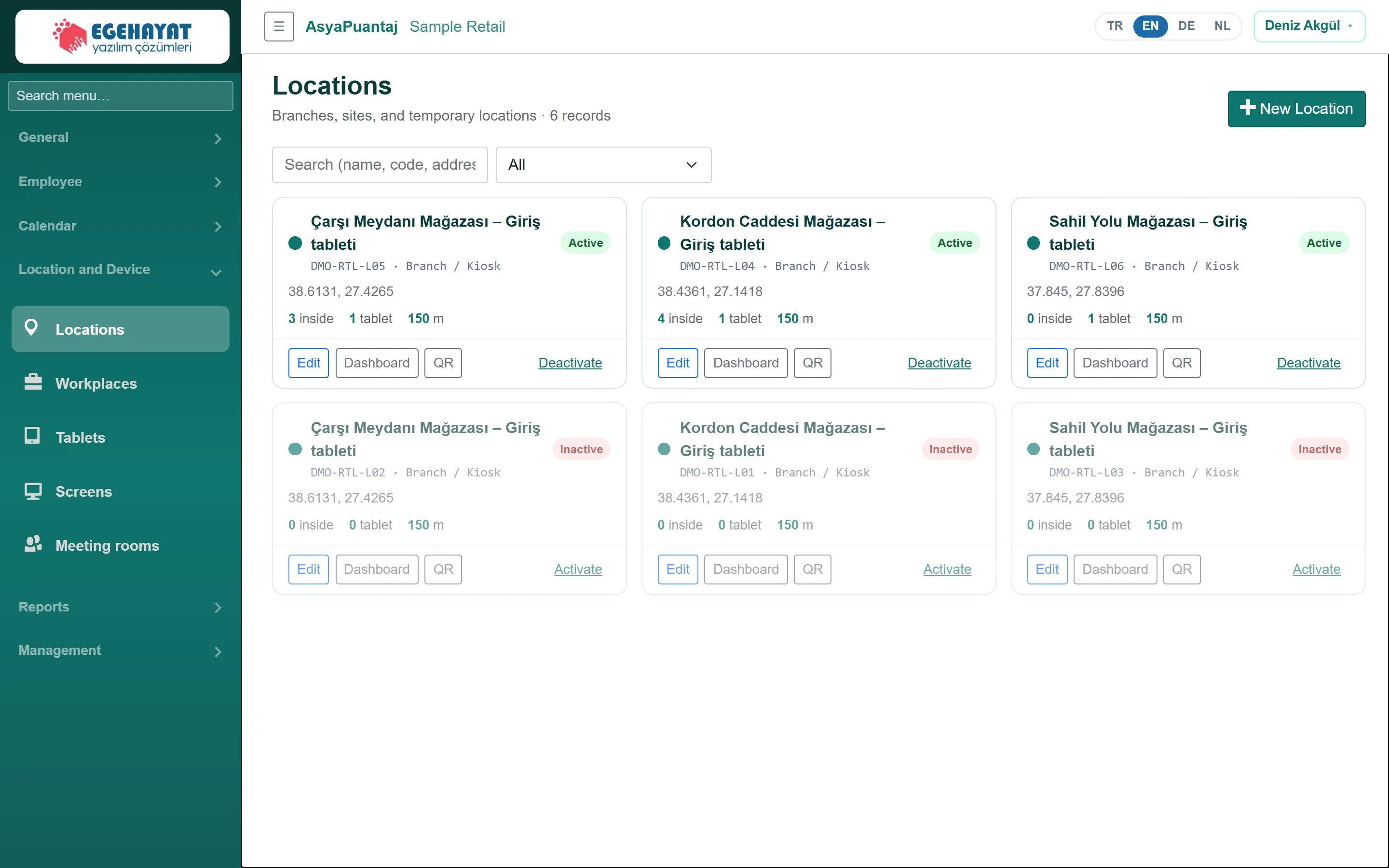
- 1New Location Add a new location.
- 2All Search by name, code, address; filter active / inactive.
- 33 inside People inside, tablet count and punch radius.
- 4Edit Edit, location dashboard, QR printout, deactivate.
The cards show the location's code, type, address, people inside, tablet count and radius. Edit, Dashboard, QR and Deactivate are at the bottom of the card. With a trial subscription the number of active locations is limited; when the limit is reached an upgrade window opens.
Location card
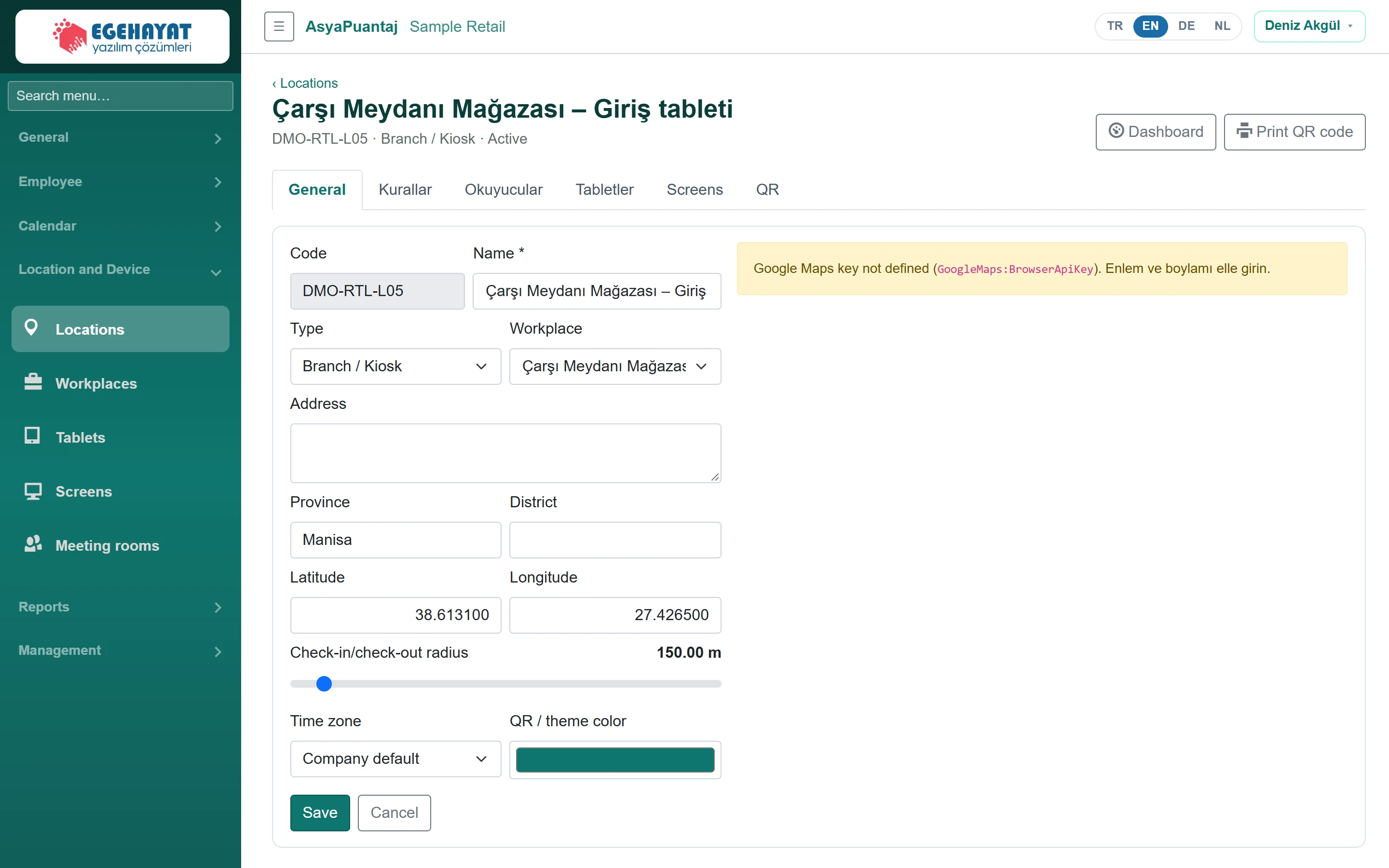
- 1General Tabs: general, rules, readers, tablets, screens, QR.
- 2Dashboard Location dashboard and QR printout.
- 3Google Maps key not defined (GoogleMaps:Browser… Pick the point on the map; the circle shows the punch radius.
General
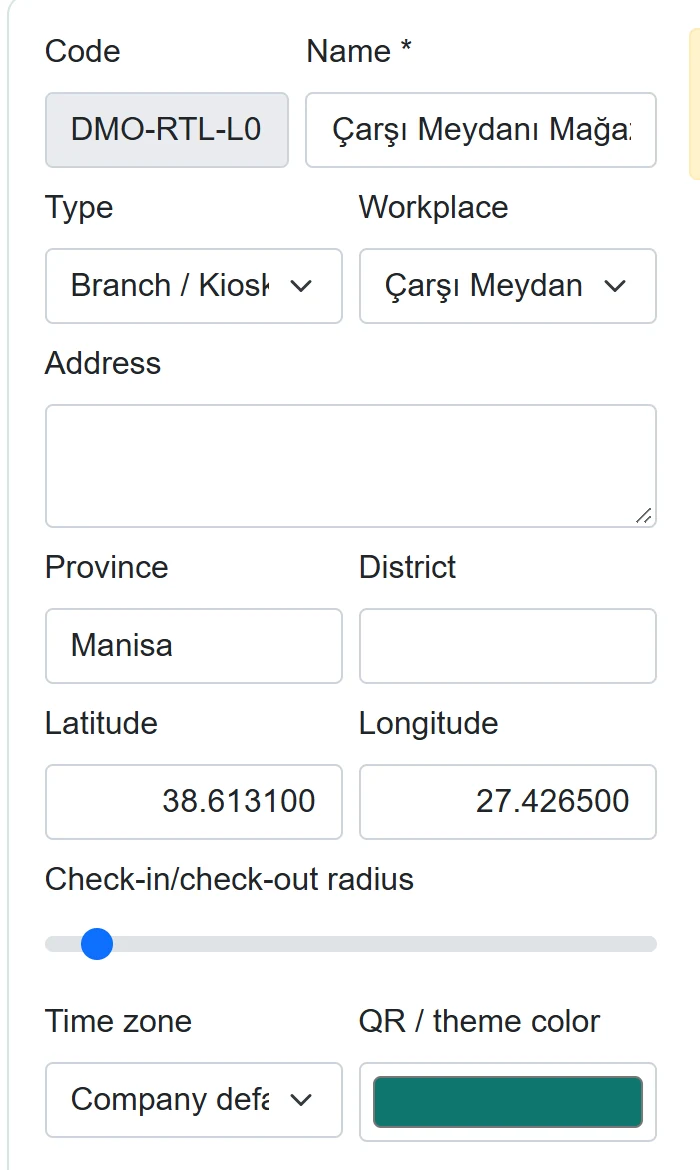
| Field | Sign in | Description |
|---|---|---|
| Code | Text | Location code; cannot be changed after saving. |
| Name required | Text | Location name. |
| Type | Choice list | Branch / kiosk, field or temporary. Options: Branch / Kiosk · Field · Temporary |
| Workplace | Choice list | Workplace of the location. Options: Çarşı Meydanı Mağazası · Kordon Caddesi Mağazası · Sahil Yolu Mağazası |
| Address | Long text | Full address. |
| Province | Text | City / province. |
| District | Text | District. |
| Latitude | Text | Picked on the map or typed; required. |
| Longitude | Text | Picked on the map or typed; required. |
| Check-in/check-out radius | Text | Distance accepted by the location check (25–2000 m). |
| Time zone | Choice list | Company time zone if empty. Options: Company default · Europe/Istanbul · Europe/Berlin · Europe/London · Asia/Dubai · Asia/Baku · Europe/Moscow · UTC |
| QR / theme color | Text | Colour used on the QR printout and cards. |
- Click New Location; name and position are required.
- Click the point on the map or type latitude / longitude; set the radius with the slider.
- Click Add Location (when editing, Save).
Rules
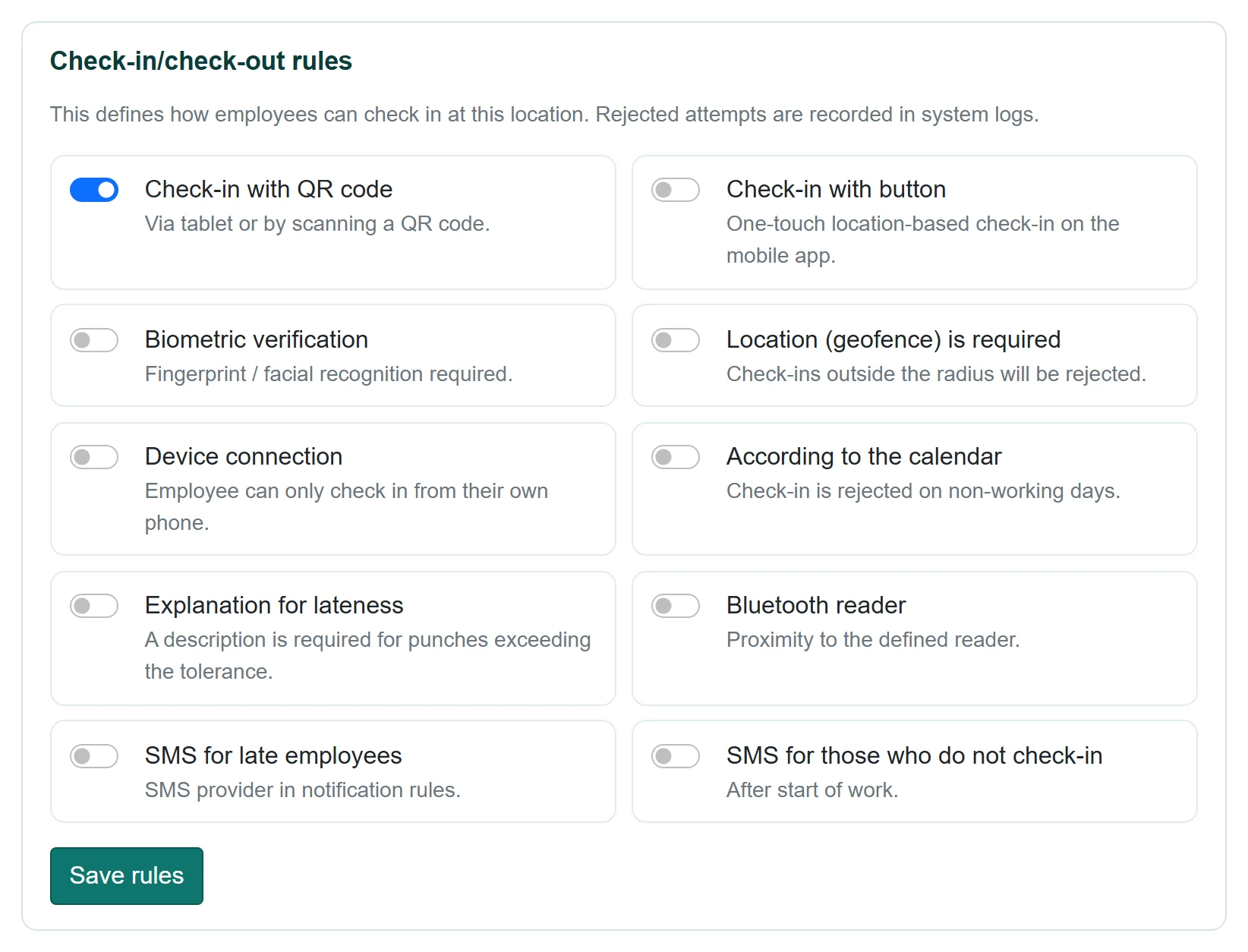
- 1Check-in with QR code QR punch: by scanning the tablet or a posted QR code.
- 2Location (geofence) is required Location required: punches outside the radius are rejected.
- 3Device connection Device binding: staff can only punch from their own phone.
- 4Save rules Save the rules.
Defines how staff may punch at this location: by QR, by button, biometric verification, location (geofence) required, device binding, according to calendar, late explanation, Bluetooth reader, SMS to late arrivals and to those without an entry. Click Save rules. Rejected attempts go to System punches.
Readers
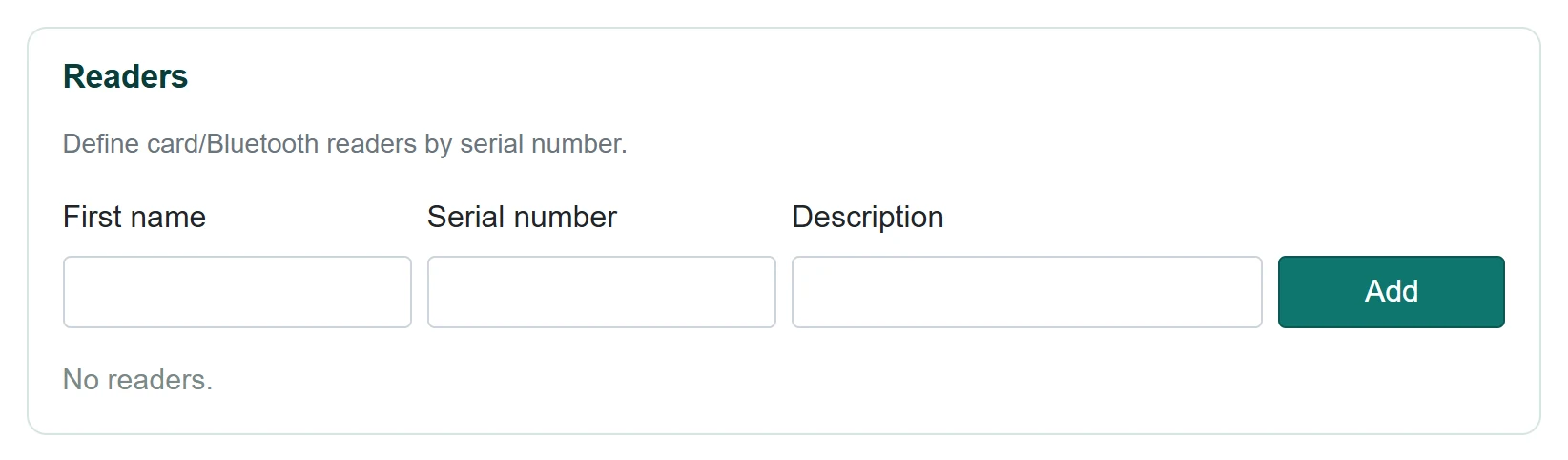
| Field | Sign in | Description |
|---|---|---|
| First name | Text | Reader name. |
| Serial number | Text | Device serial number; must be unique. |
| Description | Text | Place or note (e.g. back door). |
Define card / Bluetooth readers by serial number; Edit and Deactivate are on the row.
Tablets
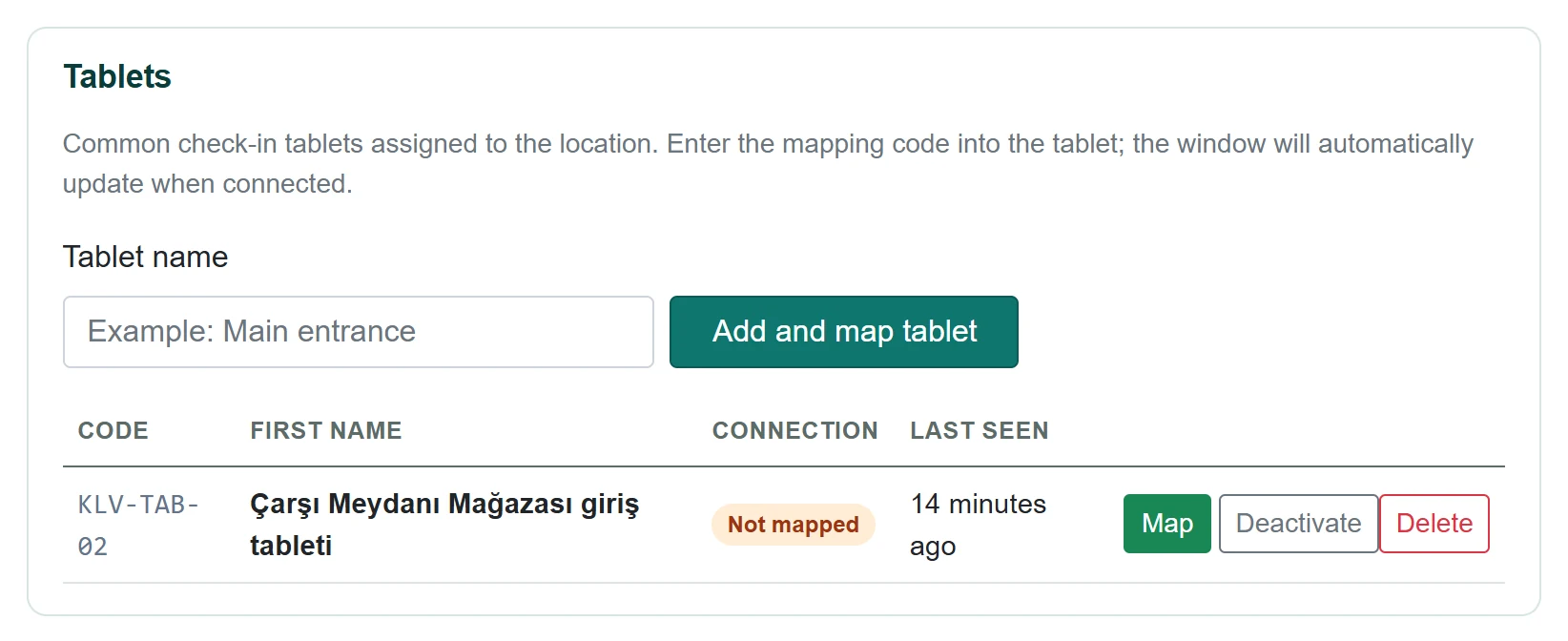
- 1Tablet name Enter the tablet name and click Add and pair tablet; a pairing code opens.
- 2Not mapped Connection: paired, not paired or inactive.
Shared punch tablets fixed to the location. Add and map tablet creates a tablet and shows a pairing code; once the code is entered in the kiosk app the window updates by itself. Map creates a new code, Delete removes the tablet permanently.
Screens and QR
The Screens tab lists the welcome / meeting room screens at this location (managed under the Screens menu).
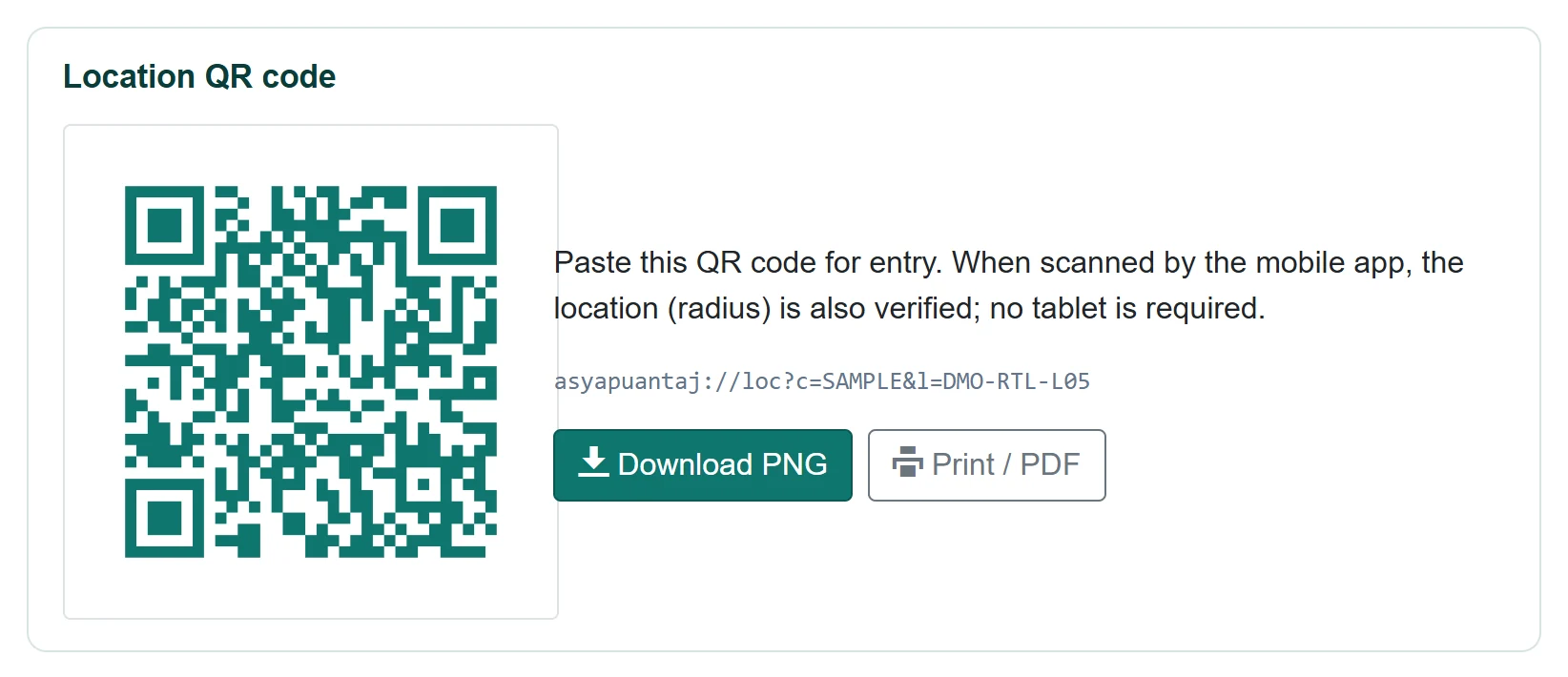
- 1 Fixed QR to post at the entrance; location is checked on scan.
- 2Download PNG Download the QR as PNG.
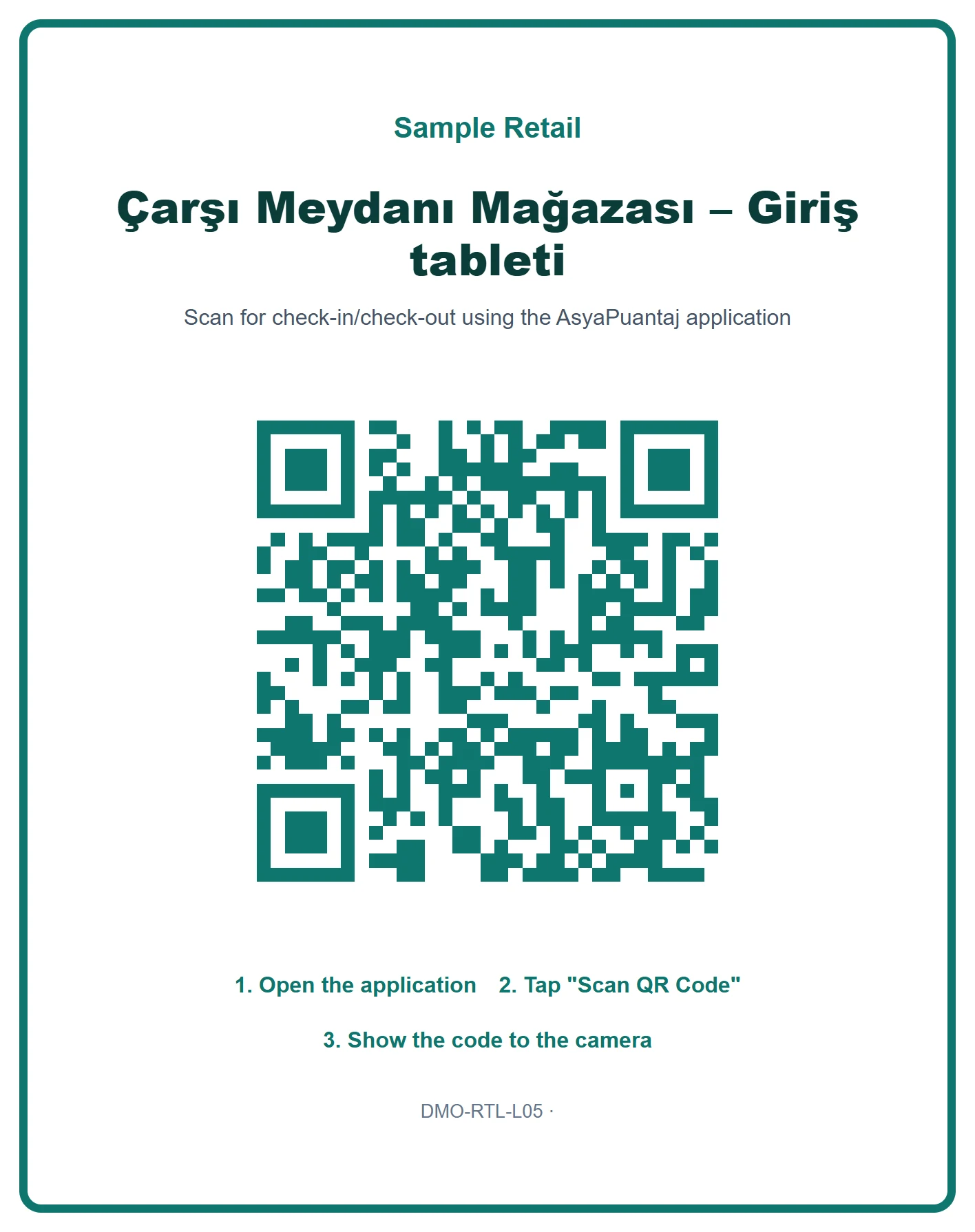
The fixed QR code on the QR tab is posted at the entrance; when scanned with the mobile app the position is checked too, no tablet needed. Use Download PNG or Print / PDF.
Location dashboard
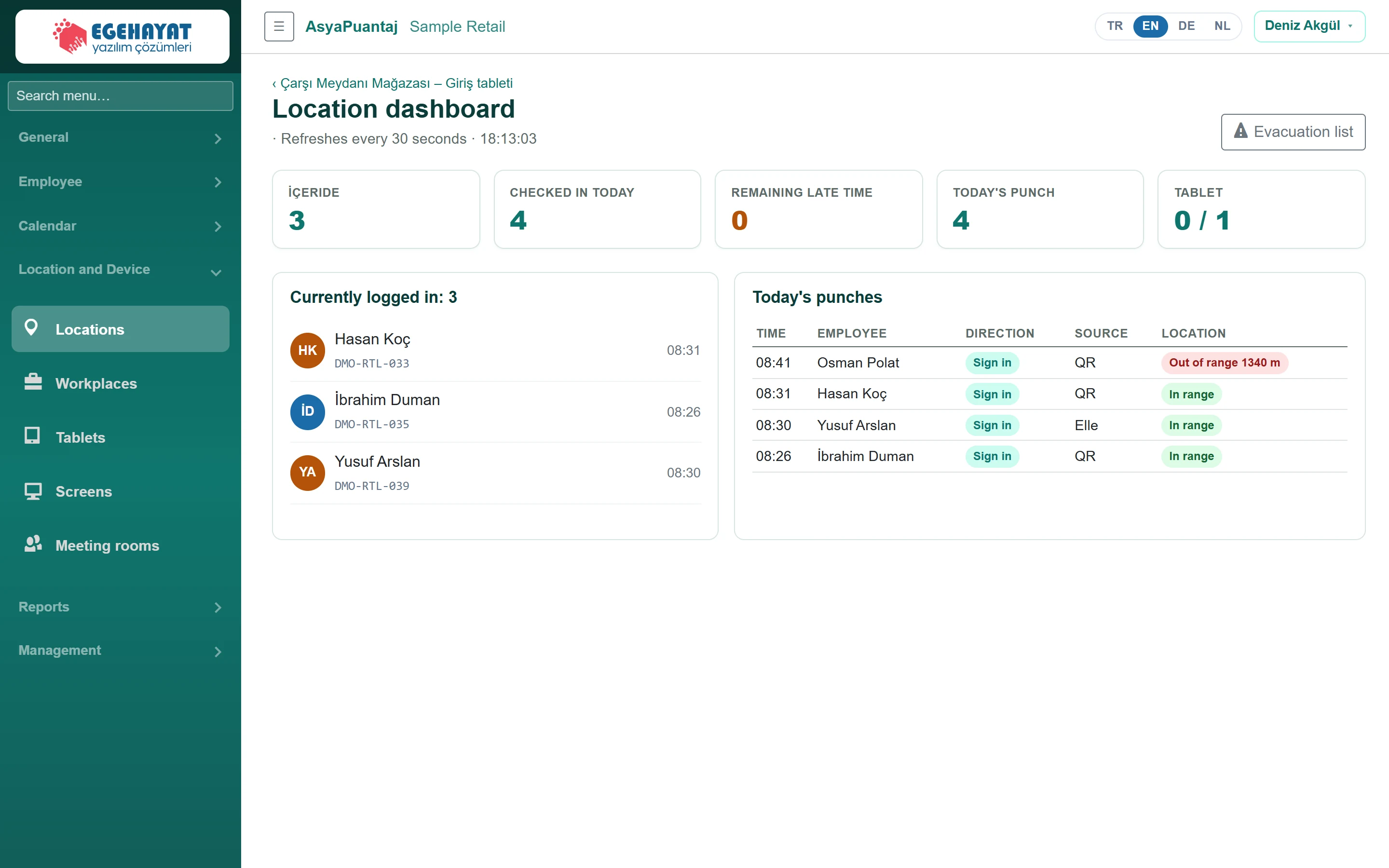
- 1İÇERIDE Inside, entered today, late, today's punches and online tablets.
- 2Evacuation list Evacuation list of this location.
Live status of the location: people inside, entered today, late, today's punches and online tablets. Refreshes every 30 seconds.
Common messages
| Message | Cause | Solution |
|---|---|---|
| Location name is required. | Name empty. | Enter a name. |
| Select a point on the map or enter latitude/longitude. | No position. | Pick a point on the map. |
| This code is already in use. | Code used by another location. | Use a different code. |
| Name and serial number are required. | Reader field missing. | Fill in both fields. |
| This serial number is registered to another reader. | Duplicate serial. | Enter the correct serial number. |