
 AsyaTicari
 AsyaRestoran
 AsyaOtel
 AsyaCrm
 AsyaKlinik
 AsyaSpor
 AsyaSSH
 AsyaEmlak
 AsyaFilo
 AsyaPuantaj
 AsyaİSG
 AsyaİHD
 Kolay Öğren
AsyaPuantaj · Management
Users
Staff who may enter the admin panel, company administrator flag and password.
The Users screen defines the staff who may enter the admin panel. The company administrator has all permissions; other users see the screens ticked under Permissions.
asyapuantaj · /ayarlar/kullanicilar
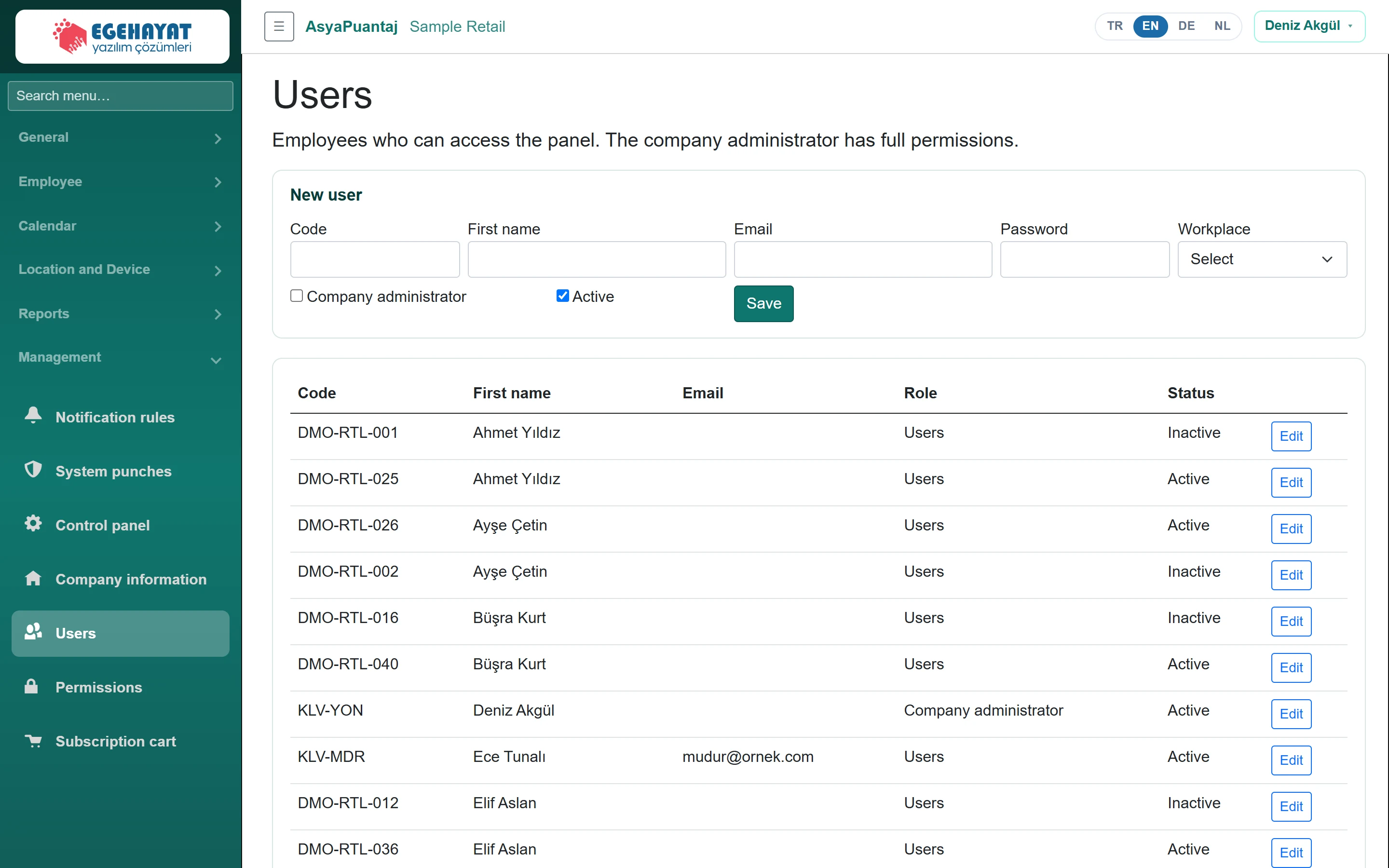
- 1New user New user / edit form.
- 2Code First name Email Role Status Panel users: code, name, e-mail, role, status.
Adding / editing a user
Part of the screenUser form
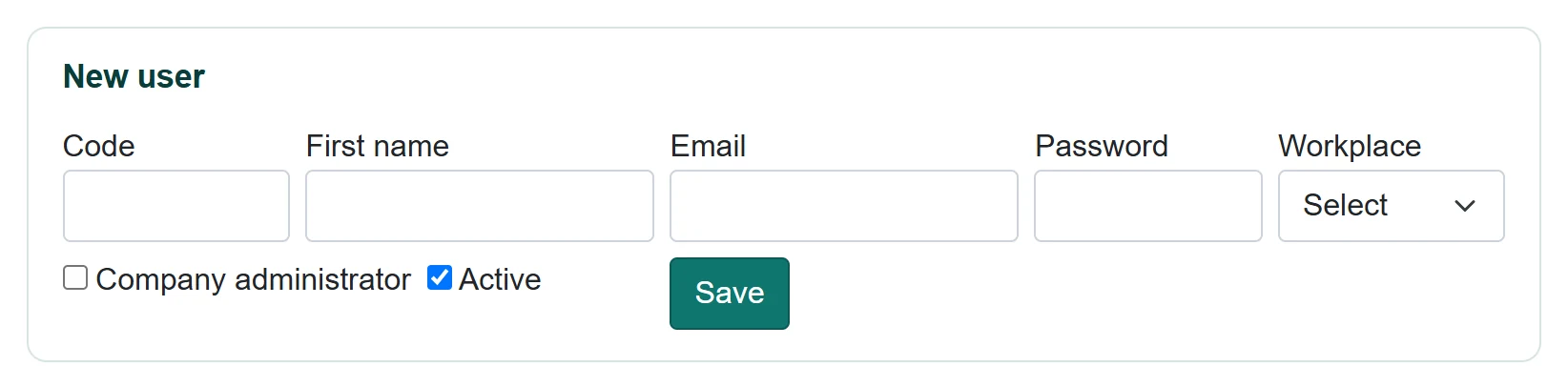
| Field | Sign in | Description |
|---|---|---|
| Code | Text | Staff code (required); can also be used with the company code to sign in. |
| First name | Text | Full name (required). |
| Text | For signing in with e-mail. | |
| Password | Text | At least 4 characters for a new user; unchanged when empty while editing. |
| Workplace | Choice list | User's workplace. Options: Select · DMO-RTL-IY05 — Çarşı Meydanı Mağazası · DMO-RTL-IY04 — Kordon Caddesi Mağazası · DMO-RTL-IY06 — Sahil Yolu Mağazası |
| Company administrator | Checkbox | Has all permissions; only a company administrator can tick it. |
| Active | Checkbox | Inactive users cannot sign in. |
- Enter code, name, e-mail, password and workplace.
- Tick Company administrator if needed and leave Active ticked.
- Click Save. Change a user with Edit in the list.
Sign-in uses e-mail and password, or company code + employee code + password. Users change their own password via Change password in the name menu at the top right.
If you are not a company administrator and have no permission ticked, you cannot enter the panel. Ordinary staff punch in and out with the mobile app.
Common messages
| Message | Cause | Solution |
|---|---|---|
| Code and name are required. | Field empty. | Fill in the fields. |
| The password for a new user must be at least 4 characters. | Password too short. | Enter a longer password. |
| Only a company administrator can change a company administrator record. | A non-admin tried to change an admin record. | Ask a company administrator. |