
 AsyaTicari
 AsyaRestoran
 AsyaOtel
 AsyaCrm
 AsyaKlinik
 AsyaSpor
 AsyaSSH
 AsyaEmlak
 AsyaFilo
 AsyaPuantaj
 AsyaİSG
 AsyaİHD
 Kolay Öğren
AsyaPuantaj · Management
Control panel
Company summary, number format / exchange rate usage and ERP connections.
AsyaPuantaj's Control panel contains the company summary, number format and exchange rate cards and the ERP connections. The tabs at the top lead to Company, Users, Permissions and Subscription.
asyapuantaj · /ayarlar
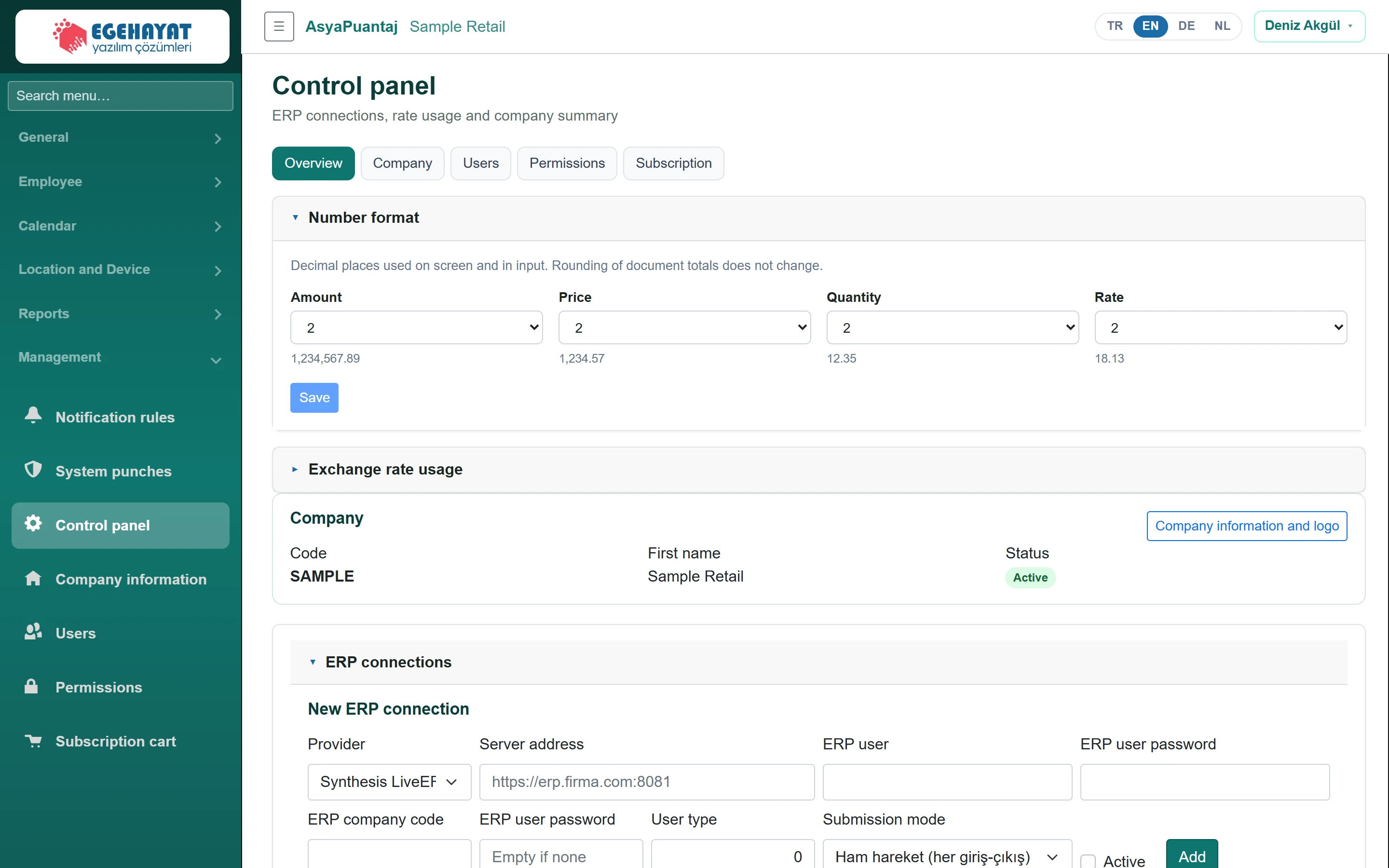
- 1Overview Settings tabs: summary, company, users, permissions, subscription.
- 2Number format Number format and exchange rate cards.
- 3Number format ERP connections: new connection form and saved connections.
ERP connections
Part of the screenERP connection
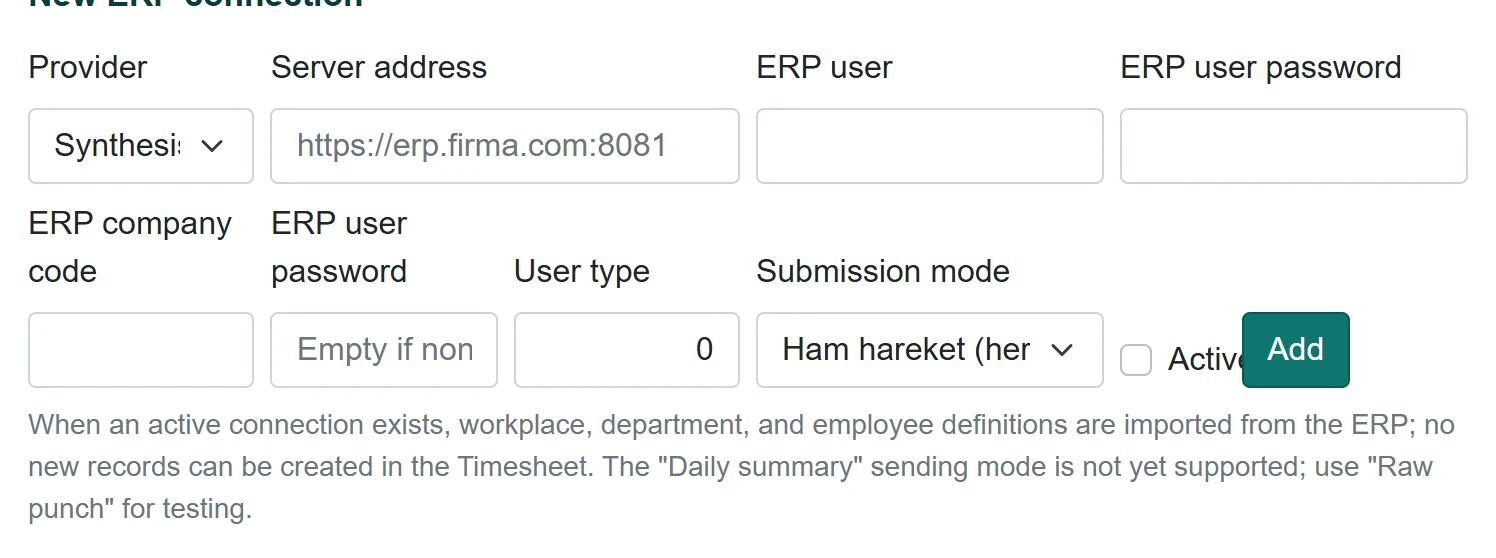
| Field | Sign in | Description |
|---|---|---|
| Provider | Choice list | ERP type; cannot be changed when editing. Options: Synthesis LiveERP · Logo · Mikro |
| Server address | Text | ERP service address (e.g. https://erp.firma.com:8081). Placeholder: «https://erp.firma.com:8081» |
| ERP user | Text | ERP user name. |
| ERP user password | Text | Unchanged when left empty while editing. |
| ERP company code | Text | Company code in the ERP. |
| User type | Text | Leave empty if none. |
| Submission mode | Choice list | ERP user type (0–9). Options: Ham hareket (her giriş-çıkış) · Günlük özet |
| Active | Checkbox | Raw punch or daily summary (daily summary not yet supported). |
- Choose the Provider, enter the server address and ERP user / company details.
- For now choose raw punches as the Submission mode.
- Tick Active and click Add.
- In the Registered connections table, try the connection with Test the connection; the result appears in the Connection test column.
With an enabled Live ERP connection, Get from ERP now and Full scan (rescans all staff) buttons appear. The Mapping summary gives the number of workplaces, units and staff matched with the ERP.
While an ERP connection is enabled, workplaces, units and staff come from the ERP; no new records can be created in Puantaj and the related fields are locked.