
 AsyaTicari
 AsyaRestoran
 AsyaOtel
 AsyaCrm
 AsyaKlinik
 AsyaSpor
 AsyaSSH
 AsyaEmlak
 AsyaFilo
 AsyaPuantaj
 AsyaİSG
 AsyaİHD
 Kolay Öğren
AsyaPuantaj · Location and Device
Tablets
Shared punch tablets (kiosks): defining, pairing code, deactivating and deleting.
The Tablets (Kiosks) screen manages the shared punch tablets placed at locations. The kiosk tablet shows a rotating QR code; staff scan it with the mobile app to punch in and out.
asyapuantaj · /kiosklar
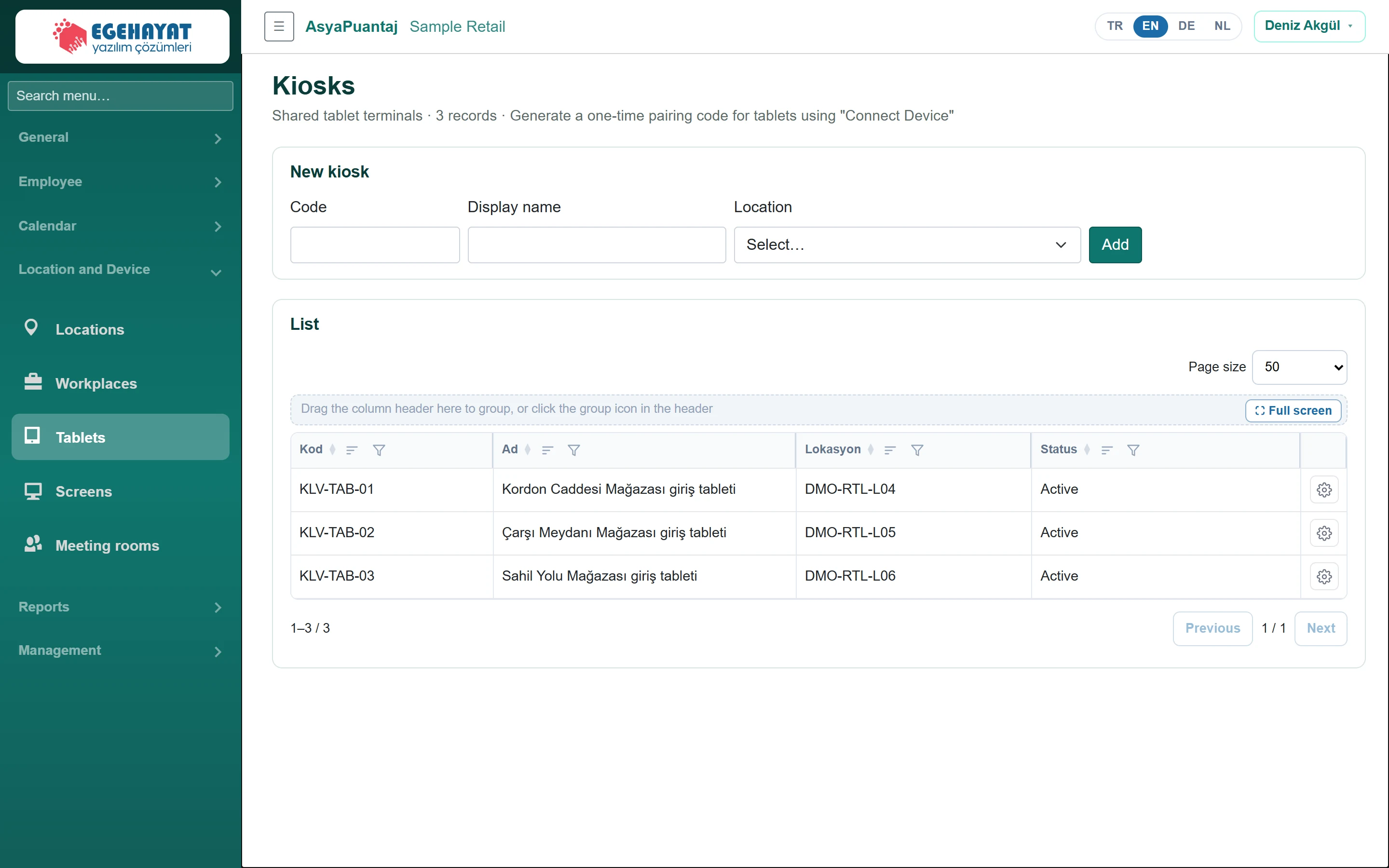
- 1New kiosk New kiosk: code, display name and location.
- 2Actions Actions: edit, pair device, deactivate, delete.
Adding a kiosk
Part of the screenNew kiosk
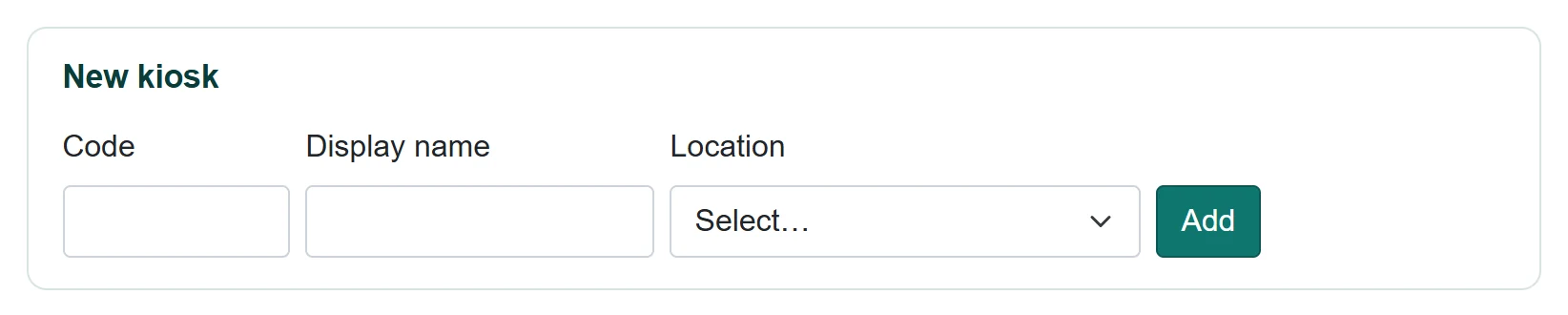
| Field | Sign in | Description |
|---|---|---|
| Code | Text | Kiosk code (converted to upper case); cannot be changed after saving. |
| Display name | Text | Name shown on the tablet and in lists. |
| Location | Choice list | Location the tablet is fixed to. Options: Select… · DMO-RTL-L01 — Kordon Caddesi Mağazası – Giriş tableti · DMO-RTL-L02 — Çarşı Meydanı Mağazası – Giriş tableti · DMO-RTL-L03 — Sahil Yolu Mağazası – Giriş tableti · DMO-RTL-L04 — Kordon Caddesi Mağazası – Giriş tableti · DMO-RTL-L05 — Çarşı Meydanı Mağazası – Giriş tableti · DMO-RTL-L06 — Sahil Yolu Mağazası – Giriş tableti |
- Enter Code, Display name and Location and click Add.
- In the row's actions menu choose Connect device.
Pairing a tablet
Part of the screenTablet pairing
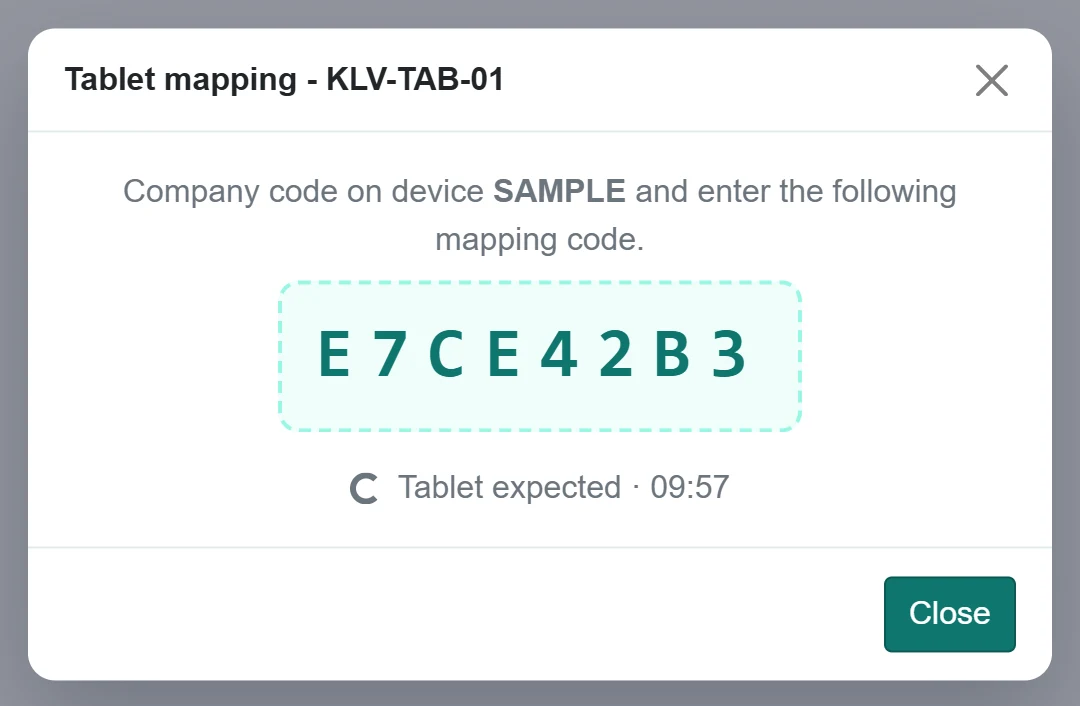
- 1E7CE42B3 One-time pairing code; entered on the tablet together with the company code.
The window shows a one-time pairing code and the company code. Open the AsyaPuantaj Kiosk app on the tablet and enter both codes; once paired the window shows «Device paired.». If the code expires, create a new one.
Delete removes the kiosk permanently (a confirmation is asked). To stop it temporarily use Deactivate.
Common messages
| Message | Cause | Solution |
|---|---|---|
| Code, name and location are required. | Field empty. | Fill in the fields. |
| Kiosk not found or inactive. | Tried to pair an inactive kiosk. | Activate it first. |