
 AsyaTicari
 AsyaRestoran
 AsyaOtel
 AsyaCrm
 AsyaKlinik
 AsyaSpor
 AsyaSSH
 AsyaEmlak
 AsyaFilo
 AsyaPuantaj
 AsyaİSG
 AsyaİHD
 Kolay Öğren
AsyaPuantaj · Location and Device
Screens
Welcome, meeting room and evacuation screens; tablet pairing and screen address.
Screens are welcome, meeting room and evacuation displays. A screen opens on a tablet with a pairing code or in any browser with its screen address.
asyapuantaj · /ekranlar
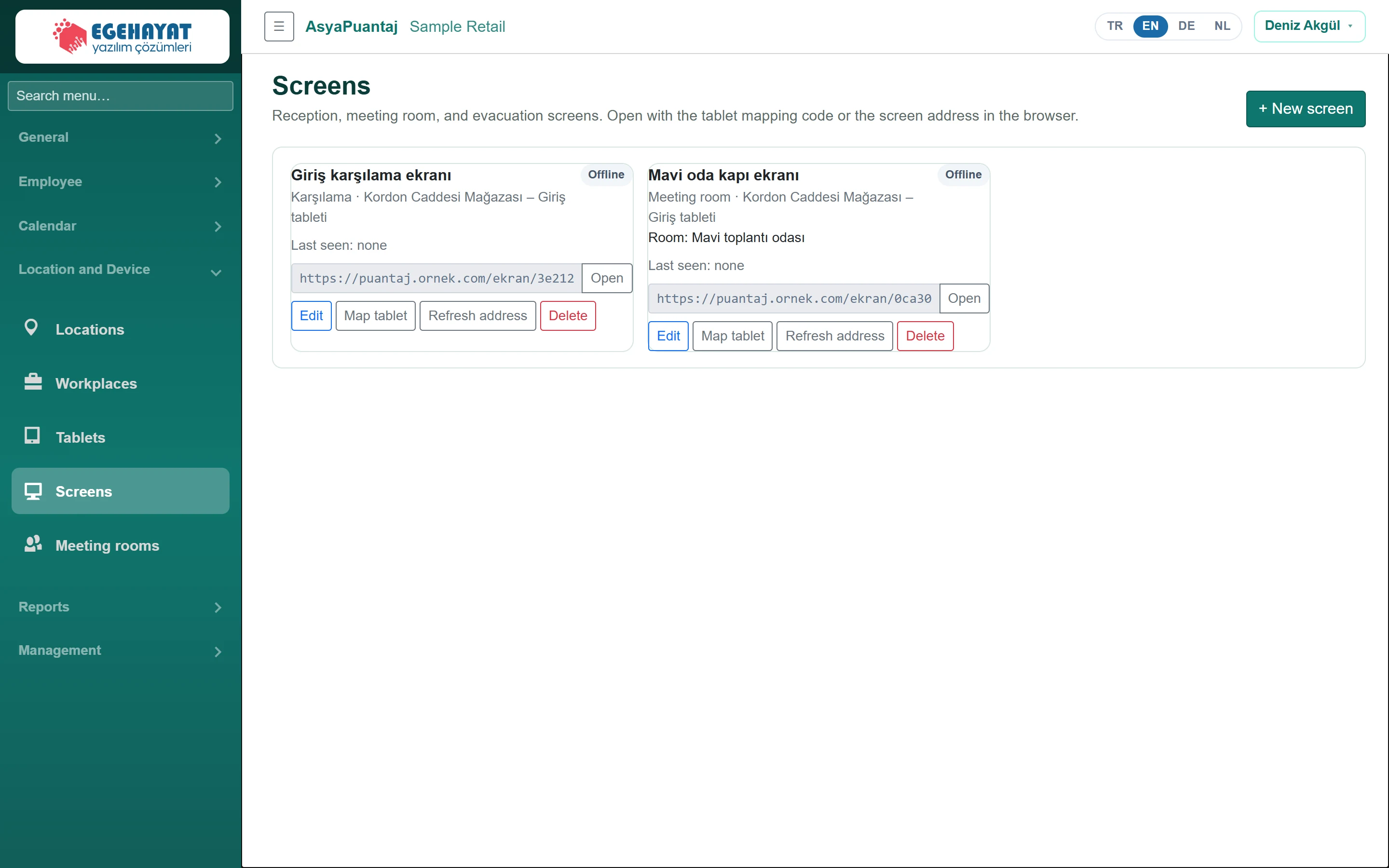
- 1+ New screen Add a new screen.
- 2Offline Online if connected within the last 3 minutes.
- 3Open Screen address; open it in a browser with Open.
- 4Edit Edit, pair tablet, renew address, delete.
The card shows type, location, room, Online / Offline status (connected within the last 3 minutes) and last seen time.
Adding a screen
Part of the screenScreen form
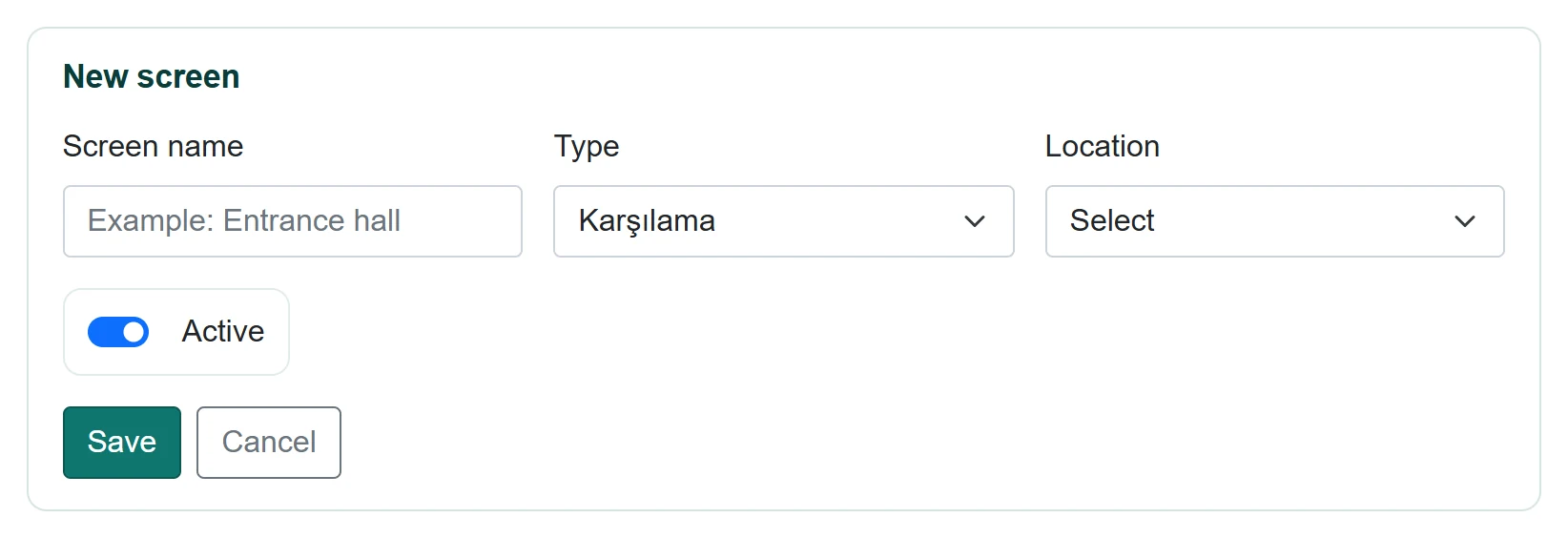
| Field | Sign in | Description |
|---|---|---|
| Screen name | Text | Screen name (e.g. Entrance hall). Placeholder: «Example: Entrance hall» |
| Type | Choice list | Welcome, meeting room or evacuation screen. Options: Karşılama · Meeting room · Evacuation |
| Location | Choice list | Location of the screen. Options: Select · Çarşı Meydanı Mağazası – Giriş tableti · Kordon Caddesi Mağazası – Giriş tableti · Sahil Yolu Mağazası – Giriş tableti |
| Active | Checkbox | Inactive screens cannot be paired. |
- Click + New screen; choose name, type and location.
- For a meeting room screen choose the Meeting room (if the location has no room, add one on Meeting rooms first).
- Click Save.
On the card, Map tablet opens the pairing code (kiosk app → Screen mode → Pair). Open opens the screen address in a browser. Refresh address creates a new address; the old one stops working.
Common messages
| Message | Cause | Solution |
|---|---|---|
| Enter a screen name. | Name empty. | Enter a name. |
| Select a location. | Location empty. | Choose a location. |
| Select a meeting room. | Room screen without room. | Choose a room. |