
 AsyaTicari
 AsyaRestoran
 AsyaOtel
 AsyaCrm
 AsyaKlinik
 AsyaSpor
 AsyaSSH
 AsyaEmlak
 AsyaFilo
 AsyaPuantaj
 AsyaİSG
 AsyaİHD
 Kolay Öğren
AsyaPuantaj · Employee
Correction requests
Approve / reject forgotten entry / exit requests sent from the mobile app.
The Correction requests screen lists the «I forgot to punch in / out» requests staff send from the mobile app. An approved request becomes a punch.
asyapuantaj · /duzeltmeler
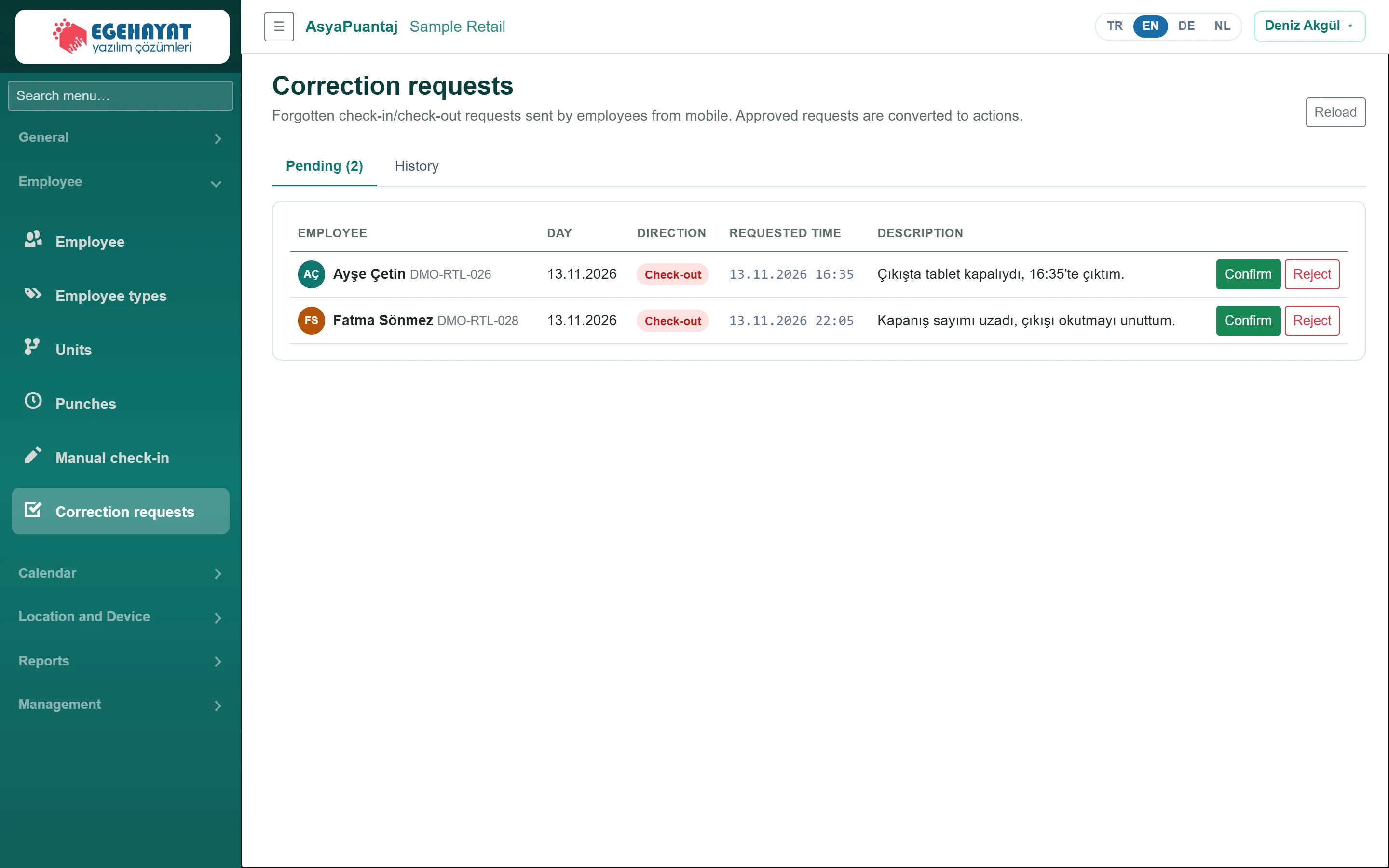
- 1Pending (2) Pending requests and history (result, decided by).
- 2Confirm Approve: a punch is created at the requested time.
- 3Reject Reject: enter a reason and confirm.
Pending requests
- On the pending tab, review staff, day, direction, requested time and explanation.
- Click Confirm: a punch is created at the requested time and the day is recalculated.
- To reject, click Reject, enter the Rejection reason and click Reject again (Cancel goes back).
The History tab shows decided requests with result, decision time and decision maker.
An approved request closes the day with a missing exit; the Open shift and Pending correction counts on the Dashboard go down.