
 AsyaTicari
 AsyaRestoran
 AsyaOtel
 AsyaCrm
 AsyaKlinik
 AsyaSpor
 AsyaSSH
 AsyaEmlak
 AsyaFilo
 AsyaPuantaj
 AsyaİSG
 AsyaİHD
 Kolay Öğren
AsyaOtel · Hotel management
Room rack and room status screens
Live status of all rooms (vacant / occupied, clean / dirty, out of order), room summary and right-click action menu.
The Room Rack shows every room floor by floor as coloured cells with room number, room type and the guest staying in it. The same screen also opens under Daily room status, Hotel status, Availability and Vacant rooms; Availability and Vacant rooms focus on sellable vacant rooms.
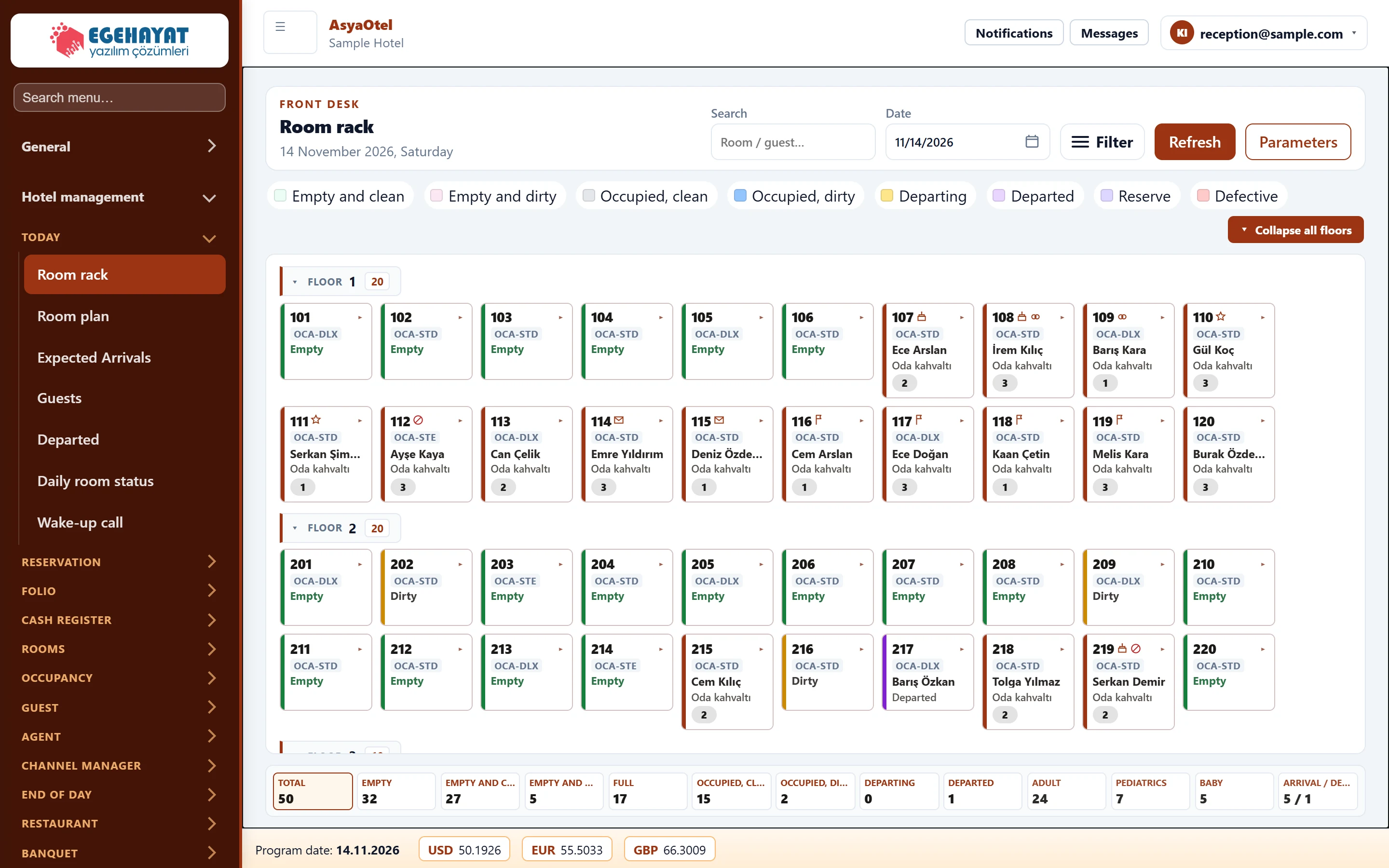
- 1Search Room / guest search, date, showcase filter, refresh and parameters.
- 2Status colours Colour legend; click a colour to show only rooms in that status.
- 3▾ Floor heading; click to collapse / expand the floor.
- 4Room cell Occupied room: number, type, guest. Click for the room summary, right-click for the action menu.
- 5Counters Counters; click to filter to that group. Adult / child / infant totals are for information.
Status colours and counters
The colour legend at the top (vacant clean, vacant dirty, occupied clean, occupied dirty, due out, departed, reserved, out of order) is also a filter: click a colour to keep only rooms in that status. The counters at the bottom are clickable too; adult, child and infant totals are for information only.
Room summary
Click a room cell to open the Room summary below it: occupants, persons, board, arrival / departure, agency, folio and price. The buttons take you to check-in, check-out, the folio statement and the reservation card.
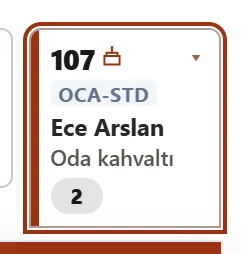
- 1107 Room number, status and marks (VIP, birthday, message …).
- 2Floor Occupants, board, arrival / departure, agency, folio, price.
- 3Check-in/Check-out Quick actions such as C/I, C/O, folio statement and reservation card.
Room action menu
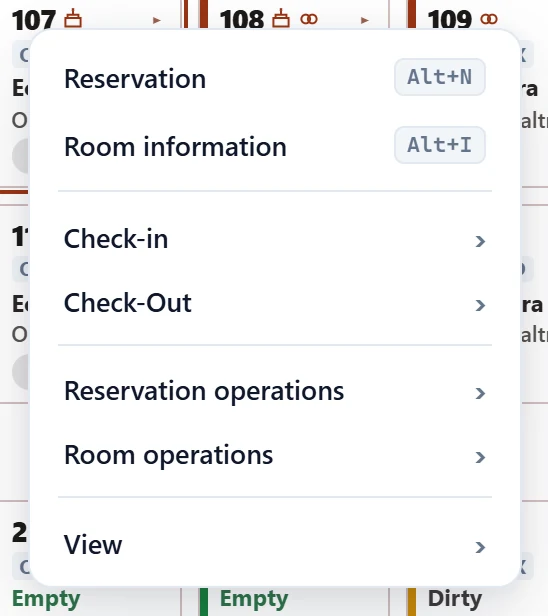
Right-click a room cell to open the action menu. The top items are Reservation and Room info shortcuts, followed by sub-menus; actions that do not fit the room status are greyed out:
- Check-in / Check-out: check-in, check-in (all rooms), check-out, person check-out and their undo actions.
- Reservation actions: room change, room change history, reservation list.
- Room actions: room status (clean / dirty), room maintenance / fault, clear fault.
- View: all folios, previous / next day, go to date.
Showcase (filter)
The Filter button opens the showcase panel on the right. Tick rooms with a birthday or wedding anniversary today, VIP, blacklisted, or with a message or trace, then press Apply.
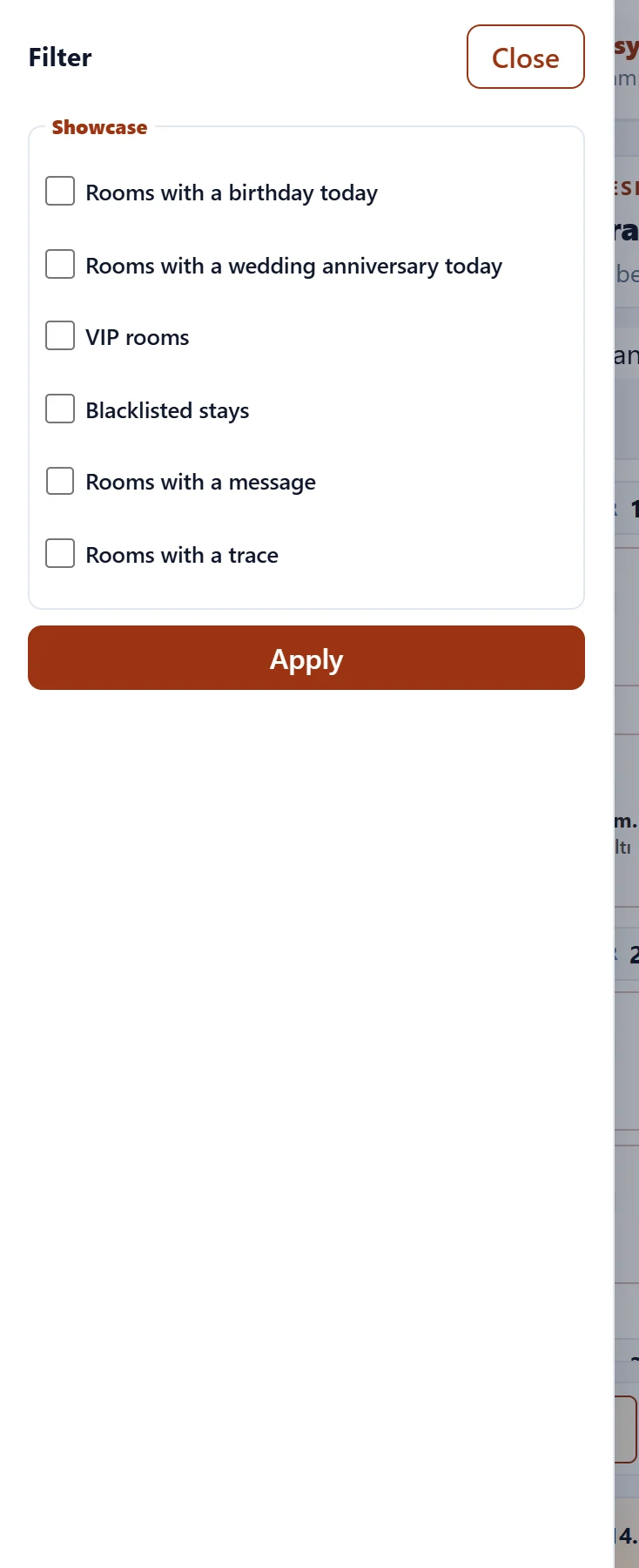
Choose a future day in Date to see the expected room status for that day. Parameters opens the Room Rack tab of the hotel parameters.
| Warning | Cause | Solution |
|---|---|---|
| No rooms defined yet. | There are no room cards. | Add rooms in Hotel definitions → Rooms. |
| You do not have permission for this action. | The action is disabled for your role. | Ask your company administrator. |