
 AsyaTicari
 AsyaRestoran
 AsyaOtel
 AsyaCrm
 AsyaKlinik
 AsyaSpor
 AsyaSSH
 AsyaEmlak
 AsyaFilo
 AsyaPuantaj
 AsyaİSG
 AsyaİHD
 Kolay Öğren
Shared modules · Definitions
Interest, discount, expense type and payment definitions
Late-payment / interest rates, purchase and sales discounts, cash and bank expense types, instalment payment plans and payment cards.
These five screens work the same way: the table is edited directly, + Add row adds an empty row and Save saves all changes in the table together («Saved.»). Changes are lost if you leave the screen without saving. Instead of deleting an unused row, untick Active.
Interest rates
Rates used for late-payment and interest calculations.
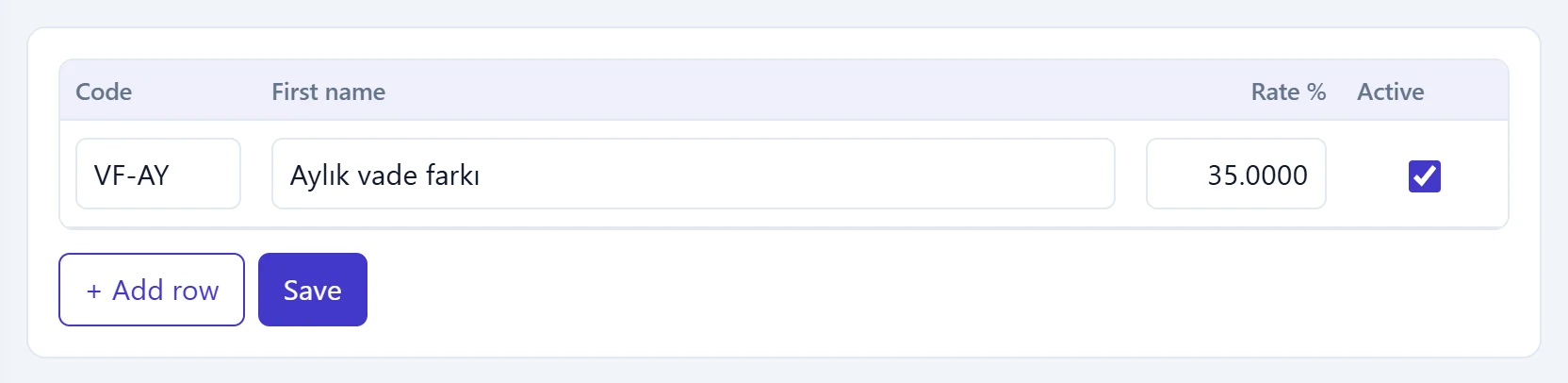
- 1Rate % Rate as a percentage (e.g. 3.5).
- 2+ Add row Adds an empty row.
- 3Save Saves all rows.
| Column | Description |
|---|---|
| Code | Short code (e.g. VF-AY). |
| Name | Name of the rate (e.g. «Monthly late-payment charge»). |
| Rate % | Rate as a percentage; decimals allowed (3.5). |
| Active | Inactive rates cannot be chosen. |
Discounts
Ready discount rates for purchases, sales or both.
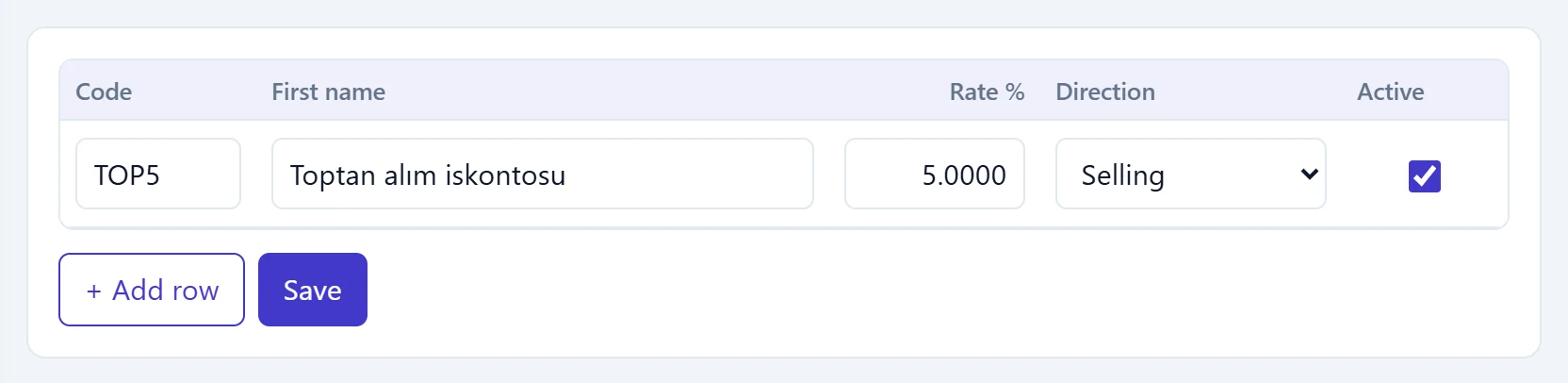
- 1Rate % Discount percentage.
- 2Direction Used in Purchase, Sales or Purchase and sales documents.
The Direction column determines in which documents the discount can be chosen: Buying, Selling or Purchases and sales.
Expense types
Types chosen when entering an expense on the cash and bank screens (rent, electricity, water…). If the company has none, default types are created automatically.
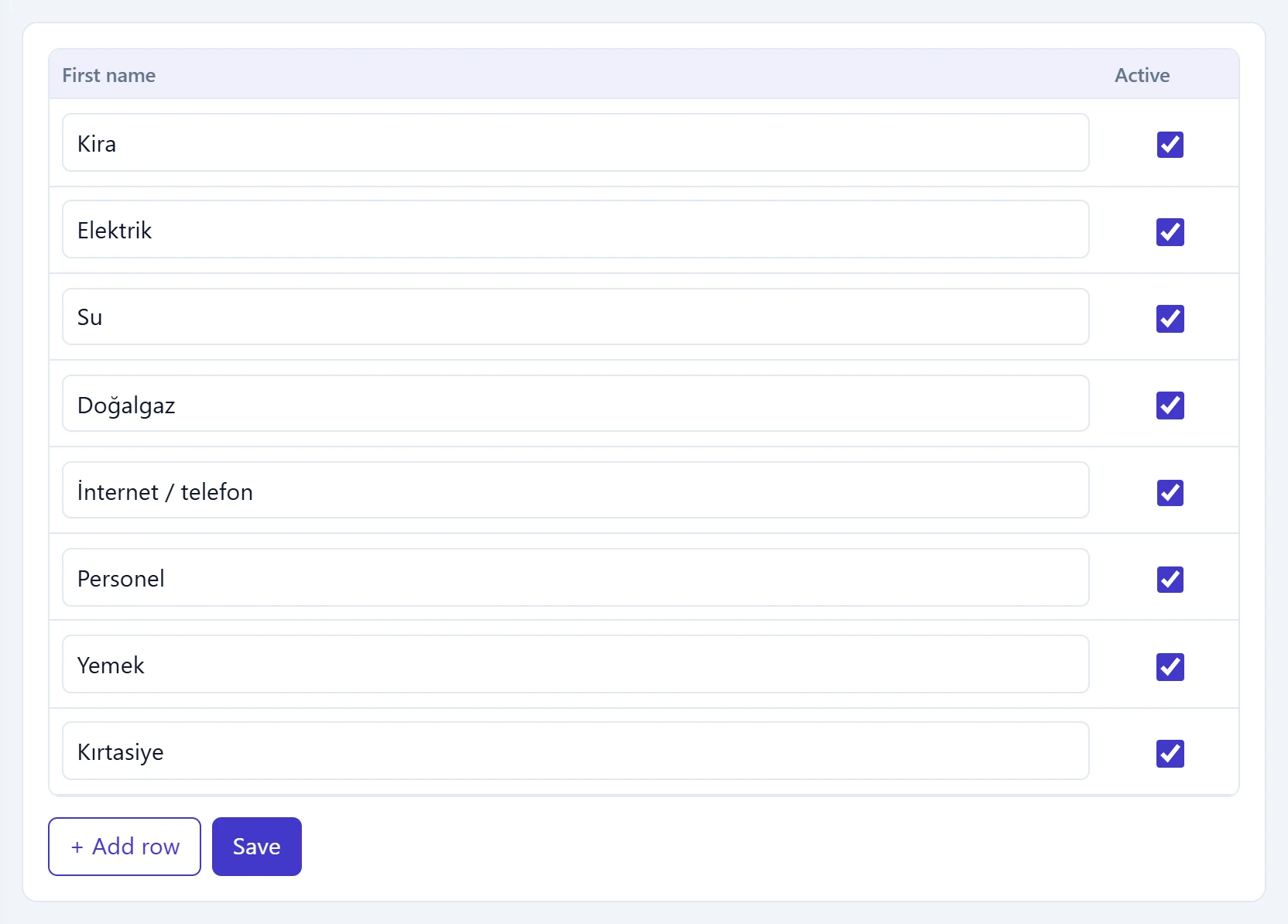
- 1Name Name of the expense type (Rent, Electricity…).
- 2Active Inactive types cannot be chosen for cash / bank expenses.
Payment plans
Plan headers and instalment rows for instalment sales. The upper table lists the plans, the lower part shows the details of the selected plan; click a plan row to switch the details to that plan.
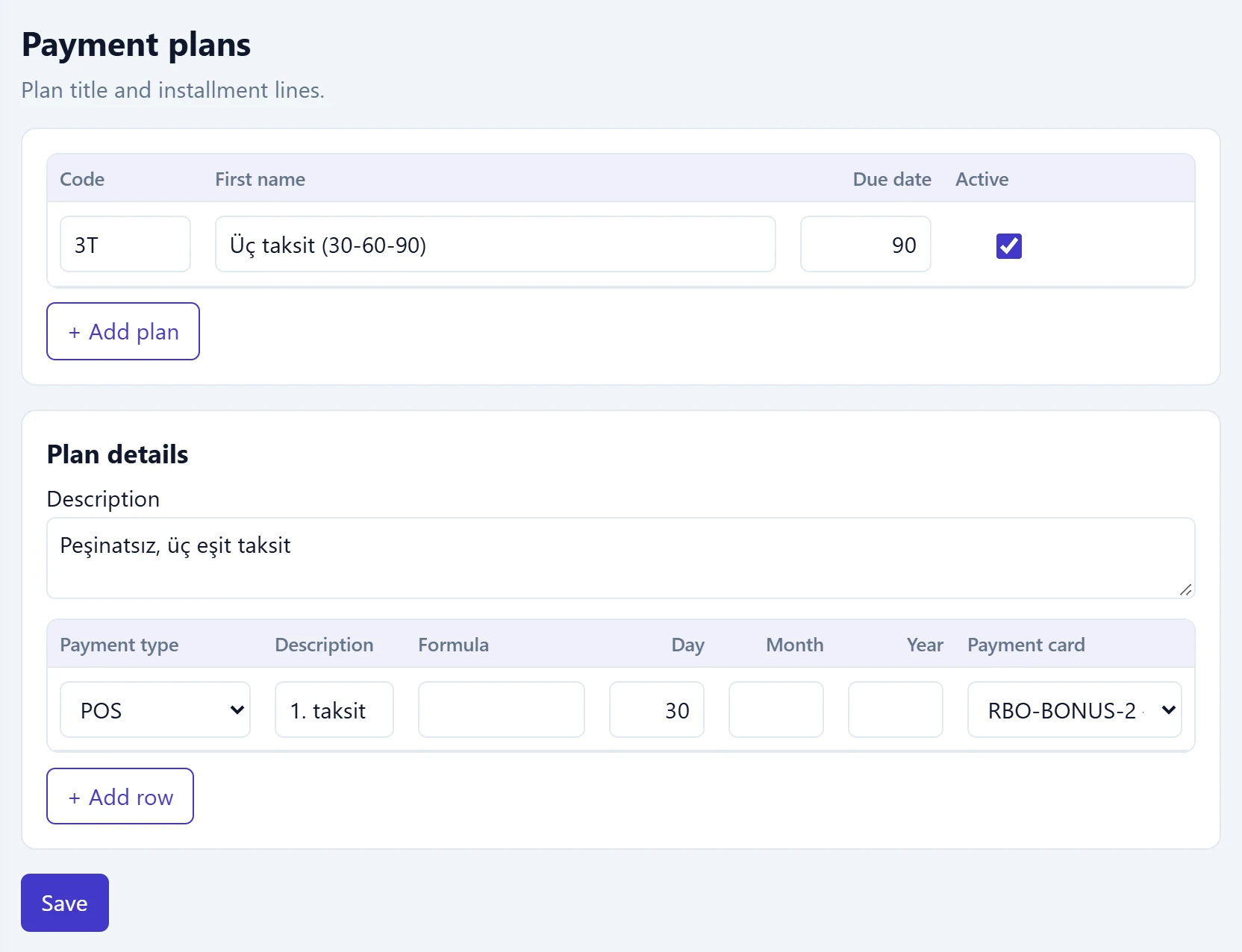
- 1Plan row Code, name, total term in days; click the row to open its details below.
- 2+ Add plan Adds a new plan header.
- 3Plan details Description and instalment rows of the selected plan.
- 4Instalment row Payment type, description, formula, day / month / year and payment card.
- 5Save Saves all plans and their rows.
Plan row: Code, Name, term in days (the plan's total term) and Active. With more than one plan, the remove button at the end of the row takes the plan out of the list.
Plan details:
| Field | Description |
|---|---|
| Description | Plan description (e.g. «No down payment, three equal instalments»). |
| Payment type | How the instalment is paid: cash, cheque, promissory note, POS, bank transfer. |
| Description (row) | Instalment description (e.g. «1st instalment»). |
| Formula | Optional formula for the instalment amount. |
| Day / Month / Year | Due date of the instalment counted from the document date. |
| Payment card | Card used for instalments paid by POS (from the Payment cards list below). |
Payment cards
Card and account types that can be chosen on payment plan rows (Bonus, Maximum, Visa…).
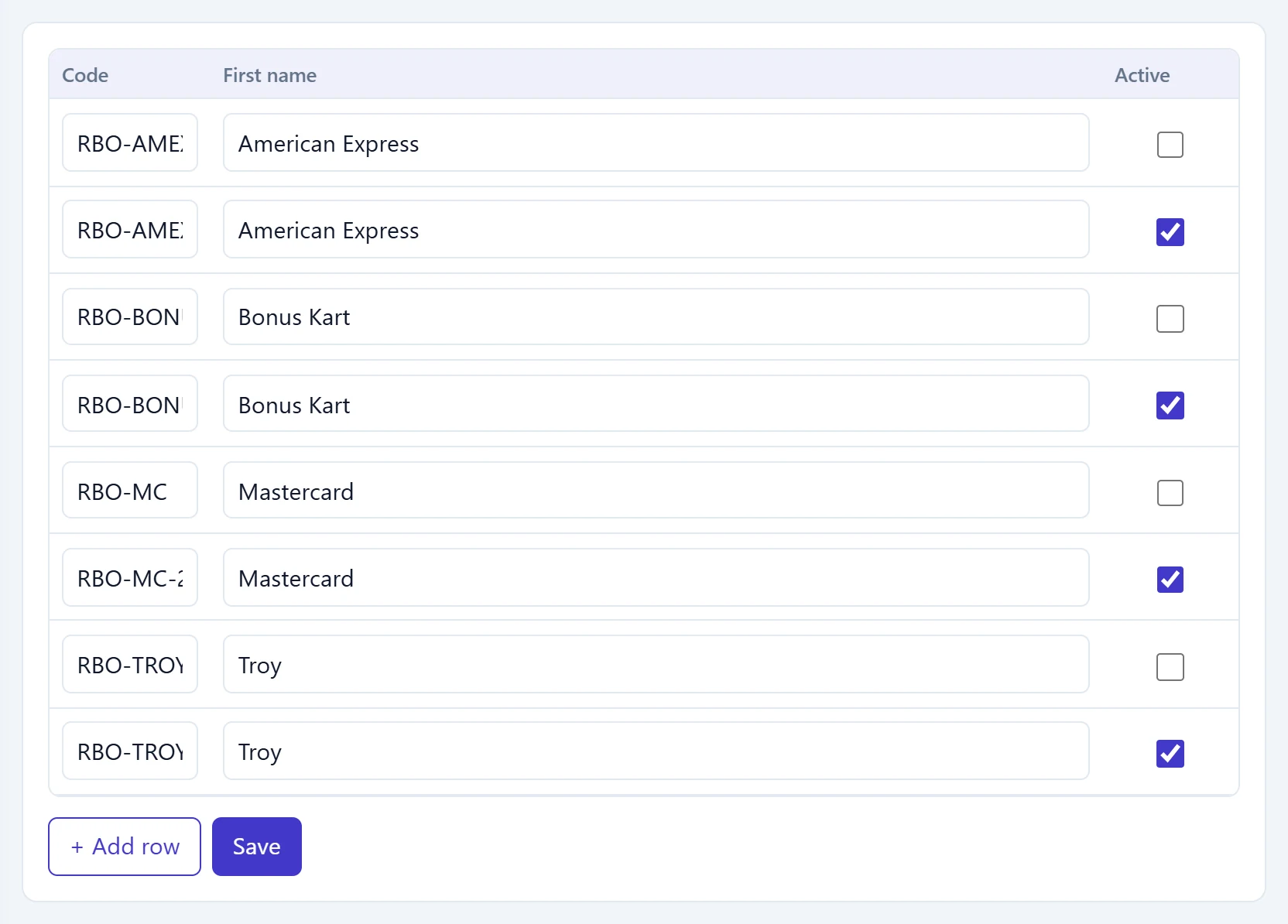
- 1Code Short code of the card.
- 2Name Card / account name (e.g. Bonus Card).
Step by step: three-instalment payment plan
- On Payment plans, add a row with + Add plan (the first plan comes with an empty row).
- Enter
3Tas Code, «Three instalments (30-60-90)» as Name and 90 days as the term. - Click the plan row and write the Description in Plan details.
- Add three instalment rows with + Add row; enter Payment type and Day (30, 60, 90) for each.
- Choose a Payment card for POS instalments.
- Press Save.
A short Expense types list makes it easy to find the right type when entering an expense on the cash and bank screens. Do not open similar names separately (e.g. «Electricity» and «Electricity bill»).
Common messages
| Message | Cause | Solution |
|---|---|---|
| Expense type name is required. | An expense type row has no name. | Enter the name or delete the empty row. |
| This expense type already exists. | An expense type with the same name exists. | Use the existing type. |