
 AsyaTicari
 AsyaRestoran
 AsyaOtel
 AsyaCrm
 AsyaKlinik
 AsyaSpor
 AsyaSSH
 AsyaEmlak
 AsyaFilo
 AsyaPuantaj
 AsyaİSG
 AsyaİHD
 Kolay Öğren
Shared modules · Settings
Calendar Management
Working days, official / religious holidays and special days for the company or a workplace.
Calendar Management defines which days the company works and which days are holidays. The «previous business day» in exchange rate usage is found using this calendar. The screen appears when the calendar feature is on for the company.
Opening the screen
Open Settings → Calendar Management from the side menu.
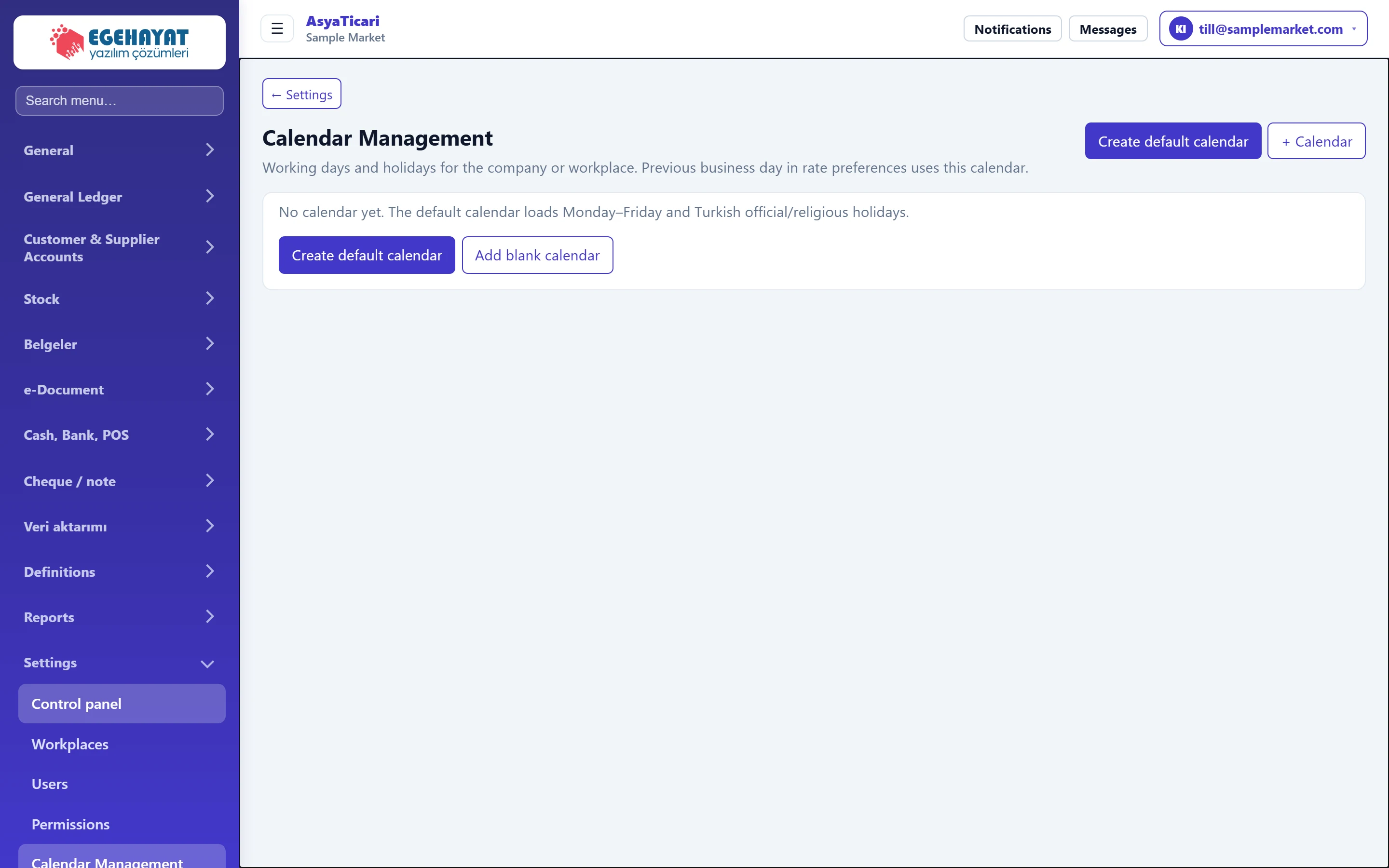
- 1← Settings Returns to the control panel.
- 2Create default calendar Creates a ready company calendar with Monday–Friday and Turkish holidays.
- 3+ Calendar Opens an empty calendar form.
- 4Calendar list Saved calendars are listed here (code, name, scope, default, active).
If there is no calendar yet, there are two ways to start:
- Create default calendar: creates a ready company calendar with a Monday–Friday week and Turkish official / religious holidays in one click.
- + Calendar (or Add empty calendar): you fill in the calendar yourself.
Saved calendars appear in the list with code, name, scope, default and active columns and are edited from the row menu.
Calendar details
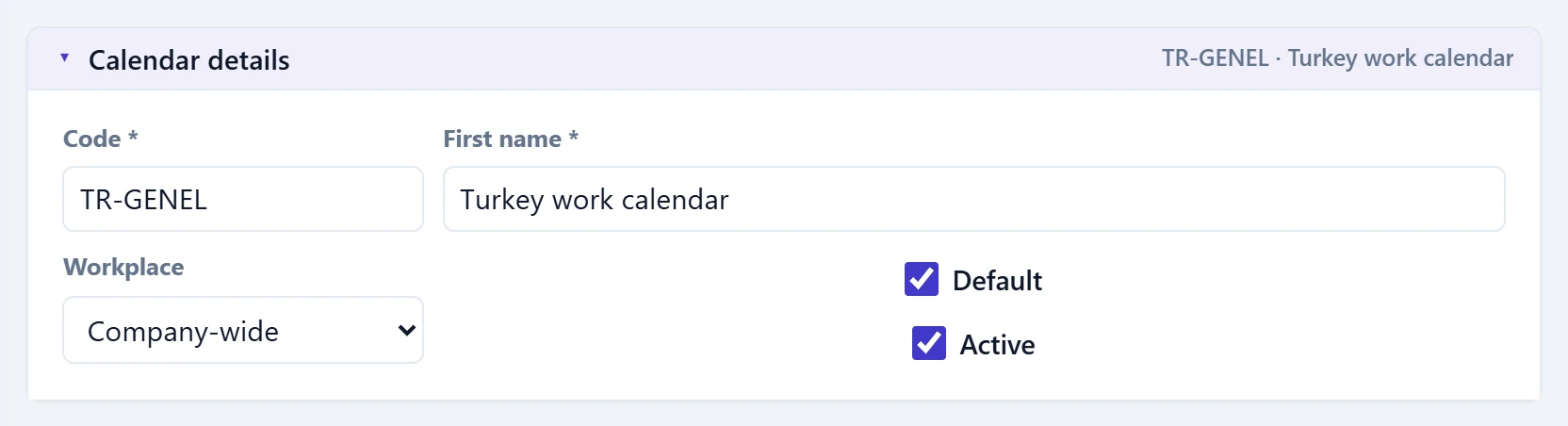
- 1Summary Code and name; visible even when the panel is closed.
| Field | Sign in | Description |
|---|---|---|
| Code required | Text | Short code of the calendar (max. 32 characters). Required. |
| First name required | Text | Name of the calendar. Required. |
| Workplace | Choice list | «Company-wide» applies to all workplaces; if a workplace is selected, it becomes that workplace's calendar only. Options: Company-wide · MRK-0 — Main shop |
| Default | Checkbox | If ticked, this is the calendar used first within the same scope. |
| Active | Checkbox | An inactive calendar is not used in calculations. |
Standard working days
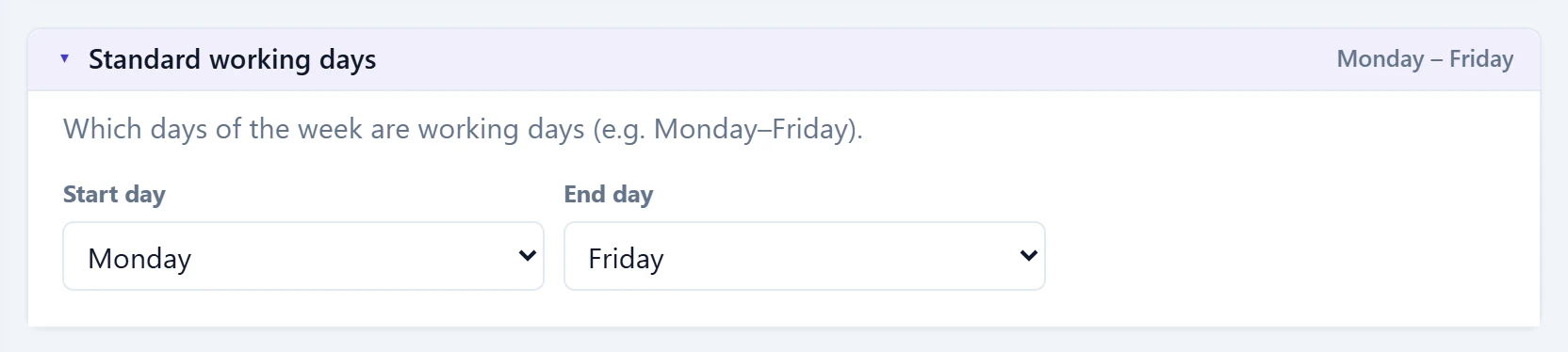
- 1Summary Selected day range.
| Field | Sign in | Description |
|---|---|---|
| Start day | Choice list | First day of the working week (e.g. Monday). Options: Monday · Tuesday · Wednesday · Thursday · Friday · Saturday · Sunday |
| End day | Choice list | Last day of the working week (e.g. Friday; Saturday if you work on Saturdays). Options: Monday · Tuesday · Wednesday · Thursday · Friday · Saturday · Sunday |
Special days / holidays
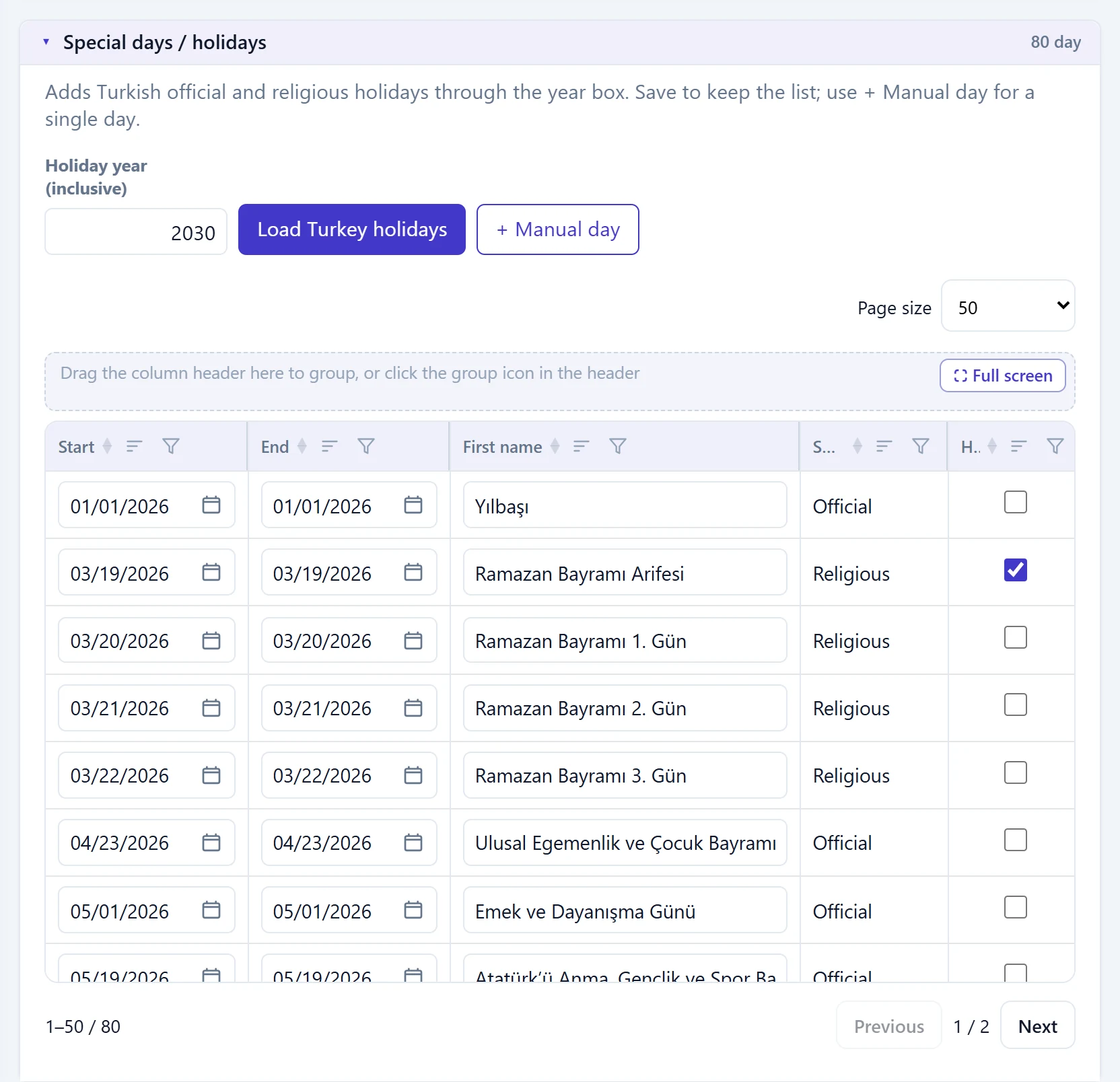
- 1Load Turkey holidays Adds official and religious holidays to the list; overlapping ones are skipped.
- 2+ Manual day Adds a single special day row (e.g. company leave).
- 3Holiday list Start, end, name, source and half-day information.
- 4Day count Number of special days in the list.
| Field | Sign in | Description |
|---|---|---|
| Holiday year (inclusive) | Text | Turkish holidays are loaded from today up to and including this year. |
| Page size | Choice list | Number of rows shown per page in the list. Options: Automatic · 25 · 50 · 100 · 200 · All |
The start and end date and the name of each row can be edited; rows marked Half day (e.g. the eve of a religious holiday) count as half a working day. The Source column shows whether the row is an official holiday, a religious holiday or a manually added day.
New calendar: step by step
- Press + Calendar.
- In Calendar details, enter the Code and Name; if the calendar is for one workplace, choose the Workplace.
- In Standard working days, choose the first and last working day (e.g. Monday – Saturday).
- In Special days / holidays, enter the holiday year and press Load Turkish holidays. A message says how many holiday rows were added and reminds you to save.
- Add company-specific days off with + Manual day.
- Press Save at the bottom of the page. A message confirms the working calendar was saved.
On a saved calendar, Load Turkish holidays writes the holidays directly to the calendar; overlapping days are skipped. A few years later, simply raise the holiday year and load again.
Delete removes the calendar permanently (a confirmation is asked). Instead of deleting an unused calendar you can untick Active.
Common messages
| Message | Cause | Solution |
|---|---|---|
| Takvim kodu zorunlu. (Calendar code is required.) | Code is empty. | Enter the code and save again. |
| Takvim adı zorunlu. (Calendar name is required.) | Name is empty. | Enter the name and save again. |
| No new holidays to add (overlapping ones skipped). | The holidays up to the chosen year are already in the list. | Raise the holiday year; otherwise nothing to do. |
| Calendar Management is off for this company. It can be turned on in the Platform Admin feature matrix. | The calendar feature is off for the company. | Ask your platform administrator to turn it on. |
| Default calendar could not be created. | Server error. | Refresh the list and try again. |