
 AsyaTicari
 AsyaRestoran
 AsyaOtel
 AsyaCrm
 AsyaKlinik
 AsyaSpor
 AsyaSSH
 AsyaEmlak
 AsyaFilo
 AsyaPuantaj
 AsyaİSG
 AsyaİHD
 Kolay Öğren
Shared modules · Stock
Stock status
Quantity on hand and cost by warehouse, lot and expiry date; critical stock and expiry warnings; single-item receipt, issue, transfer and count.
The Stock status screen shows how much of each material is in which warehouse and lot, and its average cost. Here you follow items below the critical level or close to expiry and record single-item receipts, issues, transfers and counts.
Opening the screen
In the side menu click Stock → Stock status.
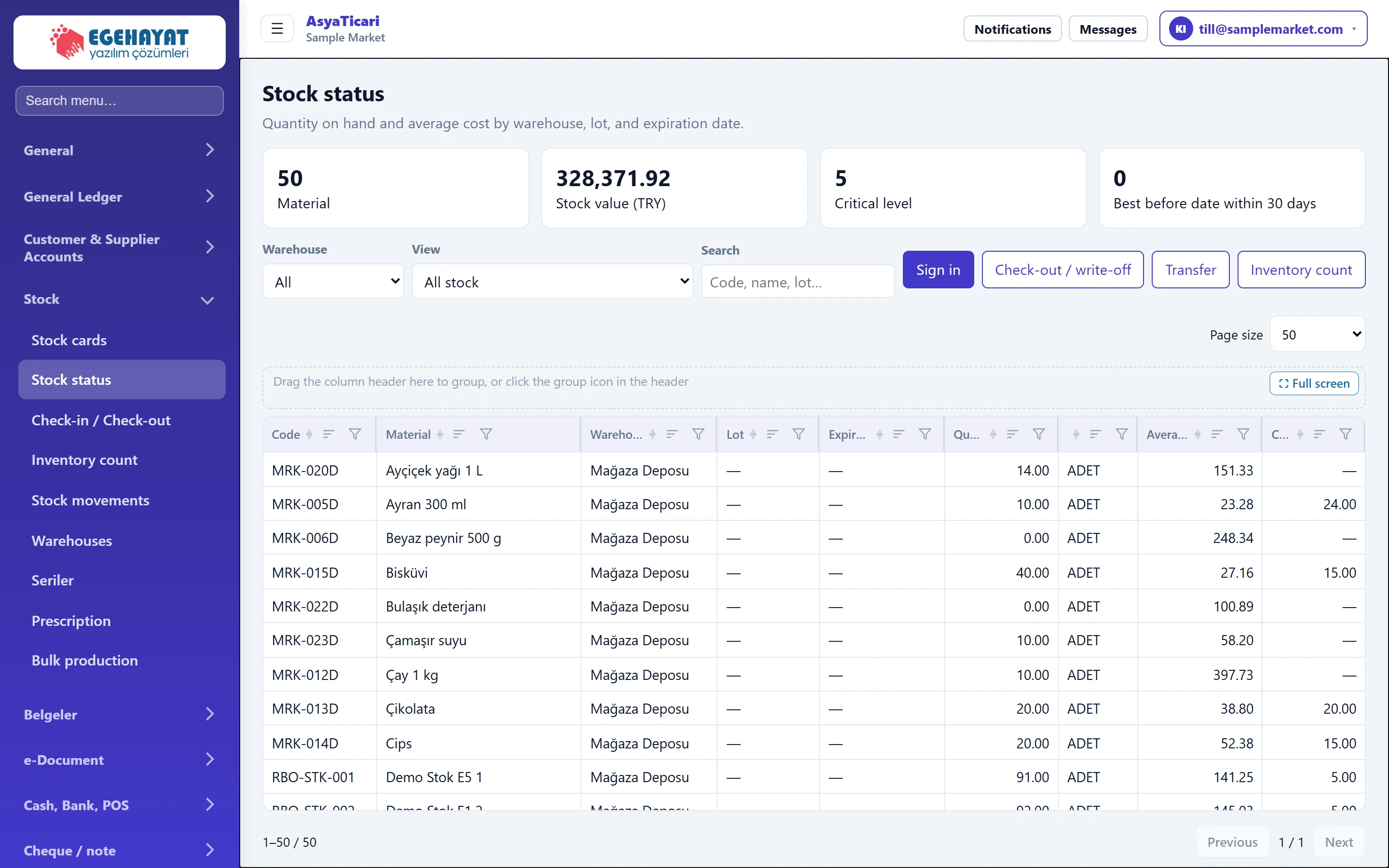
- 1Stock status Screen title.
- 2Summary Number of materials, stock value, critical items and items nearing expiry.
- 3Filter Warehouse, view and search filters.
- 4Sign in Stock receipt without invoice.
- 5Check-out / write-off Issue, waste or consumption.
- 6Transfer Transfer from one warehouse to another.
- 7Inventory count Count correction for a single item.
- 8Quantity Quantity on hand in the warehouse.
Summary cards

- 150 Number of materials with a stock record.
- 2328,371.92 Total of quantity on hand × average cost.
- 35 Number of items below the critical stock level.
- 40 Items with less than 30 days to their expiry date.
Filter and action buttons

- 1Sign in Opens the stock receipt form.
- 2Inventory count Opens the count form.
| Field | Sign in | Description |
|---|---|---|
| Warehouse | Choice list | Stock of the selected warehouse only; All for every warehouse. Options: All · Mağaza Deposu |
| View | Choice list | All stock, critical stock only, or items expiring within 30 days. Options: All stock · Critical stock · Expiration date approaching (30 days) |
| Search | Text | Code, name or lot number. Placeholder: «Code, name, lot…» |
The Critical column in the list is the critical stock level set on the card. The Stock movements → and Warehouses → links at the bottom open those screens.
Stock receipt: step by step
- Press the first button (Sign in on the English screen = stock receipt); a form opens above the list.
- Choose the Material and Warehouse.
- Enter the Quantity; if you enter it in another unit, choose the Unit (the base unit equivalent is calculated automatically).
- Enter the Unit cost and, if needed, Expiration date and Lot number.
- Press Save. The message «Stock movement saved.» appears.
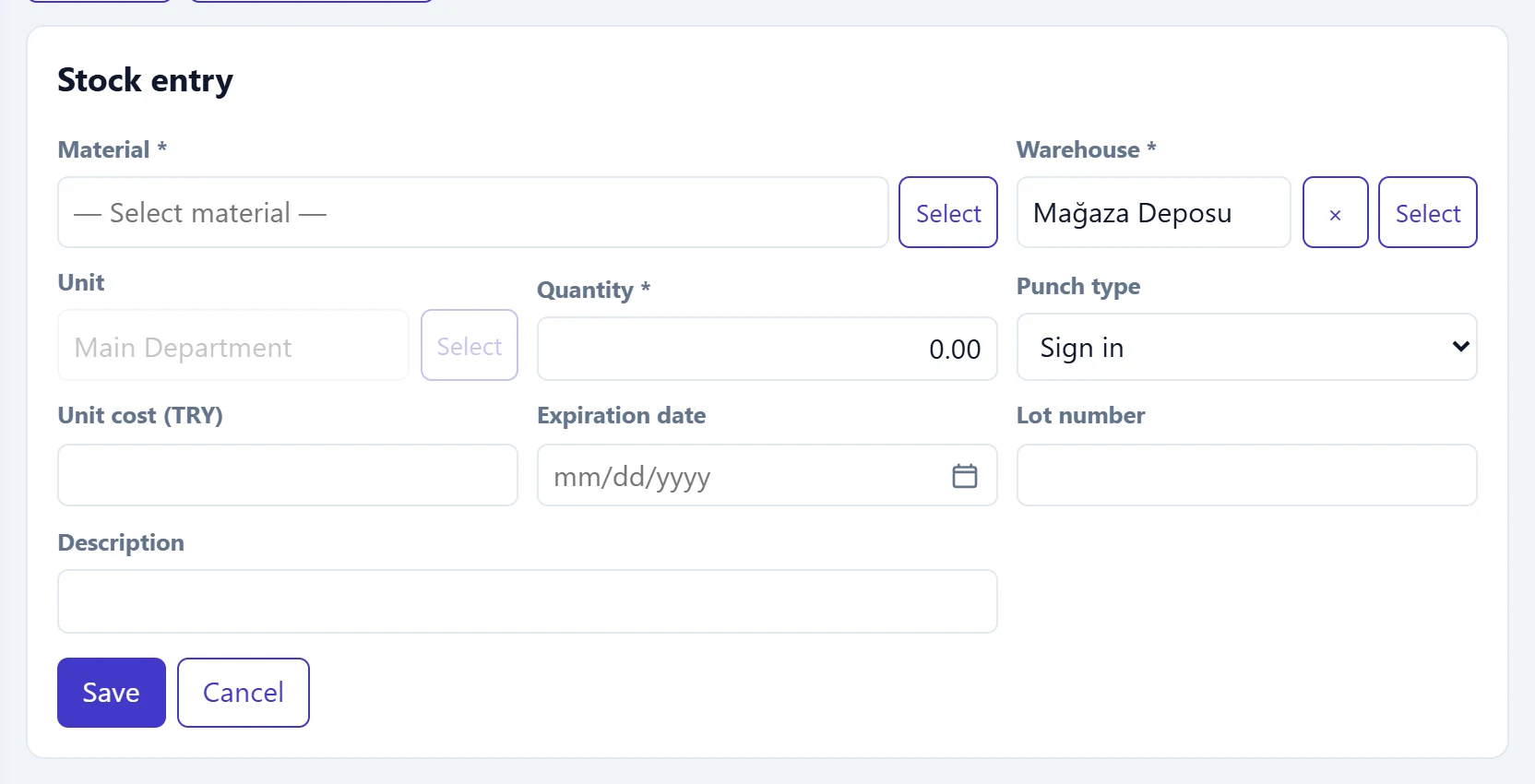
- 1Save Saves the movement.
| Field | Sign in | Description |
|---|---|---|
| Material required | Text | Stock card to receive; chosen from the list with «Select». Placeholder: «— Select material —» |
| Warehouse required | Text | Warehouse the goods go into. Placeholder: «— Select warehouse —» |
| Unit | Text | Unit of the quantity (piece, box…); base unit if blank. Placeholder: «Main Department» |
| Quantity required | Text | Quantity in the selected unit; must be greater than zero. |
| Punch type | Choice list | Receipt (non-purchase goods in) or Opening balance. Options: Sign in · Opening |
| Unit cost (TRY) | Text | Cost of one unit; feeds the average cost. |
| Expiration date | Text | Expiry date for lot / expiry-tracked products. Placeholder: «mm/dd/yyyy» |
| Lot number | Text | Batch / lot number. |
| Description | Text | Description of the movement; shown in Stock movements. |
Check-out / write-off opens the same form; issue, waste or consumption is chosen as Movement type.
Transfer between warehouses
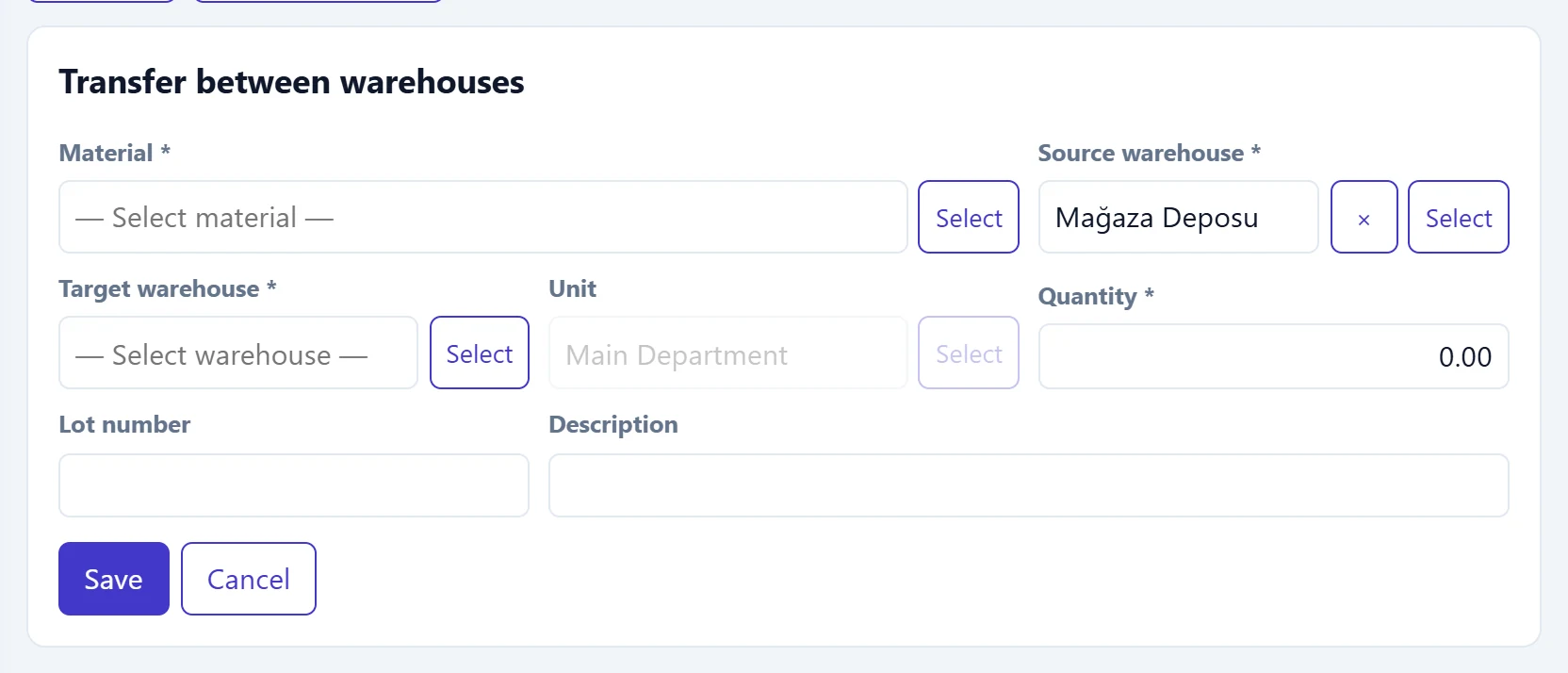
- 1Form title Form type: receipt, issue, transfer or count.
| Field | Sign in | Description |
|---|---|---|
| Material required | Text | Stock card to transfer. Placeholder: «— Select material —» |
| Source warehouse required | Text | Warehouse the goods leave. Placeholder: «— Select warehouse —» |
| Target warehouse required | Text | Warehouse the goods go into; cannot be the same as the source. Placeholder: «— Select warehouse —» |
| Unit | Text | Unit of the quantity. Placeholder: «Main Department» |
| Quantity required | Text | Quantity transferred. |
| Lot number | Text | Lot transferred for lot-tracked products. |
| Description | Text | Description of the transfer. |
Single-item count
In the Count form, the quantity you enter becomes the warehouse's new quantity; a receipt or issue movement is created for the difference. For multi-item counts use Stock → Inventory count.
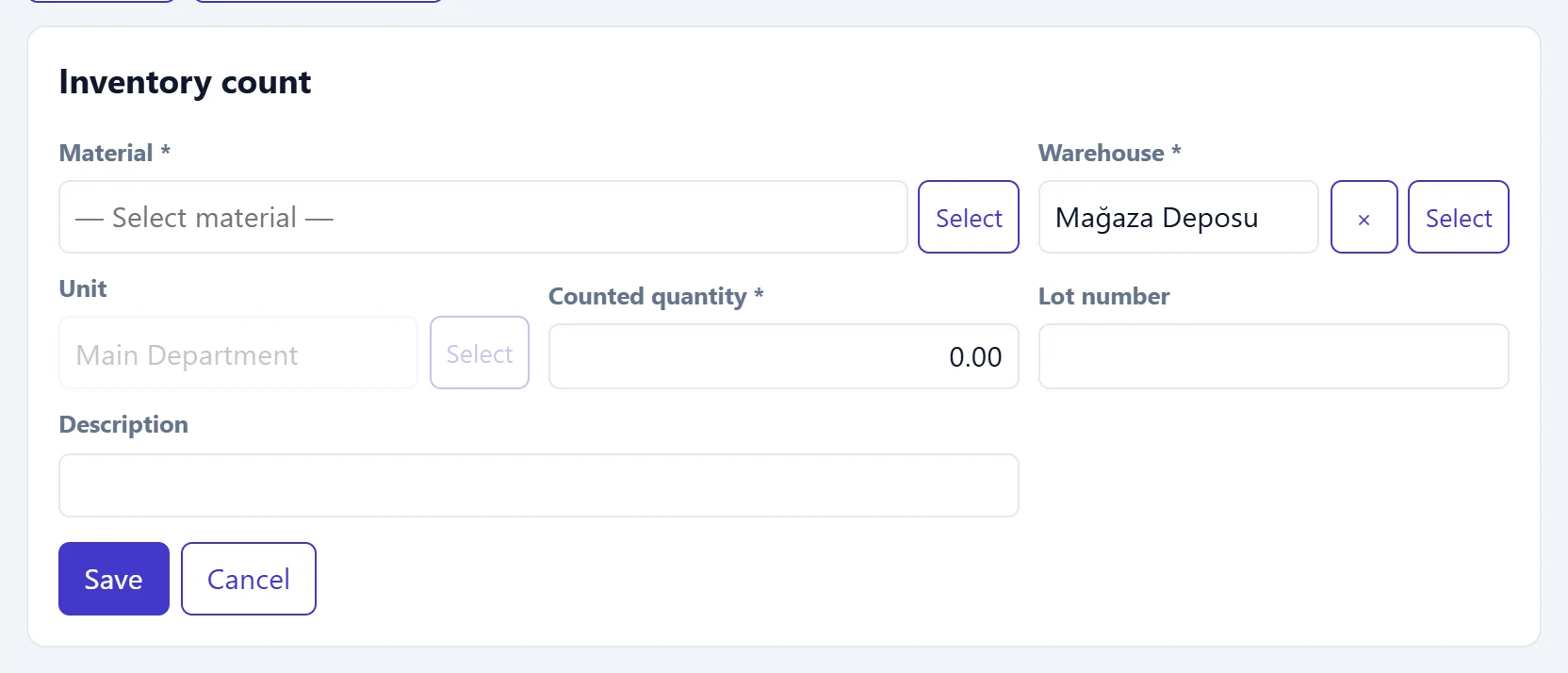
- 1Cancel Closes the form.
| Field | Sign in | Description |
|---|---|---|
| Material required | Text | Stock card counted. Placeholder: «— Select material —» |
| Warehouse required | Text | Warehouse being counted. Placeholder: «— Select warehouse —» |
| Unit | Text | Unit of the counted quantity. Placeholder: «Main Department» |
| Counted quantity required | Text | Actual quantity counted on the shelf; stock is set to this quantity. |
| Lot number | Text | Lot counted for lot-tracked products. |
| Description | Text | Note. |
To enter several products on one slip by barcode, the Stock → Check-in / Check-out screen is faster.
Common messages
| Message | Cause | Solution |
|---|---|---|
| Select material and warehouse. | Material or warehouse is empty. | Fill in both with Select. |
| Quantity must be greater than zero. | Quantity is empty or zero. | Enter a positive quantity. |
| Source and destination warehouse cannot be the same. | Both warehouses in the transfer are the same. | Choose a different target warehouse. |
| Material not found. | The card was deleted or is inactive. | Check the card on the Stock cards screen. |
| Warehouse not found. | The warehouse was deleted or is inactive. | Choose an active warehouse on the Warehouses screen. |