
 AsyaTicari
 AsyaRestoran
 AsyaOtel
 AsyaCrm
 AsyaKlinik
 AsyaSpor
 AsyaSSH
 AsyaEmlak
 AsyaFilo
 AsyaPuantaj
 AsyaİSG
 AsyaİHD
 Kolay Öğren
Shared modules · Belgeler
Contract tracking
Following contracts that are about to end or have expired, reminding customers via WhatsApp and renewing a contract for a new period.
This screen changed recently. Screenshots will be retaken after the code change of 2026-11-19; the text is current, some images may look outdated.
The Contract tracking screen follows Contract documents by their end date. Expired contracts and contracts ending soon are listed first; from here you send the customer a reminder or move the contract to a new period with one click. The screen appears in the menu only in companies with the «Contract» feature.
Parts of the screen
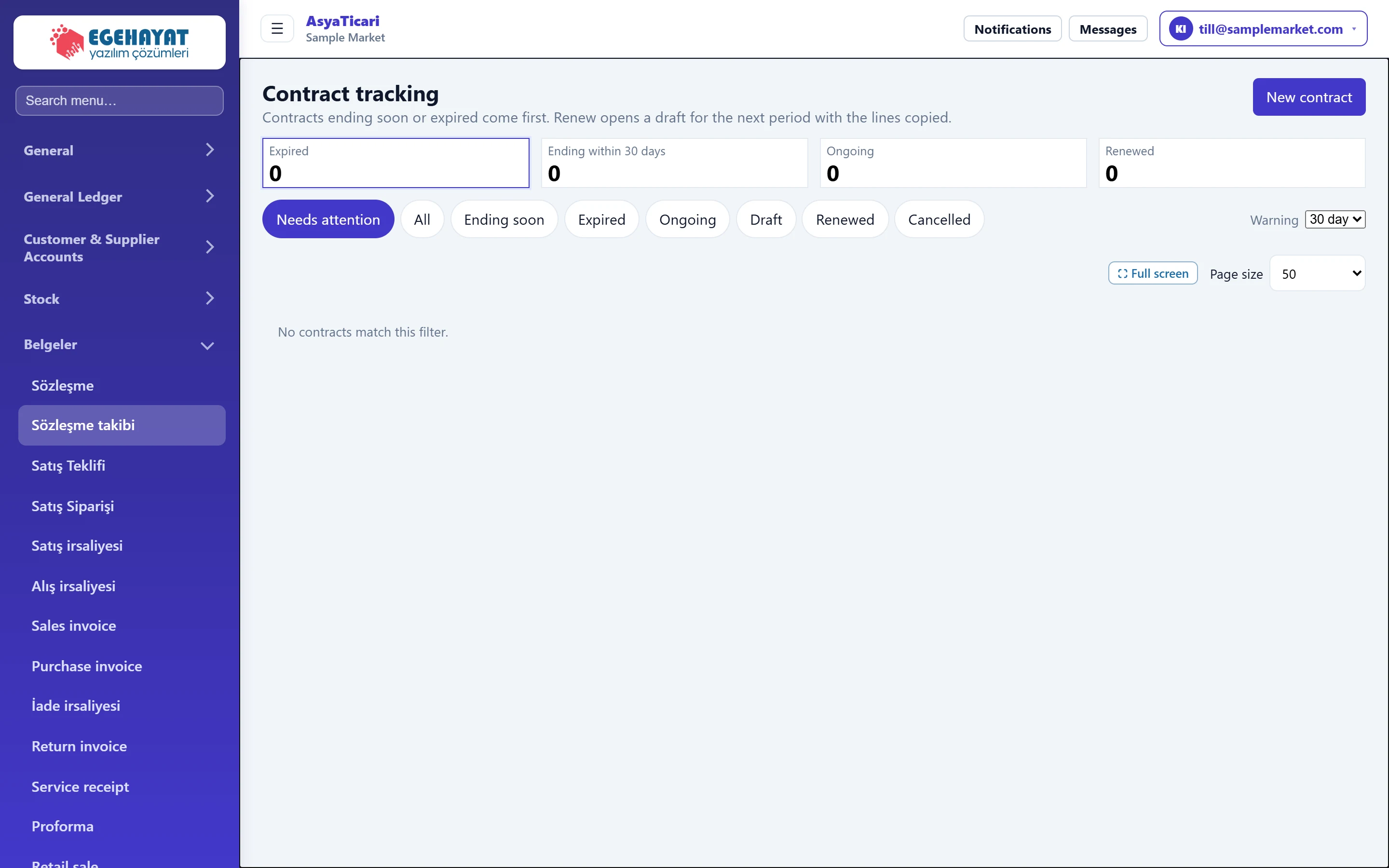
- 1New contract Opens a new contract document.
- 2Counters Numbers of expired, ending, ongoing and renewed contracts.
- 3Phase filter Filters the list by contract phase.
- 4Warning How many days before the end a contract counts as «ending».
- 5Contract list Click a row to open the contract document.
Counters

- 1Expired Contracts past their end date and not renewed.
- 2Ending within 30 days Contracts ending within the warning period.
- 3Ongoing Ongoing and open-ended contracts.
- 4Renewed Contracts whose next period has been opened.
Clicking a counter filters the list to that phase. When there are expired contracts the first counter turns red.
Phase filter and warning period

- 1Needs attention Expired and ending soon (selected on opening).
- 2All All contracts.
- 3Draft Contracts not yet posted.
- 4Cancelled Cancelled contracts.
- 5Warning 15, 30, 60 or 90 days.
A contract's phase is calculated from its end date:
| Phase | Meaning |
|---|---|
| Ending soon | The end date is within the Warning period (or exactly on it). |
| Expired | The end date has passed and the contract was not renewed. |
| Ongoing | More days left than the warning period, or no end date (open-ended). |
| Draft | The contract document is not confirmed. |
| Renewed | A new period was opened with Reload (renew). |
| Cancelled | The contract document was cancelled. |
The list has the columns Contract no., Customer, Start, End, Status (e.g. «12 days left», «ended 3 days ago», «Open-ended»), Description and Amount. Click a row to open the contract document.
Row buttons
- WhatsApp: on contracts ending soon or expired, if the customer's phone is recorded. Opens WhatsApp with a ready message containing the contract number and end date; you can change it before sending.
- Renew (shown as «Reload» in some languages): on ongoing, ending or expired contracts. Asks for confirmation, then opens a new-period draft with the lines copied.
- New one →: on a renewed contract, opens the new period's document.
- Endorsement / cancel: only in companies with policy tracking, on insurance-policy contracts; records extra premium / refund and policy cancellation.
Renewing a contract: step by step
- On the Needs attention tab, find the contract to renew.
- Press the renew button on the row and accept the confirmation.
- In the new draft contract, check the start / end dates and amounts.
- Press Save and confirm. The old contract moves to the Renewed phase.
Choose the warning period to suit your contracts: 60 or 90 days for yearly contracts, 15 days for monthly services.
In companies with policy tracking, Follow-up / Premium report views appear under the title; the premium report shows monthly premium and commission totals per insurer.
Common messages
| Message | Cause | Solution |
|---|---|---|
| No contracts match this filter. | There are no contracts in the selected phase. | Switch to the All tab. |
| The contract feature is off for this company. An administrator can enable “Contract” under Platform Admin › company › features. | The «Contract» feature is off in the company. | Ask your reseller to enable it. |