
 AsyaTicari
 AsyaRestoran
 AsyaOtel
 AsyaCrm
 AsyaKlinik
 AsyaSpor
 AsyaSSH
 AsyaEmlak
 AsyaFilo
 AsyaPuantaj
 AsyaİSG
 AsyaİHD
 Kolay Öğren
Shared modules · Veri aktarımı
Template upload
Downloading the ready-made Excel template, filling it in and uploading item cards, account cards, opening stock and opening balances from one file.
The Template upload screen provides an Excel template with fixed columns. When you fill it in and upload it, item cards, account cards, opening stock and account opening balances are created from the same file. To upload your own list with column mapping, use the Excel import screen.
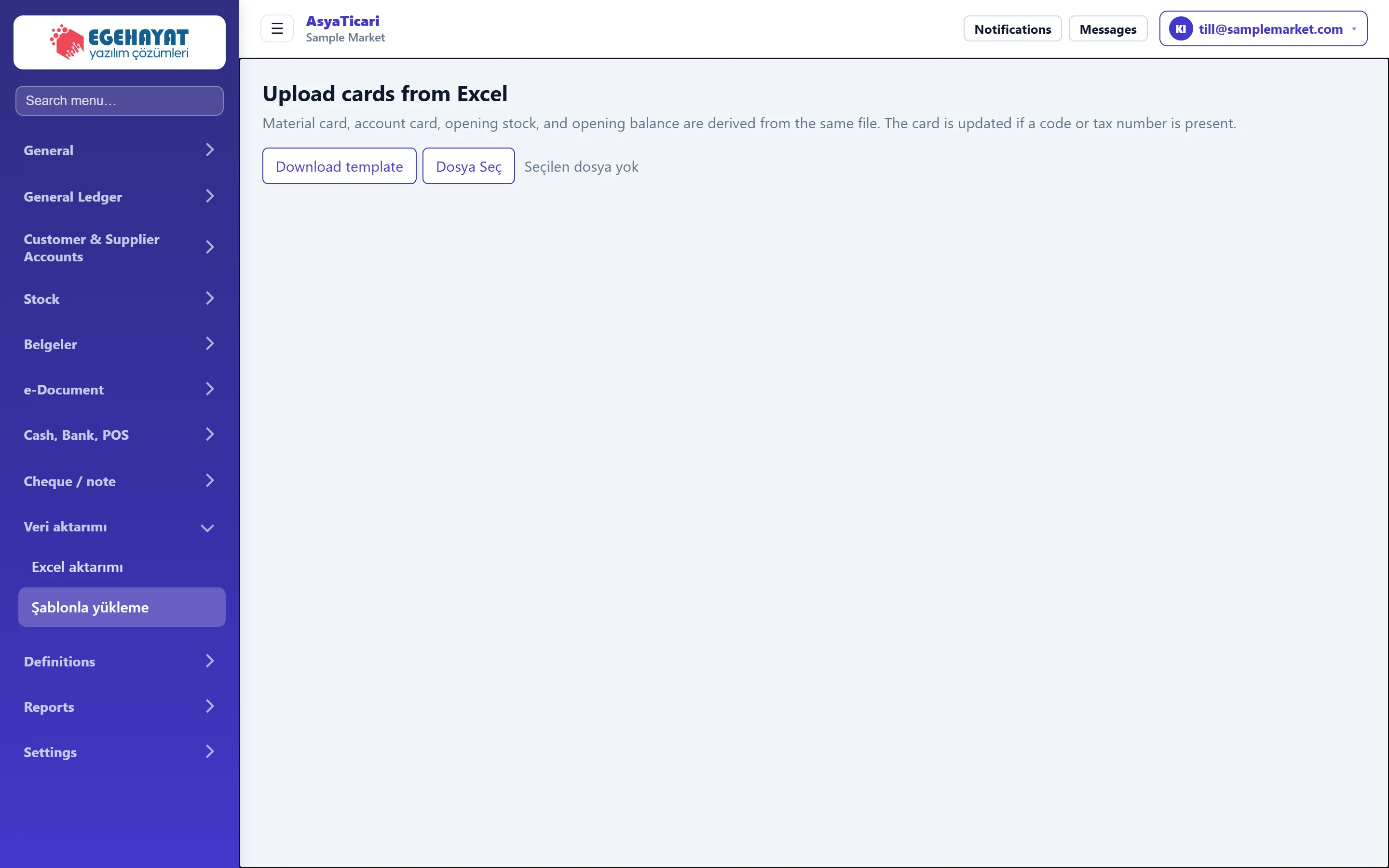
- 1Upload cards from Excel Screen title; below it, which cards are loaded.
- 2Download template Downloads the empty template with Materials and Accounts sheets.
- 3Choose file Selects the filled-in template; the upload starts as soon as the file is chosen.
Template sheets
Download template downloads «kart-sablon.xlsx». The file has two sheets; do not change the column order.
Items sheet (first sheet):
| Column | Description |
|---|---|
| Code | Item code. Required; if a card with the same code exists it is updated. |
| Name | Item name. Required. |
| Unit | Unit code (e.g. ADET, KG). If the company does not have it, a new unit with that code is created. |
| VAT | VAT rate; 20% if empty. |
| Sales price | Unit sales price. |
| Purchase price | Unit purchase price; also the unit cost of the opening stock. |
| Barcode | Product barcode. |
| Type | Item type (e.g. trade goods). Trade goods if empty. |
| Opening quantity | If greater than zero, an «opening stock» receipt is posted to the main warehouse. |
«Cariler» (accounts) sheet:
| Column | Description |
|---|---|
| Name | Account name / title. Required. |
| Type | Customer, supplier or both. Customer if empty. |
| Tax number | If filled, the account with the same tax number is updated; otherwise an account with the same name is searched. |
| Account e-mail. | |
| Phone | Account phone. |
| Opening balance | A positive amount is posted as the account's debt, a negative one as its credit, dated today. |
Step by step
- Press Download template.
- Fill in both sheets; do not delete the header row.
- Save the file and choose it with the file picker on the screen. The upload starts as soon as the file is chosen.
- Check the Page, Row and Result of each row in the table that opens below; successful rows show the code / name, failed rows the error text.
Records are written as soon as the file is chosen; this screen has no preview. Try a file with a few rows first. If you need preview and undo, use the Excel import screen.
Entering amounts and quantities as numbers in Excel is best. Values typed as text such as «1.250,50», «1,250.50» or «₺1.250» are also read; a value that cannot be read marks the row as failed (it is no longer silently written as 0). The template downloads in your language (e.g. «Materials» / «Accounts»); do not rename the sheets.
Common messages
| Message | Cause | Solution |
|---|---|---|
| No «Materials» or «Accounts» sheet was found in the file. … | A sheet was renamed or a different file was chosen. | Download the template again and fill it in without renaming the sheets. |
| «…» in column B could not be read as a number. | An amount / quantity cell contains text that is not a number. | Enter only a number in the cell (e.g. 1250.50). |
| Code and name are required. | Code or name is empty on the items sheet. | Fill in both columns. |
| Account name is required. | Name is empty on the accounts sheet. | Fill in the name or delete the row. |
| Template could not be retrieved. | The server could not be reached while downloading. | Refresh the page and try again. |