
 AsyaTicari
 AsyaRestoran
 AsyaOtel
 AsyaCrm
 AsyaKlinik
 AsyaSpor
 AsyaSSH
 AsyaEmlak
 AsyaFilo
 AsyaPuantaj
 AsyaİSG
 AsyaİHD
 Kolay Öğren
Shared modules · Settings
Users
Listing company users, creating new users, assigning roles and workplaces, deactivating users and resetting passwords.
On the Users screen you manage the sign-in accounts of the people working in your company: create new users, set which workplaces they work in and their role, and deactivate an account or reset its password when needed.
Opening the screen
Open Settings → Users from the side menu.
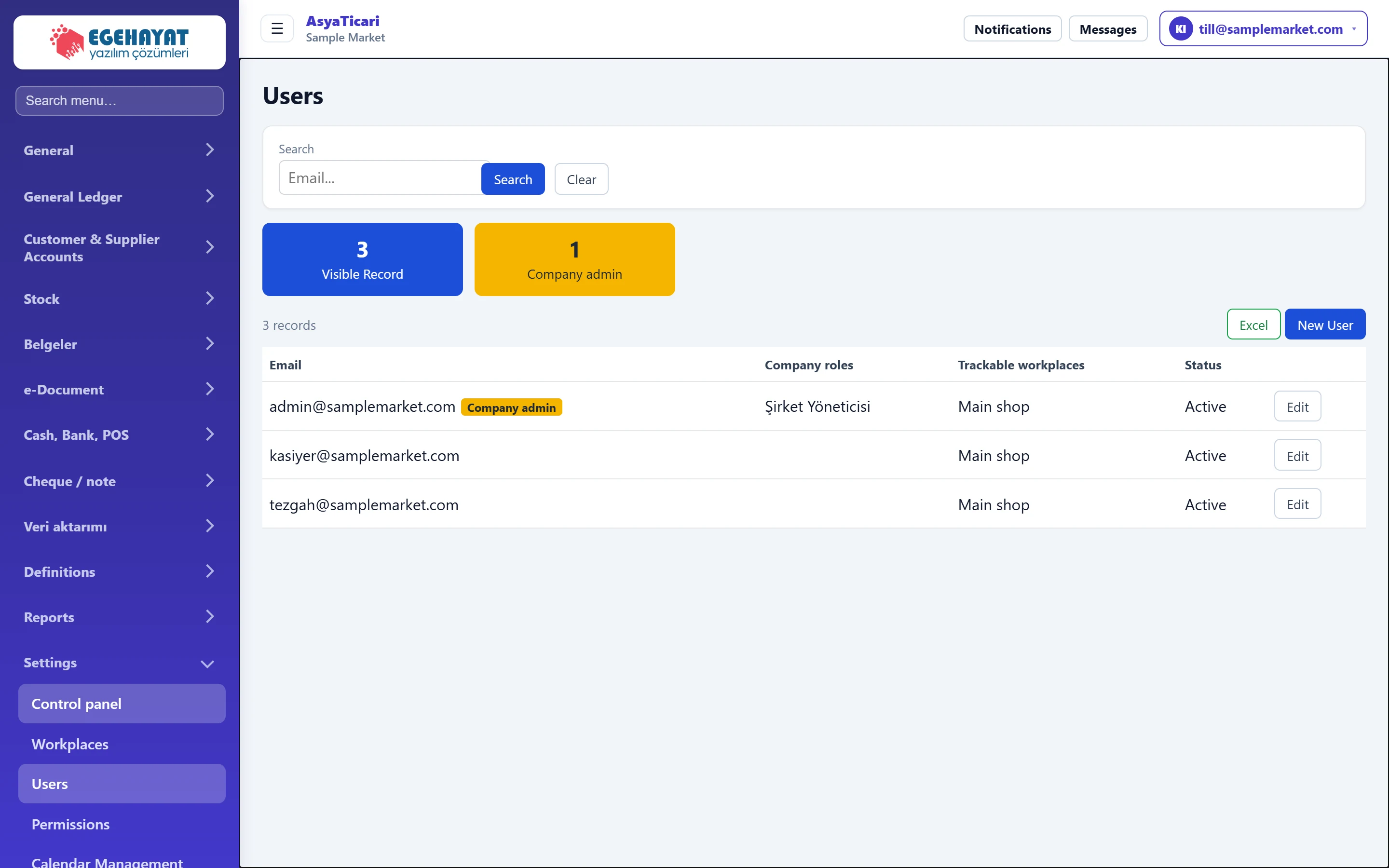
- 1Search Type part of an e-mail; the list filters as you type.
- 2Counters Number of users and company administrators shown in the list.
- 3Excel Downloads the list as an Excel file.
- 4New User Opens the new user form.
- 5Company admin A company administrator has all permissions.
- 6Edit The user's role, workplace and password settings.
The list shows each user's e-mail, company roles, workplaces and status (Active / Inactive). Company administrators have a Company admin label next to their e-mail.
Creating a new user
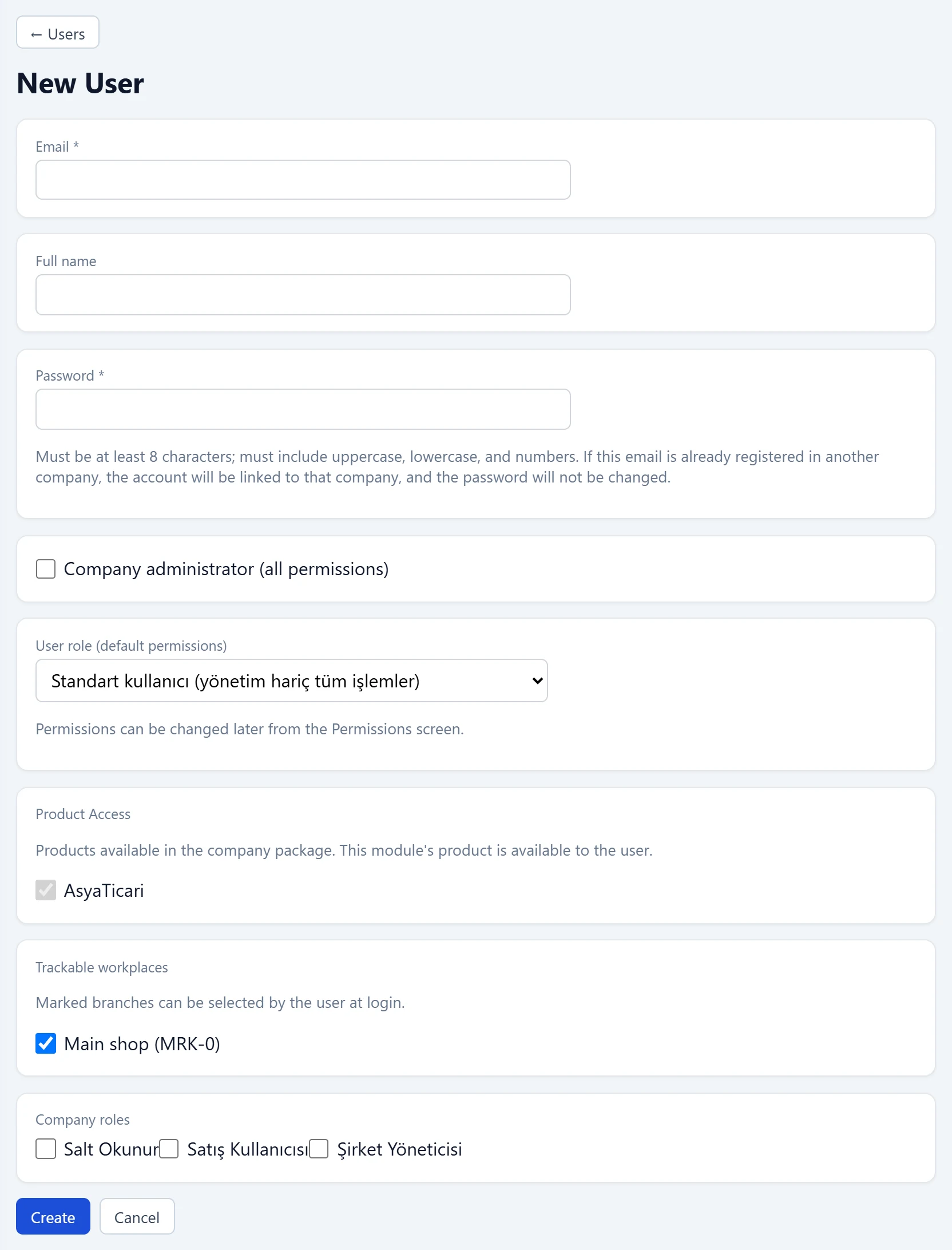
- 1Password rule Password rule and existing account information.
- 2Create Creates the user and returns to the list.
- 3Cancel Returns to the list without saving.
| Field | Sign in | Description |
|---|---|---|
| Email required | The user's sign-in e-mail. Required, must contain @. If registered with another company, that account is linked to this company. | |
| Full name | Text | Name shown on screens (optional). |
| Password required | Text | At least 8 characters with upper case, lower case and a digit. If the e-mail is registered with another company, its existing password does not change. |
| Company administrator (all permissions) | Checkbox | If ticked, the user sees all menus and actions; the permission matrix does not apply. |
| User role (default permissions) | Choice list | Ready-made permission set given to the user at the start (depends on the product; e.g. Standard user, Cashier, View only). Options: Standart kullanıcı (yönetim hariç tüm işlemler) · Kasiyer (hızlı satış, cari ve stok görüntüleme) · Salt görüntüleme |
| Product Access | Checkbox | Products active in the company package; for information, cannot be changed. |
| AsyaTicari | Checkbox | This product is open to the user (cannot be changed). |
| Trackable workplaces | Checkbox | Workplaces the user can choose at sign-in. The first active workplace is ticked by default. |
| Main shop (MRK-0) | Checkbox | Sample workplace; if ticked, the user can work in this workplace. |
| Company roles | Checkbox | Platform-wide company roles (e.g. Read Only, Sales User). |
| Salt Okunur | Checkbox | Platform role: views records only. |
| Satış Kullanıcısı | Checkbox | Platform role: sales transactions. |
| Şirket Yöneticisi | Checkbox | Platform role: company management. |
- Press New User at the top right of the list.
- Enter the e-mail and password; optionally enter the full name.
- If the user will manage everything, tick Company administrator (all permissions). Otherwise choose a ready-made permission set from User role.
- Tick the workplaces the user will work in under Trackable workplaces.
- Tick Company roles if needed and press Create. The user is added to the list.
- For detailed permissions, edit the user's matrix on the Permissions screen.
If the e-mail is already registered with another company, no new account is created; the existing account is linked to your company and the person signs in with their own password. A message tells you so.
Editing a user
Press Edit on the user's row in the list.
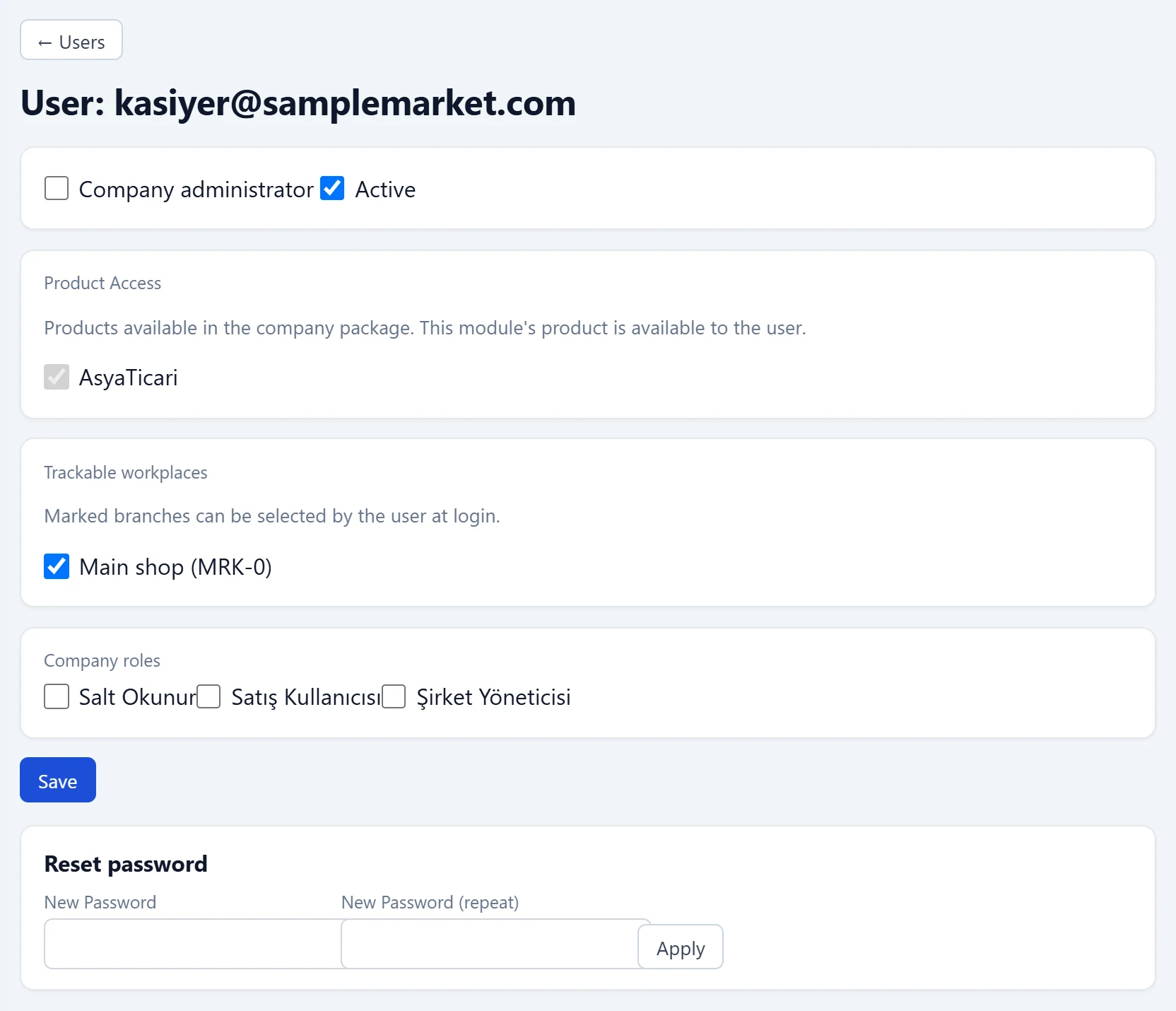
- 1Save Saves administrator, active, workplace and role changes.
- 2Apply Resets only the password.
| Field | Sign in | Description |
|---|---|---|
| Company administrator | Checkbox | If ticked, the user receives all permissions. |
| Active | Checkbox | An inactive user cannot sign in; the record is not deleted. |
| Product Access | Checkbox | Products active in the company package; for information. |
| AsyaTicari | Checkbox | This product is open to the user (cannot be changed). |
| Trackable workplaces | Checkbox | Workplaces the user can work in. |
| Main shop (MRK-0) | Checkbox | Sample workplace; if ticked, the user can work in this workplace. |
| Company roles | Checkbox | Platform-wide company roles. |
| Salt Okunur | Checkbox | Platform role: views records only. |
| Satış Kullanıcısı | Checkbox | Platform role: sales transactions. |
| Şirket Yöneticisi | Checkbox | Platform role: company management. |
| New Password | Text | New password for the user (following the password rule). |
| New Password (repeat) | Text | Type the same password again. |
- Make administrator, active, workplace or role changes and press Save. A message says the user was updated and permission changes take effect at the next sign-in.
- For a user who forgot the password, type the new password twice in the Reset password section below and press Apply.
Instead of deleting the account of someone who has left, untick Active. An inactive user cannot sign in; their records and history are kept.
Exporting the list to Excel
The Excel button above the list downloads the users currently shown (only the filtered ones if a search is applied) with e-mail, roles, workplaces and status columns.
How complex the password must be depends on the company's Password rule setting (in AsyaTicari Settings → Control panel, or the company details in Platform Admin). Default: at least 8 characters with upper case, lower case and a digit. With Simple, at least 4 characters are enough.
Common messages
| Message | Cause | Solution |
|---|---|---|
| Enter a valid e-mail. | The e-mail is empty or has no @. | Enter it as name@company.com. |
| Password is required. | No password for the new user. | Enter a password that follows the rule. |
| Password must be at least 8 characters. | The password is too short. | Use at least 8 characters. |
| Password must contain at least one upper-case letter. | No upper-case letter. | Add upper case, lower case and a digit. |
| Passwords do not match. | The two boxes differ in password reset. | Type the same password twice. |
| User not found in this company. | The user was removed from the company in another session. | Refresh the list. |
| You do not have permission for these settings. | No permission to manage users. | Contact the company administrator. |