
 AsyaTicari
 AsyaRestoran
 AsyaOtel
 AsyaCrm
 AsyaKlinik
 AsyaSpor
 AsyaSSH
 AsyaEmlak
 AsyaFilo
 AsyaPuantaj
 AsyaİSG
 AsyaİHD
 Kolay Öğren
Shared modules · Settings
Workplaces
Adding, editing and deactivating the company's workplaces (branches, shops, warehouses).
On the Workplaces screen you define the company's branches, shops or offices. Users choose one of these workplaces at sign-in; sales, cash and stock records are written to the selected workplace.
Opening the screen
Open Settings → Workplaces from the side menu, or click the Workplaces tab at the top of the Control panel.
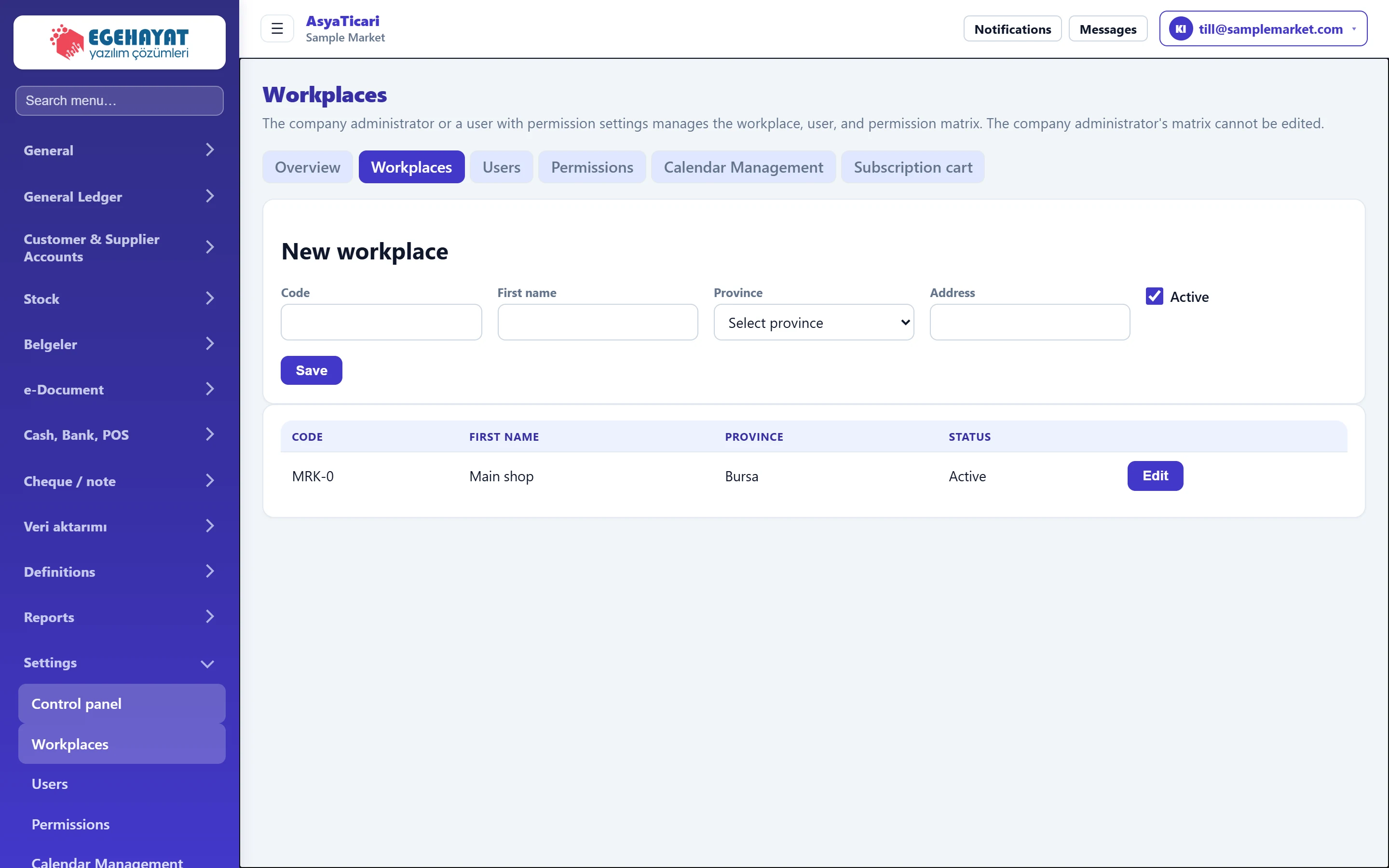
- 1Workplaces Workplaces is selected in the settings tabs.
- 2New workplace Form for a new workplace or for editing the selected one.
- 3Workplace list All workplaces (branches) of the company.
- 4Edit Loads the workplace into the form above.
Workplace form
When empty, the form at the top is titled New workplace. Pressing Edit in the list loads that workplace into the form and the title changes to Edit workplace.
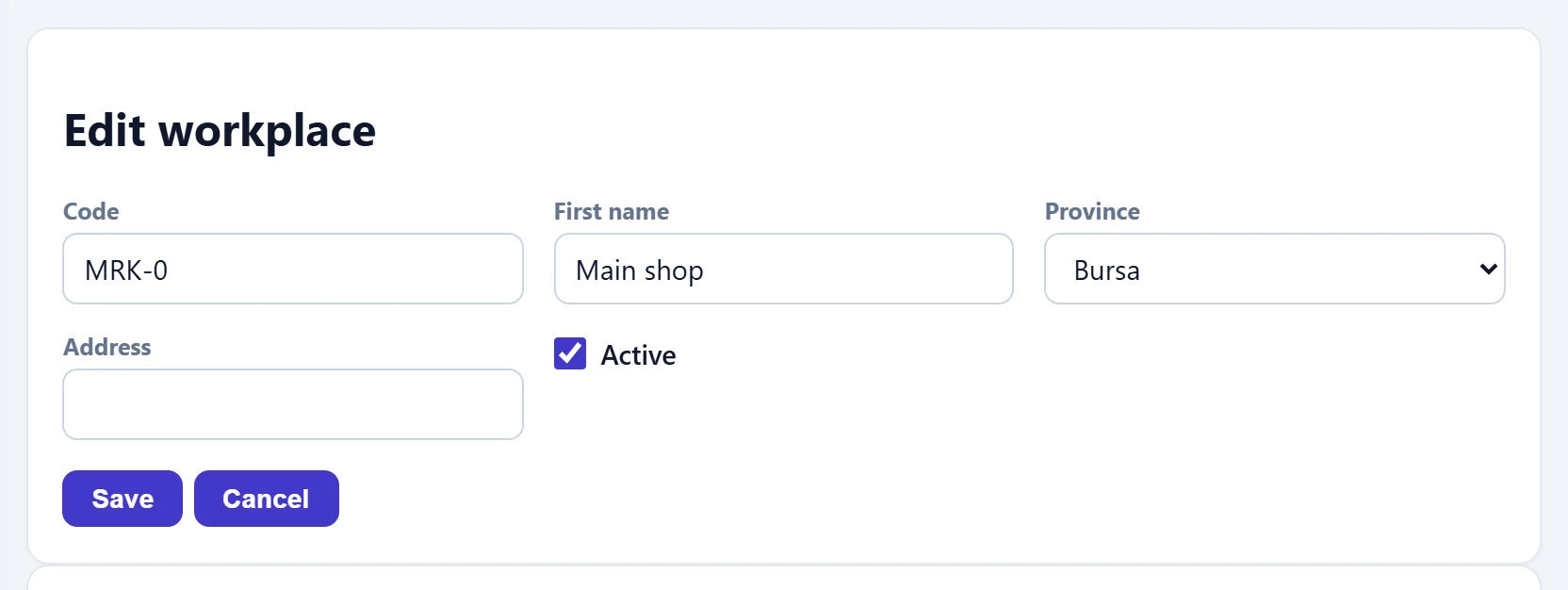
- 1Save Saves the workplace.
- 2Cancel Leaves editing; the form returns to «New workplace».
| Field | Sign in | Description |
|---|---|---|
| Code | Text | Short code of the workplace (1–20 characters, e.g. MRK-0). Must be unique in the company. |
| First name | Text | Name of the workplace (e.g. «Main», «Market branch»). Required. |
| Province | Choice list | Province where the workplace is located; chosen from the list. |
| Address | Text | Full address. |
| Active | Checkbox | An inactive workplace is not listed in user and workplace selections; its records are not deleted. |
Adding a new workplace
- Make sure the form is titled New workplace (otherwise press Cancel).
- Enter the Code and Name, choose the Province and, if needed, enter the Address.
- Check that Active is ticked and press Save.
- A confirmation message appears and the workplace is added to the list.
- Link the users who will work there to the new workplace on the Users screen.
Editing or deactivating a workplace
- Press Edit on the workplace's row in the list.
- Change the details; for a closed branch untick Active.
- Press Save. To discard the changes press Cancel.
Workplaces are not deleted, only deactivated. An inactive workplace is not listed in user and workplace selections; its past records remain.
Keep the workplace code short and meaningful (e.g. MRK-0, MARKET-1). The code appears next to the name in reports and in workplace selection.
Common messages
| Message | Cause | Solution |
|---|---|---|
| Workplace code must be 1–20 characters. | The code is empty or longer than 20 characters. | Enter a code of 1–20 characters. |
| Workplace name is required. | Name is empty. | Enter the workplace name. |
| This code is used by another workplace. | The same code is already registered for another workplace. | Use a different code. |
| You do not have permission for these settings. | The user has no settings permission. | Ask the company administrator for permission. |