
 AsyaTicari
 AsyaRestoran
 AsyaOtel
 AsyaCrm
 AsyaKlinik
 AsyaSpor
 AsyaSSH
 AsyaEmlak
 AsyaFilo
 AsyaPuantaj
 AsyaİSG
 AsyaİHD
 Kolay Öğren
Shared modules · Belgeler
Document scanning
Reading name, tax number, amount and document number from PDF invoices, bank receipts, cheques and promissory notes and creating a draft document or record.
The Document scanning screen reads a supplier's PDF invoice, a bank receipt, a cheque or a promissory note and suggests the details you would otherwise type by hand. When you check and confirm them, the matching record is created. The screen appears in the menu in companies with the «Document scanning» feature.
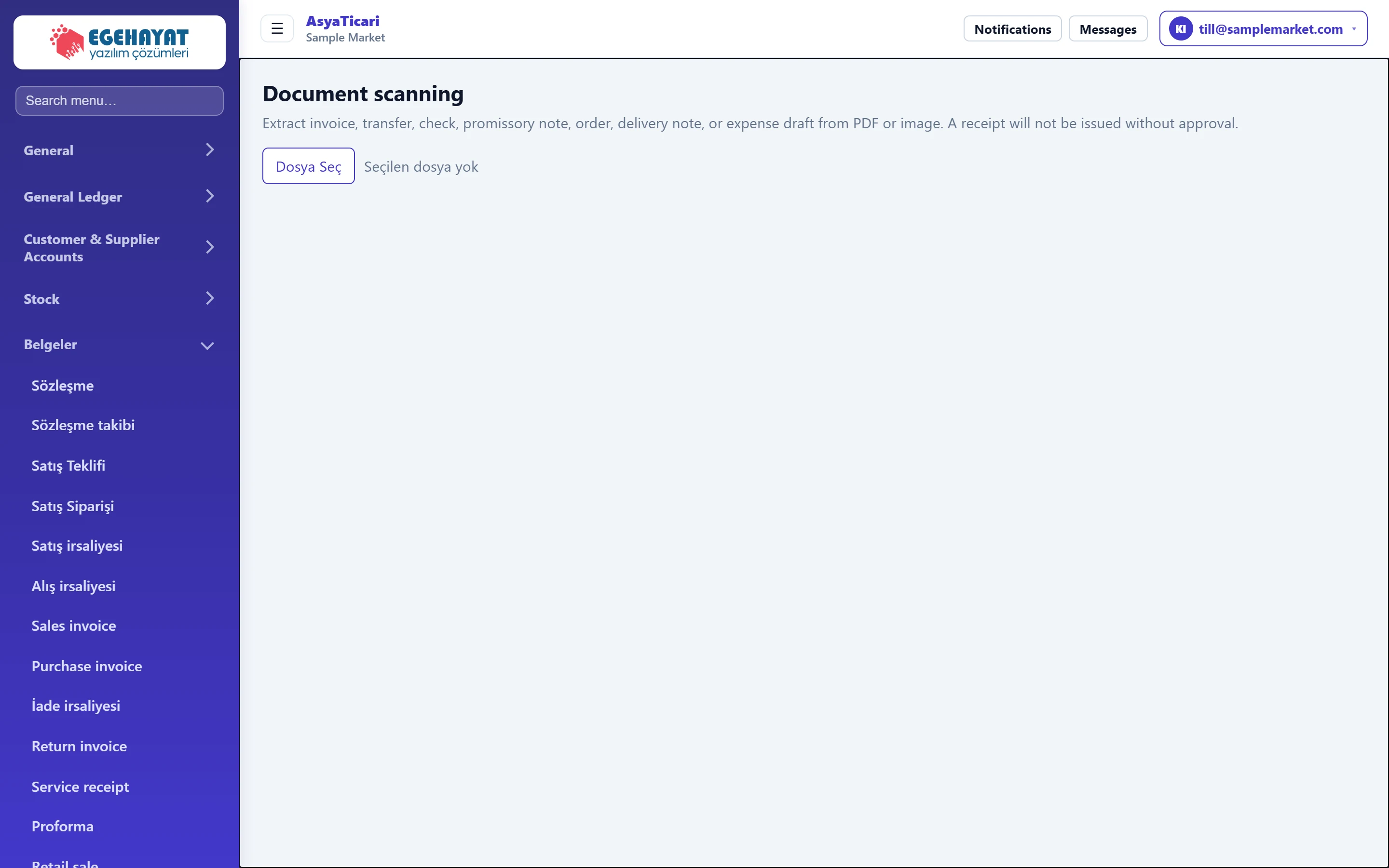
- 1Description Document types that can be read.
- 2Choose file Choose a PDF or photo (max. 8 MB); reading starts immediately.
Details read
After a file is chosen, a card opens:
| Field | Description |
|---|---|
| Type | What the document is: Purchase invoice, Sales order, Delivery note, Expense, Incoming transfer, Cheque or Promissory note. Reading suggests a type; change it if wrong. |
| Title | Company / person who issued the document. |
| Tax no. | Issuer's tax number. If an account with this number exists, the record is linked to it; otherwise an account with exactly the same name is searched. |
| Amount | Total amount of the document. |
| Document number | Invoice, receipt or cheque / note number. |
| IBAN | Sender's IBAN for an incoming transfer. |
If reading confidence is low, the card shows «Low reading confidence. Please check the fields.».
What happens on «Create draft»
| Type | Record created |
|---|---|
| Purchase invoice, Expense | Draft Purchase invoice (one line with amount and name). |
| Delivery note | Draft Purchase waybill. |
| Sales order | Draft Sales order. |
| Incoming transfer | Collection on the company's first active bank account. |
| Cheque, Promissory note | Received cheque / note in the portfolio (due date = document date). |
Scanning a document: step by step
- Open Documents → Document scanning.
- Choose the PDF file (max. 8 MB). Reading happens immediately.
- Compare Type, Title, Tax no., Amount and Document number on the card with the document and correct mistakes.
- For invoices, orders, waybills and expenses press Create draft document; the Open draft link next to «Draft created.» opens the draft.
- Complete lines and VAT in the draft and confirm it.
Reading uses the text inside the PDF. Computer-generated PDFs (such as e-Invoice / e-Archive printouts) give the best results. Photos and scanned (image-only) PDFs contain no readable text; fill in the fields by hand.
Incoming transfer, Cheque and Promissory note do not open a draft but create a record directly: the button becomes Save as bank collection or Save to portfolio, a warning appears on the card and you are asked to confirm. The transfer is posted as a collection to the first bank account, the cheque / note to the portfolio. Check the amount and account carefully before confirming. After saving the card closes; the same document cannot be saved twice.
Common messages
| Message | Cause | Solution |
|---|---|---|
| File is empty or exceeds the 8 MB limit. | The chosen file is empty or too large. | Make the file smaller (e.g. split pages) and choose it again. |
| Low reading confidence. Please check the fields. | No readable text was found in the file. | Fill in the fields by hand from the document. |
| No bank account. | No active bank account for an incoming transfer. | Open an account under Cash, Bank, POS → Bank. |
| This document is already recorded. | The same reading was confirmed twice. | Open the document / record from its list. |
| Document scanning is disabled for this company. | The «Document scanning» feature is off. | Ask your reseller to enable it. |