
 AsyaTicari
 AsyaRestoran
 AsyaOtel
 AsyaCrm
 AsyaKlinik
 AsyaSpor
 AsyaSSH
 AsyaEmlak
 AsyaFilo
 AsyaPuantaj
 AsyaİSG
 AsyaİHD
 Kolay Öğren
Shared modules · Cheque / note
Cheque books
Defining, extending and tracking your own cheque books leaf by leaf: which cheque went to whom and how many free leaves are left.
This screen changed recently. Screenshots will be retaken after the code change of 2026-11-19; the text is current, some images may look outdated.
The Cheque books screen keeps the cheque books your bank gave you. When a book is defined, the next leaf number is filled in automatically when you enter your own cheque, and this screen shows who received each leaf and for what amount.
Opening the screen
Open Cheque / note → Cheque books in the side menu.
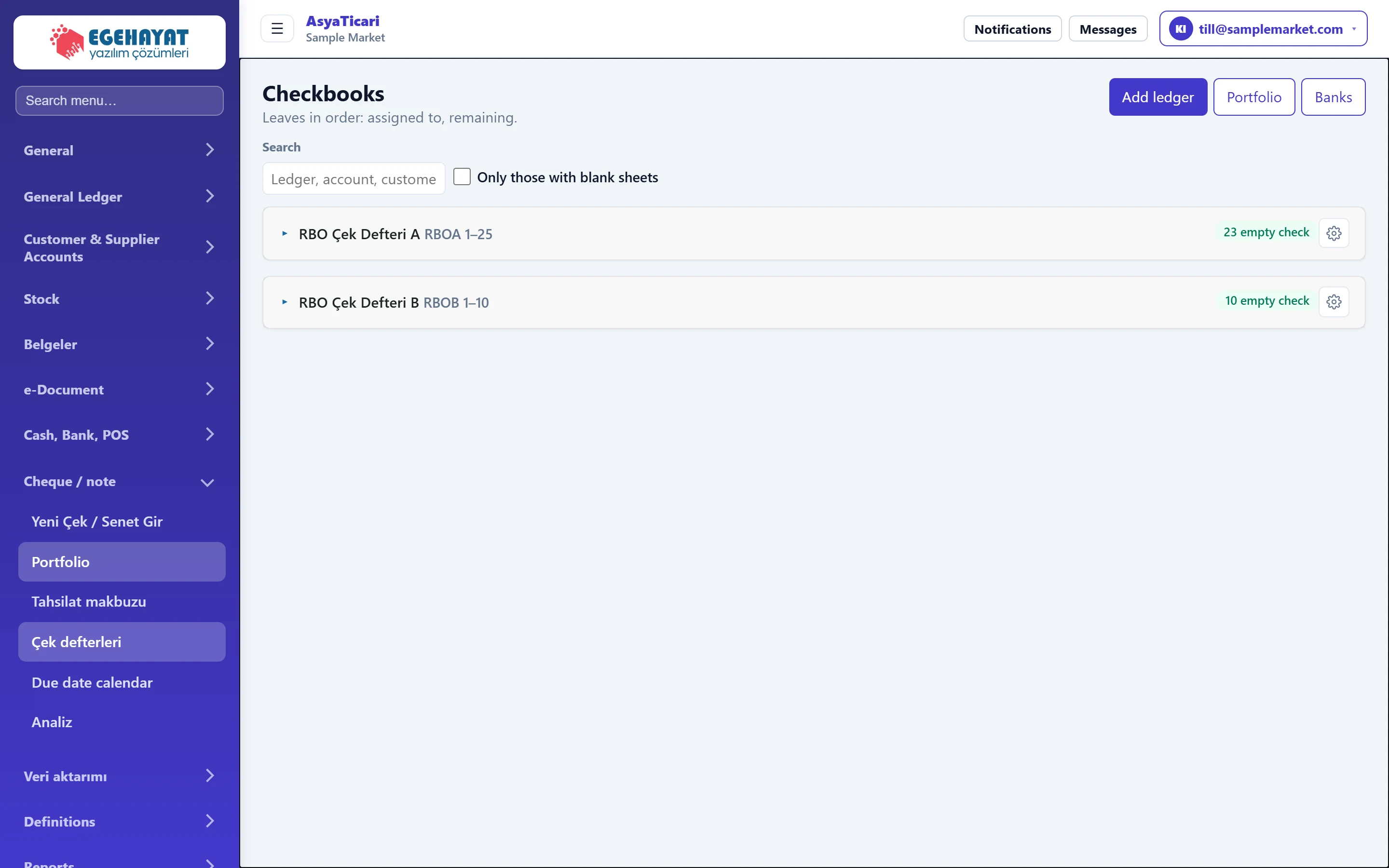
- 1Add ledger Creates a new cheque book.
- 2Banks Bank and account definitions.
- 3Search Searches by book, account or customer name.
- 4Only with free leaves Only books that still have free leaves.
- 5Cheque book Book: name, serial range, free leaves; click to open the leaves.
- 6Book menu Edit / delete the book.
Each book is listed as a collapsible heading: name, serial prefix and leaf range (e.g. «RBOA 1–25»), and the number of free cheques on the right. Below the heading the linked bank account is shown.
Book leaves
Click a book heading to open its leaves.
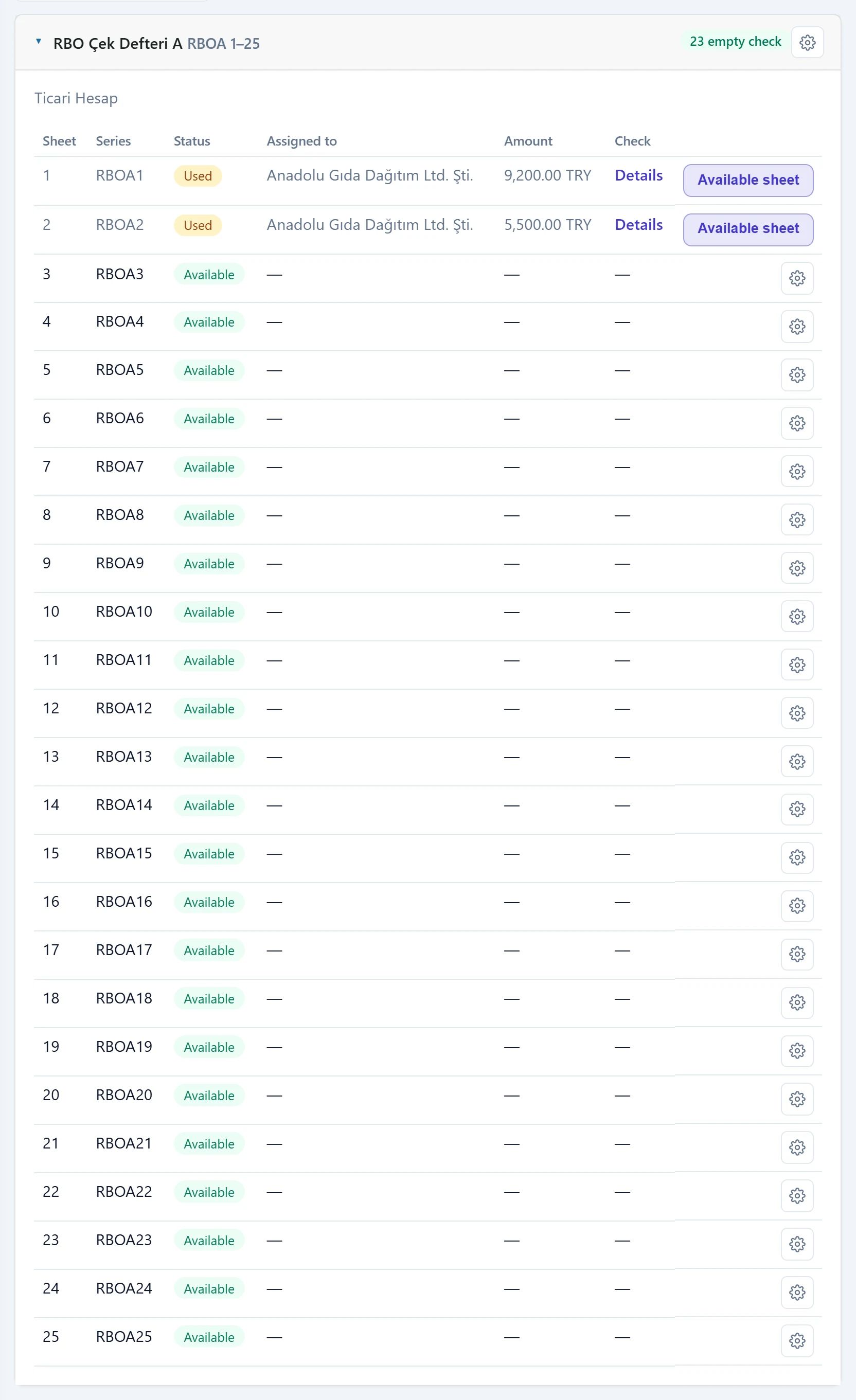
- 1Status Available, Used or Void.
- 2Given to Account the leaf was given to.
- 3Leaf Used leaf; Details opens the cheque.
Depending on the status, the leaf row menu offers:
| Action | When | What it does |
|---|---|---|
| Change number / serial | Leaf not linked to a cheque | Corrects the printed number or serial prefix. |
| Make available | Leaf with status Used | Frees the leaf again. |
| Delete from book | Leaf not linked to a cheque | Removes the leaf from the book. |
| Void | Available leaf | Voids a torn / spoiled leaf; it is no longer suggested. |
On a used leaf, the Details link opens that cheque.
New cheque book
The add button opens a New checkbook card above the list.

The card contains these fields:
| Field | Description |
|---|---|
| Book name | Name of the book (e.g. «Sample Bank 2026/1»). Required. |
| Account to be paid | Bank account debited when the cheques fall due. Required. |
| Serial prefix | Letter part of the cheque number (e.g. «RBOA»). |
| First leaf number | First printed cheque number in the book. Required. |
| Number of leaves | Number of leaves; the last leaf number is calculated from it. |
| Last leaf number | Last printed cheque number in the book. Required. |
The Account to be paid list comes from the bank → branch → account tree on Definitions → Banks. If your accounts are only defined on Cash, Bank, POS → Bank, the card says «To create a checkbook, first add an account to the bank.»; link the account to its bank and branch on the Banks screen.
Step by step: defining a cheque book
- Click the add button.
- Enter the book name and choose the account to be paid.
- From the first cheque in the book, enter the Serial prefix and the first leaf number.
- Enter the number of leaves (e.g. 25); the last leaf number is calculated.
- Click Save. «Checkbook added.» appears and the book is listed with all its leaves.
Editing and extending a book
Use Edit in the book heading menu to change name, serial prefix and active state. To extend, increase the number of leaves and save; if you leave it unchanged, only name / prefix / active are updated. Delete removes the book.
Common messages
| Message (as shown on screen) | Cause | Solution |
|---|---|---|
| Ledger name and the account to be paid are mandatory. | Name or account empty for a new book. | Fill in both fields. |
| First and last leaf number (printed check number) are required. | Leaf numbers empty. | Enter the first and last cheque number. |
| Ledger name is required. | The name was cleared while editing. | Enter the name. |
| The last leaf number cannot be smaller than the current last number. Increase it to extend. | The number of leaves was reduced while editing. | A book can only be extended; delete unused leaves from their rows. |
| To create a checkbook, first add an account to the bank. | No account in the banks tree. | Add bank, branch and account under Definitions → Banks. |