
 AsyaTicari
 AsyaRestoran
 AsyaOtel
 AsyaCrm
 AsyaKlinik
 AsyaSpor
 AsyaSSH
 AsyaEmlak
 AsyaFilo
 AsyaPuantaj
 AsyaİSG
 AsyaİHD
 Kolay Öğren
Shared modules · Documents
Creating and editing documents
Header, lines, totals, confirmation, payment, conversion, cancellation and printing of quotes, orders, waybills, invoices and other documents.
This screen changed recently. Screenshots will be retaken after the code change of 2026-11-19; the text is current, some images may look outdated.
All document types are filled in on the same screen: the header at the top (account, date, currency, tax options), the lines in the middle and the totals and save buttons at the bottom. A document can first be kept as a draft; once confirmed it receives a number and stock and account balance are updated. The fields depend on the document type (e.g. shipment details on waybills, an end date on contracts).
Parts of the screen
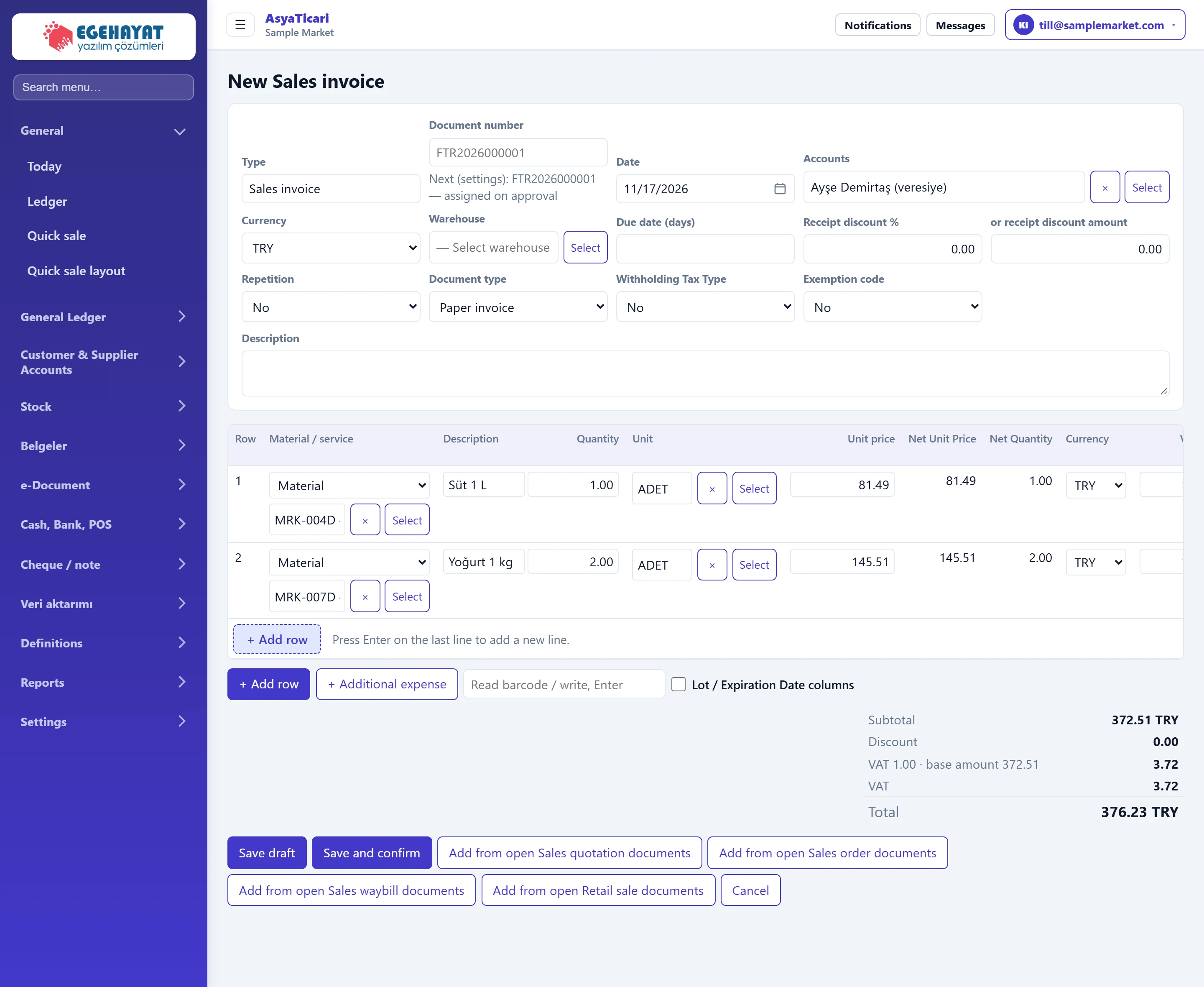
- 1Document no. If empty, assigned from the number series on posting.
- 2Account Customer / supplier selection.
- 3Document type Paper or e-document type.
- 4Rows Material, service or free-text lines.
- 5Line tools Add line, extra cost, add a line by barcode.
- 6Totals Subtotal, discount, tax base per VAT rate and grand total.
- 7Save draft Saves as a draft without touching stock or balance.
- 8Save and confirm Saves and posts: a number is assigned, stock and account balance are updated.
Document header
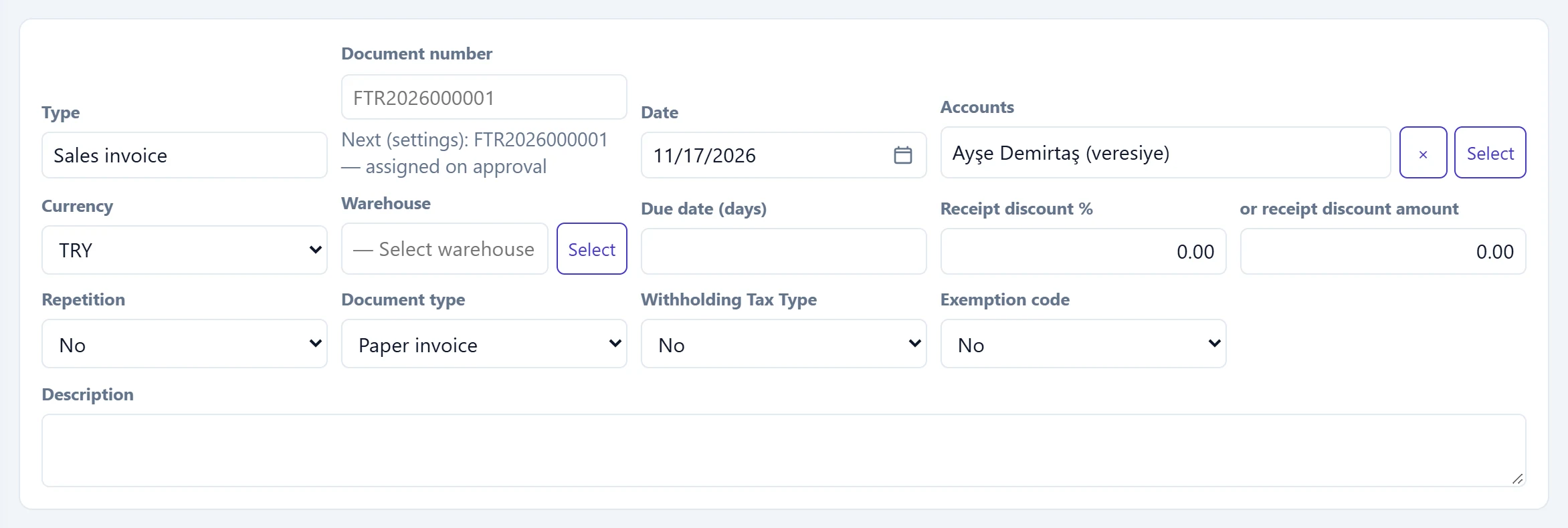
- 1Next number Number that the series will assign on posting.
- 2Select Opens the account selection window.
| Field | Sign in | Description |
|---|---|---|
| Type | Text | Document type chosen from the menu or the «New document» list; it cannot be changed here. |
| Document number | Text | Leave empty: assigned automatically from the number series on posting (the next number is shown below). If you type one, that number is used. Placeholder: «FTR2026000001» |
| Date | Text | Document date; defaults to today. Number series and exchange rate are taken for this date. Placeholder: «mm/dd/yyyy» |
| Accounts | Text | Customer / supplier of the document. Choose with «Select»; the cross clears it. Can stay empty on a retail sale. Placeholder: «— Select account —» |
| Currency | Choice list | Document currency. For a foreign currency the «Rate» field appears with that day's rate. Options: EUR · GBP · TRY · USD |
| Warehouse | Text | Warehouse for the stock issue / receipt. If empty, the workplace's default warehouse is used. Placeholder: «— Select warehouse —» |
| Due date (days) | Text | Payment term; the due date is the document date plus these days and is used in overdue receivable lists. |
| Receipt discount % | Text | Percentage discount on the whole document (after line discounts). |
| or receipt discount amount | Text | Document discount as an amount instead of a percentage. Disabled if a percentage is entered. |
| Repetition | Choice list | If monthly, quarterly or yearly is chosen, the document is recreated every period (subscription, rent). Options: No · Monthly · 3 months · Yearly |
| Document type | Choice list | Paper invoice, e-Invoice, e-Archive invoice, self-employment receipt (e-Waybill on waybills). E-document sending follows this choice. Options: Paper invoice · e-Invoice · e-Archive invoice · Self-employed invoice |
| Withholding Tax Type | Choice list | VAT withholding code if withholding applies; numerator / denominator fields appear and «Apply to lines» writes it to all lines. |
| Exemption code | Choice list | Tax authority exemption code if VAT exempt (e.g. 301 export). Disabled if exemptions are set per line. |
| Description | Long text | Note shown on the document and the printout. |
Extra fields by type:
- Sales quotation, Proforma: Validity date.
- Contract: the date field is called Start, plus an End date (see below).
- Sales order, Sales / Purchase waybill: Delivery date. On an order, if the company has order types, no lines can be entered until an Order type is chosen («Select order type.»); the order type cannot be changed after saving.
- Foreign currency: the Rate field appears with the rate of the document date; if none exists, «Exchange rate not found for this date; enter the rate manually.» is shown.
Selecting an account
The Select button in the account field opens the selection window:
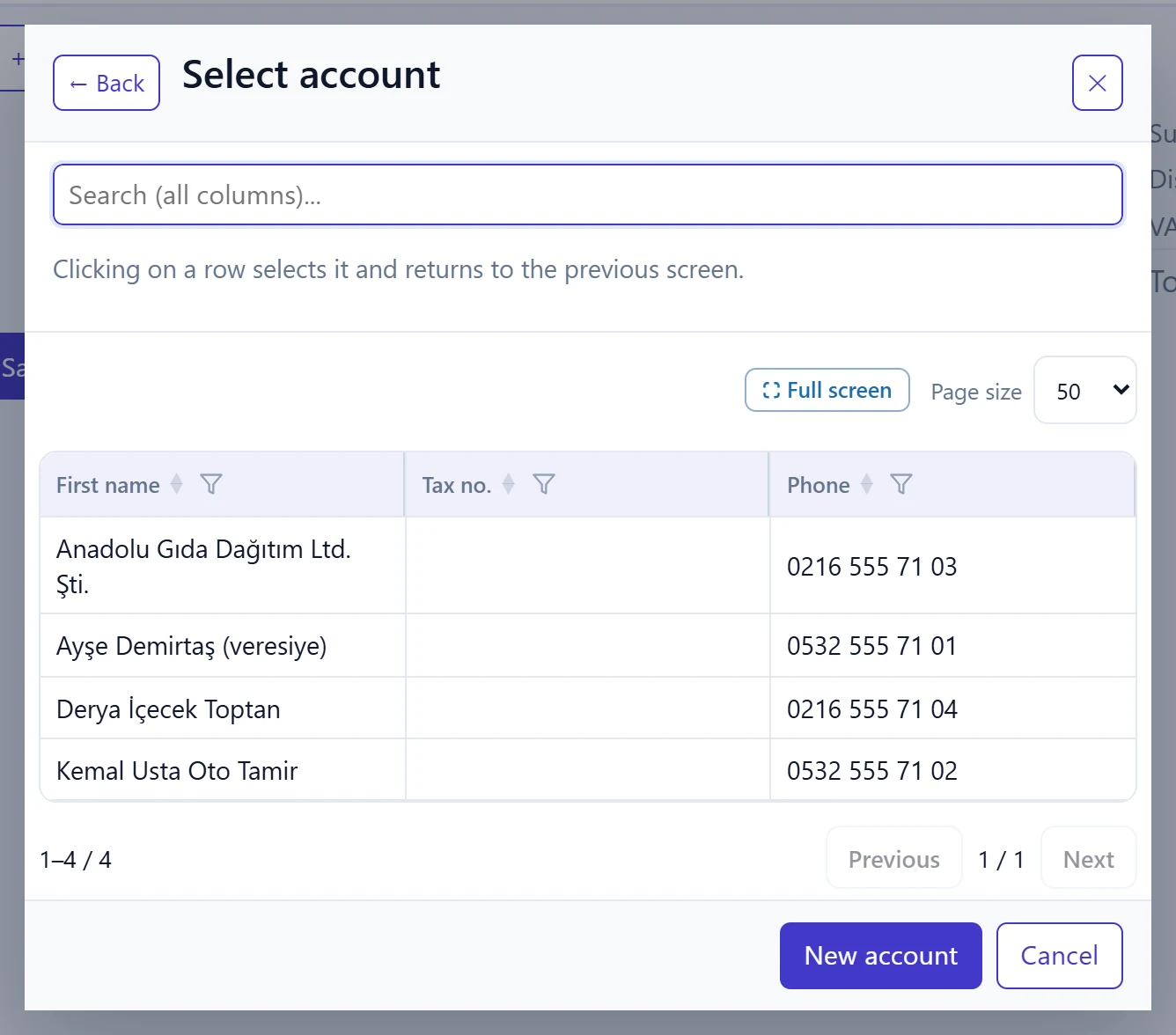
- 1Search Part of the name, tax no. or phone; filters as you type.
- 2Account row Click to select and return to the document.
- 3New account If not in the list, create a new account here.
- 4Cancel Closes without selecting.
The list is filtered as you type in the search box; click a row to put the account on the document. If the account does not exist yet, New account creates one without leaving the window. Materials, services, warehouses and units are chosen with the same window.
Lines

- 1Line type Free text, extra cost, material or service.
- 2Material Choose a stock card; description, unit, price and VAT come from the card.
- 3Quantity Line quantity.
- 4Unit One of the units in the card's unit set (e.g. PIECE, BOX).
- 5Unit price The card's sales price is filled in; you can change it.
- 6VAT % VAT rate; if VAT incl. is ticked, the price includes VAT.
- 7Disc. % Line discount.
- 8× Deletes the row.
- 9+ Add row New empty line; Enter on the last line also opens one.
Line types:
| Type | When |
|---|---|
| Material | Product with a stock card. Description, unit, sales price and VAT rate come from the card; stock moves on confirmation. |
| Service | Work from the service definitions (labour, consulting). No stock movement. |
| Free text | Line without a card, only description and amount. |
| (additional expense) | Extra cost added to the document, such as freight. |
The Net Unit Price and Net Quantity columns show the values after discount and unit conversion; they cannot be typed in. For serial / batch tracked cards a Serial / roll row opens under the line and Select serial adds serials on hand.
Line tools

- 1+ Add row Adds a new line.
- 2+ Additional expense Adds an extra cost line such as freight.
- 3Barcode Scan or type the barcode and press Enter; the card is added as a line.
- 4Lot / Expiration Date columns Adds lot number and expiry date columns to the lines.
- Scan a barcode into the barcode box and press Enter to add the card as a new line. If no card is found, «Barcode not found: …» is shown.
- Pressing Enter in a field of the last line also opens a new line.
Totals
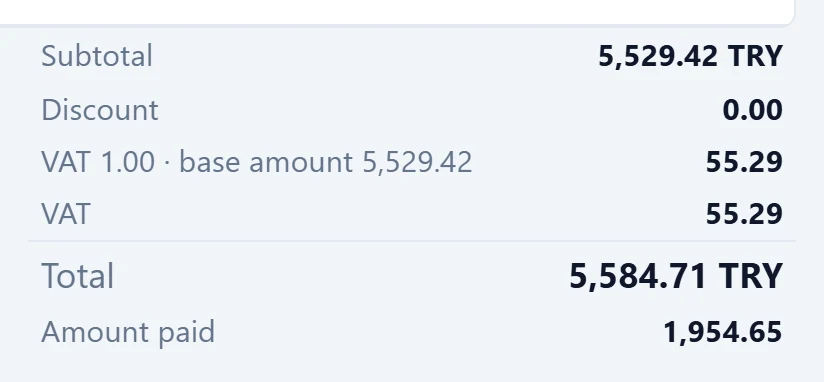
- 1VAT base Base and VAT on a separate row for each VAT rate.
- 2Grand total Amount posted to the account balance.
- 3Paid Collections / payments linked to this document.
The totals update as soon as lines change: Subtotal, Discount, any · receipt discount, a VAT %… · base … row for each VAT rate, VAT and the grand Total. Documents with withholding also show Withholding Tax and VAT Payable, foreign-currency documents Equivalent to TRY, and documents with payments Amount paid.
New document: step by step
- In the side menu choose the type under Documents and press + New ….
- Press Select in the account field and choose the customer / supplier.
- Check the date and, if needed, Currency, Due date (days) and Document type (paper / e-Invoice / e-Archive).
- On the first line set the type to Material and choose the card with Select, or scan its barcode.
- Enter the Quantity; price and VAT come from the card and can be changed.
- Press + Add row or Enter on the last line for another line.
- Check the totals and press Save and confirm. If it is not ready yet, keep it with Save draft; drafts appear in the list with the number «(draft)».
After an account is chosen, Add from open … documents buttons appear at the bottom (e.g. open orders and waybills on an invoice). They move the lines of that account's open documents into the new document; the same line is never invoiced twice.
Actions on a confirmed document
When you open a saved document, a status label and action buttons appear above the header:

- 1Status Document status (Draft, Posted, Partially paid…).
- 2Print / PDF Opens the printout in a new tab.
- 3Collection / payment Opens the collection / payment panel (if an amount is outstanding).
- 4e-Document preview Shows the e-Invoice / e-Archive view before sending.
- 5Send e-document Sends the document to the e-document provider.
- 6Shipping Send to, cancel and track with the carrier integration.
- 7Edit Returns the posted document to draft.
- 8Cancel Cancels the document; stock and balance are reversed.
The buttons depend on the document type and status:
- Confirm: confirms a draft document.
- Sent / Accepted / Reject: on quotes only; mark that the quote was sent and its outcome.
- Create … (e.g. Create Sales order, Create Sales invoice): converts the document to the next type (see below).
- e-Document preview / Send e-document / e-Document status / e-Archive cancellation / Download UBL XML: e-Invoice, e-Archive and e-Waybill actions. For a document whose Document type is «Paper invoice», the preview says «Paper invoices do not go to the integrator.»
- Ship / Cancel / Follow-up: in companies with a cargo integration, for sales invoices and waybills.
- Edit: returns a confirmed document to draft.
- Cancel (red): cancels the document; stock and balance are reversed.
Collection / payment
If a balance-affecting document has an unpaid amount, the Collection / payment button opens a panel:
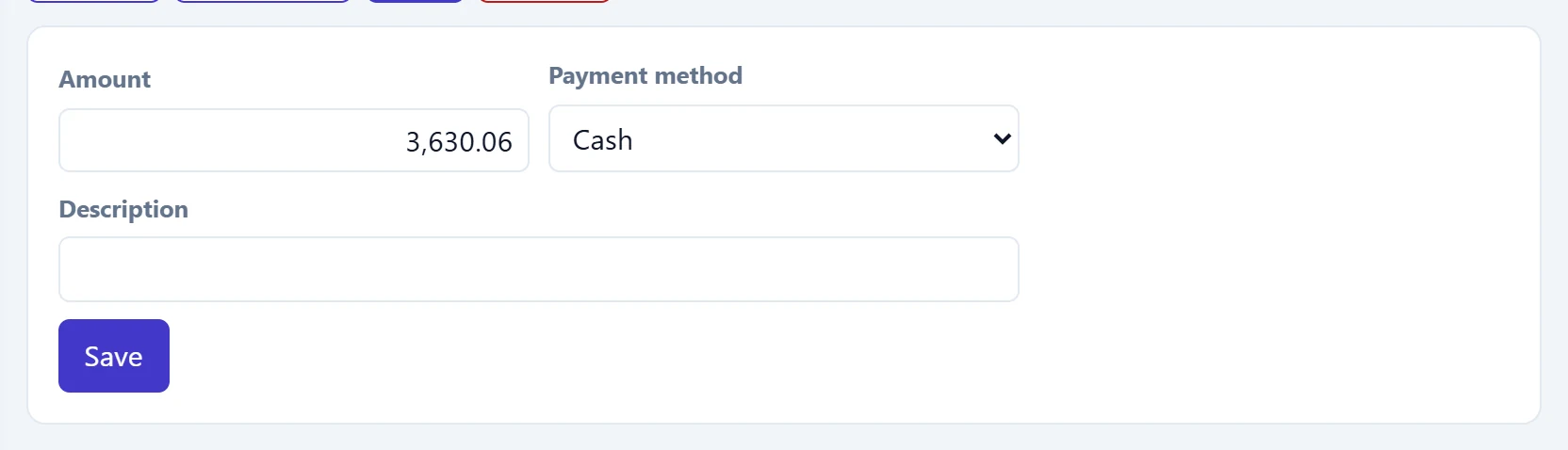
- 1Save Saves the payment; the document becomes Partially paid / Paid.
| Field | Sign in | Description |
|---|---|---|
| Amount | Text | Money received / paid. Cannot exceed the outstanding amount. |
| Payment method | Choice list | Cash goes to the cash register, credit card to the POS account, transfer / EFT to the bank. Options: Cash · Credit card (POS) · Bank transfer |
| Description | Text | Note shown on the cash / bank transaction. |
Save links the payment to the document, posts it to the cash / bank / POS account and changes the status to Partially paid or Paid. Companies with PayTR also get a Collect with PayTR button and an Email field.
Correcting a document (return to draft)
Pressing Edit asks for confirmation:

- 1Yes, return to draft Returns the document to draft; stock movements are reversed.
- 2Cancel Cancels.
Yes, return to draft turns the document back into a draft so lines can be changed; the document number is kept. Press Confirm again afterwards. For a document with payments, a sent e-document or a conversion into another document, the window states the reason and only has a Close button.
Converting documents and the document chain
In the quote → order → waybill → invoice flow you never retype a document. Possible conversions:
| Source | Can be converted to |
|---|---|
| Sales quotation | Contract, Sales order, Sales invoice, Service receipt |
| Contract | Sales order, Sales invoice, Service receipt |
| Sales order | Sales waybill, Sales invoice |
| Sales waybill | Sales invoice |
| Purchase waybill | Purchase invoice |
| Retail sale | Sales invoice |
Pressing a Create … button lists the open lines in a window:
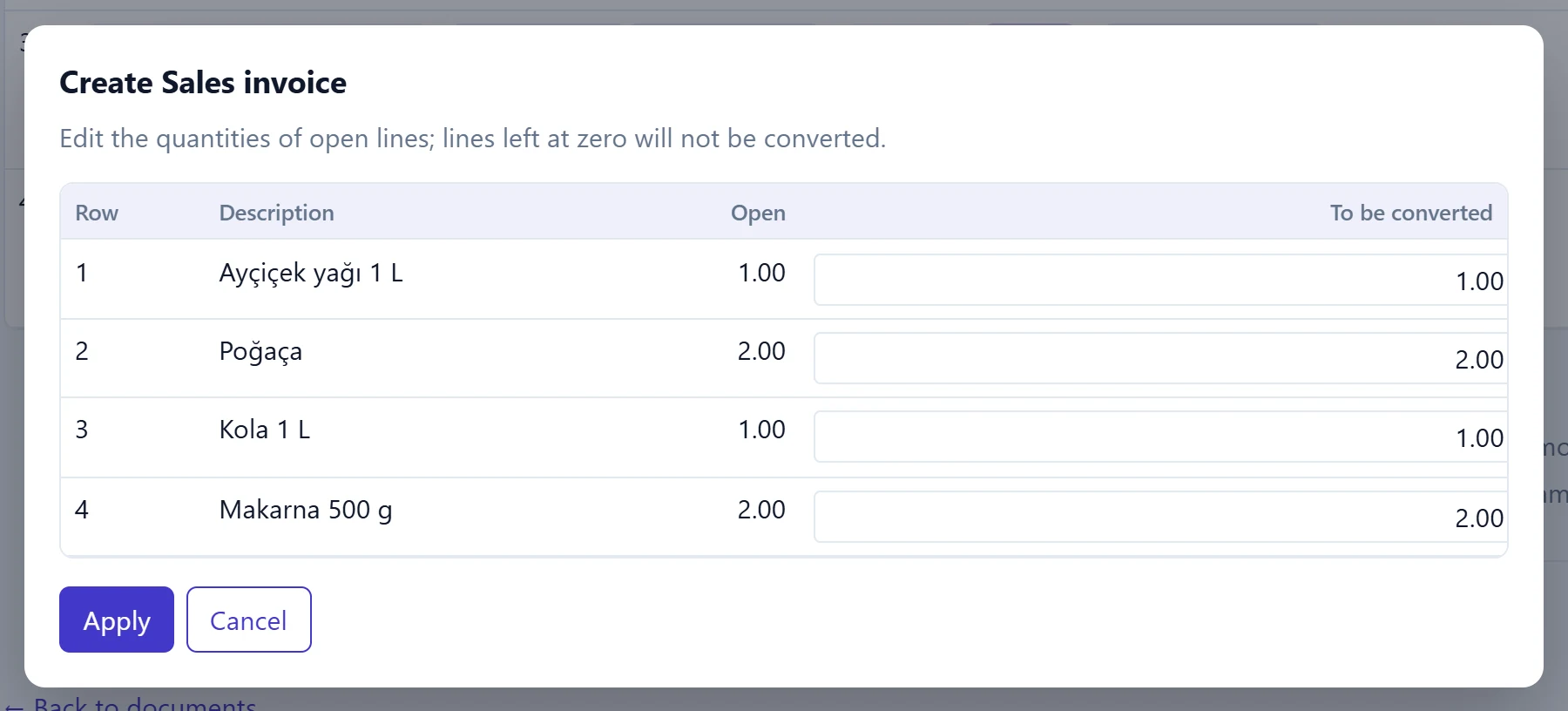
- 1Open Quantity not yet converted.
- 2To convert Quantity to transfer to the new document; lines left at 0 are skipped.
- 3Apply Creates and opens the new document.
- 4Cancel Closes the window.
- Check the To be converted quantity on each line; reduce it for a partial delivery, set it to 0 for lines you do not want to transfer.
- Press Apply. The new document is created as a draft and opened.
- Check the new document and confirm it. Remaining quantities stay open on the source document and can be converted later.
Converted documents show the Document chain under the header:

- 1Linked document Document created from this one (→) or its source (←); click to open.
A link with ← opens the source document; a link with → opens the document created from this one.
Waybill: shipment details
Sales and return waybills have a Shipment details panel under the header. It must be filled in if an e-Waybill will be sent:
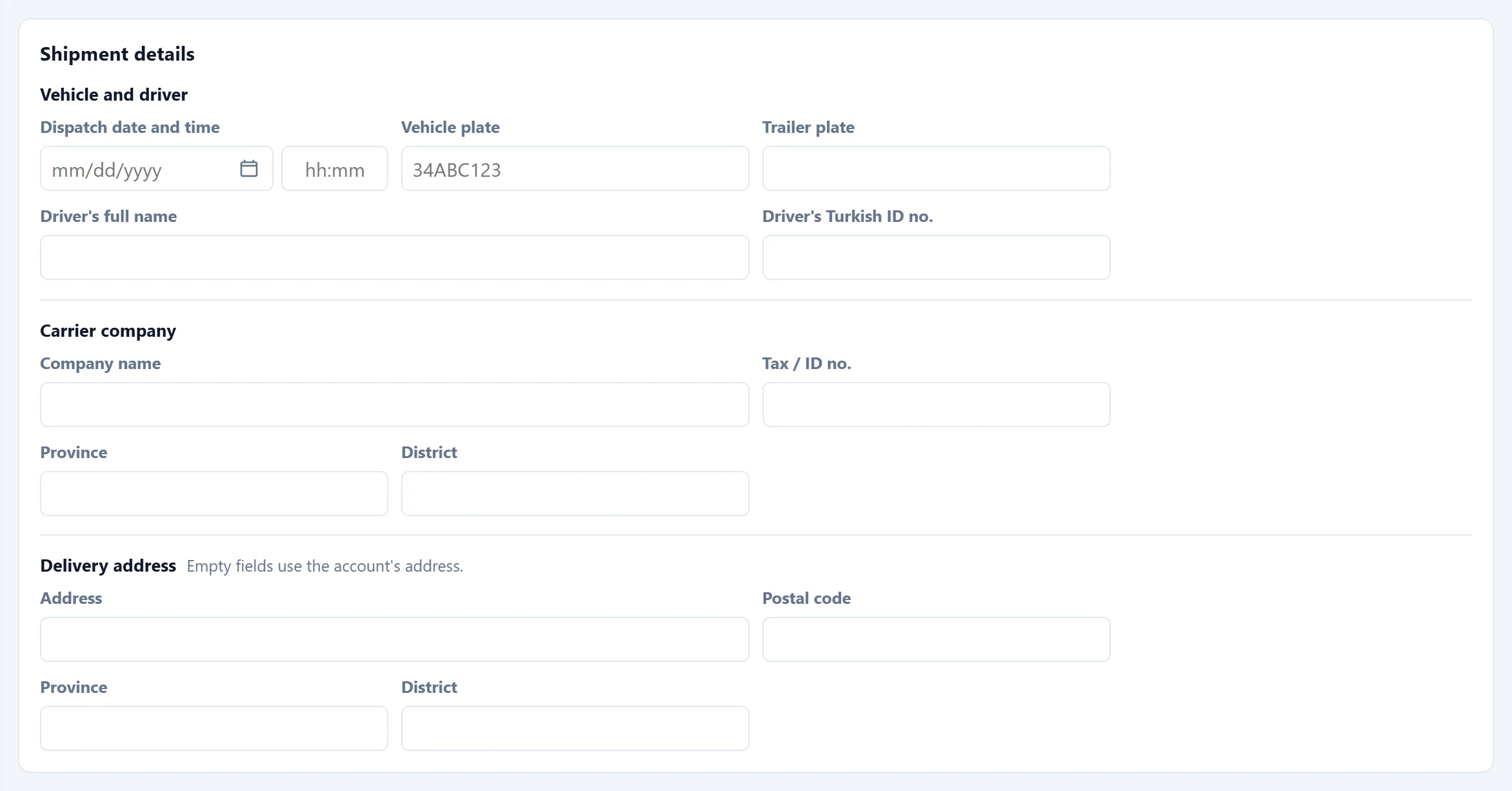
- 1Shipment details Opens / closes the panel; a summary shows when filled.
- 2Vehicle and driver Fill in when you transport with your own vehicle.
- 3Carrier company Fill in when a carrier company transports.
- 4Delivery address Fill in if it differs from the account's address.
| Field | Sign in | Description |
|---|---|---|
| Dispatch date and time | Text | When the goods leave; required for an e-Waybill. Placeholder: «mm/dd/yyyy» |
| Vehicle plate | Text | Plate when transporting with a driver (e.g. 34 ABC 123); converted to upper case with spaces automatically. Placeholder: «34ABC123» |
| Trailer plate | Text | Trailer plate, if any. |
| Driver's full name | Text | Person driving the vehicle. |
| Driver's Turkish ID no. | Text | Driver's 11-digit Turkish ID number. |
| Company name | Text | Carrier's company name if a courier / haulier transports (instead of a driver). |
| Tax / ID no. | Text | Carrier's tax or ID number. |
| Province | Text | Province (carrier or delivery address). |
| District | Text | District (carrier or delivery address). |
| Address | Text | Delivery address; if empty, the account's address is used. |
| Postal code | Text | Postal code of the delivery address; if empty, the account's is used. |
On a draft whose Document type is e-Waybill, missing details are listed above the panel under «Complete before sending the e-Waybill:». If you transport with your own vehicle, driver and plate are enough; if a company transports, fill in the carrier.
Contract document
On a document opened from Documents → Contract, the date field is called Start and an End date is added. A contract does not move stock, so it has no warehouse field.
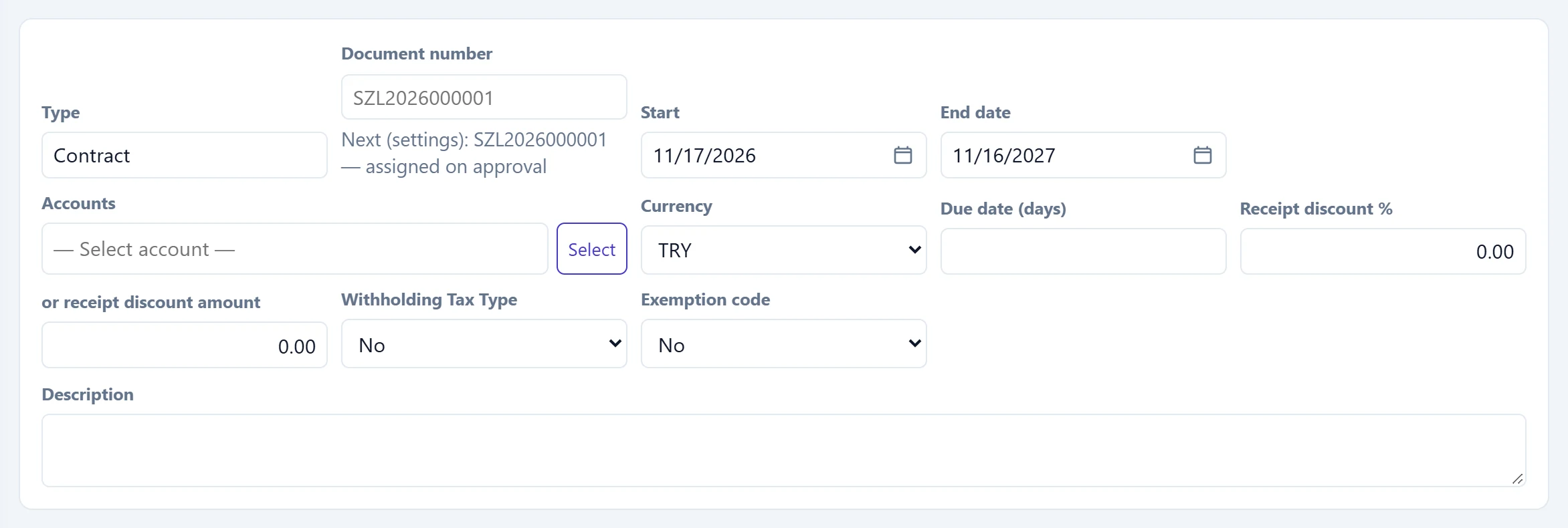
- 1Start Contract start.
- 2End date Tracking is based on this date.
| Field | Sign in | Description |
|---|---|---|
| Type | Text | Document type chosen from the menu or the «New document» list; it cannot be changed here. |
| Document number | Text | Leave empty: assigned automatically from the number series on posting (the next number is shown below). If you type one, that number is used. Placeholder: «SZL2026000001» |
| Start | Text | Day the contract starts (document date). Placeholder: «mm/dd/yyyy» |
| End date | Text | Day the contract ends. Contract tracking warns about upcoming ends based on this date; if empty, the contract is open-ended. Placeholder: «mm/dd/yyyy» |
| Accounts | Text | Customer / supplier of the document. Choose with «Select»; the cross clears it. Can stay empty on a retail sale. Placeholder: «— Select account —» |
| Currency | Choice list | Document currency. For a foreign currency the «Rate» field appears with that day's rate. Options: EUR · GBP · TRY · USD |
| Due date (days) | Text | Payment term; the due date is the document date plus these days and is used in overdue receivable lists. |
| Receipt discount % | Text | Percentage discount on the whole document (after line discounts). |
| or receipt discount amount | Text | Document discount as an amount instead of a percentage. Disabled if a percentage is entered. |
| Withholding Tax Type | Choice list | VAT withholding code if withholding applies; numerator / denominator fields appear and «Apply to lines» writes it to all lines. |
| Exemption code | Choice list | Tax authority exemption code if VAT exempt (e.g. 301 export). Disabled if exemptions are set per line. |
| Description | Long text | Note shown on the document and the printout. |
Contracts whose end date is near or past are listed on the Contract tracking screen. In companies with policy tracking, a Contract type and additional info panel (insurance policy type, insurer, policy no., commission) also appears.
Printing and PDF
Print / PDF opens the document's print view in a new tab:
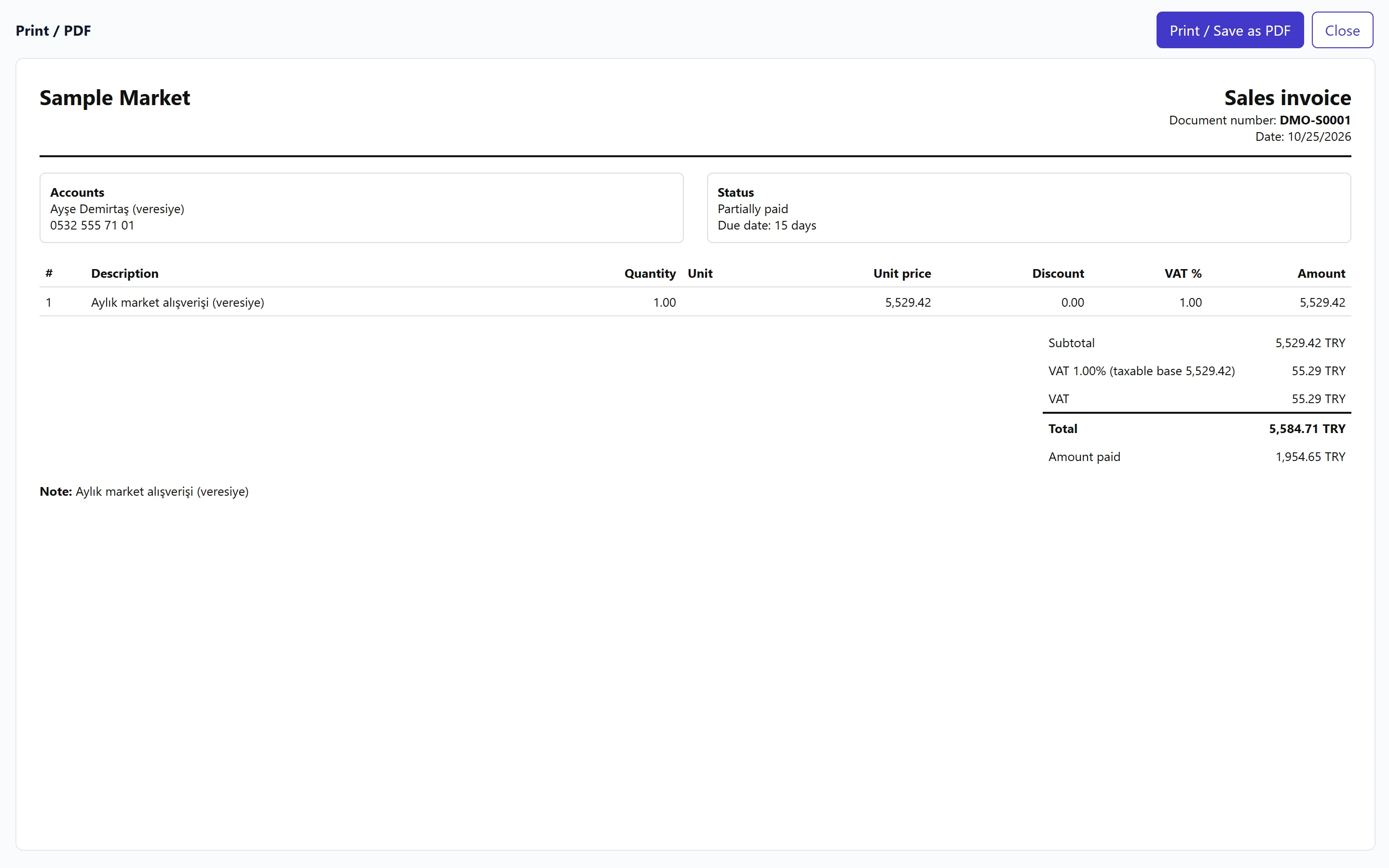
- 1Print / Save as PDF Opens the browser's print dialog; «Save as PDF» gives you a file.
- 2Close Closes the tab.
- 3Document printout Company, account, lines and totals.
Print / Save as PDF opens the browser's print dialog; choosing «Save as PDF» as printer gives you a file. e-Document preview opens the e-Invoice / e-Archive view of the document (with its XSLT template) in the same way.
The red Cancel button asks for confirmation first; once confirmed the document is cancelled and stock and account movements are reversed. A cancelled document cannot be confirmed or changed again; if you cancelled by mistake, you have to create the document again. e-Archive cancellation, Reset e-document and the shipment Cancel also ask for confirmation.
A sent e-Invoice cannot be edited. To correct a wrongly sent e-Invoice, issue a return invoice; cancel an e-Archive invoice with e-Archive cancellation.
Common messages
| Message | Cause | Solution |
|---|---|---|
| At least one row is required. | You tried to save a document without lines. | Add at least one line. |
| Select order type. | No order type chosen on the order. | Choose the Order type in the header. |
| Quantity in this department must be an integer. | A fractional quantity was entered for an indivisible unit such as PIECE. | Enter a whole number or change the unit. |
| Unit set / unit detail is not defined for the card. | The chosen stock card has no unit set. | Define the unit set on the stock card. |
| Exchange rate not found for this date; enter the rate manually. | No exchange rate on the document date. | Fill in the Rate field by hand. |
| Approved documents cannot be modified; cancel and recreate. | A change was attempted on a confirmed document. | Return it to draft with Edit. |
| Documents with a collection or payment cannot be edited; remove the collection or payment first. | A payment is linked to the document. | Reverse the payment in the cash / bank screen. |
| Documents with payments cannot be canceled; first, refund the payment. | You tried to cancel a document with payments. | Refund the payment first. |
| A document converted into another document cannot be edited; cancel the resulting document first. | An order / invoice was created from the document. | Cancel the next document in the chain. |
| An e-invoice cannot be edited after being sent; create a return/cancellation document. | The document was sent to the tax authority. | Issue a return invoice or an e-Archive cancellation. |
| Collections cannot be entered into cancelled documents. | The document is cancelled. | Enter the payment on the right document. |
| Amount must be greater than zero. | Payment amount is 0. | Enter the amount. |
| No open lines to convert. | All quantities are 0 in the conversion window, or the lines are already converted. | Enter a To be converted quantity on at least one line. |
| Please approve the document first. | A draft document was converted (quotes and contracts convert even as drafts). | Confirm the source document first. |
| Cancelled or rejected documents cannot be converted. | The source is cancelled, rejected or fully converted. | Convert from a valid document. |
| Retail sale is converted to an invoice in its entirety. | Only part of a retail slip was invoiced. | Convert all lines with the same quantities. |
| The accounts of the source documents must be the same. | Documents of different accounts were chosen when adding from open documents. | Choose documents of the same account. |
| Barcode not found: … | The scanned barcode is on no stock card. | Add the barcode to the stock card or pick the card with Select. |