
 AsyaTicari
 AsyaRestoran
 AsyaOtel
 AsyaCrm
 AsyaKlinik
 AsyaSpor
 AsyaSSH
 AsyaEmlak
 AsyaFilo
 AsyaPuantaj
 AsyaİSG
 AsyaİHD
 Kolay Öğren
 · Organization
Classes
Adding, editing, deactivating and deleting classes; adding students to and removing them from a class.
On the Classes screen you manage the organization's classes (admin and teacher).
kolay öğren · /Kurum/Classes
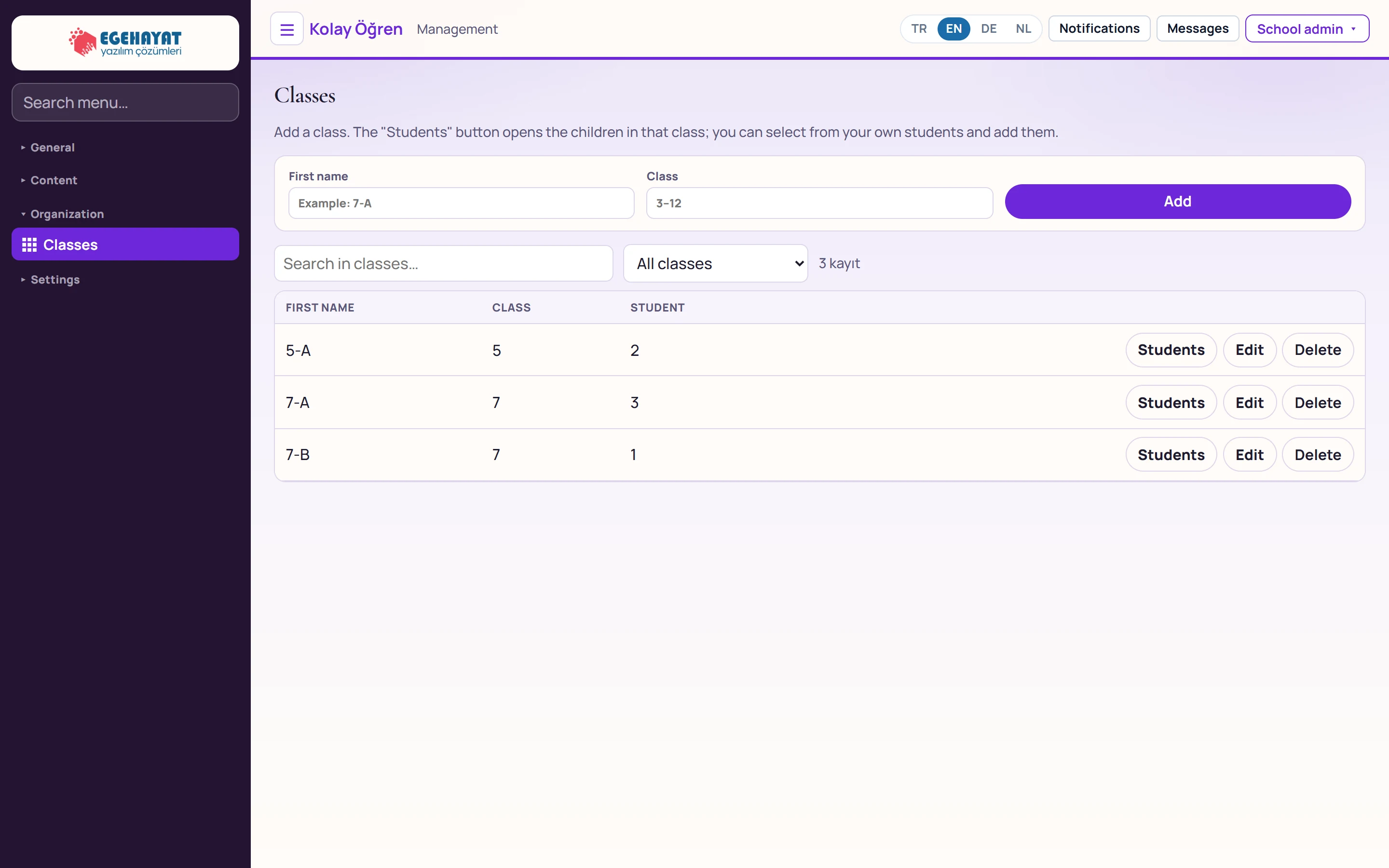
- 1New class Enter a name and grade level and press «Add».
- 2Search in classes… Searches the classes.
- 3All classes Filters by level.
- 4Classes Name, level and number of enrolled students. Clicking a row opens editing.
- 5Students Opens the class student list.
- 6Edit Switches the row to edit mode.
- 7Delete Deletes the class after a confirmation prompt.
Adding a class
Part of the screen

| Field | Sign in | Description |
|---|---|---|
| First name | Text | Class name, e.g. 7-A (required). Placeholder: «Example: 7-A» |
| Class | Number | Level 3–12; may be left empty. Placeholder: «3–12» |
Editing
Clicking a row or Edit switches the row to edit mode.
Part of the screen
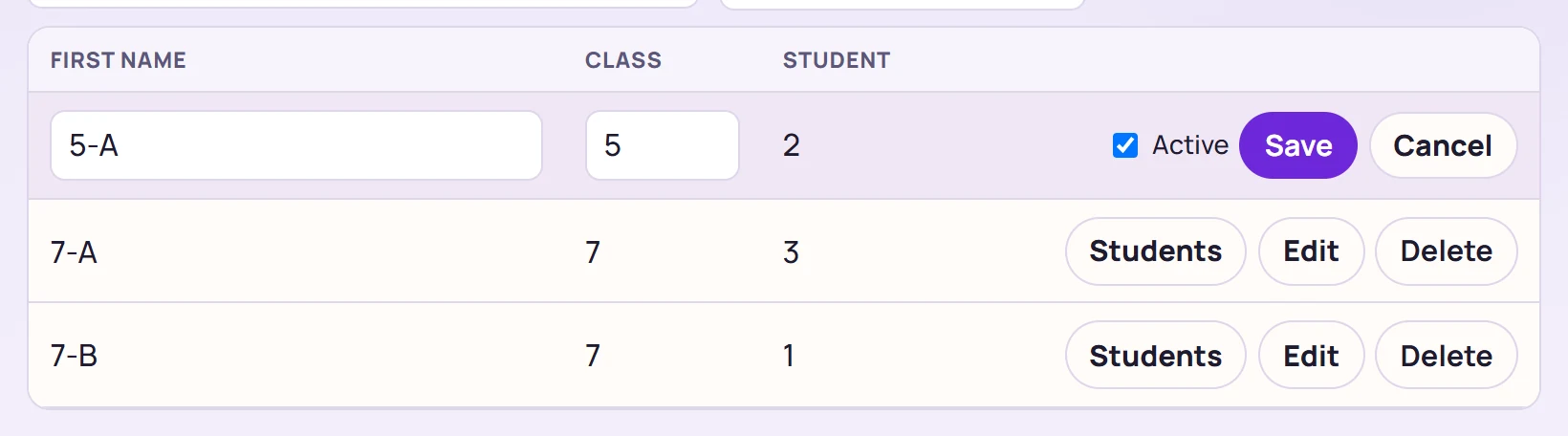
- 1Name New class name.
- 2Class Level (3–12).
- 3Active Unchecking makes the class inactive.
- 4Save Saves the change.
Students of the class
The Students button opens the class student list below the table.
Part of the screen
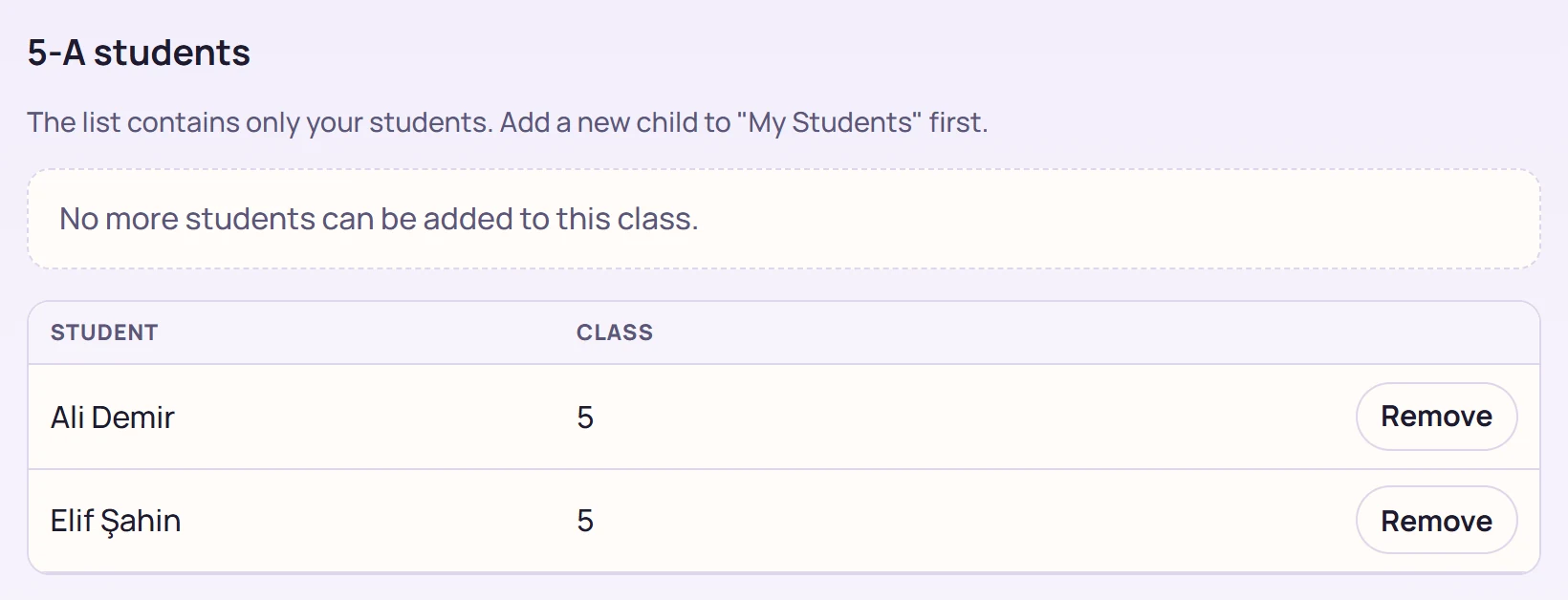
- 1Info Students that can be added come from the «My students» list.
- 2Students Students in the class.
- 3Remove Removes the student from the class (the student is not deleted).
Choose from the Student list and press Add to class. Only students registered in My students are listed; register a new child there first. Remove takes the student out of the class without deleting them.
Delete removes the class after a confirmation prompt. If you will not use a class for a while, uncheck Active in editing instead of deleting.
Common messages
| Message | Cause | Solution |
|---|---|---|
| Class name is required. | Name empty. | Enter a name and press Add. |
| The class could not be created. | The API rejected the record. | Retry. |
| The class could not be deleted. | Class not found or connection lost. | Refresh the page. |
| No students left to add to this class. | All students are already in the class or the list is empty. | Add students in My students. |
| The student could not be added to this class. | No student record. | Register the student first. |