
 AsyaTicari
 AsyaRestoran
 AsyaOtel
 AsyaCrm
 AsyaKlinik
 AsyaSpor
 AsyaSSH
 AsyaEmlak
 AsyaFilo
 AsyaPuantaj
 AsyaİSG
 AsyaİHD
 Kolay Öğren
AsyaKlinik · Clinic
Lab tests and test requests
Single or multiple test requests, priority and clinical note, request list, entering results and uploading result files.
This screen changed recently. Screenshots will be retaken after the code change of 2026-11-19; the text is current, some images may look outdated.
On the Lab tests screen you request lab / imaging tests for a patient, follow their status and record the result.
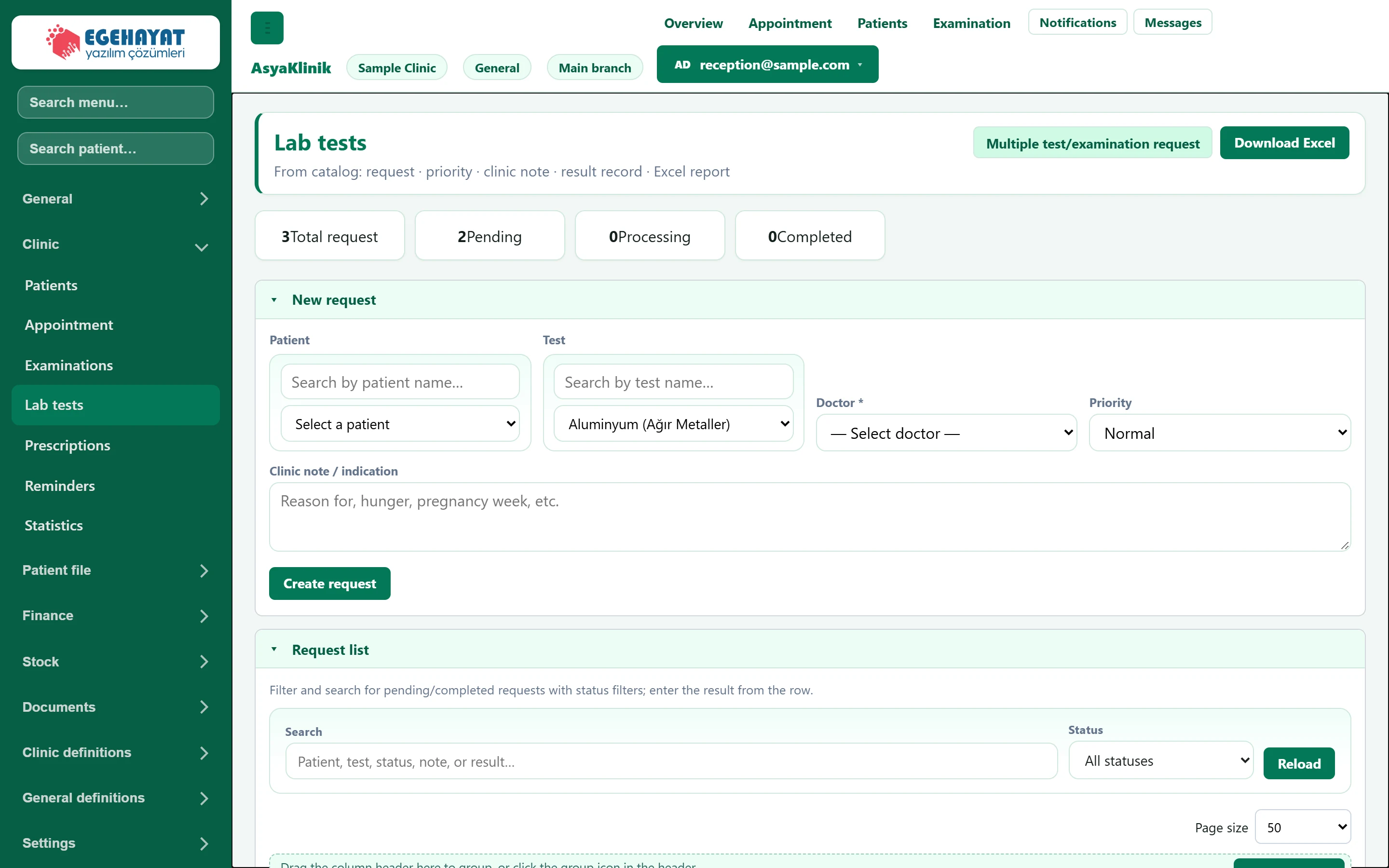
- 1Multiple test/examination request Requests several tests at once, chosen by category.
- 2Download Excel Downloads the request list as Excel.
- 3Counters Number of total, waiting, in-progress and resulted requests.
- 4▾ Form for a single test request.
- 5▾ Requests and their results.
The counters at the top show the total, waiting, processing and completed requests.
New request
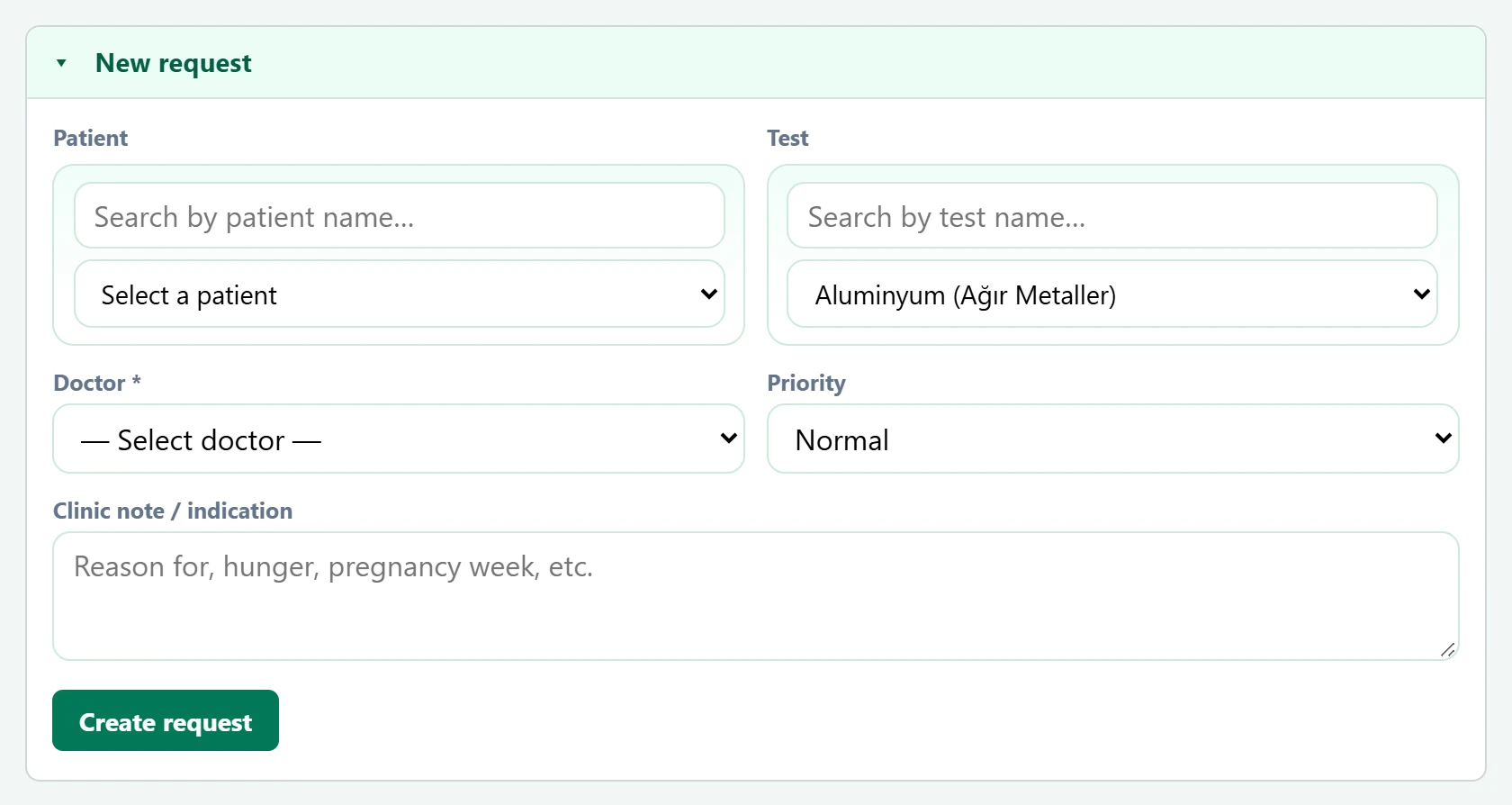
- 1Create request Saves the request; its status becomes "Requested".
| Field | Sign in | Description |
|---|---|---|
| Patient | Search | The patient the test is for. Placeholder: «Search by patient name…» |
| Test | Search | One of the test definitions; type a name to search. Placeholder: «Search by test name…» |
| Doctor required | Choice list | Requesting doctor. Required. Options: — Select doctor — · Dr. Nihat Erdoğdu · Dr. Seda Akıncı · Hmş. Burcu Taner · Sek. Demo Randevu |
| Priority | Choice list | Routine, Normal or Urgent. Options: Normal · Emergency · Routine |
| Clinic note / indication | Long text | Why it is requested; information for the lab such as fasting or week of pregnancy. Placeholder: «Reason for, hunger, pregnancy week, etc.» |
- Choose the patient and the test (type in the boxes to search).
- Choose a Doctor; it is required.
- Enter Priority and Clinic note / indication if needed.
- Click Create request. The request is added to the list as "Requested".
The test list comes from Definitions → Lab test definitions.
Request list
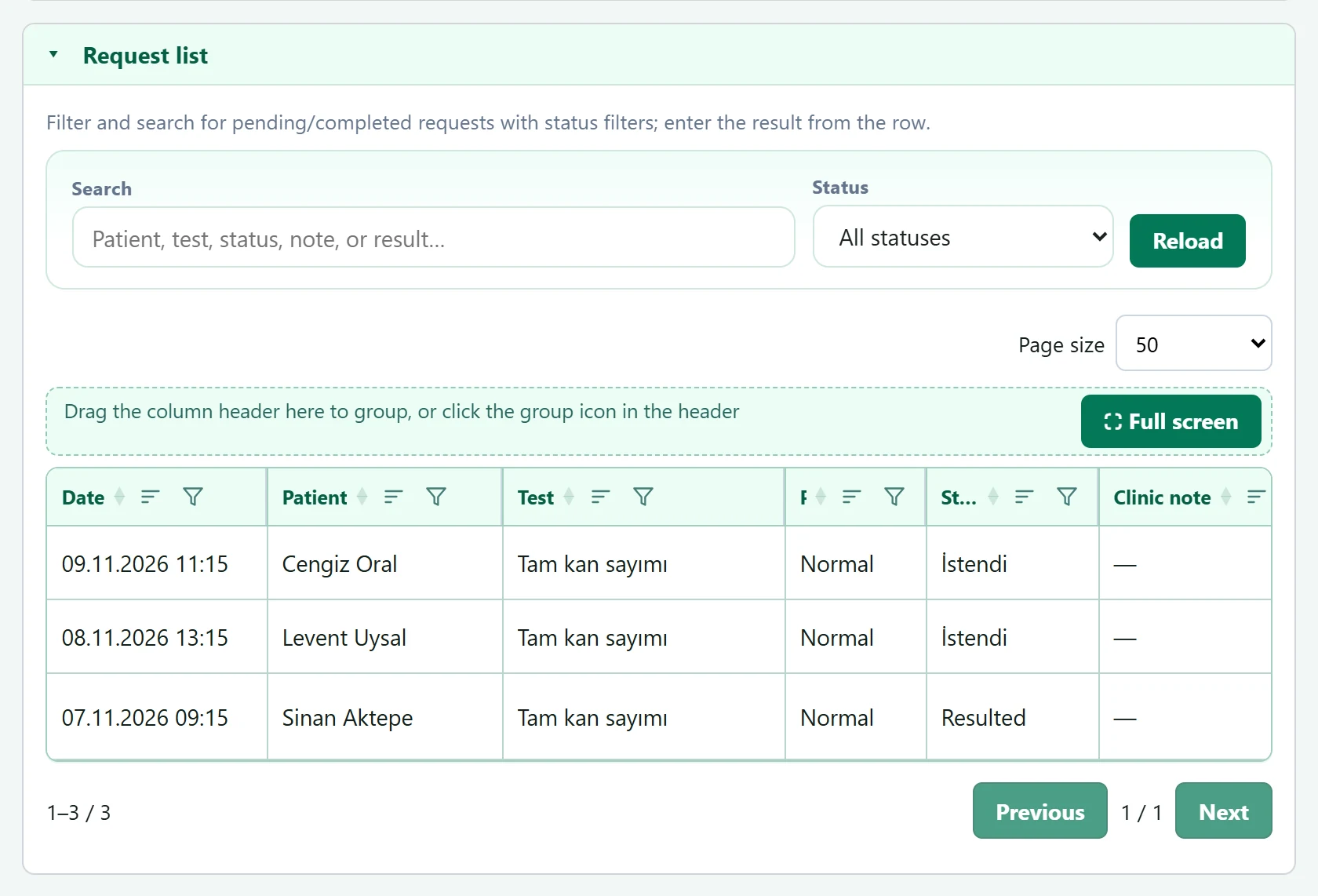
- 1Search Searches patient, test, status, note or result text.
- 2Status Filters by status.
- 3Row actions Enter result, upload result (PDF / image, max 15 MB), delete request.
| Field | Sign in | Description |
|---|---|---|
| Search | Text | Patient name, test, status, note or result text. Placeholder: «Patient, test, status, note, or result…» |
| Status | Choice list | Requested, In progress, Resulted, Cancelled or all statuses. Options: All statuses · Requested · Processing · Completed · Cancel |
Row actions:
- Enter result: opens the result panel below.
- Upload result: attaches the lab's PDF or image file (max 15 MB).
- Delete request: deletes the request and its uploaded result files.
Updating result / status
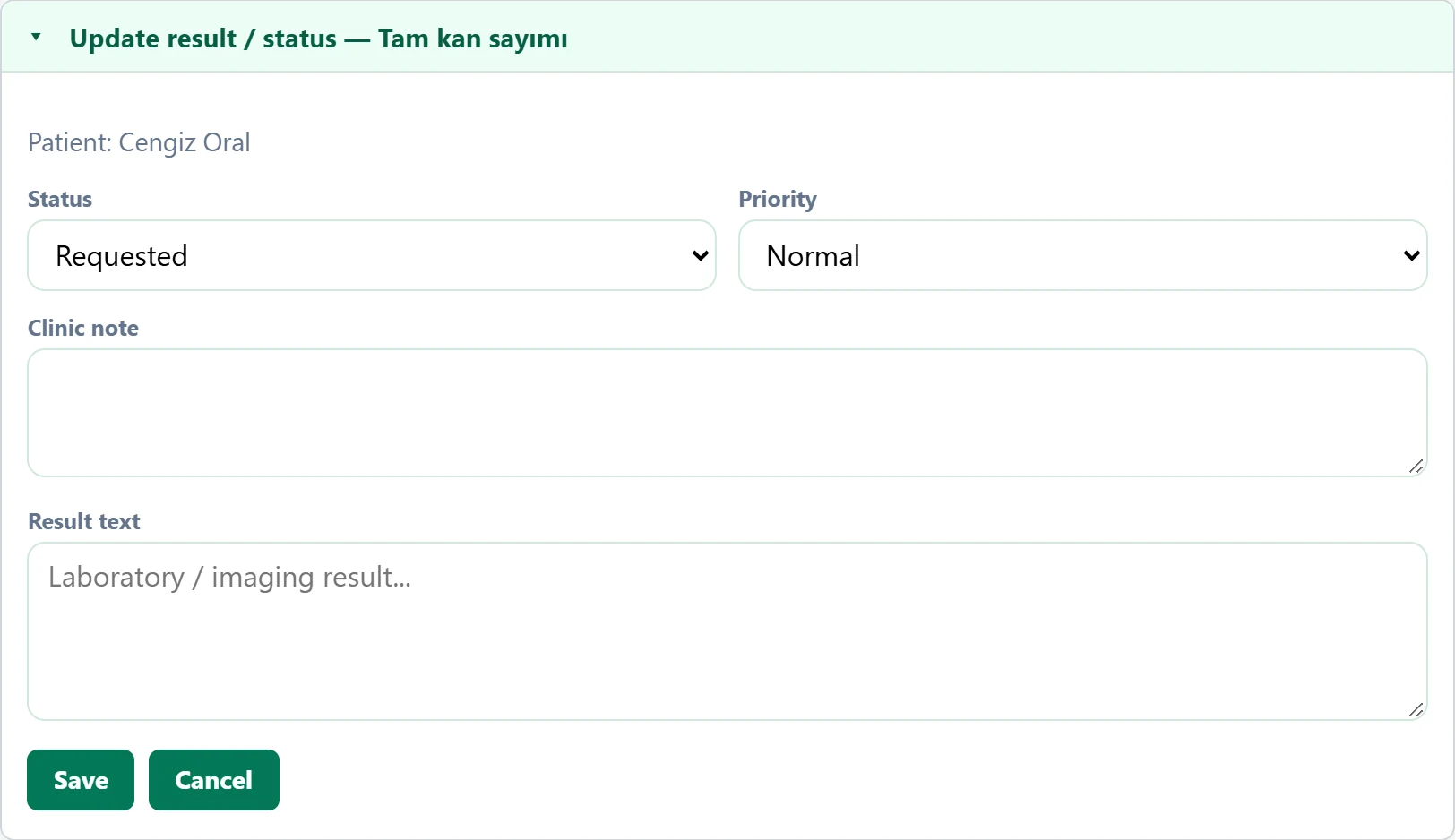
| Field | Sign in | Description |
|---|---|---|
| Status | Choice list | New status of the request; choose "Resulted" once the result is written. Options: Requested · Processing · Completed · Cancel |
| Priority | Choice list | Routine, Normal or Urgent; change it if needed. Options: Normal · Emergency · Routine |
| Clinic note | Long text | Clinical note of the request; can be corrected. |
| Result text | Long text | Lab / imaging result (values, report summary). Placeholder: «Laboratory / imaging result...» |
Write the result, set the status to Completed and click Save.
Multiple test request
The Multiple test/examination request button (and the test link in the examination screen) opens a screen where you request several tests at once.
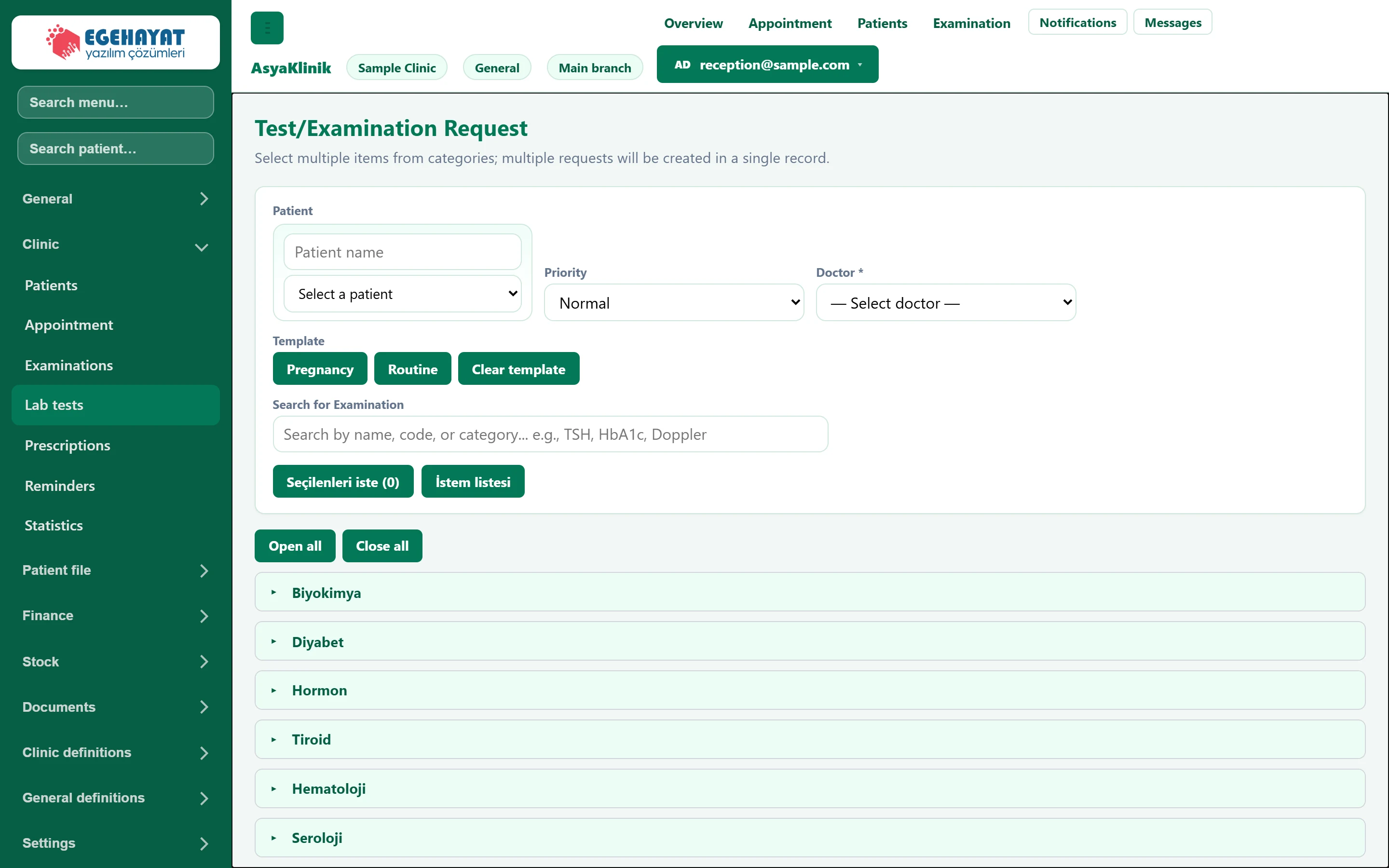
- 1Patient The patient the request is for.
- 2▸ Category header; click to open the tests of the category.
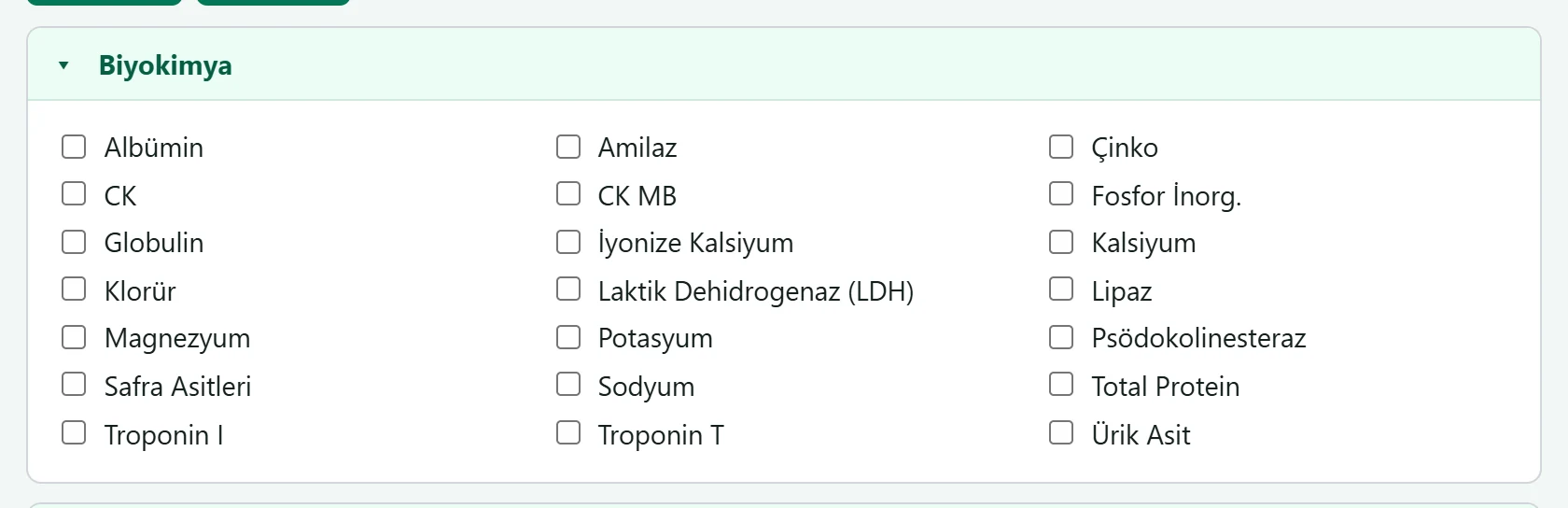
- 1Test A ticked test is added to the request list.
- Choose the patient, doctor and priority.
- Open the category headers and tick the tests, or type a name / code in the search box. The Template buttons tick a ready-made set.
- Click the request button; one request is created for each ticked test.
The patient's existing open requests come pre-ticked as "existing"; only newly ticked tests are requested.
Delete request also deletes the uploaded result files and cannot be undone.
Common messages
| Message | Cause | Solution |
|---|---|---|
| Selecting a doctor is required. | No doctor chosen. | Choose the requesting doctor. |
| Check selections. | No patient or test chosen. | Choose patient and test. |
| Select at least one test. | Nothing ticked in a multiple request. | Tick at least one test. |
| Only available requests are selected. Mark new requests. | All ticked tests are already requested. | Tick a new test. |
| Test result can be up to 15 MB. | Result file too large. | Reduce or split the file. |
| PDF and image files only. | Unsupported file type. | Upload PDF, JPG or PNG. |