
 AsyaTicari
 AsyaRestoran
 AsyaOtel
 AsyaCrm
 AsyaKlinik
 AsyaSpor
 AsyaSSH
 AsyaEmlak
 AsyaFilo
 AsyaPuantaj
 AsyaİSG
 AsyaİHD
 Kolay Öğren
AsyaKlinik · Settings
My branches
The company's branch list and new branch requests; a new branch is usable after AsyaPlatform approval.
On My branches you see your company's branches and request new ones. Only a company administrator can use this screen.
asyaklinik · /ayarlar/subelerim
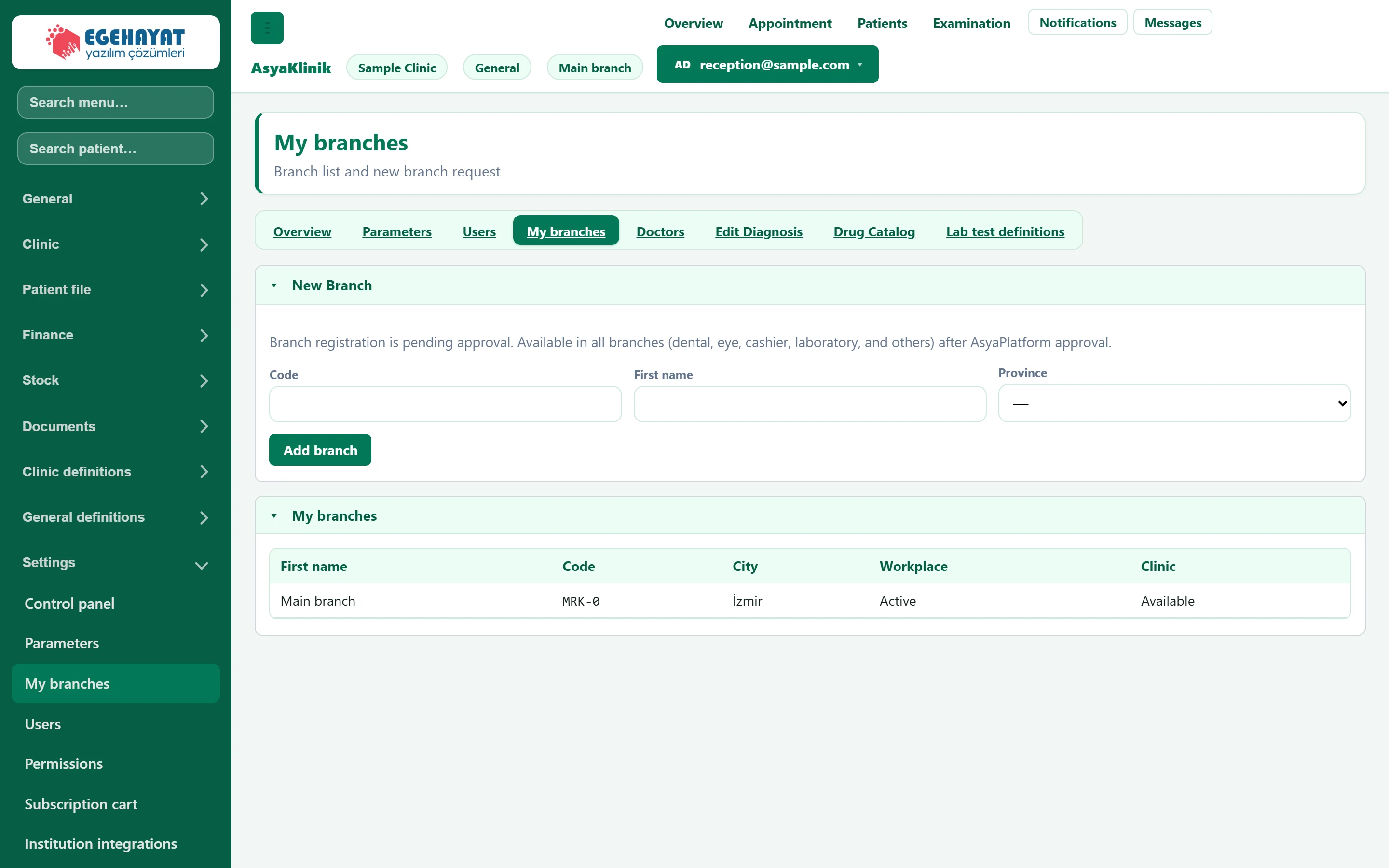
- 1New branch New branch request; usable after AsyaPlatform approval.
- 2My branches The company's branches and whether they can be used in Klinik.
New branch request
Part of the screenNew branch
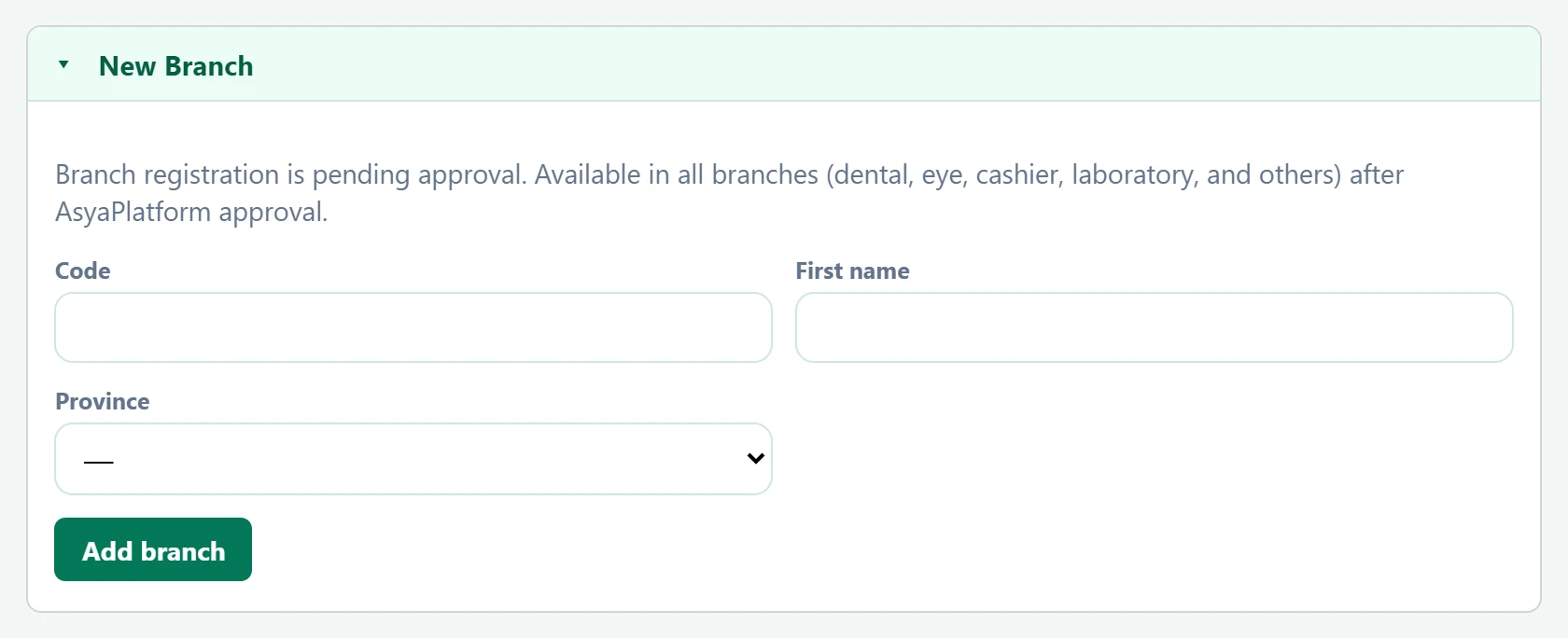
- 1Add branch Saves the request; the branch is listed as awaiting approval.
| Field | Sign in | Description |
|---|---|---|
| Code | Text | Short code of the branch (max 20 characters). |
| First name | Text | Branch name (e.g. Karşıyaka branch). |
| Province | Choice list | Province of the branch. |
- Fill in Code, First name (the branch name) and Province.
- Press Add branch. The message «Branch saved. Awaiting approval; approval applies to all branches.» appears.
- The branch is listed as Pending approval. After AsyaPlatform approval it becomes Available and can be chosen at sign-in.
Branch list
Part of the screenBranch list
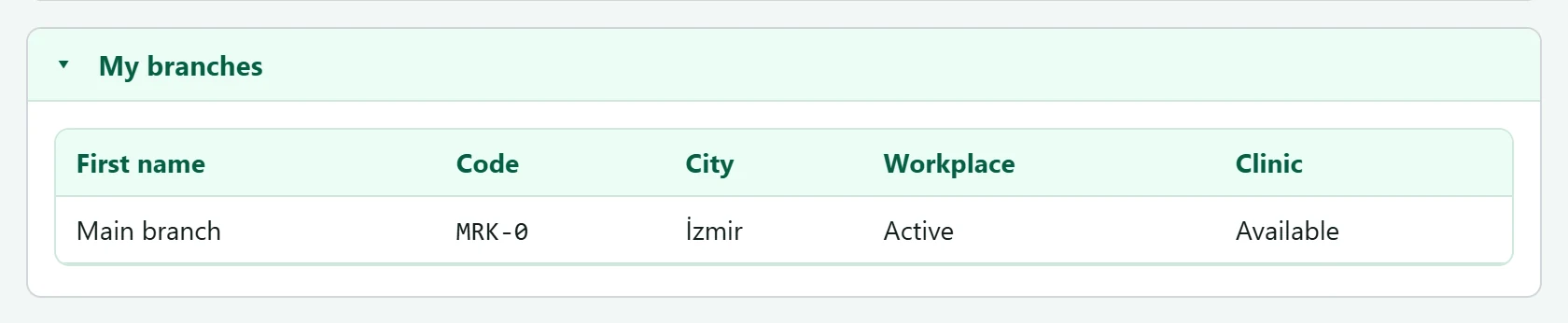
- 1Workplace Whether the branch (workplace) is open or closed.
- 2Clinic Available or awaiting approval.
An approved branch can be used in dental, eye, cashier, laboratory and all other specialties; no separate approval per specialty is needed.
Common warnings
| Warning | Cause | Solution |
|---|---|---|
| Company administrator permission is required for my branches. | The signed-in user is not a company administrator. | Sign in as a company administrator or ask one. |