
 AsyaTicari
 AsyaRestoran
 AsyaOtel
 AsyaCrm
 AsyaKlinik
 AsyaSpor
 AsyaSSH
 AsyaEmlak
 AsyaFilo
 AsyaPuantaj
 AsyaİSG
 AsyaİHD
 Kolay Öğren
AsyaKlinik · Settings
Parameters
Company, number format, currency, patient fee defaults, appointment buffer, commerce, integrations and company features.
Parameters groups the company's general settings in collapsible cards. Click a heading to open the card; each card has its own Save button.
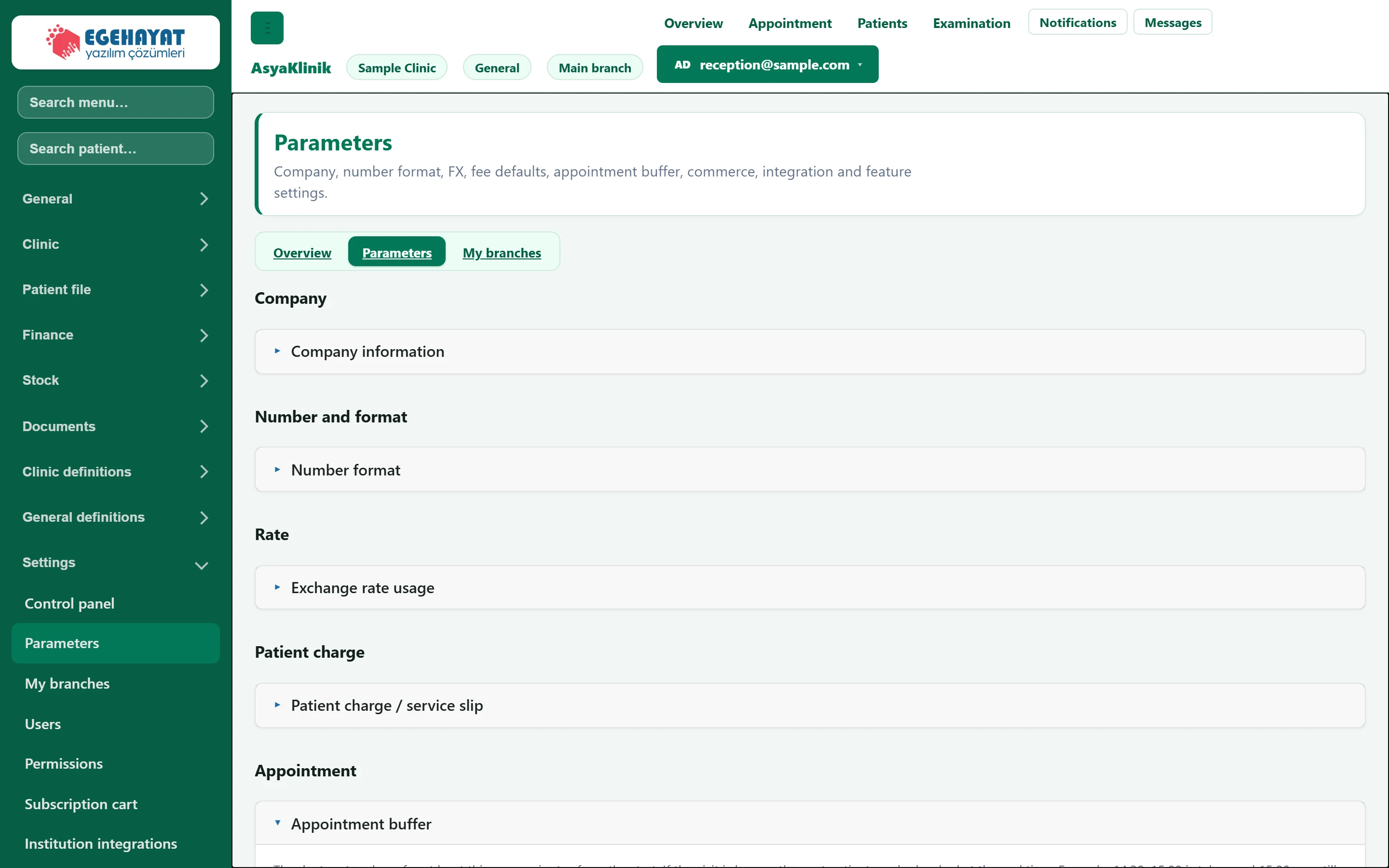
- 1Company information Legal name, address, tax number, logo.
- 2Number format Decimal, money and date display.
- 3Currency usage Foreign currency use and exchange rate source.
- 4Patient fee Defaults for fees written from the patient card on the service slip.
- 5Appointment buffer How long the doctor counts as busy per appointment.
| Section | Card | What is set |
|---|---|---|
| Company | Company information | Legal name, address, tax details, logo |
| Number and format | Number format | Decimal separator, money and date display |
| Rate | Exchange rate usage | Foreign currency use and rate source |
| Patient charge | Patient charge / service slip | Slip defaults for fees from the patient card (below) |
| Appointment | Appointment buffer | How long a doctor counts as busy per appointment (below) |
| Commerce | Commerce preferences | Document and stock behaviour |
| Integration | Cash register, e-Document, invoice designs, code templates | Device and e-document connections |
| Company features | Company features | Modules switched on / off for the company; with Full menu on, all commercial screens appear in the menu |
The company, format, currency, commerce and integration cards are shared by all Asya applications and are described in the common settings guide. This topic covers the two Klinik-specific cards.
Patient charge / service slip
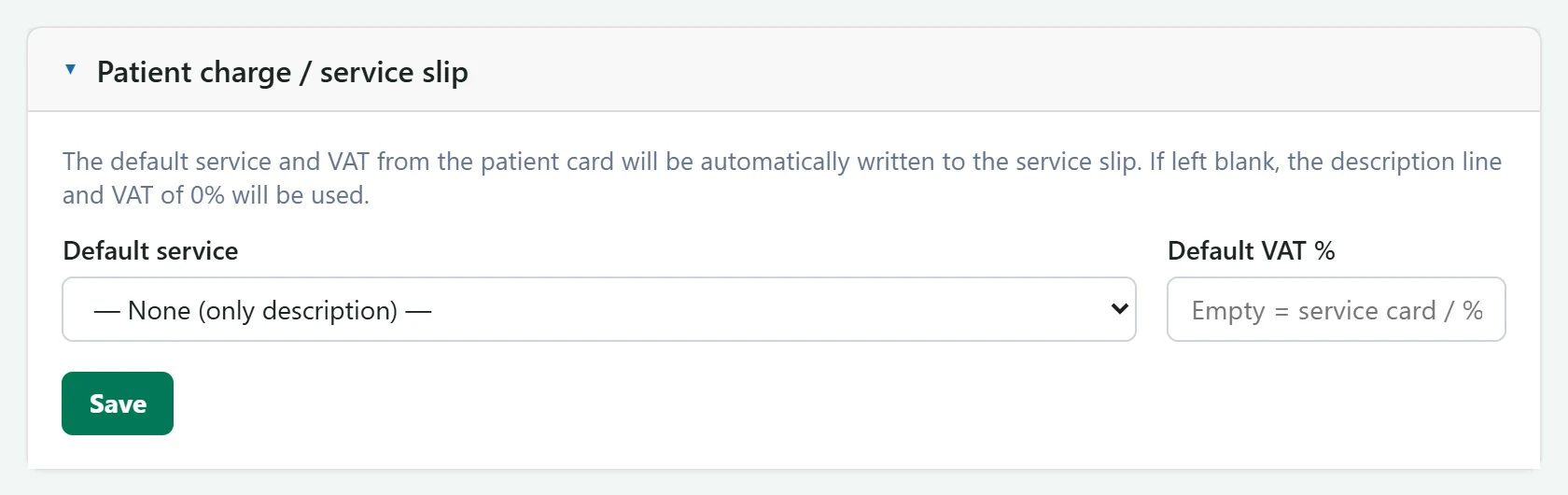
- 1Save Saves the defaults.
| Field | Sign in | Description |
|---|---|---|
| Default service | Choice list | Which service card a fee added on the patient card uses on the service slip. With none, only a description line is written. Options: — None (only description) — · GNL-ENJ — Enjeksiyon uygulaması (VAT 10.0000%) · GNL-KNT — Kontrol muayenesi (VAT 10.0000%) · GNL-MUA — Muayene (VAT 10.0000%) |
| Default VAT % | Text | VAT rate on the slip. If empty, the rate on the service card is used, otherwise 0%. Placeholder: «Empty = service card / %0» |
In Default service choose which service card is used on the automatic service slip for a fee entered with Add fee on the patient card. With — None (only description) — only the fee description is written. The card only appears when the account / collection feature is enabled for the company.
Appointment buffer
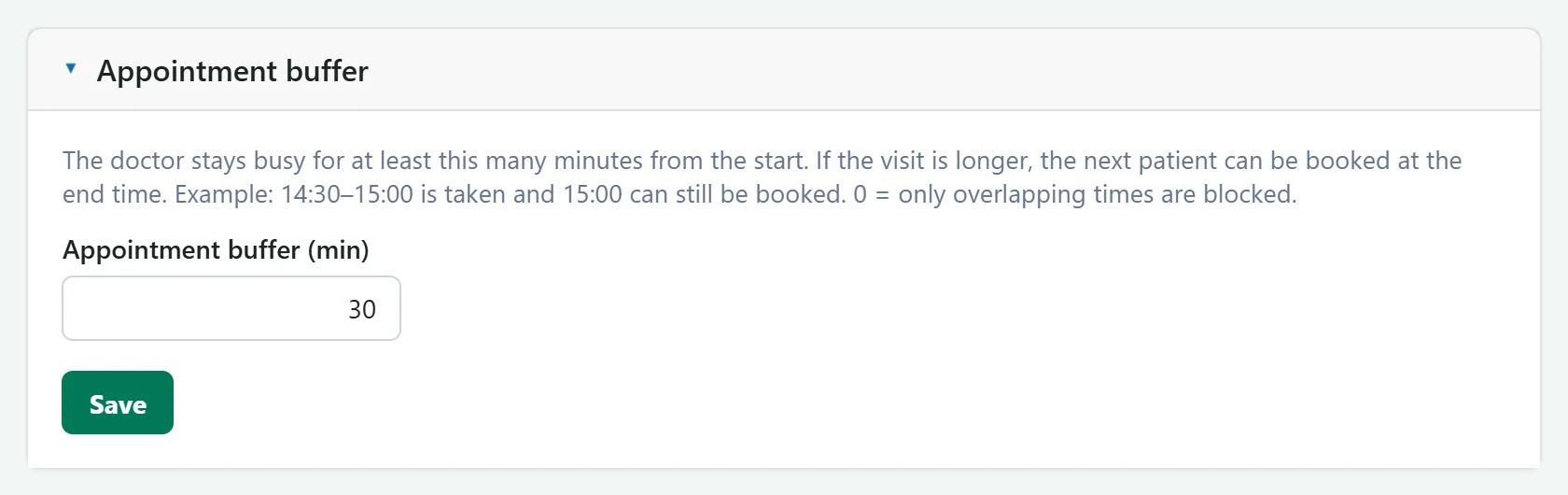
- 1Save Saves the buffer.
| Field | Sign in | Description |
|---|---|---|
| Appointment buffer (min) | Text | From the start of an appointment the doctor counts as busy for at least this many minutes (0–1440). 0 = only overlapping times are blocked. |
Example: with a 30-minute buffer and a doctor's appointment at 14:30, no new appointment can be booked at 14:45; 15:00 is possible. If the appointment lasts longer than 30 minutes, the time after its end is free. With 0 only truly overlapping times are blocked.
Common warnings
| Warning | Cause | Solution |
|---|---|---|
| Defaults could not be loaded. | The server could not be reached. | Refresh the page. |
| Could not be saved. | The server rejected the defaults. | Check the values and save again. |