
 AsyaTicari
 AsyaRestoran
 AsyaOtel
 AsyaCrm
 AsyaKlinik
 AsyaSpor
 AsyaSSH
 AsyaEmlak
 AsyaFilo
 AsyaPuantaj
 AsyaİSG
 AsyaİHD
 Kolay Öğren
AsyaKlinik · Payments
Quick sale
Selling products and services at the clinic with touch buttons; cash, POS, mixed and on-credit payment.
Quick sale lets you add the products and services sold at the clinic (toothbrush, mouthwash, pet food, care products …) to the cart with picture buttons and take payment. The sale is deducted from stock and recorded as a cash / POS movement.
The screen only appears in the menu for specialties with quick sale: Oral and Dental Health (and its sub-specialties), Physiotherapy, Aesthetics / Hair Transplant, Veterinary and Elderly / Home Care. The screenshots come from a dental clinic.
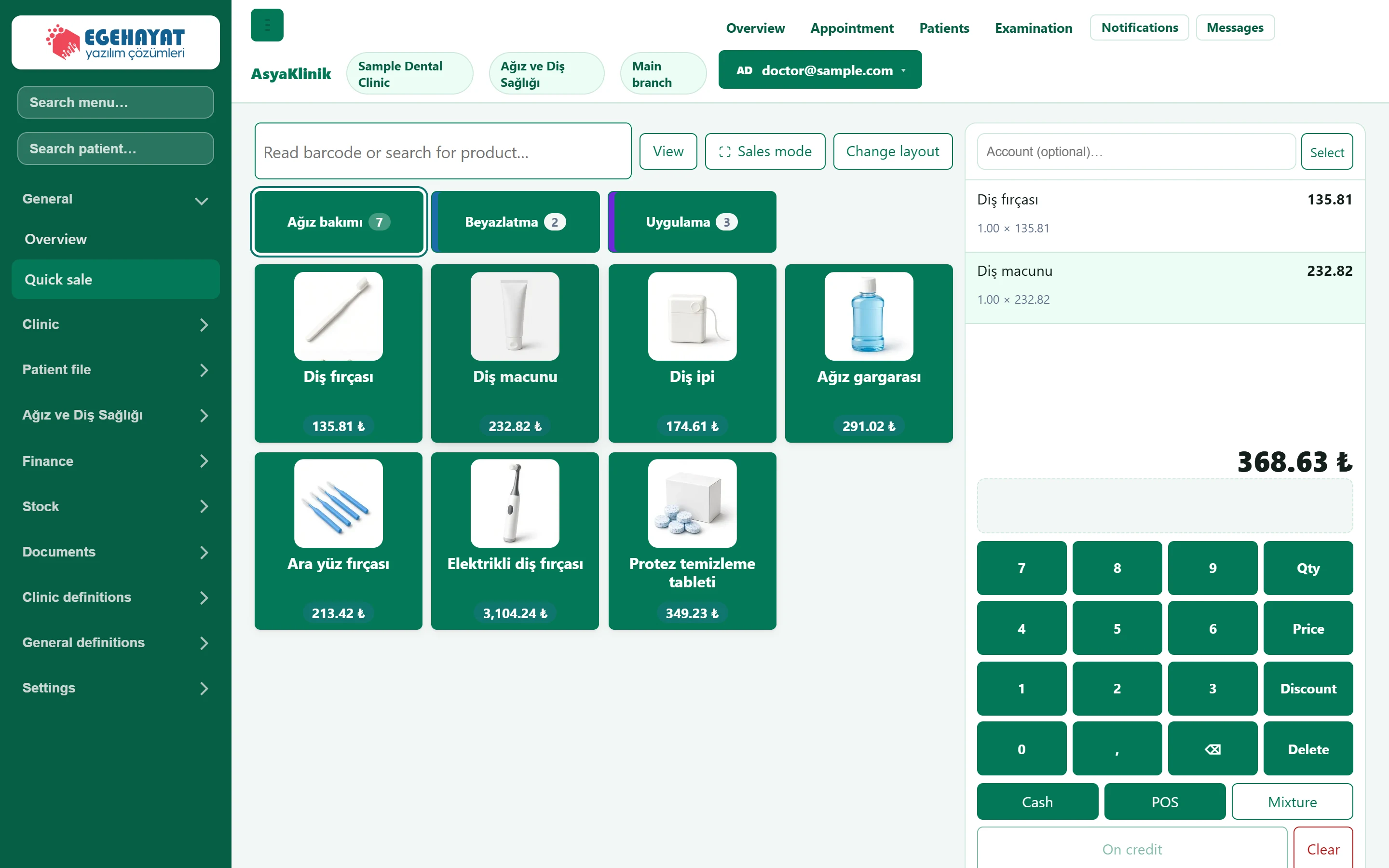
- 1Barcode / product search Scan a barcode or type a product name; Enter adds it to the cart.
- 2View Button size, long names and number of columns (saved for you).
- 3Change layout Edits groups and buttons (if you have permission).
- 4Groups Product / service groups; click to switch the buttons.
- 5Product button One tap adds it to the cart; the price is under the button.
- 6Cart Cart, keypad and payment.
Cart and payment
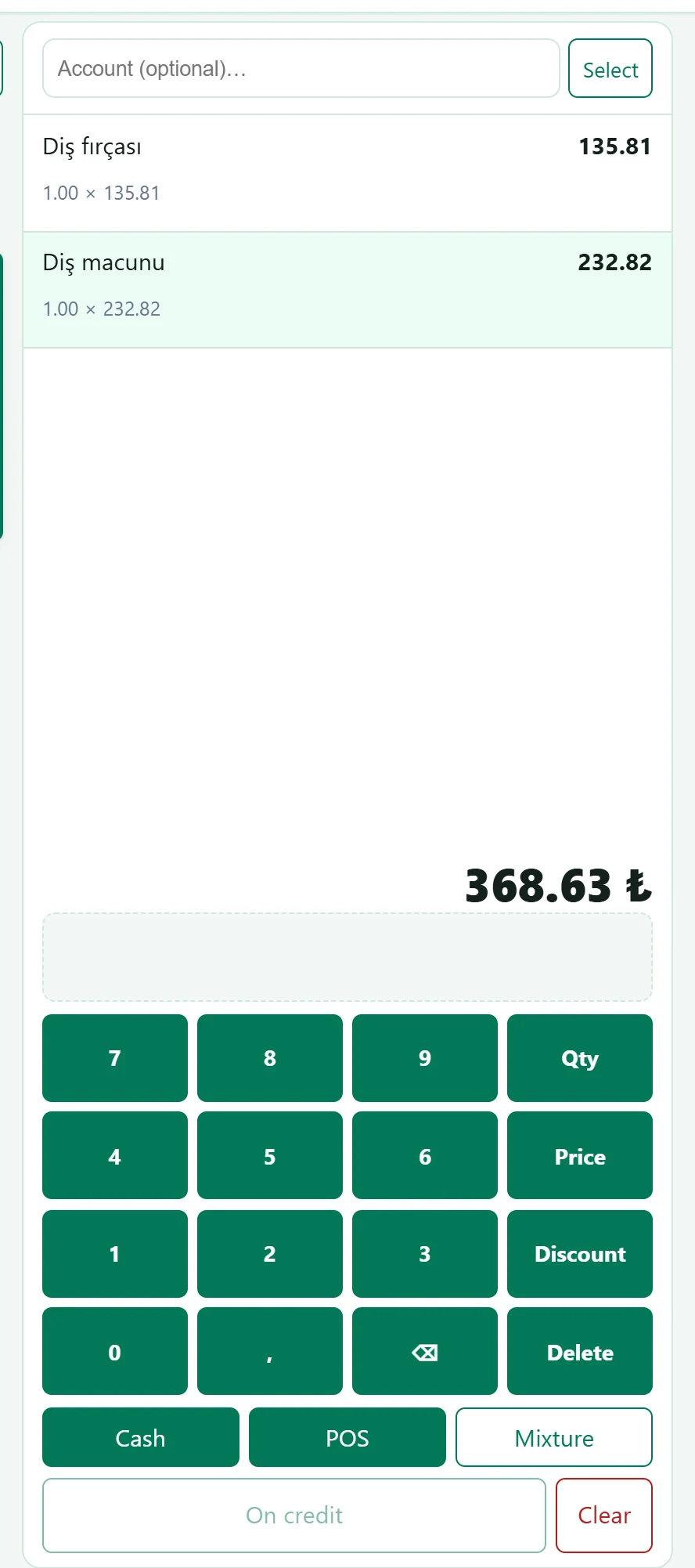
- 1Account Optional account (patient / customer); required for sales on account.
- 2Cart line Tap a line to select it; change quantity / price / discount with the keypad.
- 3Total Total to pay.
- 4Keypad Type a number and press Qty, Price or Discount; Delete removes the selected line.
- 5Cash Takes cash and completes the sale.
- 6POS Takes a card payment and completes the sale.
- 7Mixture Mixed cash + card payment; the rest can go on account.
- 8On credit Puts the amount on the selected account as debt.
- 9Clear Empties the cart.
Making a sale: step by step
- Tap a product button or scan a barcode. Tapping the same product again increases the quantity; if you type a number on the keypad first and then tap the button, that quantity is added.
- To change quantity, price or discount, select the line in the cart, type the number on the keypad and press Qty, Price or Discount.
- Optionally choose an account (patient / customer) at the top.
- Finish with Cash or POS. For a mixed payment use Mixture; to put it on account, choose an account and press On credit.
- The Sale completed screen shows the total and change; Print receipt prints the receipt and New sale continues.
Use View to set button size and number of columns for your screen; the choice is saved for you. Sales mode hides the left menu and switches to full screen.
Common warnings
| Warning | Cause | Solution |
|---|---|---|
| Quick sale is not available for your enabled specialties. | No specialty with quick sale is enabled for your company. | Ask AsyaPlatform to assign a specialty. |
| You do not have quick sale permission. | The user role lacks the quick sale permission. | Ask an administrator to grant it on the Permissions screen. |
| Define a cash register or POS account before making a sale. | No cash register or POS is defined. | Create an account under the cash / bank / POS menu. |
| Cash register not defined. / POS account not defined. | No account for the chosen payment. | Define the cash register / POS account. |
| Quick sale button not found. Add a stock card or change the layout. | The layout has no buttons. | Add groups and buttons with Change layout. |