
 AsyaTicari
 AsyaRestoran
 AsyaOtel
 AsyaCrm
 AsyaKlinik
 AsyaSpor
 AsyaSSH
 AsyaEmlak
 AsyaFilo
 AsyaPuantaj
 AsyaİSG
 AsyaİHD
 Kolay Öğren
AsyaKlinik · Clinic definitions
Doctors
List of doctors and staff chosen in appointments, examinations, prescriptions and test requests.
On the Doctors screen you define the doctors and other staff chosen in appointments, examinations, prescriptions and test requests. The screen name can change with the specialty (e.g. nurses and caregivers in home care).
asyaklinik · /ayarlar/hekimler
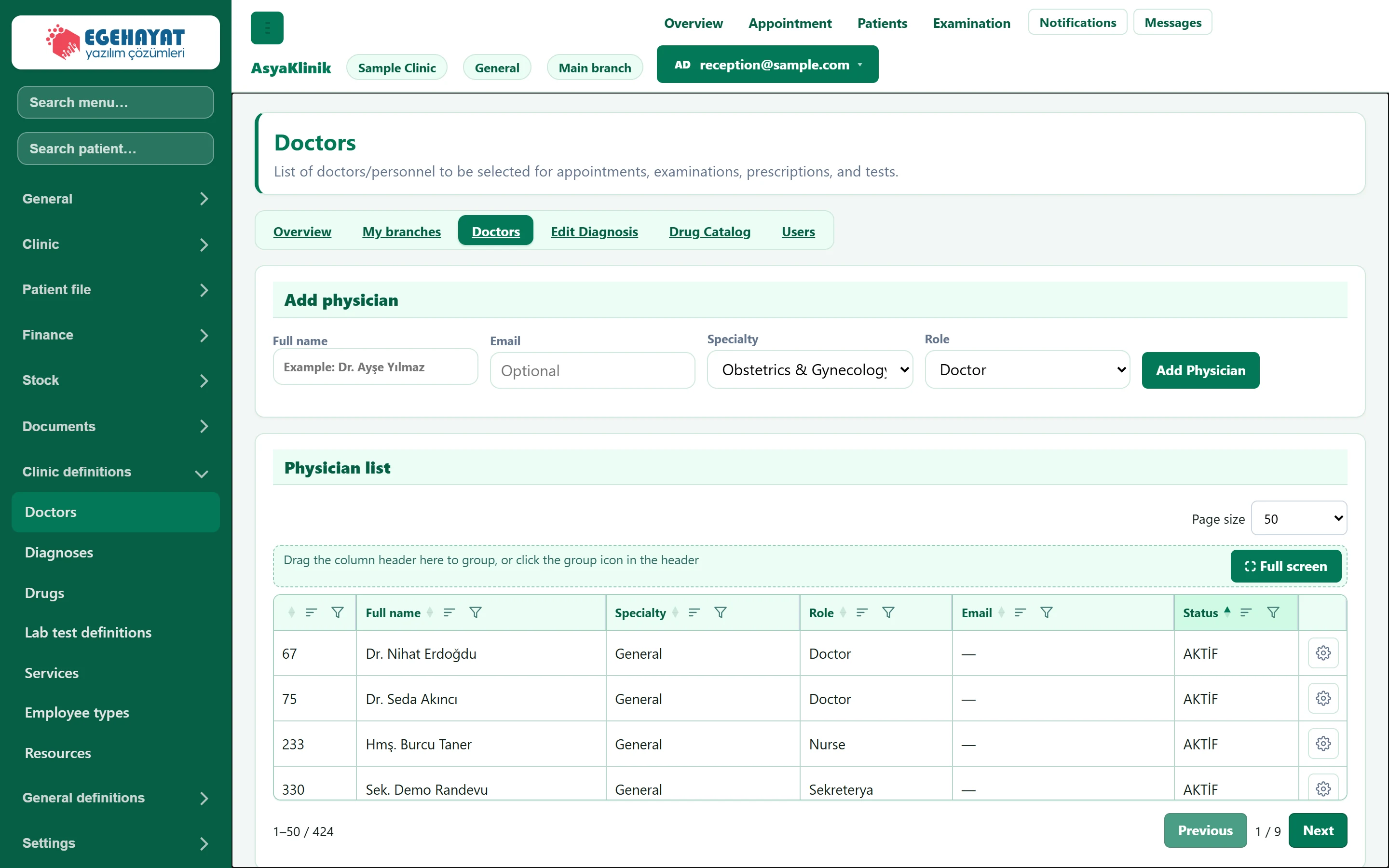
- 1Tabs Settings tabs: summary, branches, doctors, diagnoses, drugs, users.
- 2Add physician Add a new doctor / staff member.
- 3Status Click the header to sort; here active entries are on top.
- 4Row menu Edit, or deactivate / activate.
Adding a doctor / staff member
Part of the screenAdd physician
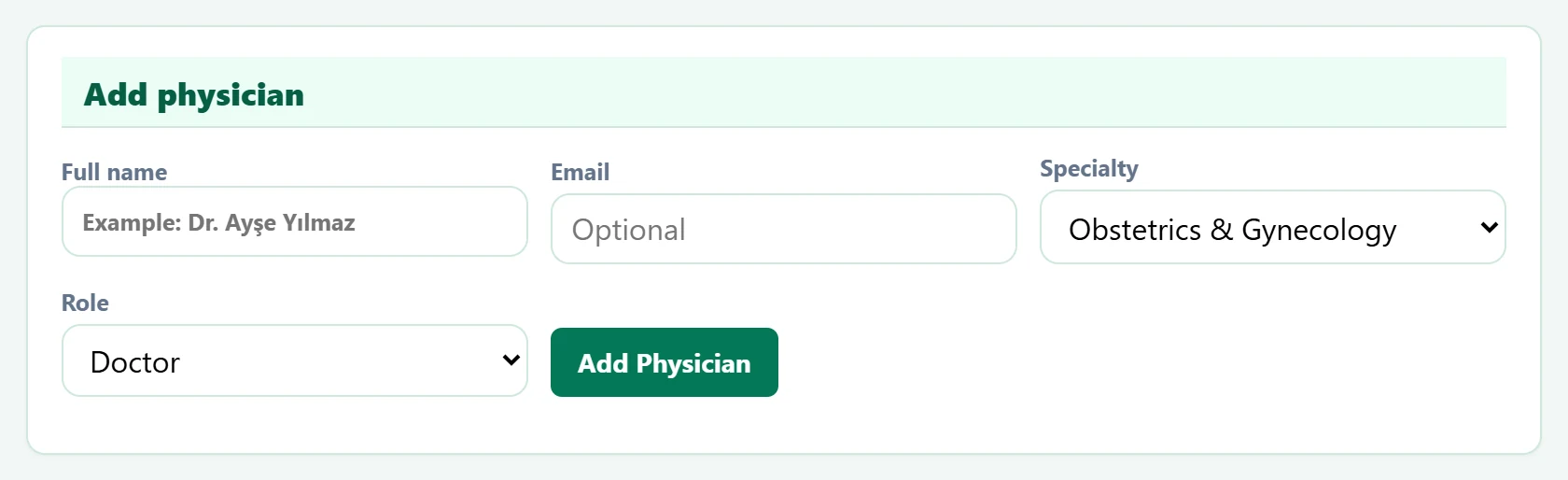
- 1Add Physician Adds the staff member; shown as active in the list.
| Field | Sign in | Description |
|---|---|---|
| Full name | Text | Name shown on appointments, examinations and prescriptions (e.g. Dr. Ayşe Yılmaz). Required. Placeholder: «Example: Dr. Ayşe Yılmaz» |
| Text | Optional contact address. Placeholder: «Optional» | |
| Specialty | Choice list | Staff member's specialty; appointments and examinations filter by it. |
| Role | Choice list | Staff type; the list comes from Definitions → Employee types. Options: Doctor · Nurse · Sekreterya · Laboratuvar |
- Enter the full name.
- Choose Specialty and Role. The role list comes from Employee types.
- Press Add Physician. The person appears as active in the list and can be chosen on appointment screens.
To change the data, choose Edit in the row menu; the button becomes Save. Instead of deleting staff who leave, deactivate them; their name stays on old examinations and prescriptions but cannot be chosen for new ones.
The Specialty list starts with «Obstetrics & Gynecology» selected. Make sure you choose your own specialty.
Common warnings
| Warning | Cause | Solution |
|---|---|---|
| Full name is required. | The name is empty. | Enter the name and try again. |
| Physician could not be added. | The server rejected the record. | Check the data and try again. |
| Physician could not be updated. | The edit could not be saved. | Refresh the page and try again. |
| Status could not be updated. | The active / inactive change could not be saved. | Refresh the page and try again. |