
 AsyaTicari
 AsyaRestoran
 AsyaOtel
 AsyaCrm
 AsyaKlinik
 AsyaSpor
 AsyaSSH
 AsyaEmlak
 AsyaFilo
 AsyaPuantaj
 AsyaİSG
 AsyaİHD
 Kolay Öğren
AsyaKlinik · Clinic
Patient list and search
Listing registered patients, searching, filtering by diagnosis, sorting, grouping and exporting to Excel.
The Patients screen lists all patients registered with the clinic. From here you search for patients, open a patient card, register a new patient and export the list to Excel.
Opening the screen
In the side menu, click Clinic → Patients, or click the Patients link in the top bar.
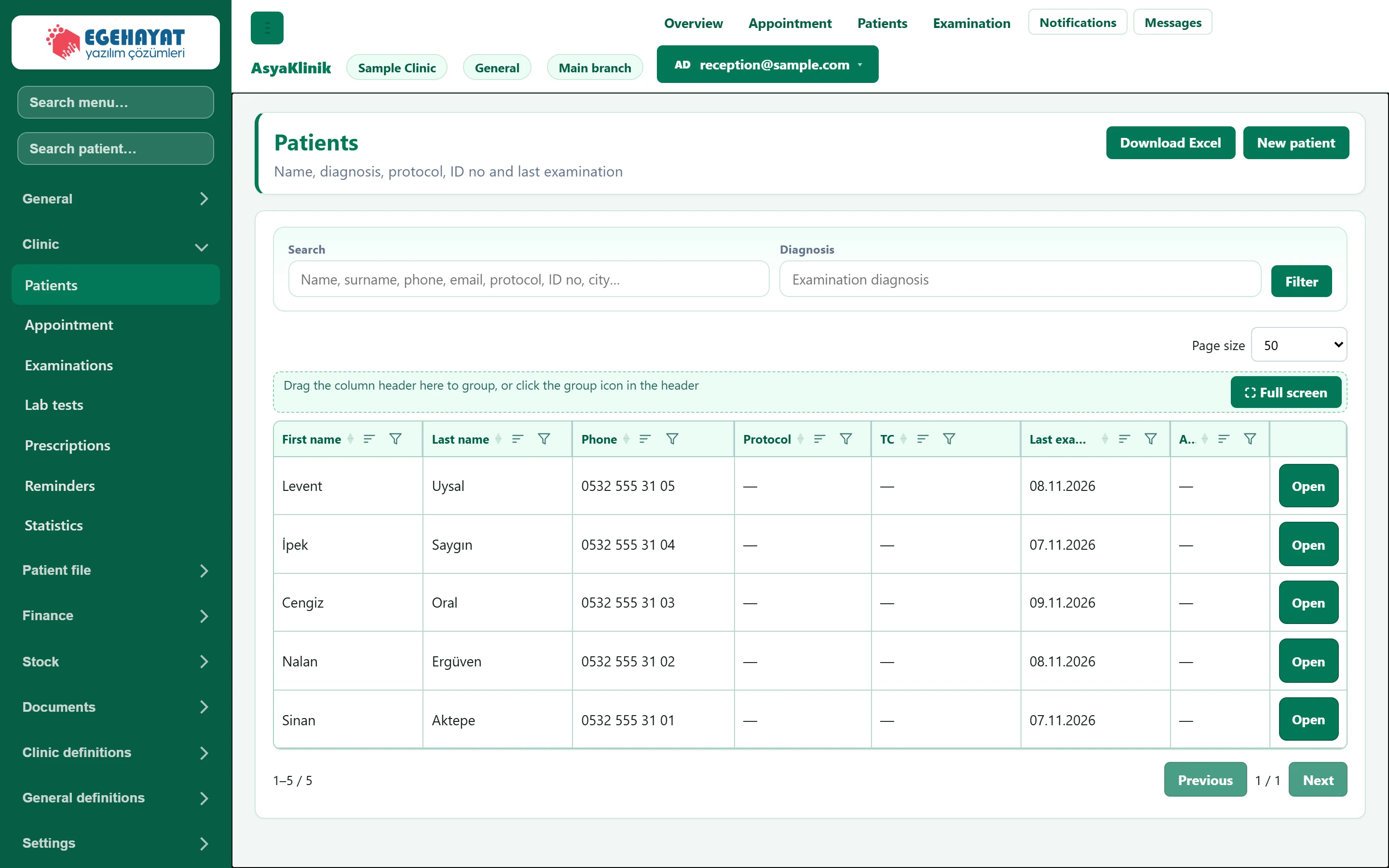
- 1Patients Screen title and short description.
- 2Download Excel Downloads the listed patients as an Excel file.
- 3New patient Opens the new patient card window.
- 4Search and diagnosis filter The list narrows as you type; use Filter to filter by diagnosis.
- 5Grid tools Page size, grouping area and full screen.
- 6Open Opens the patient card.
Searching for a patient
The list narrows as soon as you start typing in the search box; you do not need to press a button.

- 1Search Free-text search.
- 2Diagnosis Filter by diagnosis.
- 3Filter Applies the filter.
| Field | Sign in | Description |
|---|---|---|
| Search | Text | Any of name, surname, phone, e-mail, file number, ID number or city. The list filters as you type. Placeholder: «Name, surname, phone, email, protocol, ID no, city…» |
| Diagnosis | Text | Filters by a diagnosis made in an examination (e.g. «hypertension»). Applied with Filter. Placeholder: «Examination diagnosis» |
Example searches:
| What you type | What is found |
|---|---|
aktepe |
Patients with the last name Aktepe |
555 31 |
Patients whose phone number contains these digits |
izmir |
Patients whose address contains İzmir |
To filter by diagnosis, type part of the diagnosis in the Diagnosis box and press Filter. For example, typing "diabetes" lists the patients who have this diagnosis in an examination.
Working with the list
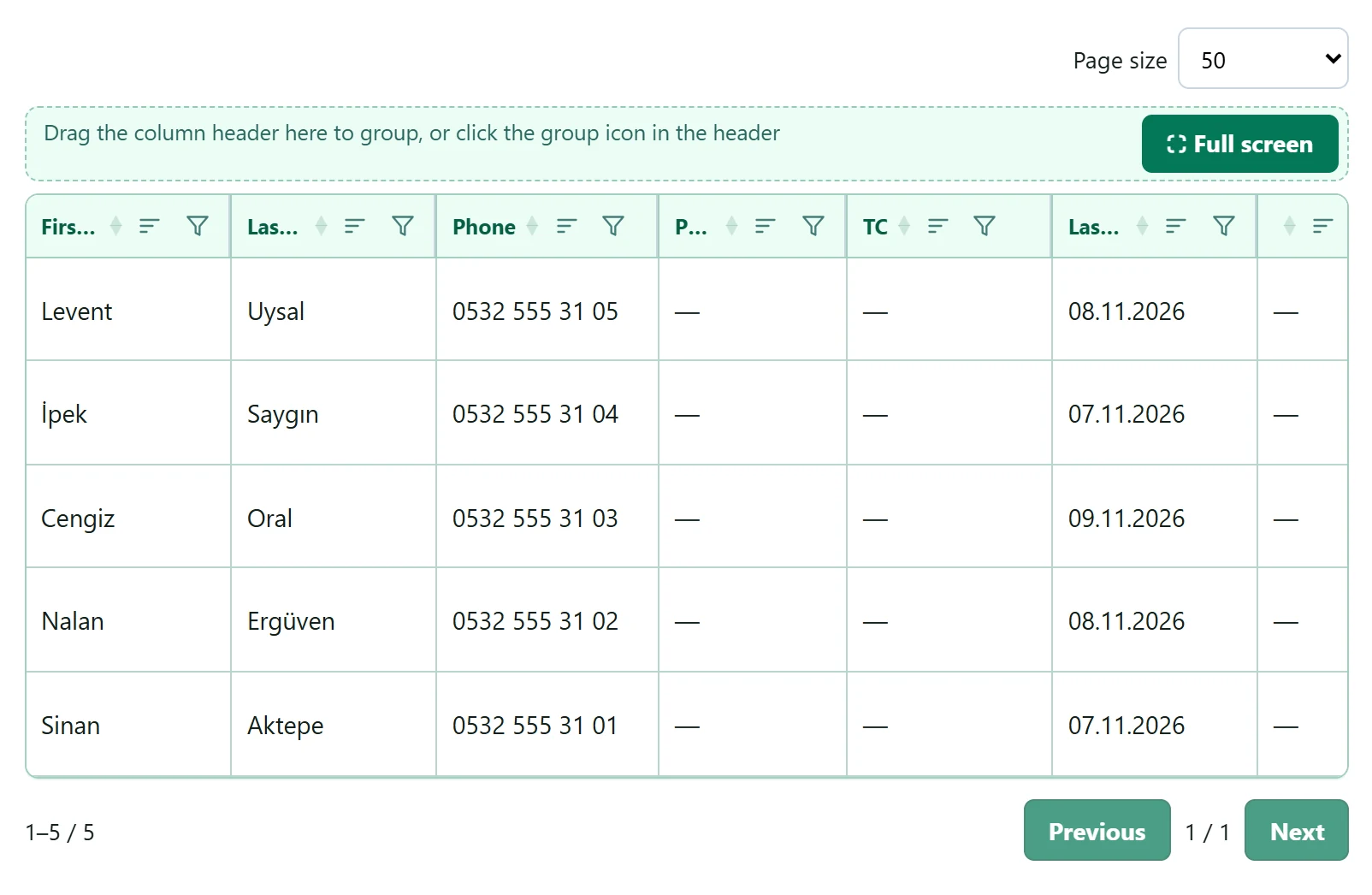
- 1Page size How many patients are shown per page.
- 2Grouping area Drag a column header here to group the list by that column.
- 3Column header Click to sort; the funnel icon adds a column filter.
- 4Open Patient card.
- Sorting: Click a column heading; a second click reverses the order.
- Column filter: The funnel icon in the heading opens a filter for that column.
- Grouping: Drag a column heading to the area with the dashed border; the list is grouped by that column. To remove the grouping, click the cross on the chip.
- Page size: Sets how many patients are shown on one page. Your choice is remembered in this browser.
Exporting to Excel
Download Excel at the top right downloads the patients currently shown in the list (if a filter is applied, only the filtered ones).
The patient list contains personal health data. Share the downloaded file only with authorised people and only in a secure environment.