
 AsyaTicari
 AsyaRestoran
 AsyaOtel
 AsyaCrm
 AsyaKlinik
 AsyaSpor
 AsyaSSH
 AsyaEmlak
 AsyaFilo
 AsyaPuantaj
 AsyaİSG
 AsyaİHD
 Kolay Öğren
AsyaKlinik · Specialty screens
Dental chart (odontogram)
FDI odontogram, tooth conditions, treatment plan items by department, budget, price quote and Excel.
On the Dental chart screen you mark the patient's teeth by FDI number, add treatment plan items and print the total budget as a price quote. The screen is in the menu of companies with the Ağız ve Diş Sağlığı (oral and dental health) branch. If the aesthetic, restorative, implant, surgery and pedodontics sub-units are enabled, they are chosen with the department buttons at the top of the screen; there is no separate menu link.
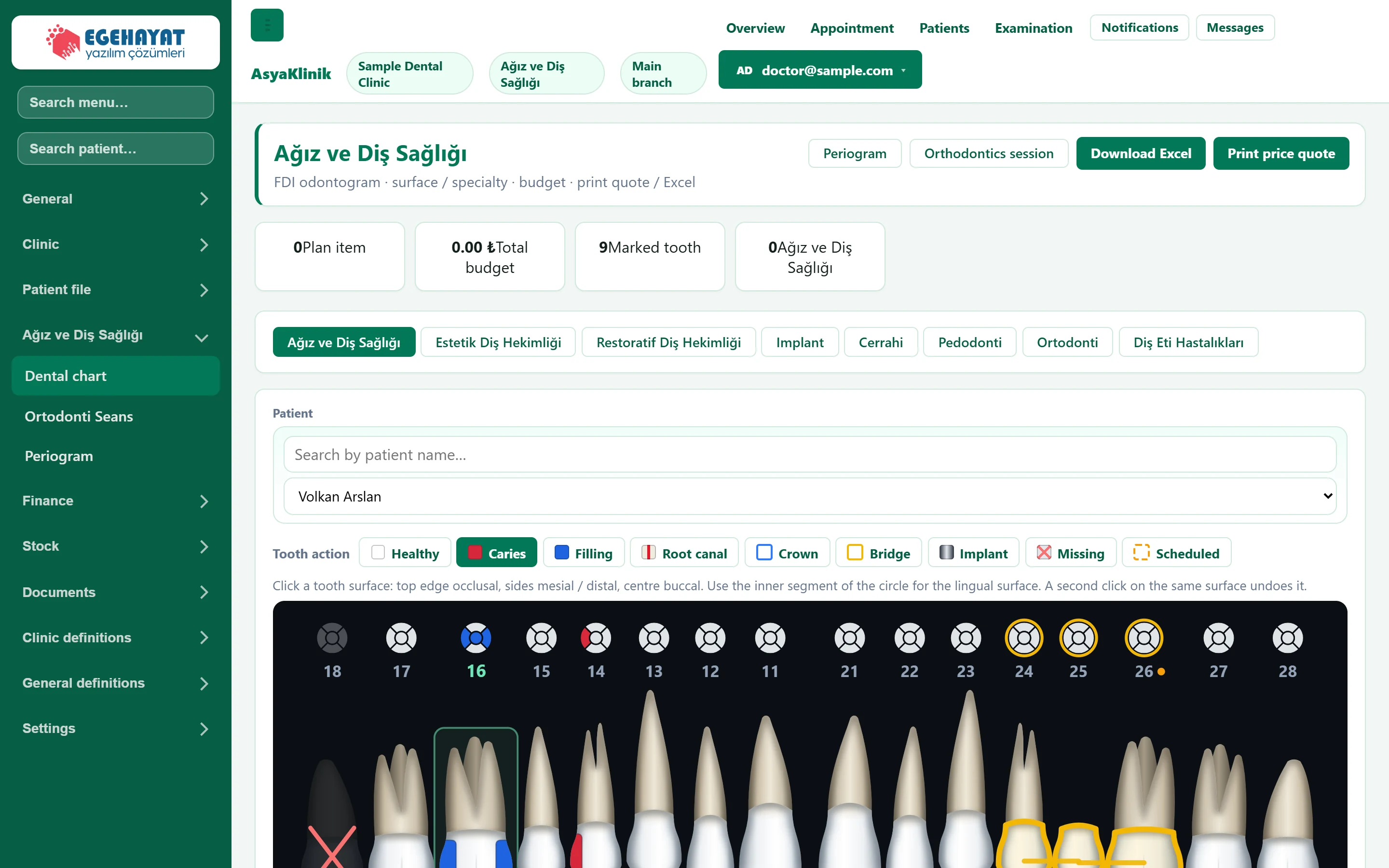
- 1Periogram Opens the periogram screen.
- 2Orthodontics session Opens the orthodontics session screen.
- 3Print price quote Prints the patient's plan items as a price quote.
- 4Summary cards Number of plan items, total budget, marked teeth and items in the selected department.
- 5Departments Selecting a specialty department filters the plan items to that department.
Odontogram
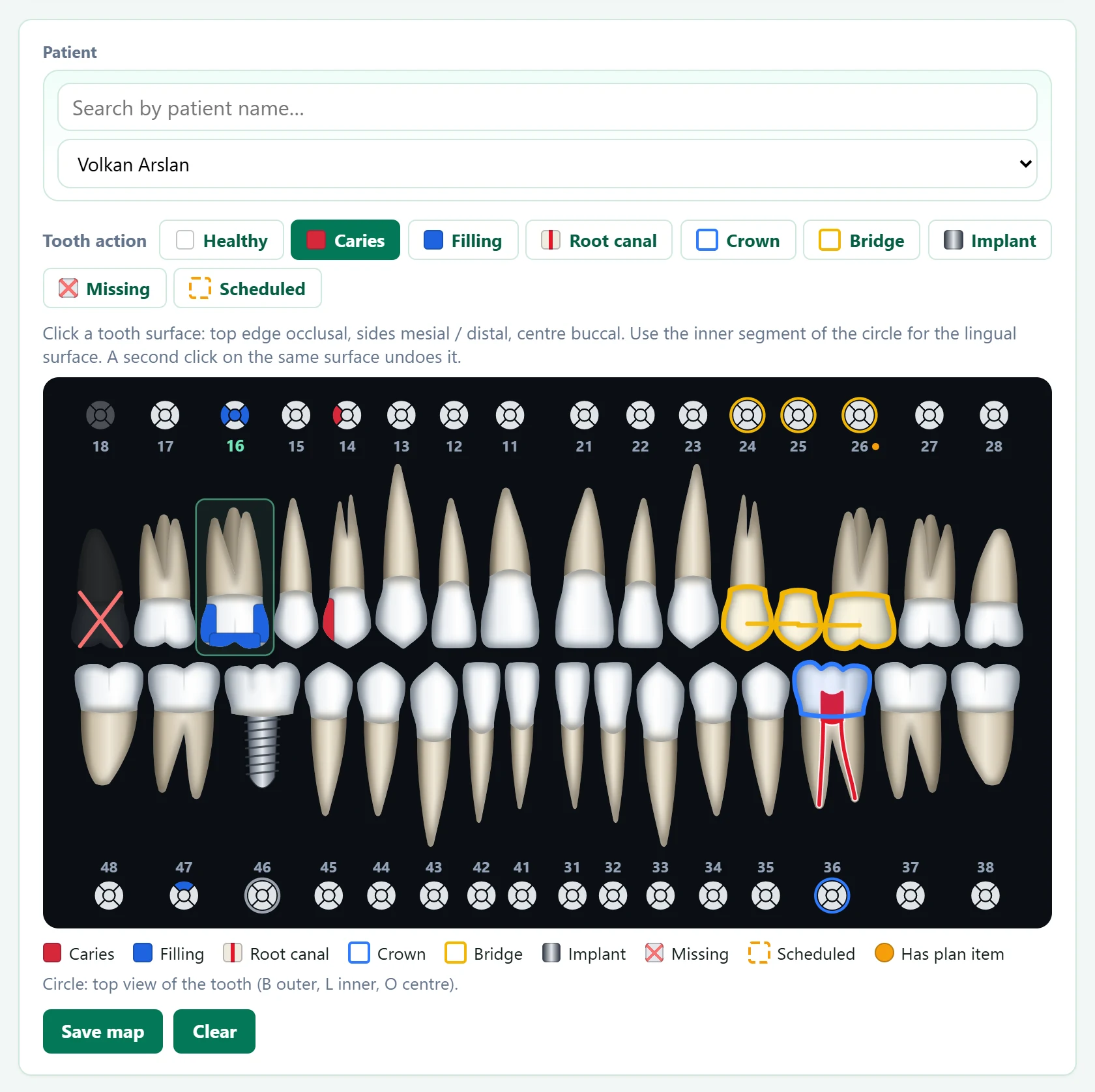
- 1Tooth action Action to apply on the chart; the selected button is dark.
- 2Dental chart Clicking a tooth or one of its surfaces applies the selected action; the circles are the top view of each tooth.
- 3Colour legend How each action appears on the chart.
- 4Save map Saves the chart to the patient.
- 5Clear Clears the marks on screen (without saving).
| Field | Sign in | Description |
|---|---|---|
| Patient | Search | Type a name in the upper box to narrow the list; pick the patient in the list below. The patient's saved chart and plans are loaded. Placeholder: «Search by patient name…» |
Teeth are drawn realistically together with their roots; upper roots point up, lower roots point down. First pick one of the Tooth action buttons, then click the chart:
- Caries and Filling are recorded per surface: the top edge of the tooth is occlusal (O), the sides mesial (M) / distal (D), the centre buccal (B). The lingual (L) surface cannot be seen from the side, so mark it on the inner segment of the circle next to the number. The circle is the top view of the tooth: outer segment B, inner segment L, centre O, the segment facing the midline M.
- Root canal is drawn as a red canal in the root, Crown as a blue and Bridge as a yellow outline; adjacent bridge teeth are joined by a bar. A tooth marked both Missing and bridge is shown as a pontic.
- Implant draws a titanium screw instead of the root; Missing fades the tooth and crosses it out; Scheduled draws a dashed orange line around the tooth.
- A second click with the same action undoes it; Healthy clears every mark on the tooth. A tooth can carry several actions (e.g. root canal + crown).
Clicking a tooth fills in the tooth number (and, for caries / filling, the surface) in the Treatment plan item form below; clicking the number only selects the tooth without painting. Teeth with plan items get an orange dot next to their number; hover over it to see the items. Save map writes the chart to the patient.
Treatment plan item
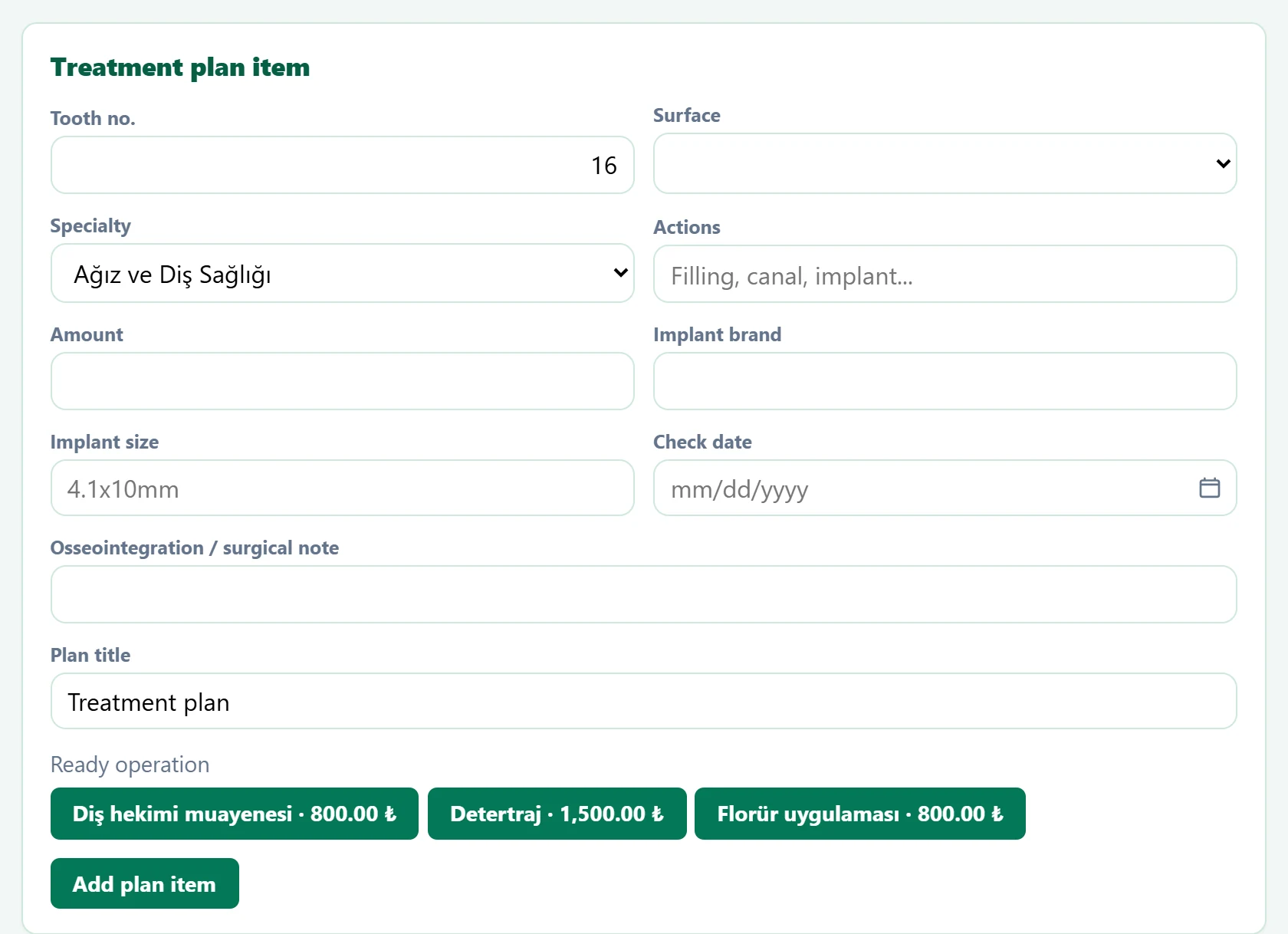
- 1Add plan item Adds the item to the patient's treatment plan.
| Field | Sign in | Description |
|---|---|---|
| Tooth no. | Text | FDI tooth number (11–48). |
| Surface | Choice list | Surface to be treated: O, M, D, B, L or MOD. Options: O · M · D · B · L · MOD |
| Specialty | Choice list | Dental department the item belongs to (aesthetic, implant, surgery…). Options: Ağız ve Diş Sağlığı · Estetik Diş Hekimliği · Restoratif Diş Hekimliği · Implant · Cerrahi · Pedodonti · Ortodonti · Diş Eti Hastalıkları |
| Actions | Text | Procedure to be done (filling, root canal, implant…). A ready-made procedure button fills this and the amount. Placeholder: «Filling, canal, implant...» |
| Amount | Text | Fee of the item; added to the total budget. |
| Implant brand | Text | Brand for implant items. |
| Implant size | Text | Implant diameter × length (e.g. 4.1x10mm). Placeholder: «4.1x10mm» |
| Check date | Text | Check-up date for this item. Placeholder: «mm/dd/yyyy» |
| Osseointegration / surgical note | Text | Note on implant healing or surgery. |
| Plan title | Text | Name of the treatment plan the item is added to. |
If the selected department has ready-made procedures, Ready operation buttons appear; pressing one fills the procedure name and amount.
Plans
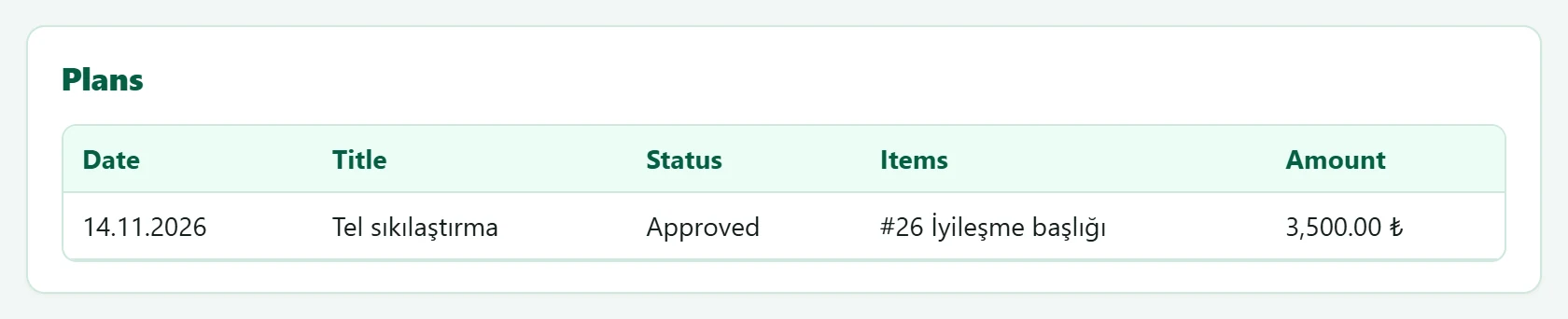
The patient's treatment plans are listed with date, title, status, items and total. Without plans it shows «No plans.»
Step by step
- Select the patient; the saved chart and plans are loaded.
- Pick an action, click a tooth or surface and press Save map.
- For each procedure enter tooth, surface, specialty, procedure and amount and press Add plan item.
- Give the quote to the patient with Print price quote; Download Excel exports the items.
Common messages
| Message | Cause | Solution |
|---|---|---|
| Operation required. | The procedure name of the plan item is empty. | Fill in the procedure or choose a ready-made one. |
| Odontogram saved. | The chart was saved. | Information only. |
| Treatment plan added. | The item was added to the plan. | Information only. |