
 AsyaTicari
 AsyaRestoran
 AsyaOtel
 AsyaCrm
 AsyaKlinik
 AsyaSpor
 AsyaSSH
 AsyaEmlak
 AsyaFilo
 AsyaPuantaj
 AsyaİSG
 AsyaİHD
 Kolay Öğren
AsyaKlinik · General
Sign-in and overview screen
The overview screen that opens when you sign in to AsyaKlinik, the side menu and the top bar. Today's counters, overdue appointments and weekly charts.
When you sign in to AsyaKlinik, the Overview screen opens. This is the screen you will look at most during the day: it shows at a glance how many patients and appointments there are, which appointments have not been admitted yet, and today's reminders.
Screen layout
The screen has three parts: the menu on the left, the company / branch / user bar at the top, and the content of the screen you are working on in the middle.
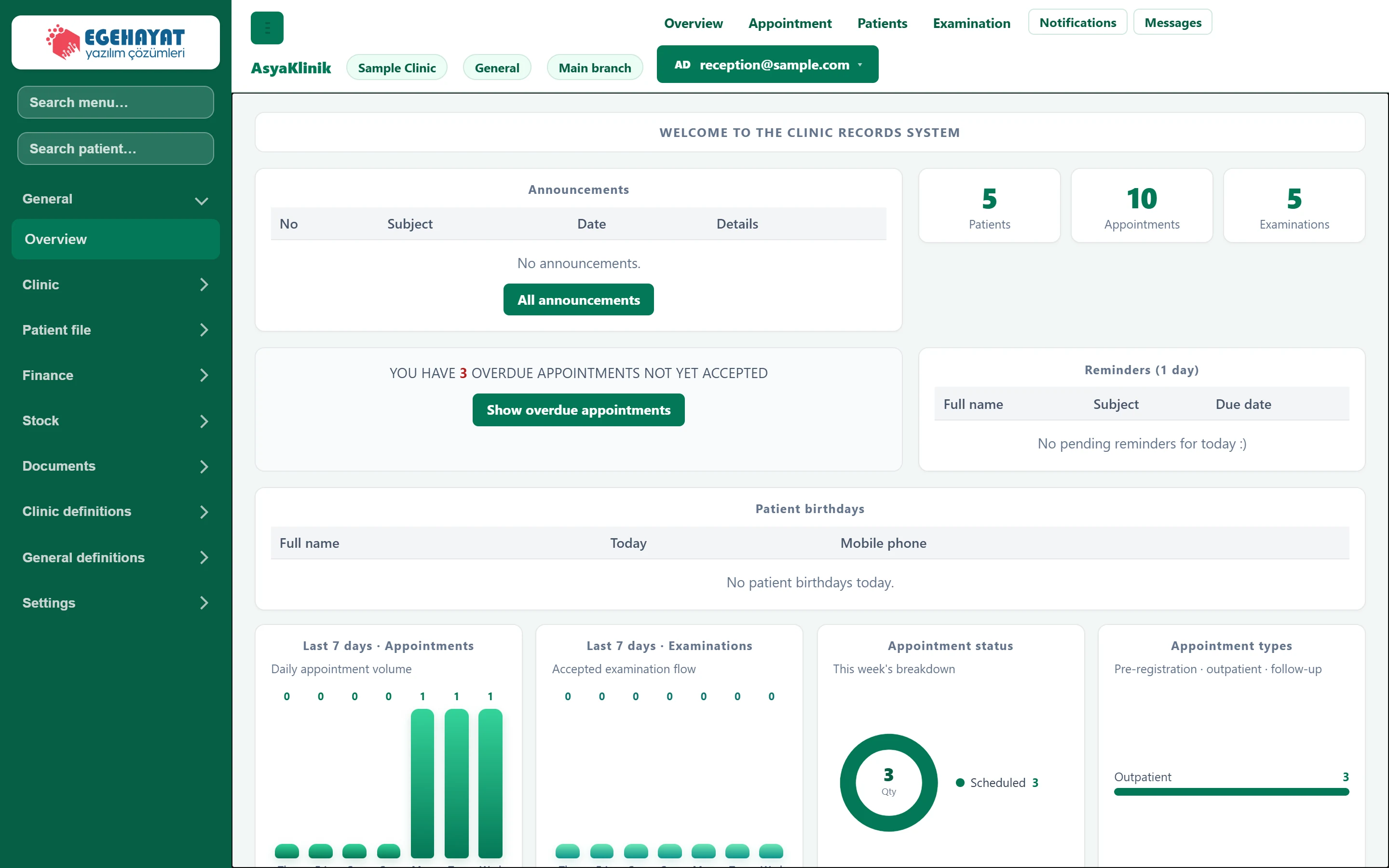
- 1Search menu Type a few letters of a screen name to list matching screens.
- 2Find patient Finds a patient by name, surname or phone and opens the patient card.
- 3Clinic Menu groups expand and collapse; the current screen is highlighted.
- 4Company The company you are working in.
- 5Branch Active branch. If you have several branches, you choose one at sign-in.
- 6Quick links One click to Overview, Appointments, Patients and Examination.
- 7Notifications / Messages System notifications and messages between users.
- 8User menu Change password, language, sign out.
- 9Today's counters Number of patients, appointments and examinations.
The green button at the top left collapses the menu; on narrow screens and tablets this gives the content area more room.
Side menu
The menu is arranged in groups. Click a group heading to show its screens; click it again to hide them. The screen that is open is shown in dark green.
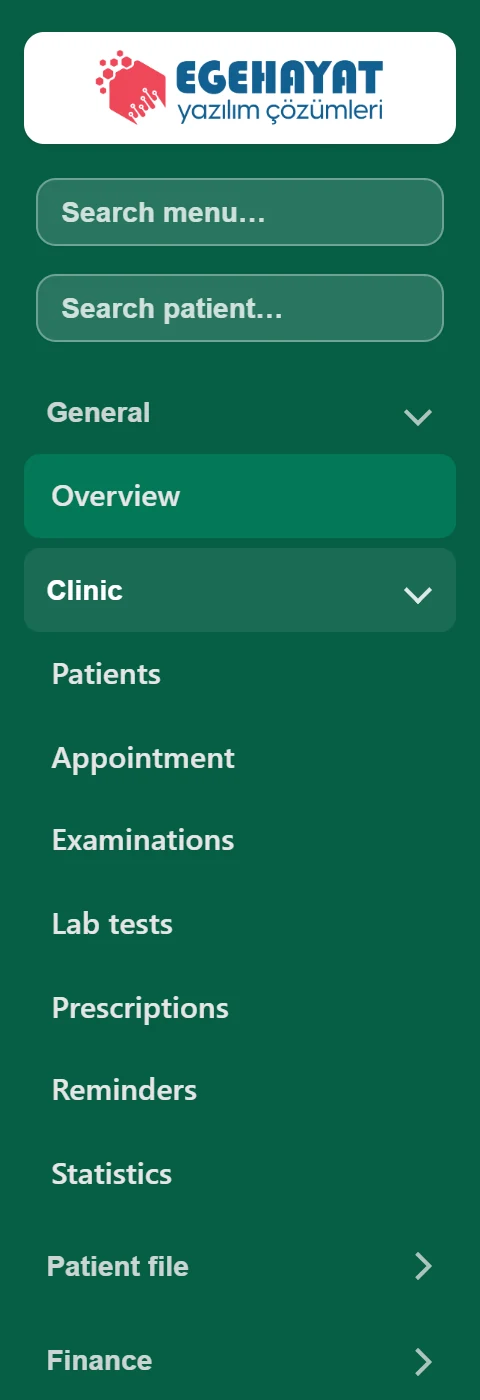
- 1Search menu E.g. typing «cash» shows the cash desk screen.
- 2Find patient Goes straight to the patient card.
- 3Clinic Expands / collapses the group.
- 4Patients Screens in the Clinic group.
- Type a few letters of a screen name in the Search menu… box (e.g. "cash"). The list shows only the matching screens.
- The Search patient… box takes you straight to a patient; type part of the first name, last name or phone number and pick the patient from the list.
The menu is kept simple for clinic work: daily screens are under Clinic, Patient file and the specialty groups; payments and current accounts under Finance; definitions such as doctors, diagnoses and drugs under Clinic definitions. Rarely used commercial screens (e.g. dispatch notes, withholding types) are not shown in the menu but can be found with Search menu…. To see them all in the menu, switch on Full menu under Settings → Parameters → Company features.
Notices and counters
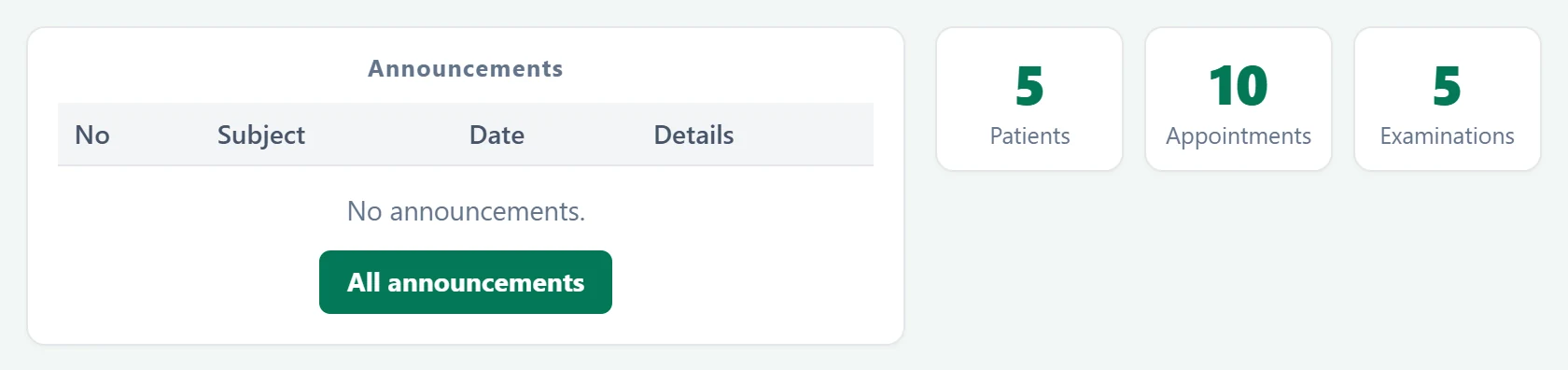
- 1Announcements Internal announcements; «All announcements» opens the archive.
- 25 Number of registered active patients.
- 310 Number of appointments in the calendar.
- 45 Number of accepted examinations.
The counters are refreshed every time the screen opens. The figures are for the branch you are working in; to see another branch's figures, switch branch.
Overdue appointments and reminders

- 1Overdue appointment alert Appointments whose time has passed but were not accepted for examination.
- 2All announcements Lists these appointments so you can accept or cancel them.
- 3Reminders (1 day) Reminders set for today.
Appointments whose time has passed but that have not been admitted to examination are counted here. Use Show overdue appointments to open the list, then admit or cancel each one.
Overdue appointments do not close by themselves. A count of zero at the end of the day shows that the calendar is kept up to date.
Weekly charts
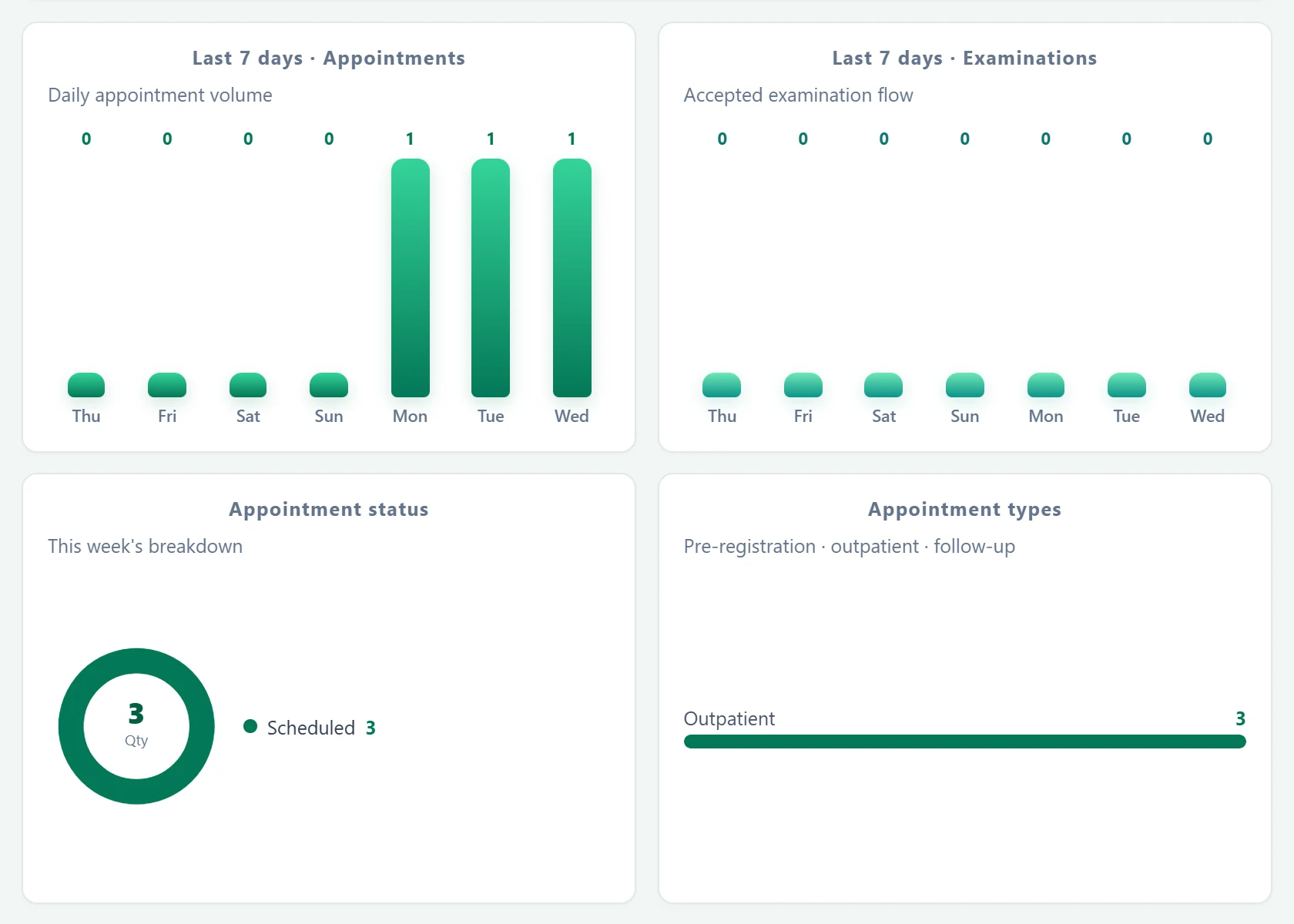
- 1Last 7 days · Appointments Appointments per day over the last 7 days.
- 2Last 7 days · Examinations Examinations accepted over the last 7 days.
- 3Appointment status Status of this week's appointments (planned, done, cancelled).
- 4Appointment types Appointments by type.
The charts show the last 7 days. The number above each bar is that day's total.