
 AsyaTicari
 AsyaRestoran
 AsyaOtel
 AsyaCrm
 AsyaKlinik
 AsyaSpor
 AsyaSSH
 AsyaEmlak
 AsyaFilo
 AsyaPuantaj
 AsyaİSG
 AsyaİHD
 Kolay Öğren
AsyaİHD · SBK / İHD
File Preparation
Producing the SBK Excel files (S2–S11) for a connection and period, opening runs, downloading files and the S11 selection.
On File Preparation you choose an ERP connection and review period and produce the SBK Excel files. Every production is kept as a run; the run's missing items and check results are shown on separate screens.
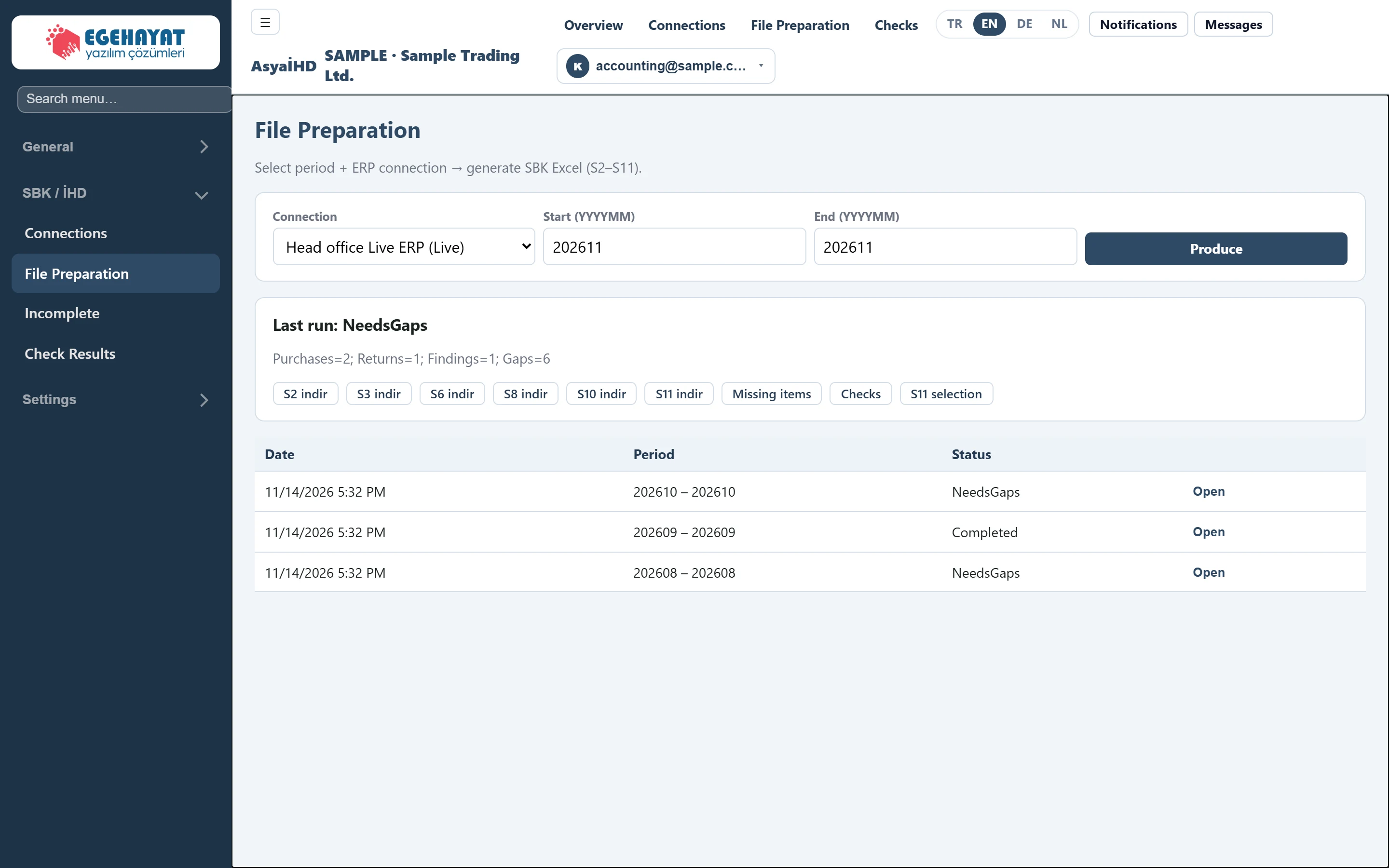
- 1Connection Choose a connection and period and produce the SBK files.
- 2Last run: NeedsGaps Status and summary of the selected run, Excel downloads and related screens.
- 3NeedsGaps Status of the run.
- 4Open Shows the run in the card above.
Producing the files

- 1Produce Reads the data from the chosen connection, runs the checks and produces the files.
| Field | Sign in | Description |
|---|---|---|
| Connection | Choice list | ERP connection to read the data from (defined on the Connections screen). Options: Head office Live ERP (Live) · Branch Logo Tiger (LogoTiger) · Old Netsis (Netsis) |
| Start (YYYYMM) | Text | First month of the review period, year and month written together (e.g. 202610). |
| End (YYYYMM) | Text | Last month of the review period, same format. |
- Choose the ERP connection in Connection (the list shows the connection name and the ERP type in brackets).
- Enter the period in Start (YYYYMM) and End (YYYYMM) as year + month (e.g.
202610). Both boxes start with the current month. - Press Produce. While it works the button reads Producing….
During production AsyaİHD:
- reads purchase invoices, returns, despatch notes and vendor payments from the connection;
- records required information that is empty in the ERP as missing items (see Incomplete);
- checks the data with the rules C-01 … C-10 (see Check Results);
- creates the S2, S3, S6, S8, S10 and S11 Excel files. Empty journal entry and account code fields are written as BİLİNMİYOR (unknown).
When it finishes, Complete: and the run status appear at the top and the run is added to the top of the list below.
Last run

- 1Last run: NeedsGaps Status of the run.
- 2Purchases=2; Returns=1; Findings=1; Gaps=6 Number of purchase invoices, returns, check findings and missing items.
- 3S2 indir Downloads the Excel file of each template (S2, S3, S6, S8, S10, S11).
- 4Missing items Opens the missing items of this run.
- 5Checks Opens the check results of this run.
- 6S11 selection Opens the S11 invoice selection screen.
When the screen opens, the newest run is shown in this card. To see another run, press Open in its row.
- The heading shows the run status (see Overview for the meanings).
- The line below gives the counts:
Purchasespurchase invoices,Returnsreturns,Findingscheck findings,Gapsmissing items. If production failed, the error text is shown here. - The S2 indir … S11 indir buttons download the Excel file in a new tab (the word “indir”, download, is not translated on screen).
- Missing items, Checks and S11 selection open the related screen for this run.
Run list
Every run is listed with Date, Period and Status; the newest run is at the top. Runs are not deleted.
S11 selection
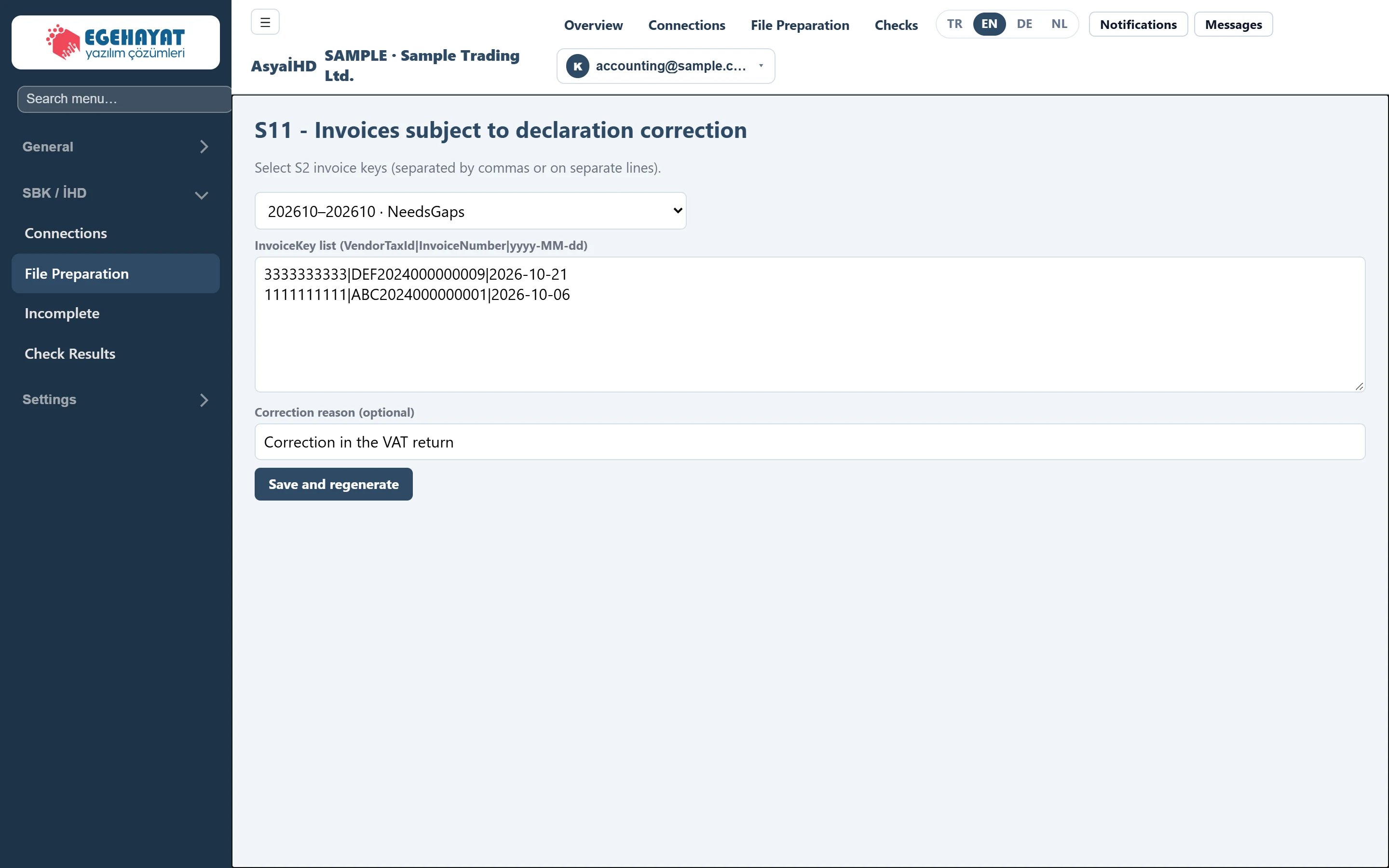
- 1202610–202610 · NeedsGaps Run the S11 selection belongs to.
- 2InvoiceKey list Keys of the invoices subject to declaration correction; one key per line or separated by commas.
- 3Correction reason Correction reason; optional, written to all selected invoices.
- 4Save and regenerate Saves the selection and regenerates the files.
Template S11 lists the invoices subject to a correction of the VAT return. AsyaİHD does not derive these invoices from the ERP; you select them. The screen opens with the S11 selection button in the Last run card.
- Choose the run in the list at the top.
- In InvoiceKey list enter the invoice keys: vendor tax number, invoice number and invoice date separated by
|(e.g.1111111111|ABC2024000000001|2026-10-06). Write one key per line or separate them with commas / semicolons. - Optionally enter a Correction reason (optional); the same reason is written for all selected invoices.
- Press Save and regenerate. The selection is saved, the files are produced again and S11 saved (n) and files refreshed. appears.
The key must match the invoice in S2 exactly. A key that is not in S2 gives error C-09 “S11 seçimi S2'de yok.” (S11 selection not in S2) in Check Results.
Regenerating (saving S11, Regenerate on Incomplete) rebuilds the run's missing item and check lists from scratch.
Common warnings
| Warning | Cause | Solution |
|---|---|---|
period_ym_required |
Start or end does not have 6 digits. | Enter the period as YYYYMM (e.g. 202610). |
| Status Failed | The ERP could not be read or an error occurred during production. | Read the error in the summary line, fix the connection and produce again. |
| Production fails with the chosen connection | The connection is inactive. | Choose an active connection. |