
 AsyaTicari
 AsyaRestoran
 AsyaOtel
 AsyaCrm
 AsyaKlinik
 AsyaSpor
 AsyaSSH
 AsyaEmlak
 AsyaFilo
 AsyaPuantaj
 AsyaİSG
 AsyaİHD
 Kolay Öğren
AsyaİHD · SBK / İHD
Connections
Defining the ERP and taxpayer the SBK files are read from.
On Connections (screen title ERP Connections) you define the ERP the SBK data is read from and the taxpayer. AsyaİHD connects to the ERP read-only; it never writes to the ERP.
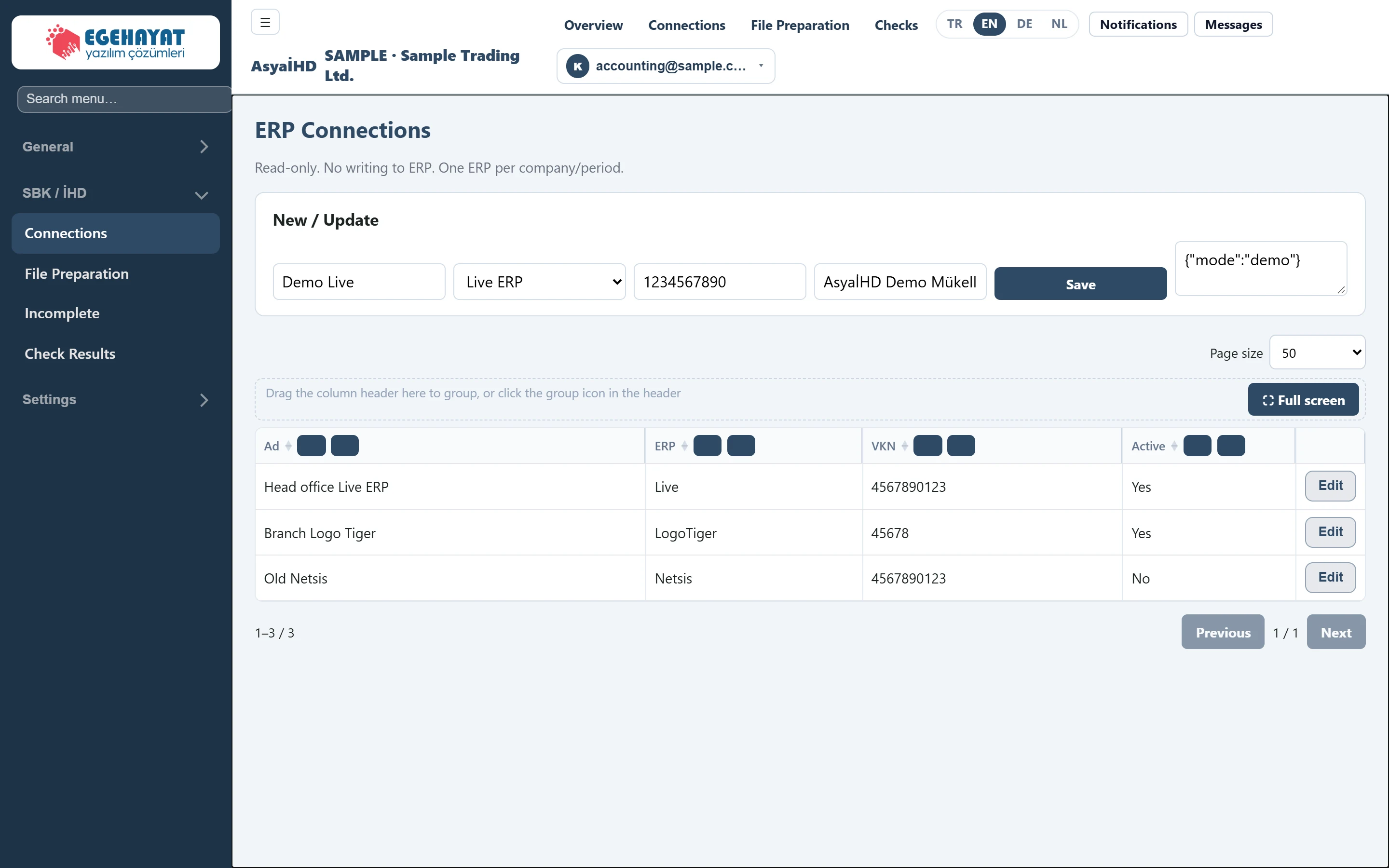
- 1New / Update Form to add a new connection or update the one picked with Edit.
- 2Head office Live ERP Name of the connection; it appears under this name in File Preparation.
- 345678 Taxpayer tax number (VKN); it must have 10 or 11 digits, otherwise check C-10 reports an error.
- 4No An inactive connection cannot be used to prepare files.
- 5Edit Loads the connection into the form above.
New / Update
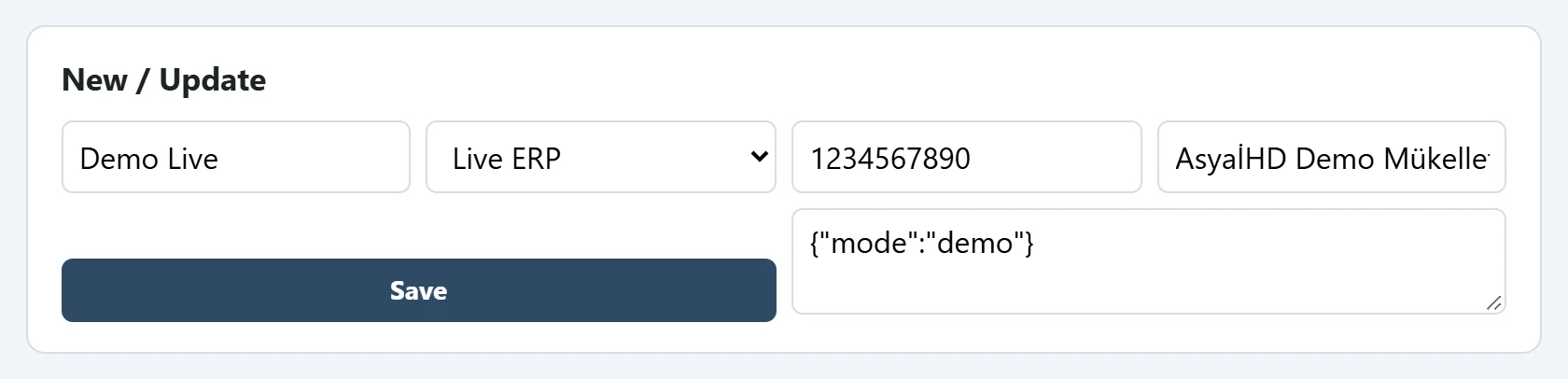
- 1First name Short name of the connection (e.g. “Head office Live ERP”).
- 2Live ERP ERP type: Live, Logo Tiger, Logo GO3, Netsis, ETA.
- 3VKN Tax number of the taxpayer (VKN / TCKN).
- 4Title Legal name of the taxpayer; written into the Excel files.
- 5ConnectionMetaJson Connection details (JSON): server / database, or mode=demo for sample data.
- 6Save Saves the connection; a saved connection is always active.
The form fields have no labels; the grey hint text in each box tells you what to enter. When the screen opens, the form is filled with sample values; do not press Save before entering your own data.
- Give the connection a name.
- Choose the ERP type: Live ERP, Logo Tiger, Logo GO3, Netsis, ETA.
- Enter the taxpayer's VKN (10 digits) or TCKN (11 digits) and Title (legal name). These are written into the Excel files as taxpayer details.
- In the bottom box enter the connection details as JSON: server and name of the ERP database, or just
{"mode":"demo"}for a test. - Press Save. The connection is added to the list and saved as active.
To change an existing connection press Edit at the end of its row; its data moves to the form. Change it and press Save.
At present only the Live ERP adapter reads data. The Logo Tiger, Logo GO3, Netsis and ETA adapters are skeletons: files produced with these connections are empty. If the database of a Live ERP connection cannot be reached, AsyaİHD continues with sample (demo) data — check the invoice count in the summary line before preparing a real review file.
List
The list shows the First name (connection name), ERP, VKN and Active columns; active connections are listed first. An inactive connection still appears in the File Preparation list but cannot be used to produce files. Connections cannot be deleted or deactivated on this screen; every connection saved from the form is active.
Common warnings
| Warning | Cause | Solution |
|---|---|---|
invalid_erp_kind |
An unknown ERP type was sent. | Choose an ERP type from the list. |
| C-10 in Check Results: “Mükellef VKN/TCKN geçersiz.” (taxpayer tax number invalid) | The VKN of the connection does not have 10 digits (TCKN: 11). | Correct it with Edit and produce the file again. |