
 AsyaTicari
 AsyaRestoran
 AsyaOtel
 AsyaCrm
 AsyaKlinik
 AsyaSpor
 AsyaSSH
 AsyaEmlak
 AsyaFilo
 AsyaPuantaj
 AsyaİSG
 AsyaİHD
 Kolay Öğren
AsyaFilo · Operation
Operation
Opening and completing work orders, recording fuel fill-ups and expenses; latest fuel and expense lists.
On the Operation screen you record maintenance jobs (work orders), fuel fill-ups and operational expenses of your vehicles. Three entry panels are at the top, the record lists below.
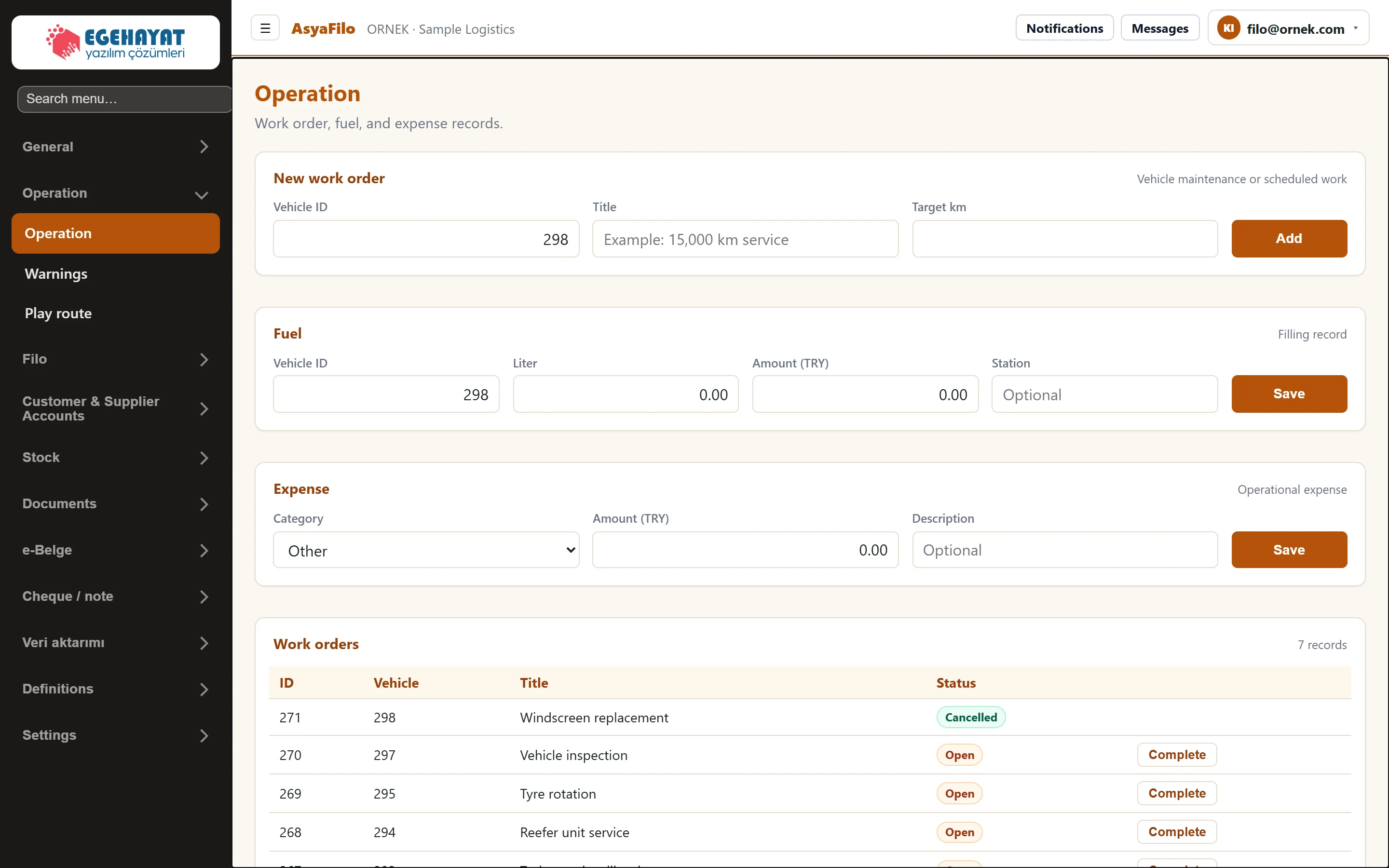
- 1New work order Opens a maintenance or planned job for a vehicle.
- 2Fuel Records a fuel fill-up.
- 3Expense Operational expense not tied to a vehicle.
- 4Work orders All work orders and their status; latest fuel and expense records follow below.
New work order

| Field | Sign in | Description |
|---|---|---|
| Vehicle ID | Text | The vehicle's system number (ID), not the plate. You can read it from the «Vehicle» column of the work order table. |
| Title | Text | Short name of the job, e.g. «15,000 km service». Placeholder: «Example: 15,000 km service» |
| Target km | Text | Optional: odometer reading at which the job is due. |
Enter the vehicle's system number (ID), not its plate. When the screen opens, the vehicle of the first work order in the list is prefilled. A new work order is saved with status «Open».
Fuel

| Field | Sign in | Description |
|---|---|---|
| Vehicle ID | Text | System number (ID) of the refuelled vehicle. |
| Liter | Text | Quantity of fuel purchased. |
| Amount (TRY) | Text | Receipt amount in Turkish lira. |
| Station | Text | Optional: station name. Placeholder: «Optional» |
Expense

| Field | Sign in | Description |
|---|---|---|
| Category | Choice list | Fuel, Maintenance, Bridge / highway, Parking or Other. Options: Fuel · Maintenance · Bridge / highway · Parking · Other |
| Amount (TRY) | Text | Expense amount in Turkish lira. |
| Description | Text | Optional short description. Placeholder: «Optional» |
An expense is not linked to a vehicle; the moment of saving is used as its time.
Work orders and latest records
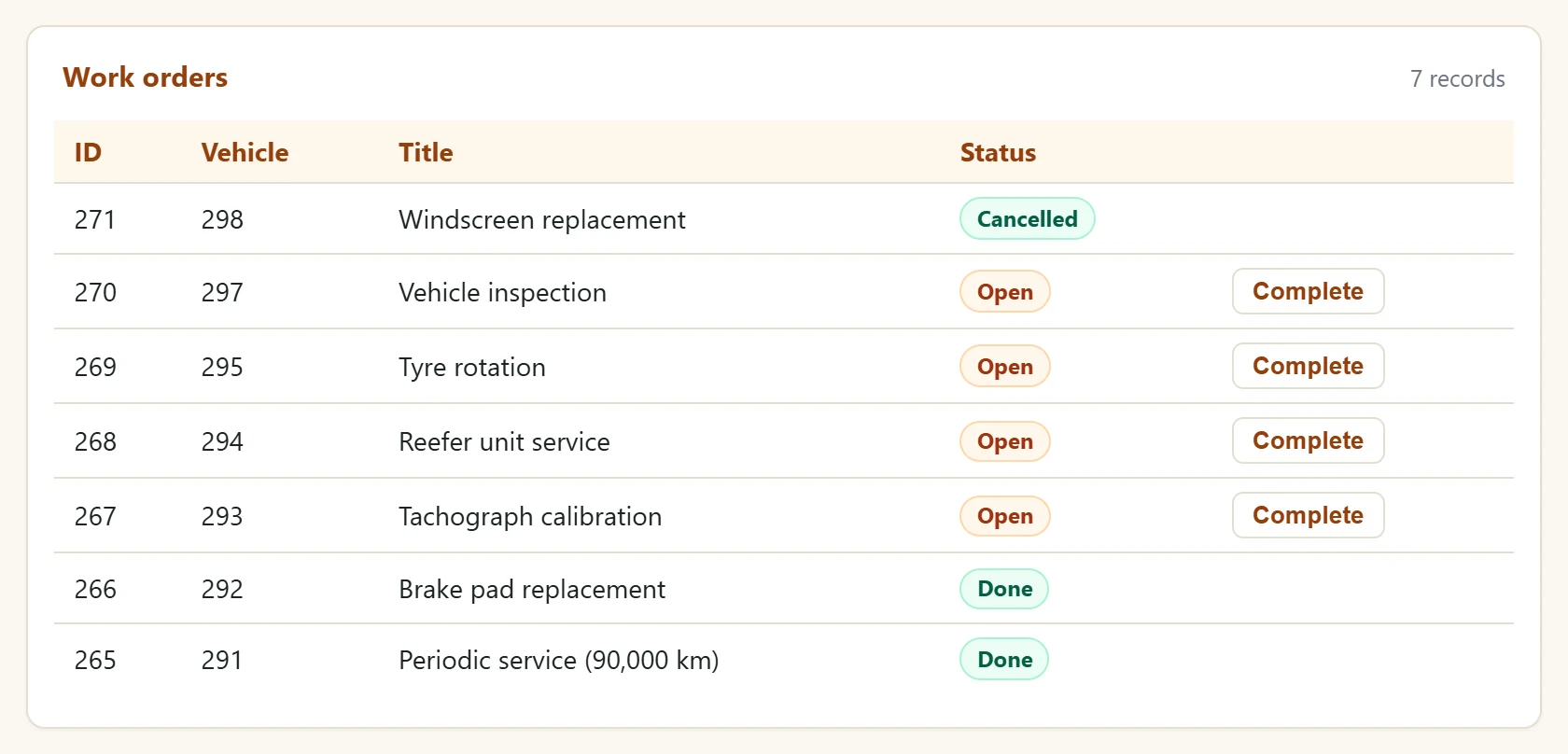
- 1Vehicle The vehicle's system number (ID).
- 2Open Open work order.
- 3Complete Closes the job as done.
- The Work orders table lists all work orders. The status can be «Open», «Done» or «Cancelled».
- Complete on an open work order closes it as done.
- The Last fuel and Recent expenses tables list the 15 newest records.
Step by step: opening a maintenance work order
- Find the vehicle number in the «Vehicle» column of the work order table.
- In New work order enter Vehicle ID, Title and, if needed, Target km.
- Press Add. The message «Work order added.» appears and the record is listed.
- When the job is done, press Complete in the list.
Fuel, expense and work order records are also written to the queue for transfer to the ERP (Integration screen). The screen has no edit or delete; correct a wrong record in the ERP.
Common messages
| Message | Cause | Solution |
|---|---|---|
| Work order added. / Fuel record added. / Expense added. | Saved successfully. | — |
| Error text returned by the API | Vehicle number not found or a required field is empty. | Check the vehicle ID and the amounts and save again. |