
 AsyaTicari
 AsyaRestoran
 AsyaOtel
 AsyaCrm
 AsyaKlinik
 AsyaSpor
 AsyaSSH
 AsyaEmlak
 AsyaFilo
 AsyaPuantaj
 AsyaİSG
 AsyaİHD
 Kolay Öğren
AsyaFilo · Filo
Vehicles & devices
Adding / editing / deactivating vehicles, registering GPS-telematics devices and pairing vehicles with devices.
On Vehicles & devices you manage the vehicles of your fleet, the GPS / telematics devices installed in them and which device is in which vehicle (pairing). The screen has three tabs: Vehicles, Devices, Mapping.
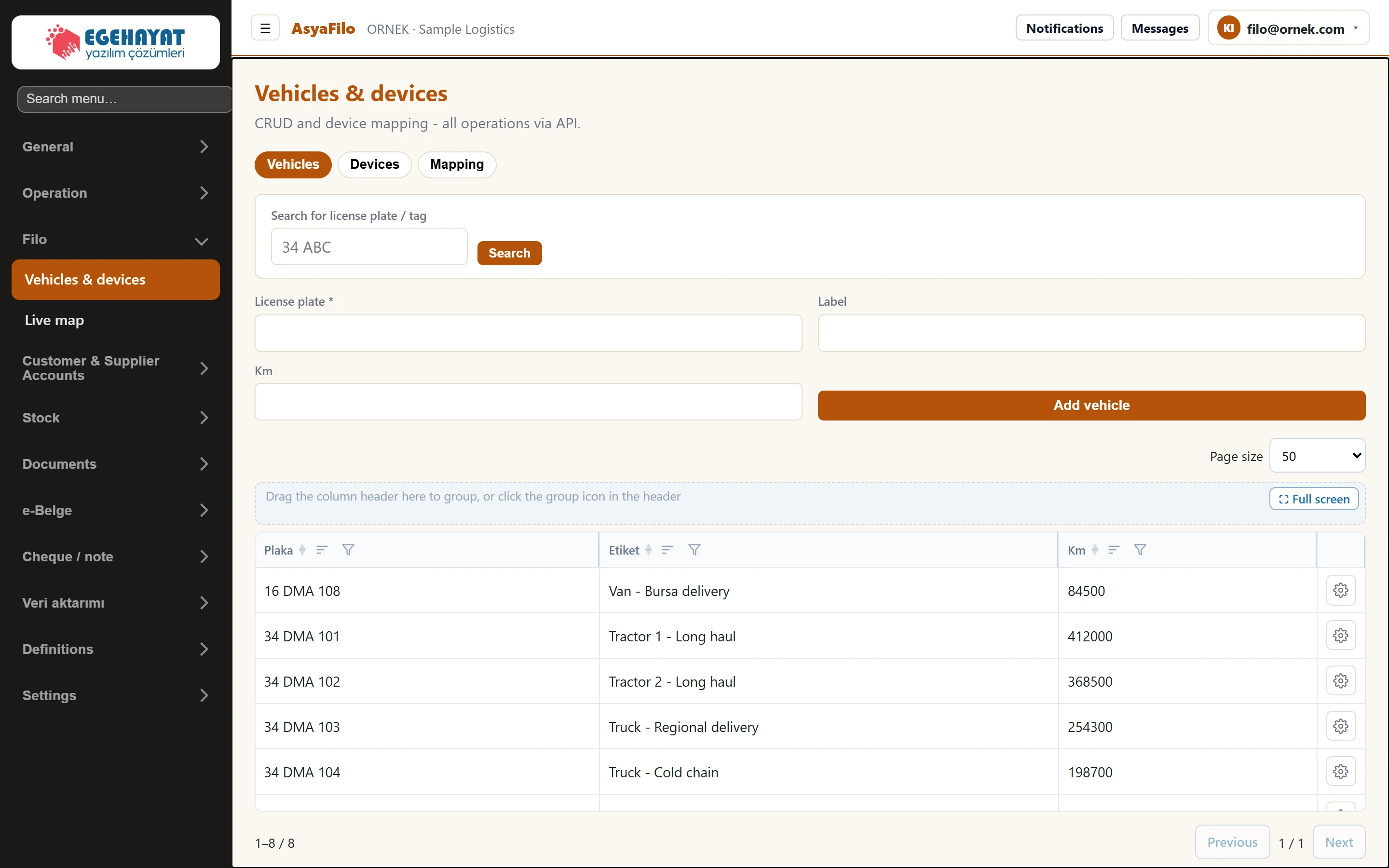
- 1Vehicles Vehicle list and new vehicle.
- 2Devices Telematics devices.
- 3Mapping Pairing a vehicle with a device.
- 4Search for license plate / tag Search by part of the plate or label and press «Search».
- 5New vehicle New vehicle form.
- 6Actions Row menu: Edit or Inactive.
Vehicles tab
The list shows plate, label and kilometres. Type part of the plate or label in Search for license plate / tag and press Search.
Add vehicle

| Field | Sign in | Description |
|---|---|---|
| License plate required | Text | Required. Cannot be changed later. |
| Label | Text | Free name that identifies the vehicle, e.g. «Truck - cold chain». |
| Km | Text | Current odometer reading (optional). |
With an empty plate the message «Plate required.» appears. On success «Vehicle added.» is shown.
Edit and Inactive
Choose Edit from the gear menu in the row to open an edit line above the list. The plate cannot be changed; change label and km and press Save, or Cancel.

| Field | Sign in | Description |
|---|---|---|
| License plate | Text | Registered plate; cannot be edited. |
| Label | Text | Display name of the vehicle. |
| Km | Text | Current odometer reading. |
Inactive deactivates the vehicle without confirmation and removes it from the list.
Devices tab
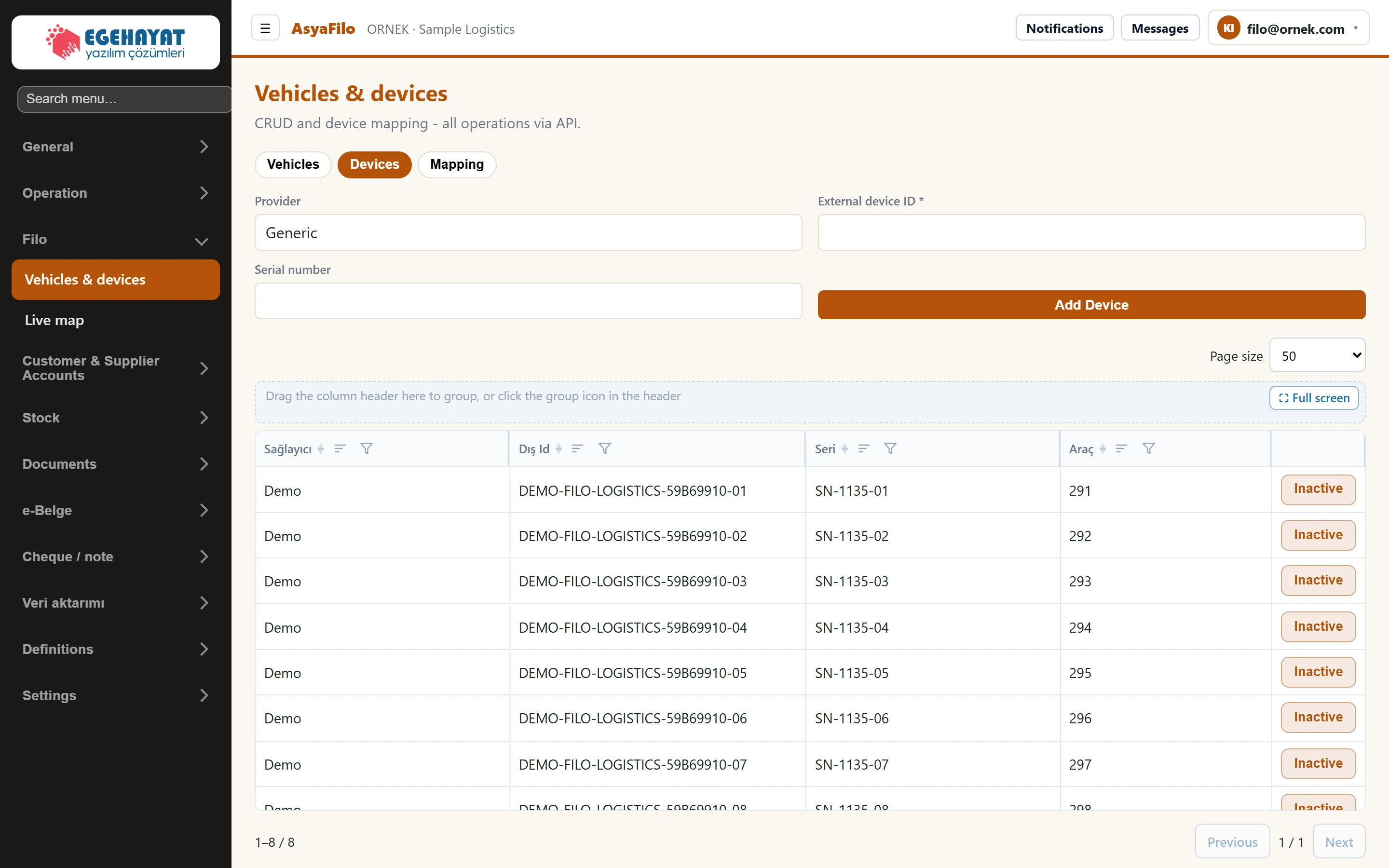
- 1Provider New device form.
- 2Dış Id Device ID at the provider; incoming position data is matched by this ID.
- 3Inactive Deactivates the device.

| Field | Sign in | Description |
|---|---|---|
| Provider | Text | Code of the telematics provider; default «Generic». Placeholder: «Generic» |
| External device ID required | Text | Required. The device ID in the provider's system (IMEI or device number). |
| Serial number | Text | Optional serial number. |
The list shows provider, external ID, serial number and the number of the vehicle the device is currently paired with. Inactive in the row deactivates the device without confirmation.
Mapping tab
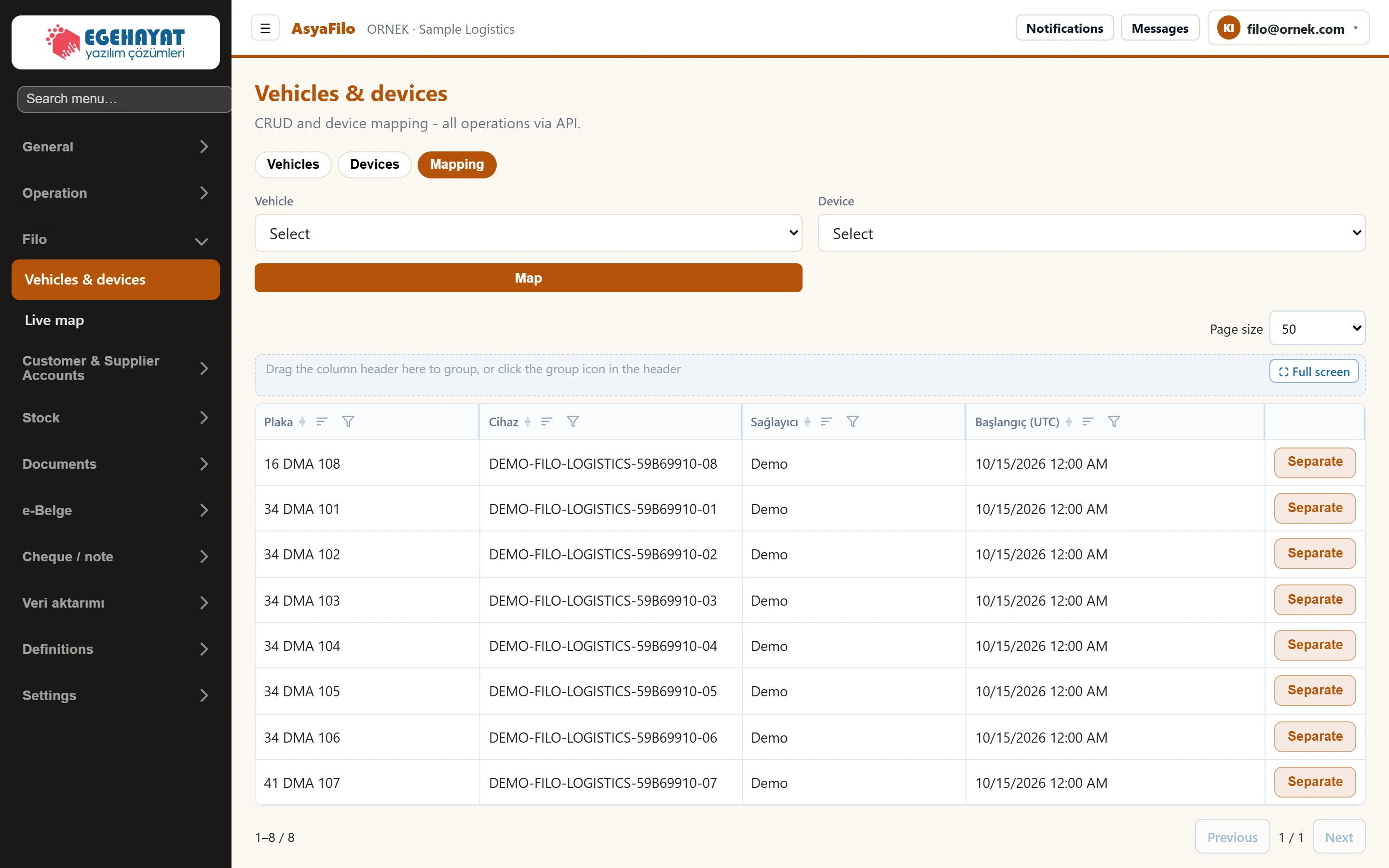
- 1Vehicle Vehicle to pair.
- 2Device Device installed in the vehicle.
- 3Map Creates the pairing; the start time is recorded.
- 4Separate Ends the pairing (separates vehicle and device).
The pairing decides to which vehicle a device's position data is written. The list shows plate, device, provider and the start time of the pairing (UTC).
Step by step: start tracking a new vehicle
- On the Vehicles tab enter plate, label and kilometres and press Add vehicle.
- On the Devices tab enter the provider code and the device's External device ID (device number / IMEI in the provider's portal) and press Add Device.
- On the Mapping tab select vehicle and device and press Map («Mapping created.»).
- As soon as the device provider starts sending position data to AsyaFilo, the vehicle appears on the Live map.
AsyaFilo does not connect to the device itself: position data is sent from the device provider's system to AsyaFilo's telemetry address. This forwarding (address and secret) is set up on the provider side by your system administrator; this screen has no setting for it. The external device ID must match the ID the provider sends exactly, otherwise incoming data is written to no vehicle.
If a device is moved to another vehicle, first end the old pairing with the row action, then pair it with the new vehicle.
Common messages
| Message | Cause | Solution |
|---|---|---|
| Plate required. | Plate is empty. | Enter the plate. |
| External device ID required. | External device ID is empty. | Enter the device number used by the provider. |
| Select vehicle and device. | No vehicle or device selected in the mapping. | Select both. |