
 AsyaTicari
 AsyaRestoran
 AsyaOtel
 AsyaCrm
 AsyaKlinik
 AsyaSpor
 AsyaSSH
 AsyaEmlak
 AsyaFilo
 AsyaPuantaj
 AsyaİSG
 AsyaİHD
 Kolay Öğren
AsyaTicari · General Ledger
Posting
Turning invoices, receipts, cash / bank / POS movements and cheques / notes into ledger vouchers by the posting rules, with preview and undo.
The Posting screen turns the documents you issue in AsyaTicari and the cash / bank movements into general ledger vouchers. The Posting rules decide which account each line goes to. The screen never writes anything by itself; a voucher is created only when you select documents and click the post button.
Opening the screen
In the side menu click General Ledger → Posting, then click List.
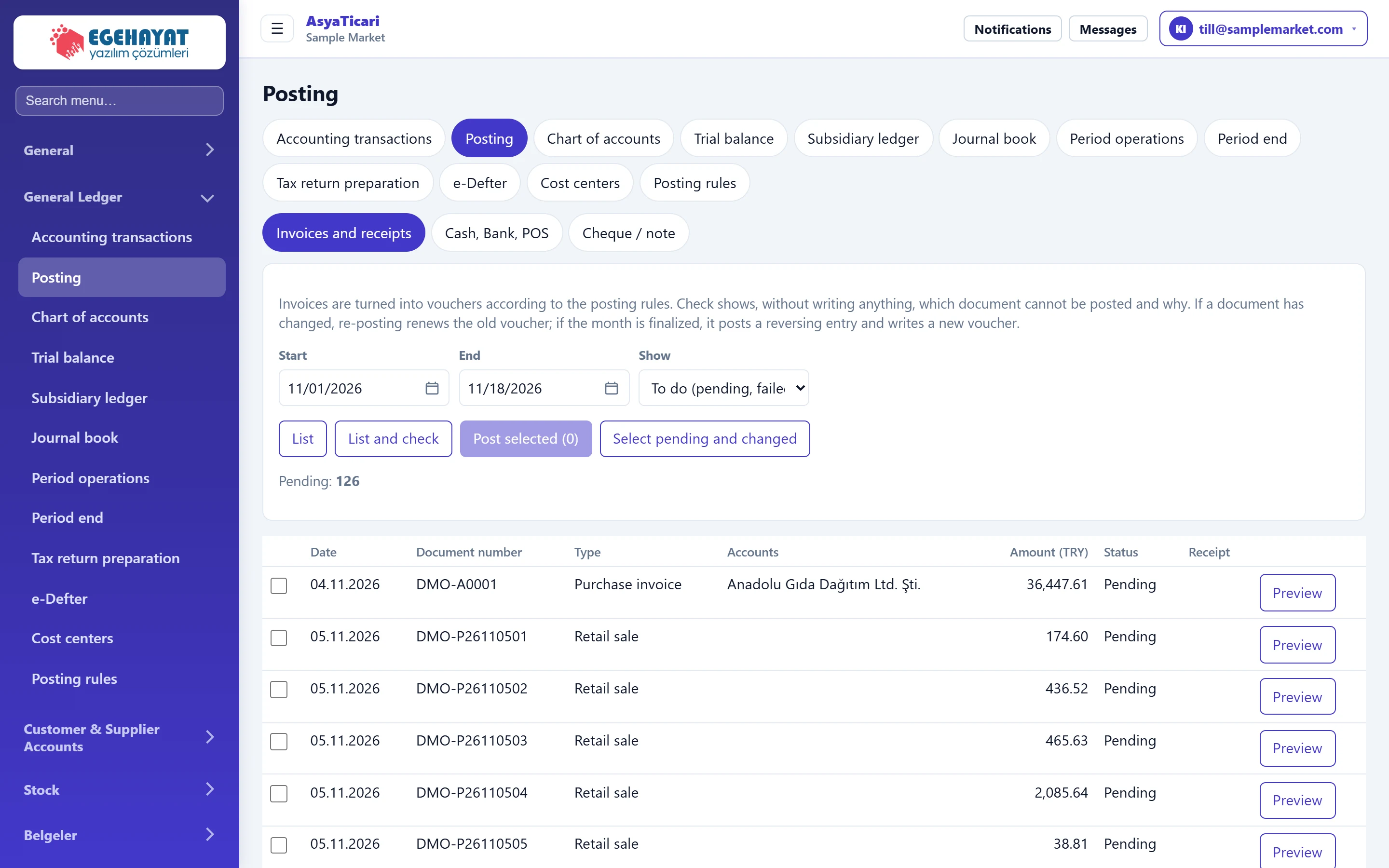
- 1Source Invoices and receipts, cash / bank / POS movements, or cheques / notes.
- 2Filter and actions Date range, status shown, listing and bulk posting.
- 3Selection Pending, failed or changed documents can be selected.
- 4Preview Shows which voucher the document will produce, without posting.
Source tabs

- 1Invoices and receipts Sales / purchase invoices, returns, retail receipts, receipts.
- 2Cash, Bank, POS Cash, bank and POS receipt / payment movements.
- 3Cheque / note Cheque and note in / out movements.
Switching tabs reloads the list with that source's documents and clears the selection.
Filter and bulk action
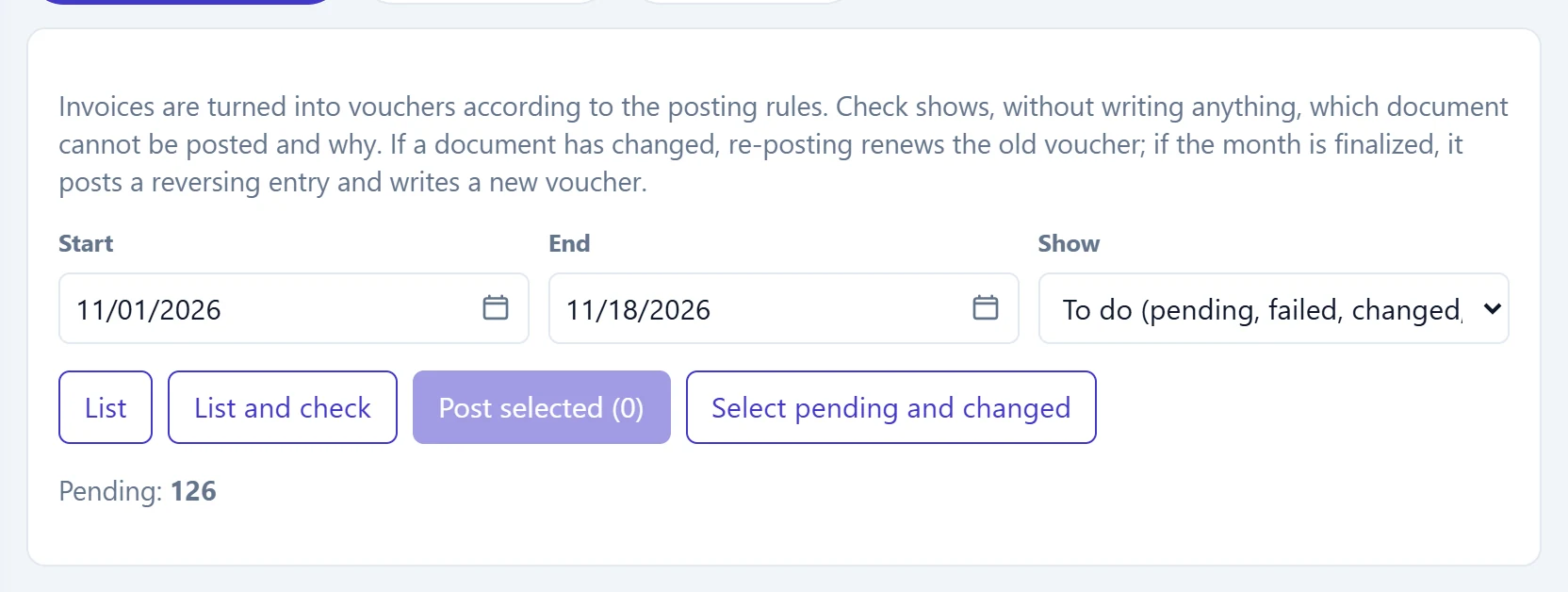
- 1List Lists the documents.
- 2List and check Lists and tries every document against the rules; writes why it cannot be posted in the Status column. Saves nothing.
- 3Post selected (0) Posts vouchers for the ticked documents.
- 4Select pending and changed Ticks all pending and changed documents.
- 5Status counters How many documents of each status are listed.
| Field | Sign in | Description |
|---|---|---|
| Start | Text | First document date. Defaults to the first day of the month. Placeholder: «mm/dd/yyyy» |
| End | Text | Last document date. Defaults to today. Placeholder: «mm/dd/yyyy» |
| Show | Choice list | To do (pending, failed, changed, cancelled), posted only, or all. Options: All · To do (pending, failed, changed, cancelled) · Posted |
Document list
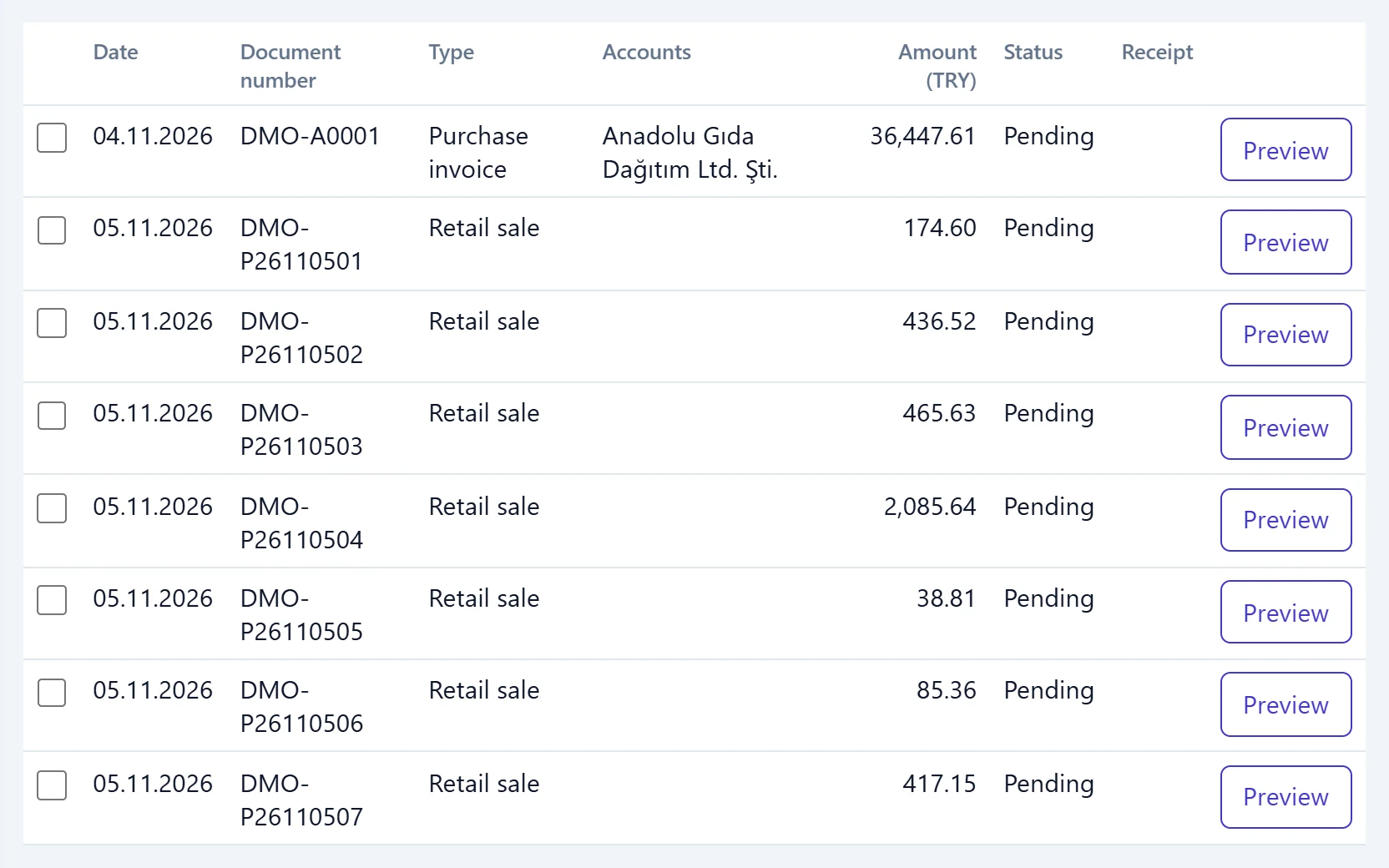
- 1Document number Document or movement type.
- 2Status Pending, Failed, Posted, Document changed, Cancelled; the error reason is shown below.
- 3Receipt Voucher number of the posted document; click to open it.
- 4Preview Voucher preview.
| Status | Meaning |
|---|---|
| Pending | No voucher yet; can be selected and posted. |
| Failed | The check or last attempt failed; the reason is shown below. |
| Posted | Has a voucher; open it from the voucher column. |
| Document changed | The document changed after posting; posting again renews the old voucher. |
| Cancelled | The document is cancelled and has no voucher. |
| Cancelled — voucher remains | The document was cancelled but its voucher still exists; remove it with the undo button. |
Voucher preview
The preview button shows which voucher the document will produce without saving: role, account and amount of each line and the rule that chose the account. Use the names in the document facts list when you write rule conditions.
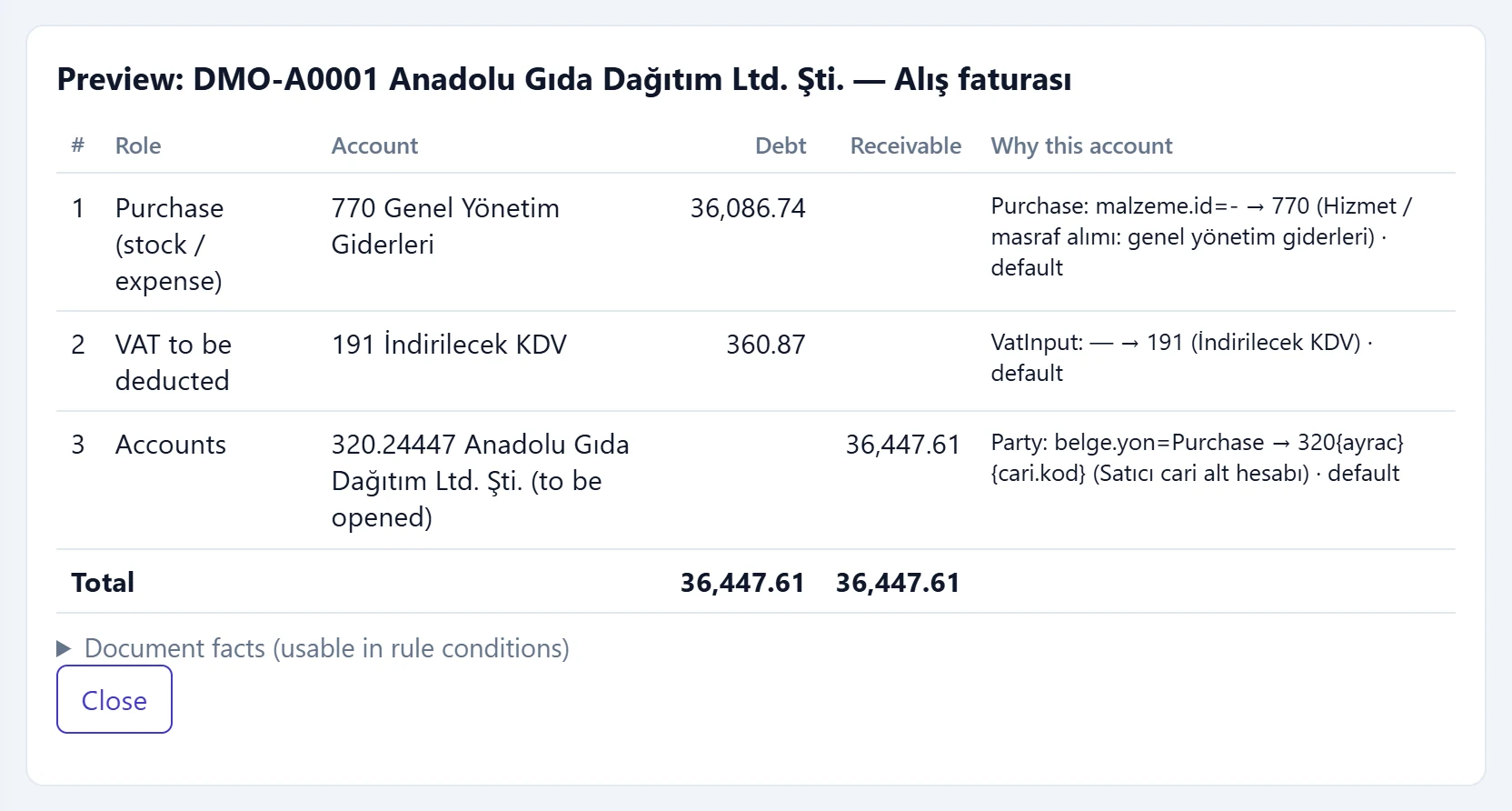
- 1Role Role of the line (party, sales, VAT, stock …).
- 2Why this account Rule that chose the account; «default» means no company-specific rule.
- 3Document facts (usable in rule conditions) Document facts usable in rule conditions.
- 4Close Closes the preview.
Posting: step by step
- Choose the source tab and the date range.
- Click List and check; the reason for failing documents appears in the status column.
- Fix the failing ones (missing rule, blocked account …) or leave them for later.
- Tick documents one by one or with the button that selects pending and changed documents.
- Click the post button (it shows the number of selected documents). A message shows how many were posted and, if some failed, the first three reasons.
If a document changes later, its status becomes Document changed. Posting it again renews the old voucher; if the month is finalised, the old voucher is reversed and a new one is posted.
Undoing a document's voucher removes it; if the voucher is final it is not deleted but reversed.
Common messages
| Message | Cause | Solution |
|---|---|---|
| No suitable account rule for role '…'. | No rule matches the line role. | Add a rule for that role in Posting rules. |
| Account … has sub-accounts; the rule must point to a sub-account (…). | The rule points to a parent account. | Change the rule's pattern to a sub-account. |
| Account … is blocked. | The account chosen by the rule is blocked. | Unblock the account or change the rule. |
| … is not in the chart of accounts (…). | The account from the pattern does not exist. | Open it, or tick «open account if missing» on the rule. |
| … cannot be opened: parent account … does not exist. | The automatically opened account has no parent. | Open the parent account first. |
| No value '…' for account pattern …. | A fact in the pattern is empty on the document (e.g. party code). | Complete the document or change the pattern. |
| Template produced an unbalanced voucher: debit …, credit …. | A line is missing in the voucher template. | Reset or fix the voucher template. |
| The document has no amount to post. | All amounts on the document are zero. | Check the document. |