
 AsyaTicari
 AsyaRestoran
 AsyaOtel
 AsyaCrm
 AsyaKlinik
 AsyaSpor
 AsyaSSH
 AsyaEmlak
 AsyaFilo
 AsyaPuantaj
 AsyaİSG
 AsyaİHD
 Kolay Öğren
AsyaTicari · General Ledger
Journal vouchers
Listing journal, receipt, payment, opening and closing vouchers, entering a new voucher, line details, copying, reversing and deleting.
The Accounting transactions screen is the entry point of the general ledger: it lists every voucher entered manually or posted from documents, opens new vouchers and lets you correct saved ones.
The general ledger module is switched on per company and is off by default. A company administrator opens it in Settings → Control panel, card General ledger, and can prepare the chart of accounts there with Load Uniform Chart of Accounts. While the module is off, the screens of this menu show a notice that the module is not enabled for the company. Switching the module off does not delete any records.
Only users with the company administrator or accountant role see the general ledger screens. A strip of twelve tabs runs across the top of every screen, so you can move between them without going back to the menu.
Opening the screen
In the side menu click General Ledger → Accounting transactions. The vouchers from the start of the year up to today are listed.
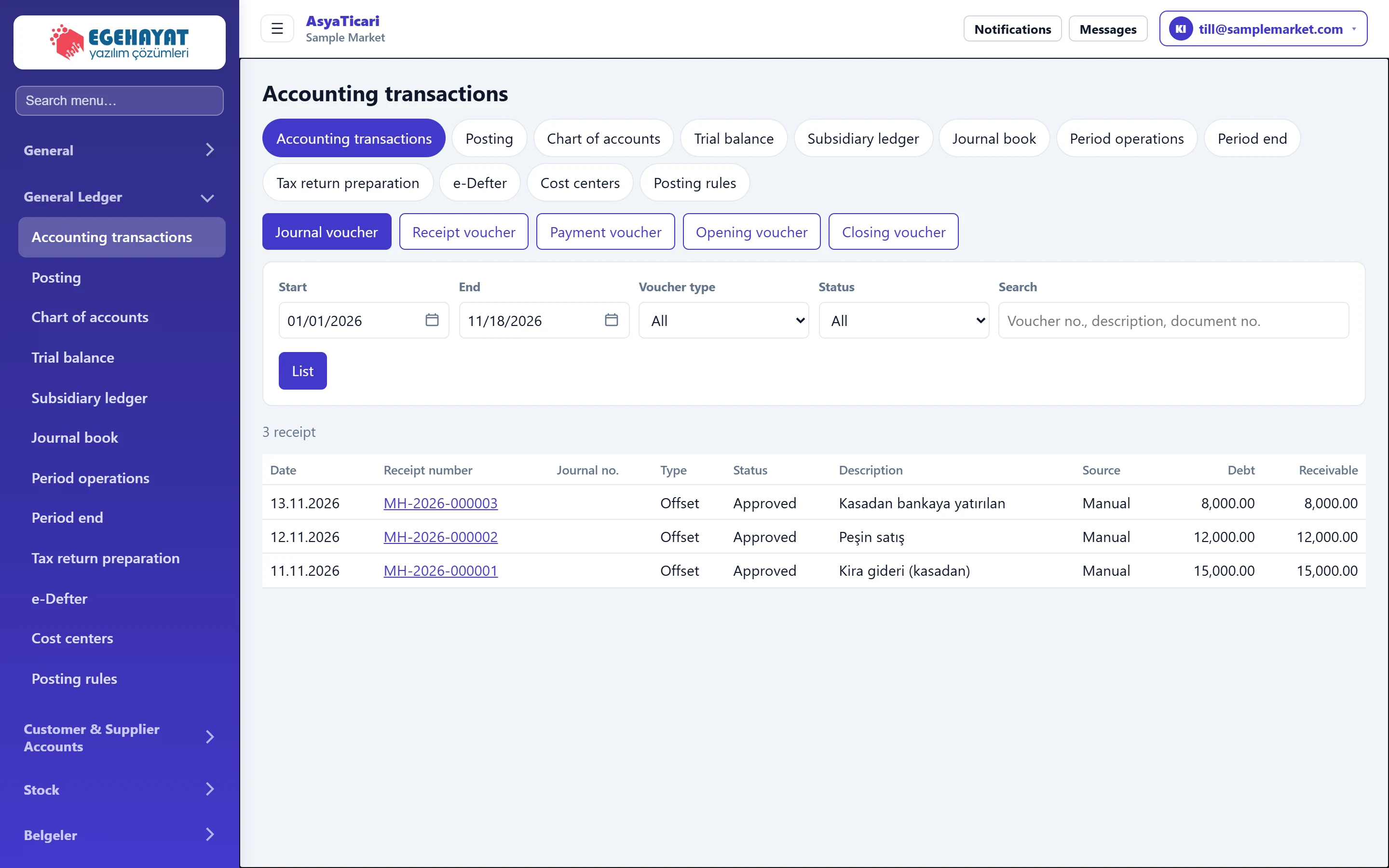
- 1Accounting transactions Screen title.
- 2General ledger tabs Switches between the twelve general ledger screens; the open screen is filled.
- 3Journal voucher Opens a new journal voucher.
- 4Receipt voucher Buttons for receipt, payment, opening and closing vouchers.
- 5Filter Date range, voucher type, status and free search.
- 6Voucher no Opens the voucher.
Finding a voucher
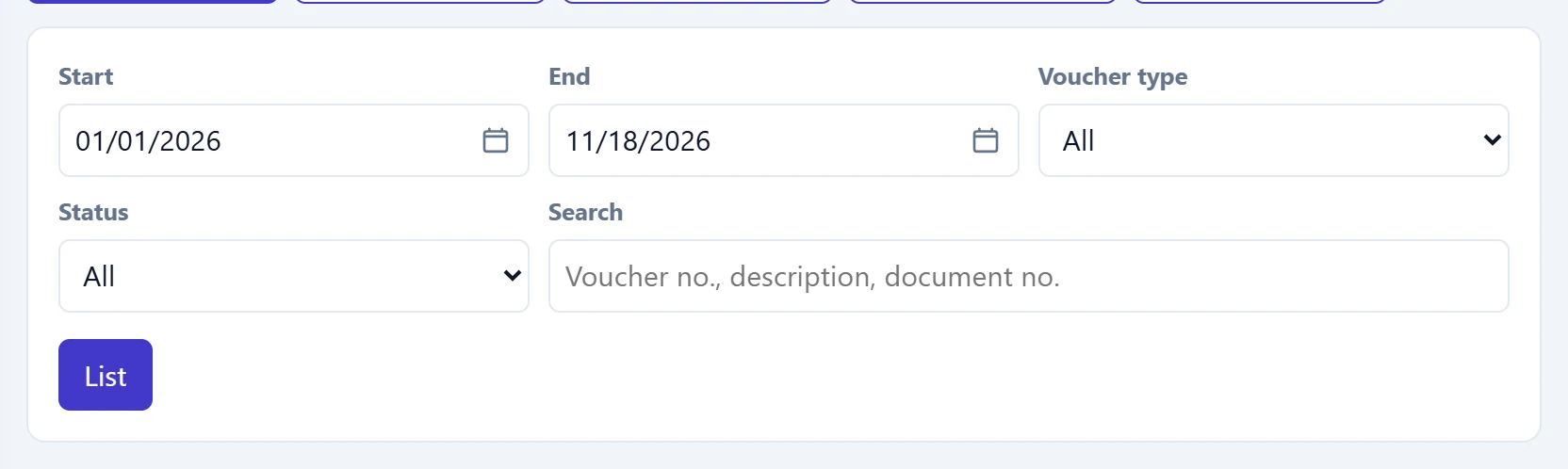
- 1List Applies the filter; up to 300 vouchers are listed.
| Field | Sign in | Description |
|---|---|---|
| Start | Text | First voucher date to list. Defaults to the first day of the year. Placeholder: «mm/dd/yyyy» |
| End | Text | Last voucher date to list. Defaults to today. Placeholder: «mm/dd/yyyy» |
| Voucher type | Choice list | Lists journal, receipt, payment, opening or closing vouchers separately; All shows every type. Options: All · Offset · Receipt · Payment · Opening · Closing |
| Status | Choice list | Draft (not in the trial balance), Approved (in the trial balance) or Final (has a journal number). Options: All · Draft · Approved · Final |
| Search | Text | Text contained in the voucher no, description or document no. Placeholder: «Voucher no., description, document no.» |
Voucher list
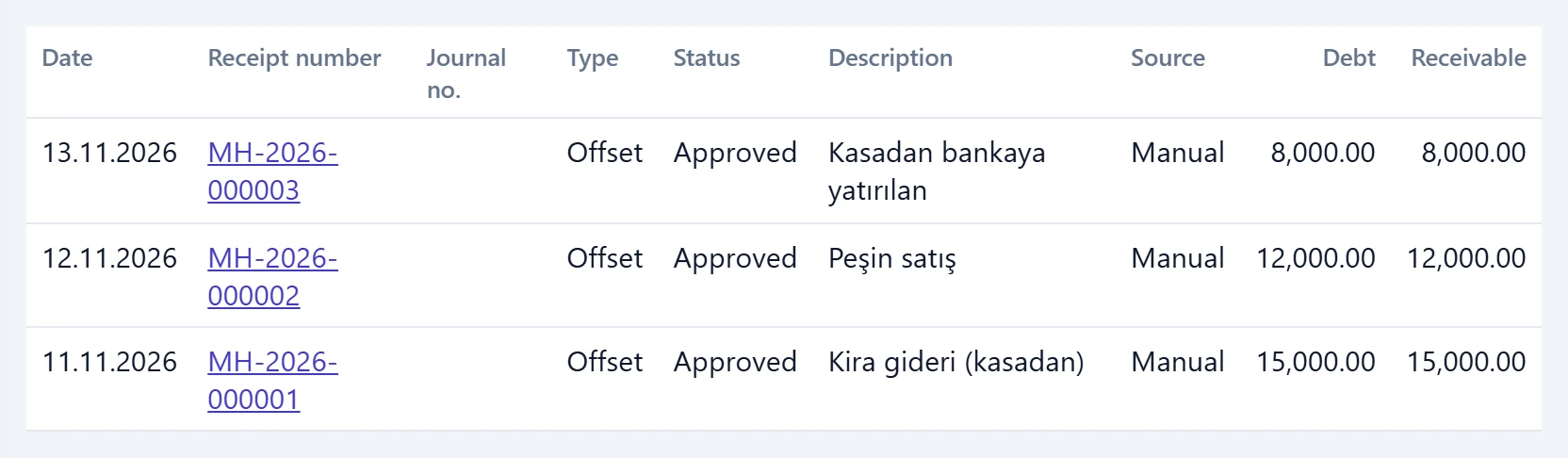
- 1Receipt number Voucher number; click to open the voucher.
- 2Journal no. Journal entry number given when the month is finalised.
- 3Status Draft, Approved or Final; reversal information is shown here too.
- 4Source Manually entered voucher or the document type it came from.
Voucher statuses:
| Status | Meaning |
|---|---|
| Draft | Saved but not approved; not included in the trial balance, the month cannot be finalised. |
| Approved | Balanced voucher included in the trial balance and sub-ledger; can still be corrected. |
| Final | Has a journal entry number after the month was finalised; cannot be changed or deleted. |
The Source column shows whether the voucher was entered manually or posted from a document (invoice, cash movement, cheque …). A voucher created from a document cannot be edited by hand; correct the source document and post it again.
Entering a new voucher: step by step
- Choose the voucher type with one of the buttons above the list: Journal voucher, Receipt voucher, Payment voucher, Opening voucher or Closing voucher.
- Fill in the header.
- If the voucher is based on a document, open the Document details (e-Defter) panel and apply the document to all lines.
- Enter account, debit / credit amount and description on each line; add lines with + Add row if needed.
- When the bottom row says balanced, click Save. The voucher number is assigned on saving and the voucher stays open. A voucher that is not balanced yet can be kept with Save draft; drafts do not enter the trial balance.
Header
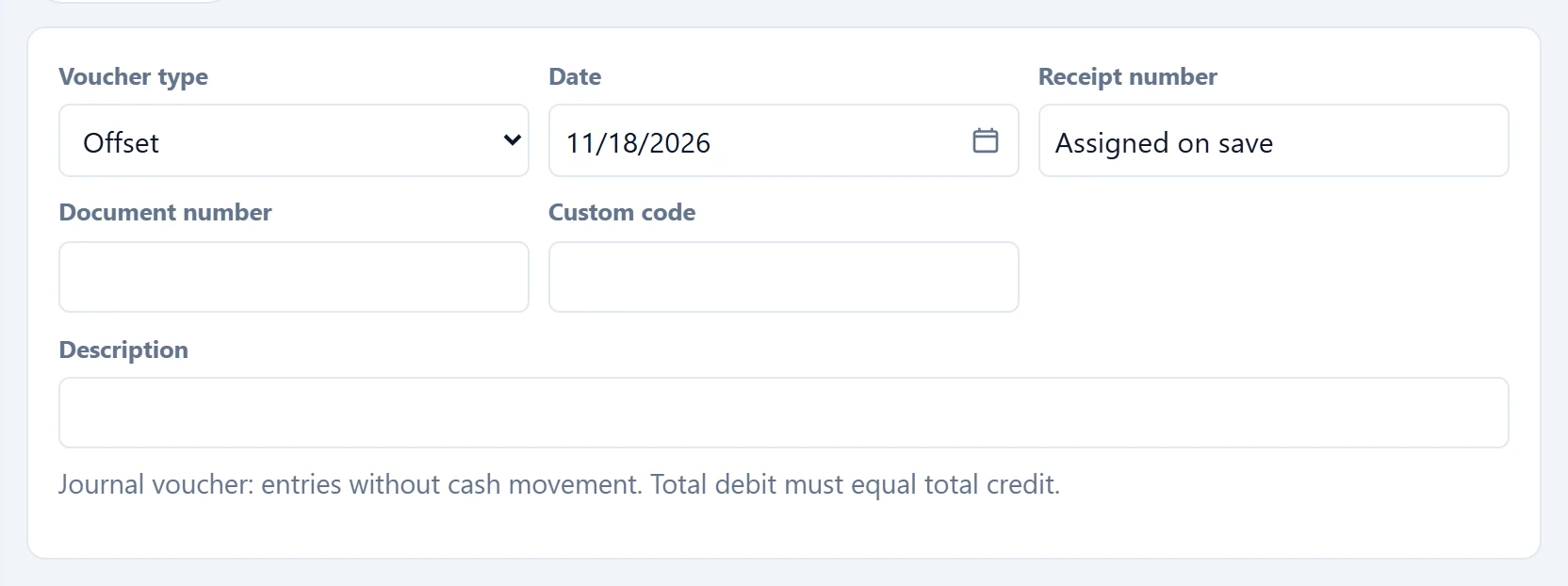
- 1Voucher type hint Explains how the selected voucher type works.
| Field | Sign in | Description |
|---|---|---|
| Voucher type | Choice list | Journal, Receipt, Payment, Opening or Closing. Pre-selected by the button on the list screen. Options: Offset · Receipt · Payment · Opening · Closing |
| Date | Text | Accounting date of the voucher. An open fiscal period must cover it and the month must not be locked. Placeholder: «mm/dd/yyyy» |
| Receipt number | Text | Assigned automatically on save by voucher type and year (e.g. MH-2026-000004). |
| Document number | Text | Number of the underlying document (optional); searchable in the list. |
| Custom code | Text | Free code for your own grouping. |
| Description | Text | General description of the voucher (max. 512 characters). If empty, the e-ledger check warns. |
Voucher types:
| Type | When |
|---|---|
| Journal | Entries without cash movement (transfers, expense accruals …). |
| Receipt | Cash / bank debit, counter account credit; enter the payment method on the lines. |
| Payment | Counter account debit, cash / bank credit; enter the payment method on the lines. |
| Opening | Balances carried over from the previous period; no document information. |
| Closing | Period-end closing entries; no document information. |
Document details (e-Defter)
This panel is not shown on opening and closing vouchers.
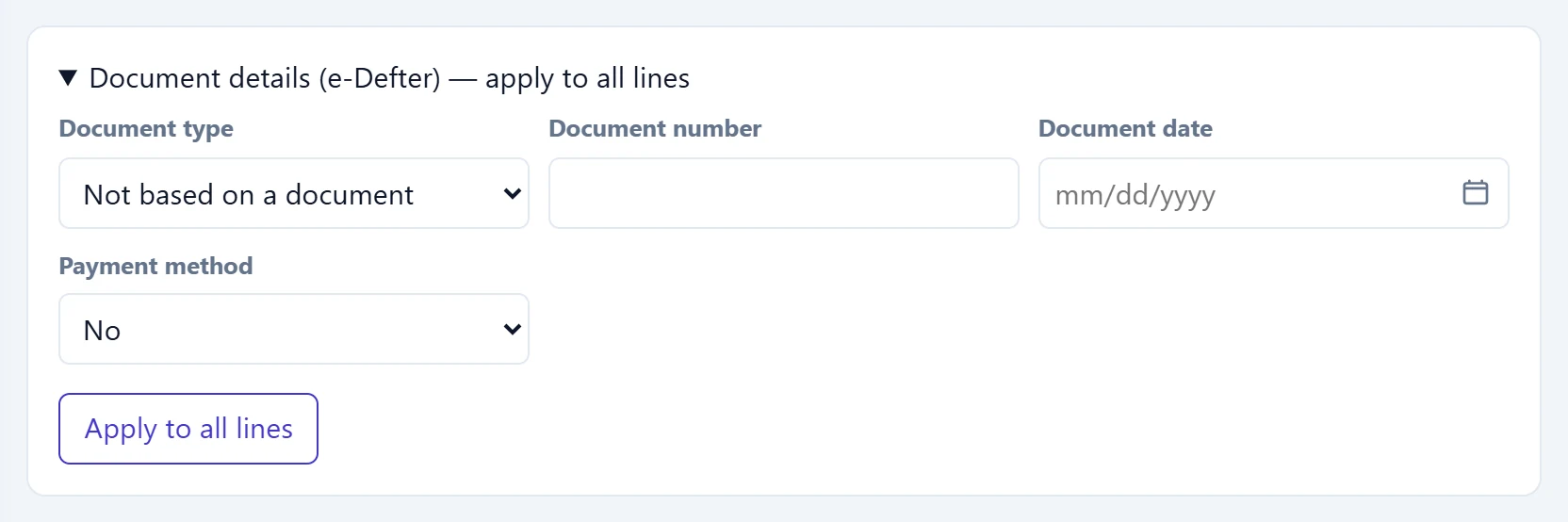
- 1Open / close panel Opens to write document information to all lines at once.
- 2Apply to all lines Copies these details to every line of the voucher.
| Field | Sign in | Description |
|---|---|---|
| Document type | Choice list | Document type required by the e-ledger (invoice, cheque, receipt …). Leave «Not document-based» if there is no document. |
| Document number | Text | Number of the document. Required when a document type is selected. |
| Document date | Text | Date of the document. Required when a document type is selected. Placeholder: «mm/dd/yyyy» |
| Payment method | Choice list | How the payment was made on receipt and payment vouchers (cash, bank …). Options: No · NAKİT · BANKA · KREDİ KARTI · ÇEK · SENET |
Lines
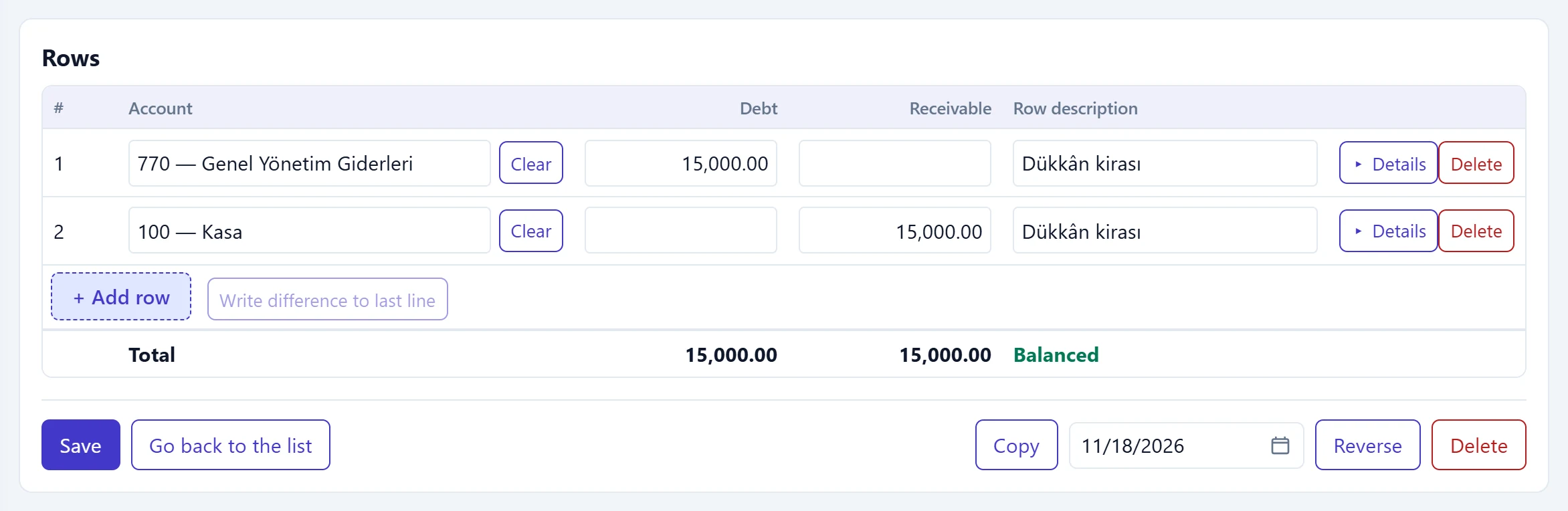
- 1Account Type part of the account code or name; only postable accounts (without sub-accounts) can be chosen.
- 2Debit Debit amount of the line; a line holds either debit or credit.
- 3Line description Line-specific description; shown in the sub-ledger.
- 4Currency and document details Opens currency, due date and document details; filled details are marked with ●.
- 5+ Add row Adds a new line; document information and description are copied from the previous line.
- 6Write difference to last line Writes the debit / credit difference to the empty last line.
- 7Balance status If not balanced, the difference turns red and Save stays disabled.
- Type a few characters of the code or name in the Account box and pick from the list. Accounts with sub-accounts cannot be selected; post to the sub-account.
- A line holds either a debit or a credit amount, never both; amounts are not entered as negatives.
- Write difference to last line puts the debit / credit difference on the empty last line; you choose its account.
- If the company has cost centres, a cost centre column also appears on the lines.
Line details
The Details button on the right of a line opens currency, due date and document information. Lines with filled details show ● next to the button.
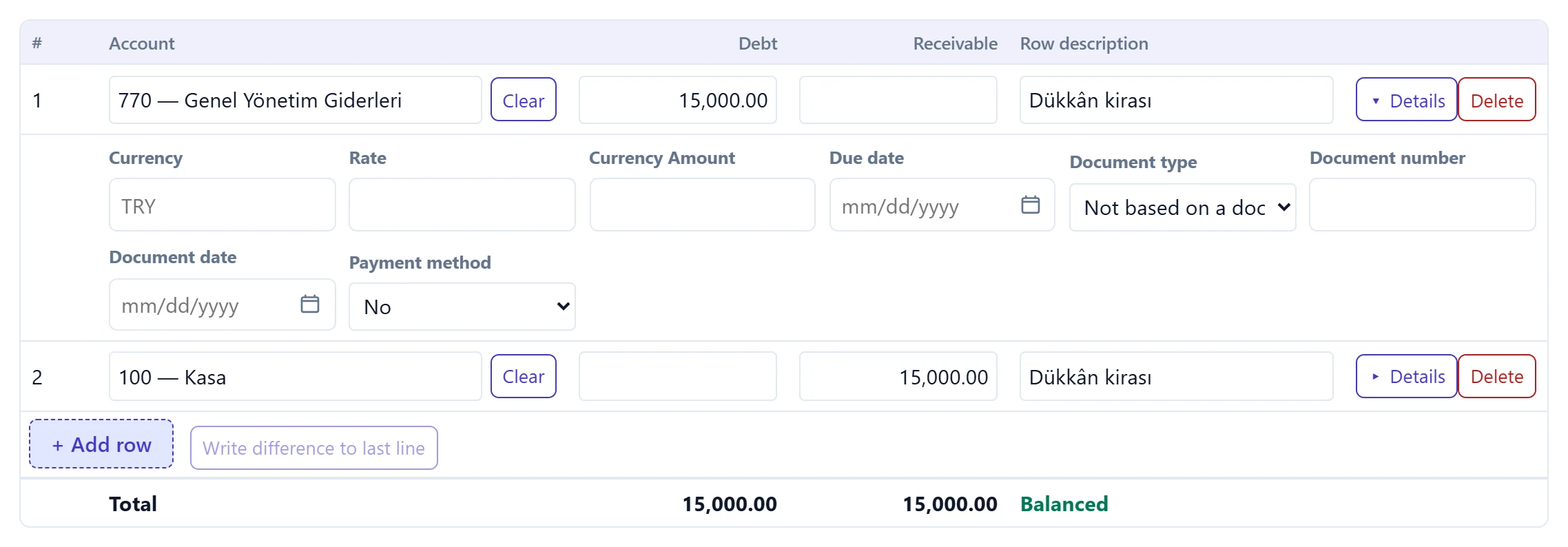
- 1Currency Currency code and rate are required on foreign-currency accounts.
| Field | Sign in | Description |
|---|---|---|
| Currency | Text | Currency code if the line is in foreign currency (USD, EUR …). Empty or TRY means a lira-only line. Placeholder: «TRY» |
| Rate | Text | Exchange rate (up to 6 decimals). Required when a currency code is entered. |
| Currency Amount | Text | Foreign-currency amount of the line; on the same side as the lira amount. |
| Due date | Text | Due date of the line (optional). Placeholder: «mm/dd/yyyy» |
| Document type | Choice list | Document type of this line; written to the e-ledger. |
| Document number | Text | Required when a document type is selected. |
| Document date | Text | Required when a document type is selected. Placeholder: «mm/dd/yyyy» |
| Payment method | Choice list | Payment method on a receipt / payment line. Options: No · NAKİT · BANKA · KREDİ KARTI · ÇEK · SENET |
Actions on a saved voucher
Click a voucher number in the list to open it. Below the title you see its status, journal entry number and source.

- 1Save Saves changes; enabled only while the voucher is balanced.
- 2Go back to the list Returns to the list without saving.
- 3Copy Opens a new voucher copied from this one (dated today).
- 4Reversal date Date on which the reversal is posted.
- 5Reverse Posts a new voucher with debit and credit swapped; the original is kept.
- 6Delete Deletes the voucher permanently (final vouchers cannot be deleted).
A final voucher cannot be changed or deleted; correct mistakes with the reversal button. A reversal posts a new voucher with debit and credit swapped and links the two vouchers. Delete removes the voucher permanently.
Instead of typing similar vouchers every month, open an old one and use the copy button; a new voucher dated today opens with the same lines.
Common messages
| Message | Cause | Solution |
|---|---|---|
| Voucher unbalanced: debit …, credit …. | Debit and credit totals differ. | Correct the amounts or use Write difference to last line. |
| Line …: no account selected. | A line with an amount has no account. | Select an account or delete the line. |
| Line …: debit and credit cannot both be filled. | Both sides filled on one line. | Split the amount over two lines. |
| Account … has sub-accounts; posting goes to a sub-account. | A parent account was selected. | Select the sub-account. |
| Cost center is required for account …. | The account requires a cost centre. | Select a cost centre on the line. |
| Account … is kept in …; enter the foreign currency amount and rate on the line. | A lira line on a foreign-currency account. | Enter currency, rate and amount in the line details. |
| Line …: document number and date are required when a document type is selected. | Document type selected but number or date empty. | Enter them or choose «not document-based». |
| No fiscal period covers …. | No fiscal period covers the date. | Open a period in Period operations. |
| Month … is locked. | The date is in a locked or finalised month. | Use an open month or unlock the month. |
| A finalized voucher cannot be changed; correct it with a reversing entry. | The voucher has a journal number. | Post a reversal. |
| A voucher created from a document cannot be edited manually; correct the source document. | The voucher comes from a document. | Correct the source document and post it again. |
| This voucher has already been reversed. | A second reversal was requested. | Use the existing reversal. |
| Saving draft vouchers is disabled. | Drafts are disabled for the company. | Save a balanced voucher or enable drafts in the control panel. |