
 AsyaTicari
 AsyaRestoran
 AsyaOtel
 AsyaCrm
 AsyaKlinik
 AsyaSpor
 AsyaSSH
 AsyaEmlak
 AsyaFilo
 AsyaPuantaj
 AsyaİSG
 AsyaİHD
 Kolay Öğren
AsyaTicari · General
Ledger
Recording credit sales, collections, debts, payments, income, expenses and transfers between accounts on one page; end-of-day cash count; who-owes-what list and WhatsApp reminders.
This screen changed recently. Screenshots will be retaken after the code change of 2026-11-18; the text is current, some images may look outdated.
The Ledger is the digital version of the shopkeeper's paper credit book. Without issuing an invoice you record a customer's debt, take their payment, record what you owe a supplier and what you paid, and enter your income and expenses on the same page. Records are posted automatically to accounts, cash and bank; paid credit sales are struck through in the list.
Parts of the screen
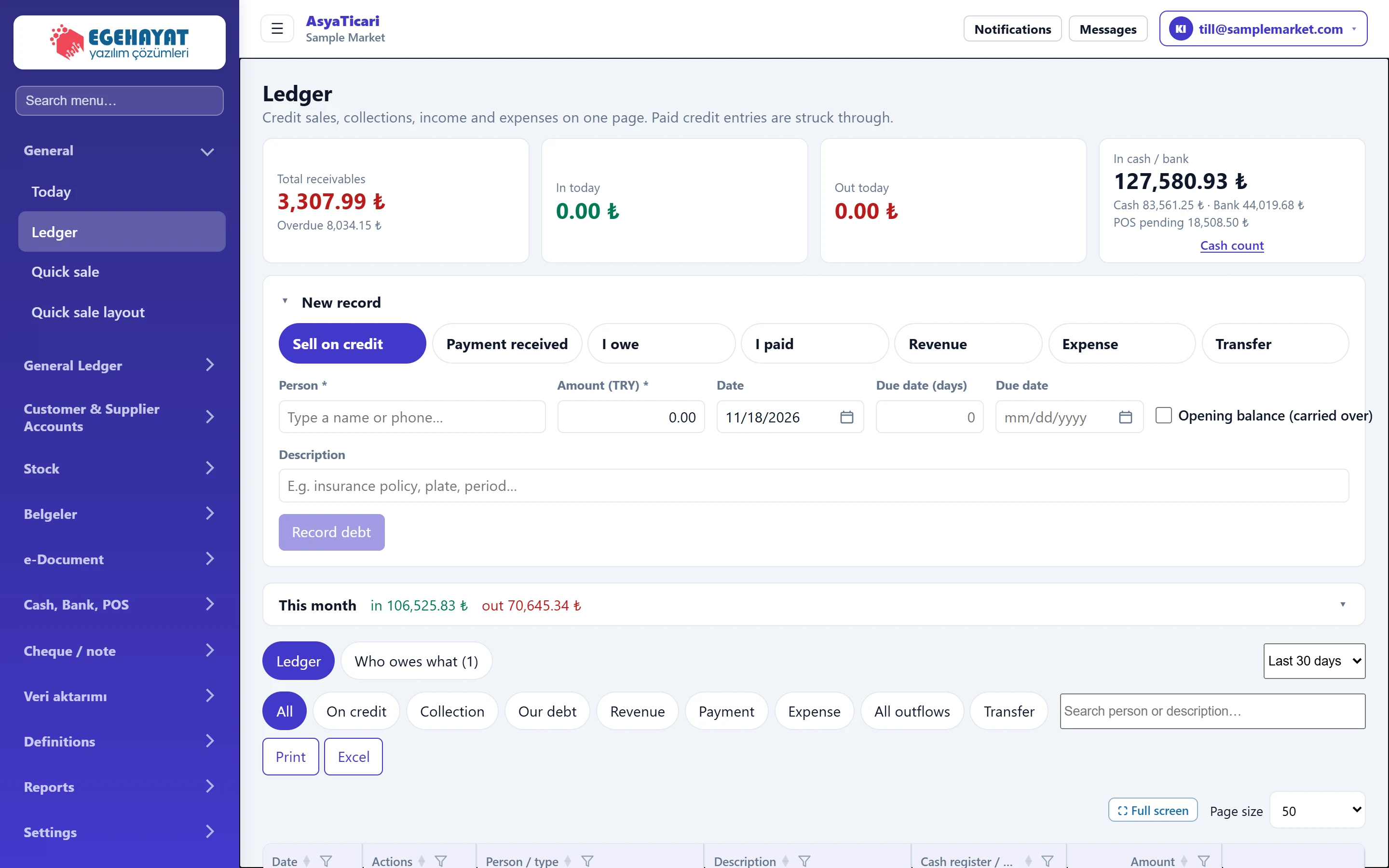
- 1Summary cards Total receivables, money in / out today and money held in cash and bank.
- 2New record New record panel; click the title to collapse / expand it.
- 3Transaction type Type of record: credit, payment, debt, income, expense, transfer.
- 4This month This month's money in / out and the expense breakdown.
- 5Tabs Switches between the ledger list and the «who owes what» list.
- 6Period Period of the list (last 7 days … date range).
Summary cards

- 1Total receivables Total that customers owe you; below it the overdue part.
- 2In today Money that came into cash / bank today.
- 3Out today Money that went out today (payments and expenses).
- 4In cash / bank Cash and bank total, pending at POS.
- 5Cash count Opens the end-of-day cash count panel.
- Total receivables: total that the customers in the ledger owe you; below it the overdue part.
- In today / Out today: money that came into and went out of cash and bank today.
- In cash / bank: total of cash and bank balances; below it the individual amounts and the amount pending at POS.
- Cash count: shown when a cash register exists; opens the end-of-day count panel (see below).
New record
The New record panel can be collapsed; first choose the transaction type with the buttons at the top. The name of the save button changes with the type.
| Type | When | Save button | Effect |
|---|---|---|---|
| Sell on credit | A customer took goods and will pay later. | Record debt | The customer's debt increases; no money enters the till. |
| Payment received | The customer paid their debt. | Save payment | Money enters cash / bank and the customer's debt goes down. |
| I owe | You bought goods on credit from a supplier. | Record my debt | Your debt to the supplier increases. |
| I paid | You paid a supplier. | Save my payment | Money leaves cash / bank and your debt goes down. |
| Revenue | Income other than sales (commission, rent income). | Save income | Money enters cash / bank. |
| Expense | Rent, electricity, wages and similar. | Save expense | Money leaves cash / bank. |
| Transfer | Moving money between your own accounts. | Transfer | Leaves one account, enters the other. |
Sell on credit
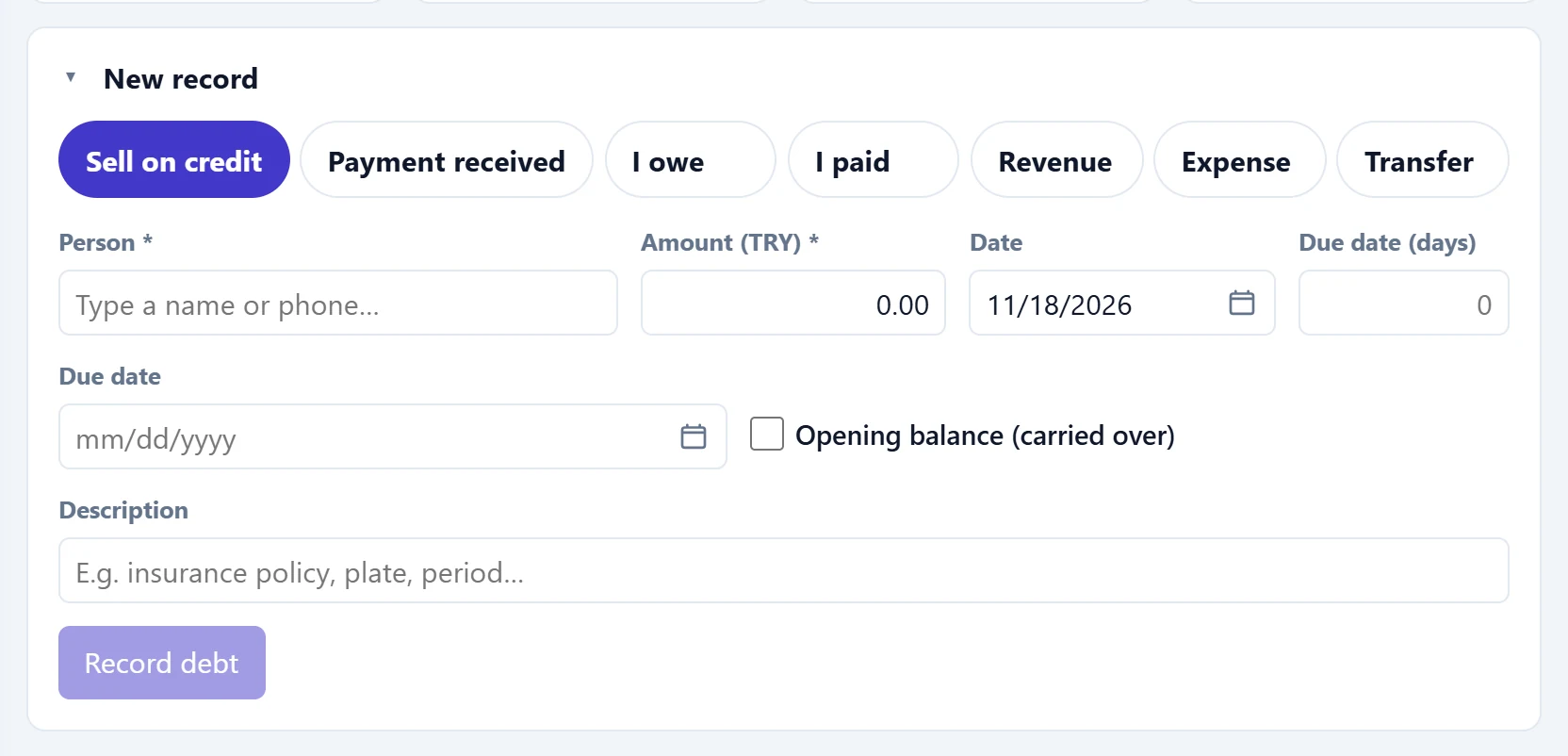
- 1Sell on credit Records a debt for the customer (no money enters the till).
- 2Person Type the person's name or phone; saved people are listed.
- 3Opening balance To enter an old debt from the paper book once as «carried over».
- 4Record debt Enabled once person and amount are entered; saves the record.
| Field | Sign in | Description |
|---|---|---|
| Person required | Text | Customer to charge. Type part of the name or phone and pick from the list. If not listed, a new person is created with the name you typed. Placeholder: «Type a name or phone…» |
| Amount (TRY) required | Text | Amount of the debt. Use a comma for decimals. |
| Date | Text | Date of the record; defaults to today and can be backdated. Placeholder: «mm/dd/yyyy» |
| Due date (days) | Text | In how many days it is to be paid. Entering it calculates the Due date. Placeholder: «0» |
| Due date | Text | Payment date. Choosing it calculates Due (days). Overdue debts appear in red. Placeholder: «mm/dd/yyyy» |
| Opening balance (carried over) | Checkbox | Tick to enter the old debt from your paper book once; one opening balance per person, shown as «Carried over» in the list. |
| Description | Text | Note about the record (e.g. the goods bought). Placeholder: «E.g. insurance policy, plate, period…» |
When you type in the Person box, saved people are listed with their debts. If you type a name that is not in the list, the note «Not registered; will be added as a new person when saved.» and a Phone box appear.
Due date (days) and Due date are linked: entering days calculates the date, choosing a date calculates the days from the record date. When Opening balance (carried over) is ticked, the due-date fields are disabled.
Payment received
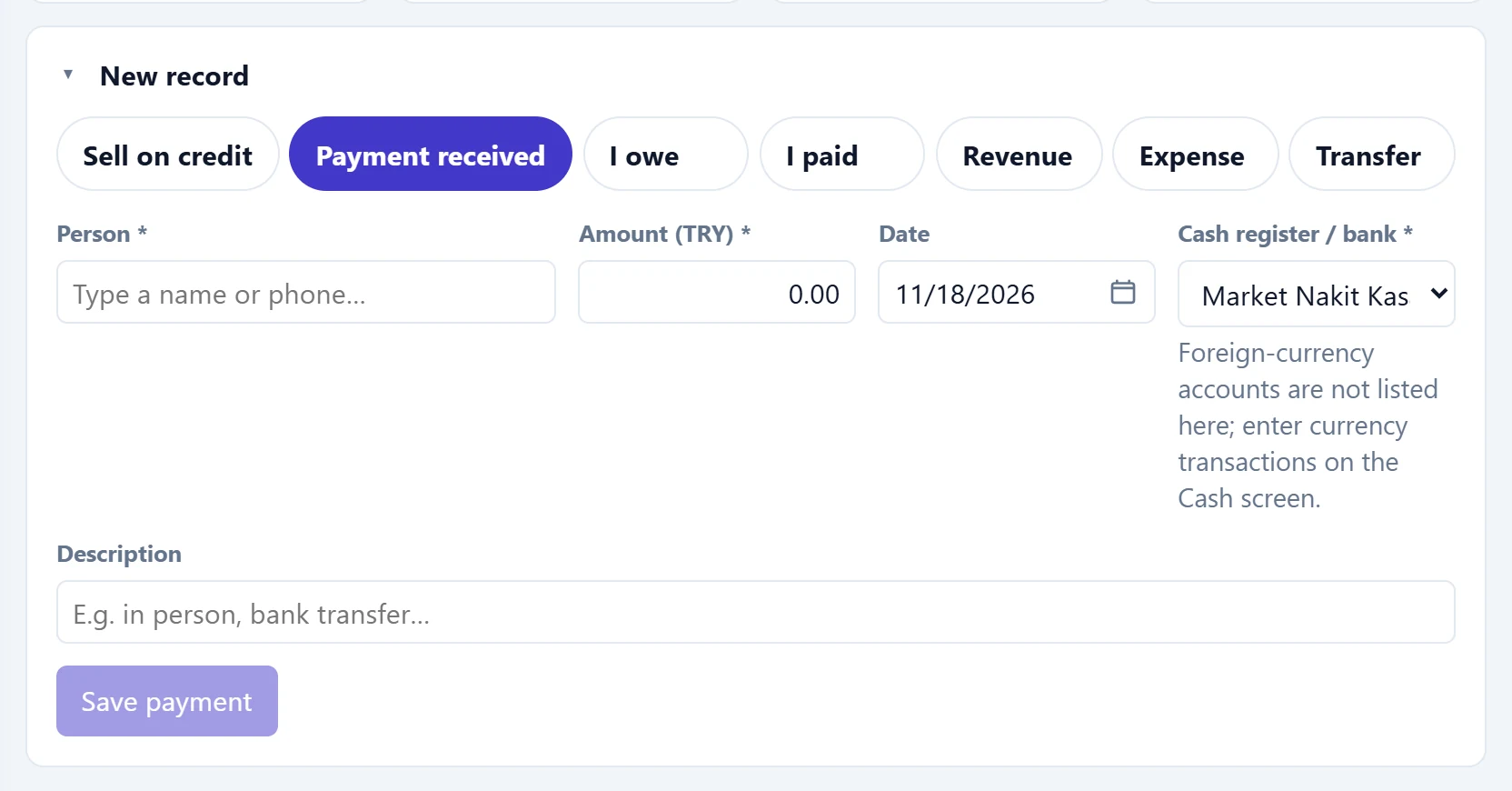
- 1Payment received Records the customer's payment in cash / bank and reduces their debt.
- 2Cash / bank Cash register or bank account the money goes into.
| Field | Sign in | Description |
|---|---|---|
| Person required | Text | Customer who pays. Once selected, the debt is shown in the list. Placeholder: «Type a name or phone…» |
| Amount (TRY) required | Text | Amount received. If larger than the open debt, the excess goes to the oldest open debts. |
| Date | Text | Day the payment was received. Placeholder: «mm/dd/yyyy» |
| Cash register / bank required | Choice list | Account the money goes into (only TRY accounts are listed). The balance is shown next to it. |
| Description | Text | E.g. in person, bank transfer. Placeholder: «E.g. in person, bank transfer…» |
If you come from a credit line in the list or from Collect in the Who owes what list, the form is matched to that debt and a chip «… will be matched to the credit · Remaining …» appears. If the amount exceeds the remainder, the excess is applied to the oldest open debts. Remove the match with the cross on the chip.
I owe and I paid work with the same fields on the supplier side.
Expense
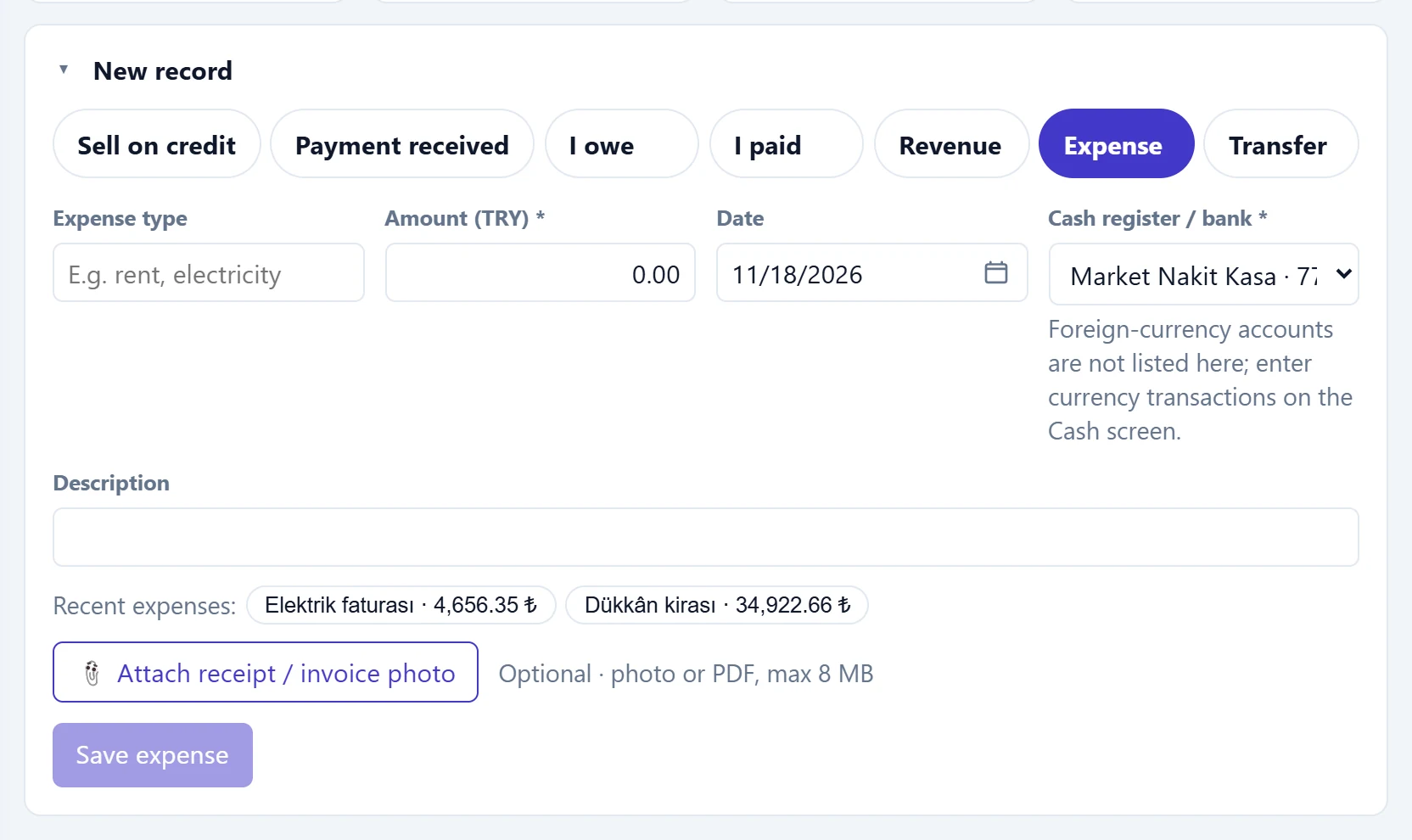
- 1Expense Deducts expenses such as rent or electricity from cash / bank.
- 2Recent expenses Your latest expenses; click one to fill the form with the same type.
- 3Attach receipt Attaches a photo or PDF of the receipt or invoice (max. 8 MB).
| Field | Sign in | Description |
|---|---|---|
| Expense type | Text | E.g. rent, electricity. Types you entered before are suggested; this month's expense breakdown is grouped by it. Placeholder: «E.g. rent, electricity» |
| Amount (TRY) required | Text | Amount of the expense. |
| Date | Text | Date of the expense. Placeholder: «mm/dd/yyyy» |
| Cash register / bank required | Choice list | Account the money goes out of. A warning appears below if the balance is too low. |
| Description | Text | E.g. invoice no., period. |
| 📎 Attach receipt / invoice photo | Text | Optional: photo of the receipt (jpg, png, webp) or PDF, max. 8 MB. Attached to the expense and can be opened later from the list. |
- Recent expenses: expenses you entered before appear as buttons; click one to fill the type, amount and account, then just check the date and save.
- If the selected account's balance is too low, the warning «The selected account holds …; this entry will make it negative.» appears; you can still save.
- Foreign-currency accounts are not listed here; enter currency transactions on the Cash screen.
The Revenue type works with the same fields (Income type, e.g. commission).
Transfer
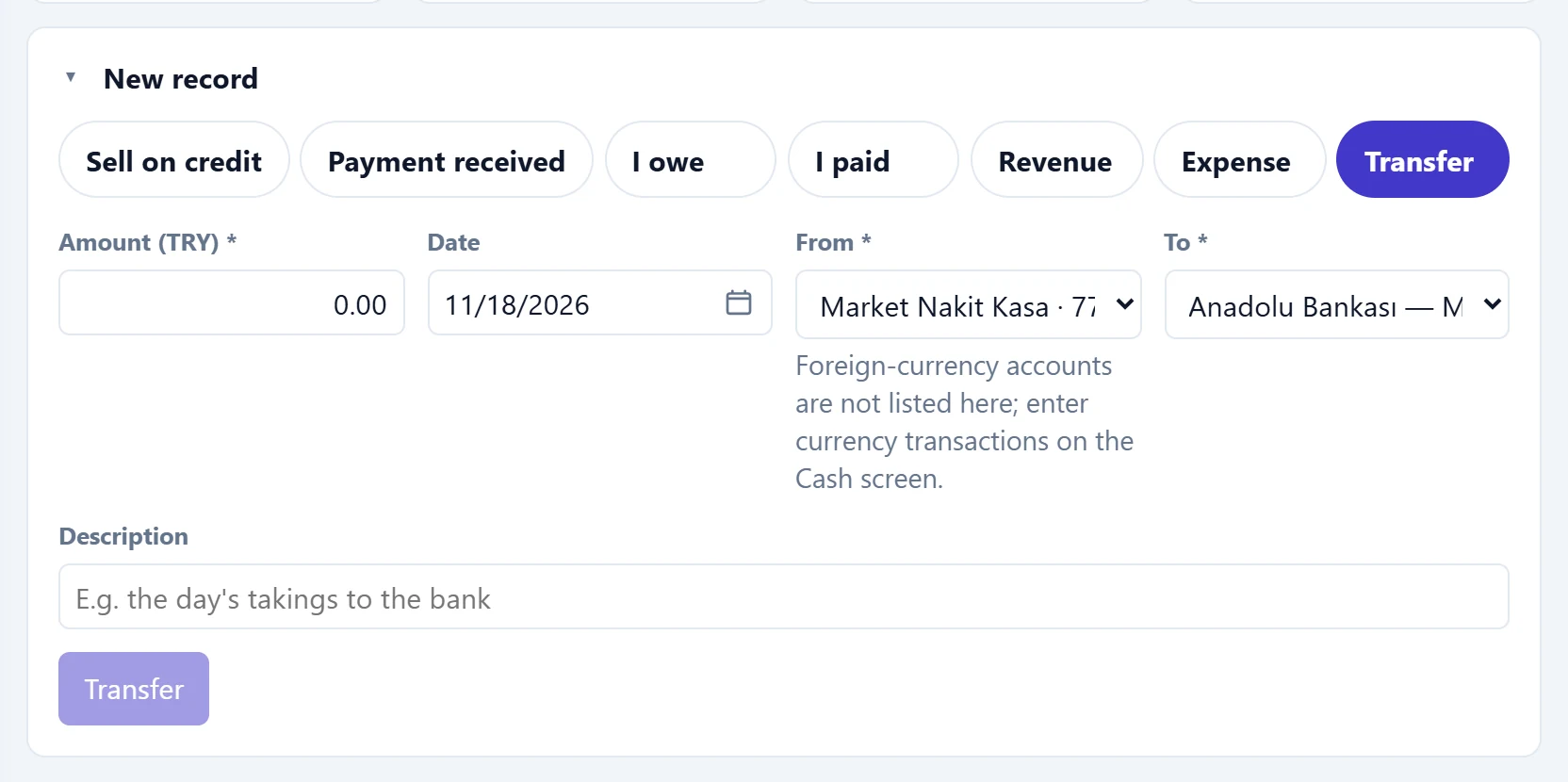
- 1Transfer Moves money between your own accounts (e.g. the day's takings to the bank).
| Field | Sign in | Description |
|---|---|---|
| Amount (TRY) required | Text | Amount to transfer. |
| Date | Text | Date of the transfer. Placeholder: «mm/dd/yyyy» |
| From required | Choice list | Cash register / bank the money goes out of. |
| To required | Choice list | Cash register / bank the money goes into (must differ from the source). |
| Description | Text | E.g. the day's takings to the bank. Placeholder: «E.g. the day's takings to the bank» |
A transfer needs at least two TRY accounts (e.g. cash and bank). If there is no cash or bank account at all, the panel shows an Open a cash box button that creates a cash register in one click.
Entering a record: step by step
- In the New record panel choose the transaction type (e.g. Sell on credit).
- Type part of the name or phone in Person and pick from the list.
- Enter the Amount (TRY); change the date and due date if needed.
- For types that move money, choose the Cash register / bank account.
- Optionally write a Description; for an expense, attach a photo of the receipt.
- Press the type's save button (e.g. Record debt). A confirmation such as «… recorded as debt» appears and the record is added to the top of the list.
- Use Clear to empty a half-filled form.
When moving from a paper book, enter each customer's old debt once with Sell on credit + Opening balance (carried over). It appears as «Carried over» in the list, one per person.
End-of-day cash count
The Cash count link in the summary cards opens this panel.
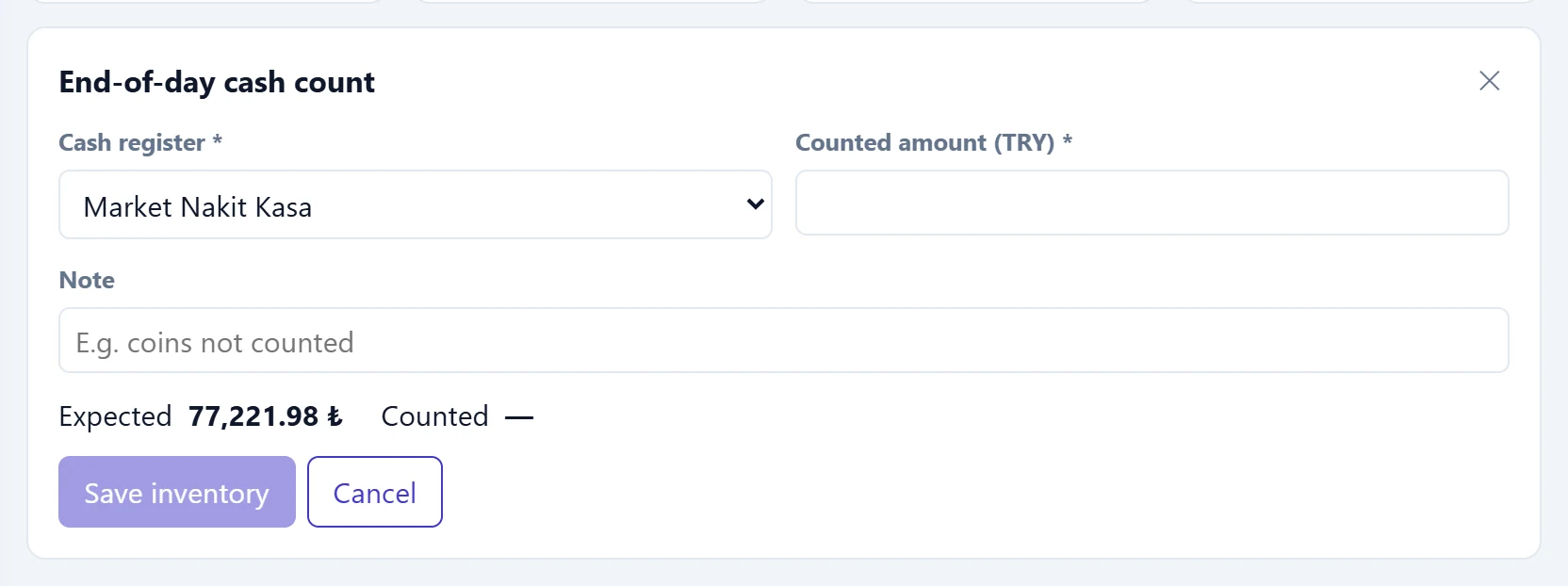
- 1Cash The cash register being counted.
- 2Comparison Expected (system) and counted amount; the difference is shown as over / short.
- 3Save inventory Posts the difference to the cash register as a count difference.
| Field | Sign in | Description |
|---|---|---|
| Cash register required | Choice list | The cash register you counted. Options: Market Nakit Kasa · Market Şube Kasa · Market Vezne |
| Counted amount (TRY) required | Text | Money you counted by hand in the till. |
| Note | Text | E.g. coins not counted. Placeholder: «E.g. coins not counted» |
- Choose the cash register; Expected is its balance in the system.
- Count the money and enter it in Counted amount (TRY). The difference appears immediately as over, short or «Cash matches».
- Press the save button (shown as Save inventory). The difference is posted to the cash register as a count difference and the balance is set to the counted amount. The Latest counts list shows expected and counted amounts.
A count difference changes the cash balance permanently. Before counting, make sure all of the day's collections and expenses are entered.
This month panel
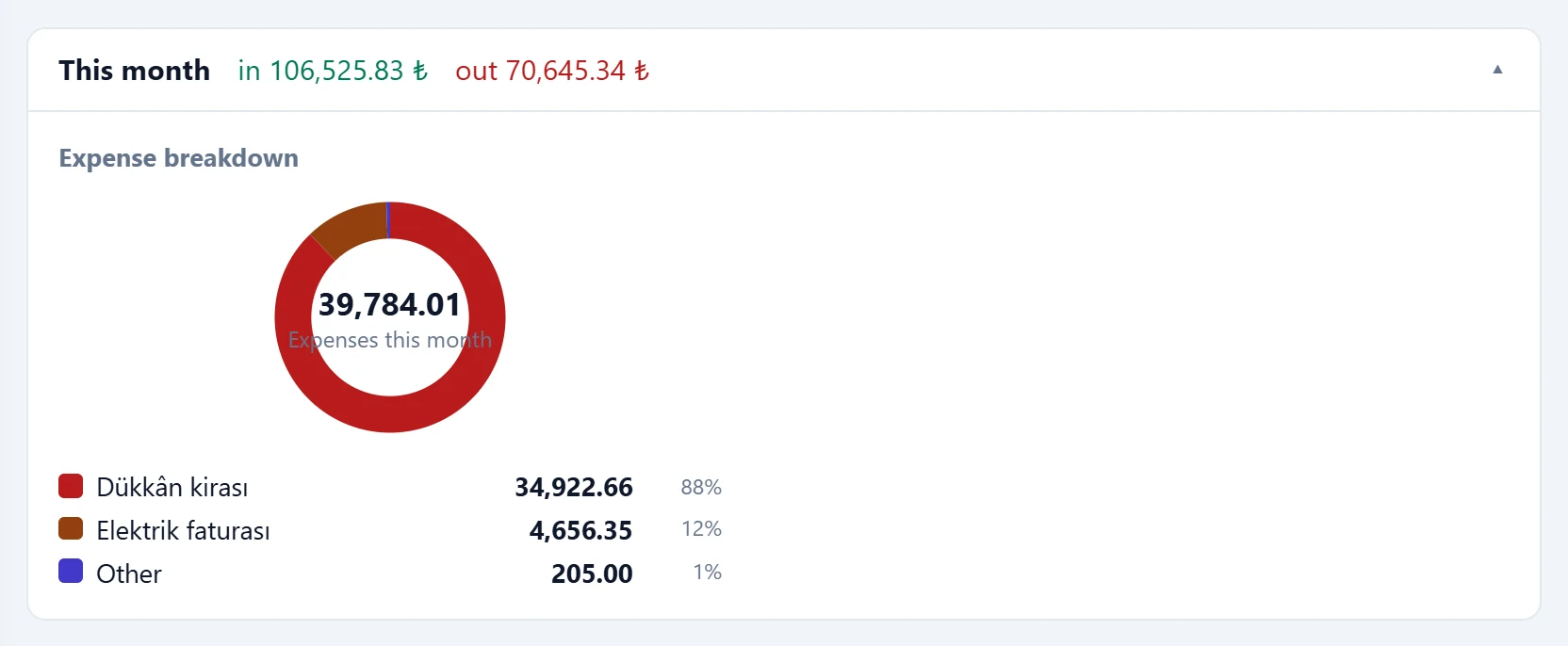
- 1This month This month's total in and out; click to expand.
- 2Expense breakdown This month's expenses by type.
The title shows this month's total in and out; click it to expand. Inside is this month's Expense breakdown chart. If expenses entered last month have not been entered this month yet (e.g. rent), a badge «… expenses not entered this month» appears and the panel opens automatically. In that list Add to this month enters the expense again with the same amount, Edit fills the form.
When receivables and payables fall due, a Next … days panel also appears: a weekly in / out forecast starting from today's cash + bank balance, with the expected items. If the forecast goes below zero, the warning «Balance may go negative» appears.
Ledger list
Above the list are the Ledger and Who owes what tabs and, on the right, the period (last 7 days, last 30 days, last 3 months, last year, this month, last month, date range).

- 1Type filter Filters the list by record type.
- 2Search Searches in person or description.
- 3Print Prints the list.
- 4Excel Downloads the list as an Excel file.
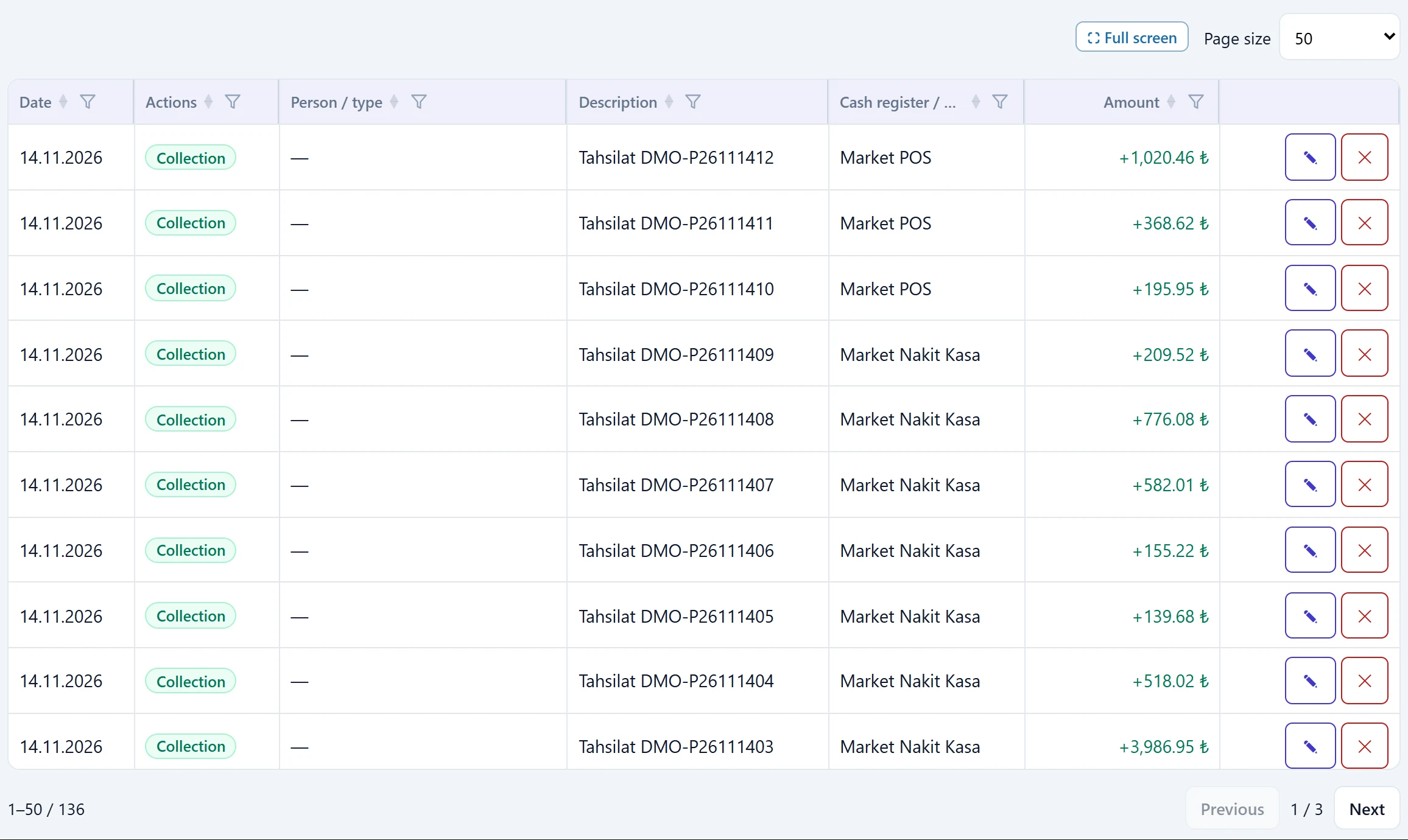
- 1Transaction Type of record (credit, collection, expense …).
- 2Edit Opens the record in the edit window.
- 3Delete Cancels / deletes the record (asks for confirmation).
- The type buttons filter the list: All, On credit, Collection, Our debt, Revenue, Payment, Expense, All outflows, Transfer.
- When you arrive from a card on the Today screen, the list is filtered to that period, type and payment method; the remove link on the «Payment method: …» chip clears the filter.
- Below the list are the number of filtered records and the total in, out and net.
- Print and Excel output the (filtered) list on screen.
Editing or deleting a record
The ✎ on a row opens the record in the edit window.
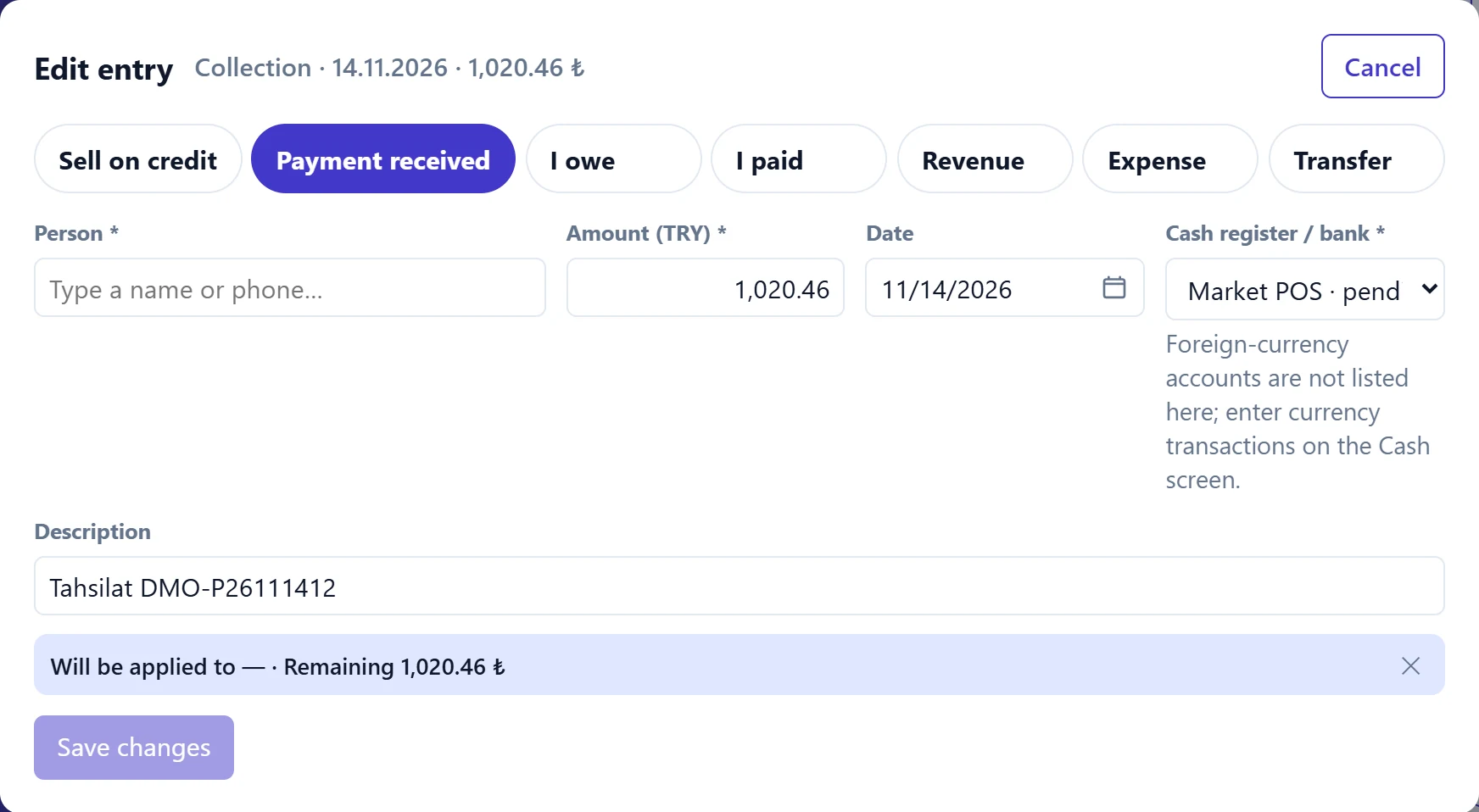
- 1Transaction type Only suitable types can be chosen when editing.
- 2Save changes Saves the correction.
Only types suitable for the record can be chosen in the window. Change it and press Save changes. ✕ asks for confirmation and removes the record: for credit it is deducted from the person's debt, for money movements the cash / bank balance is corrected.
A credit sale that has already been paid cannot be edited. Cancel that collection first or enter the difference as a new record.
Who owes what
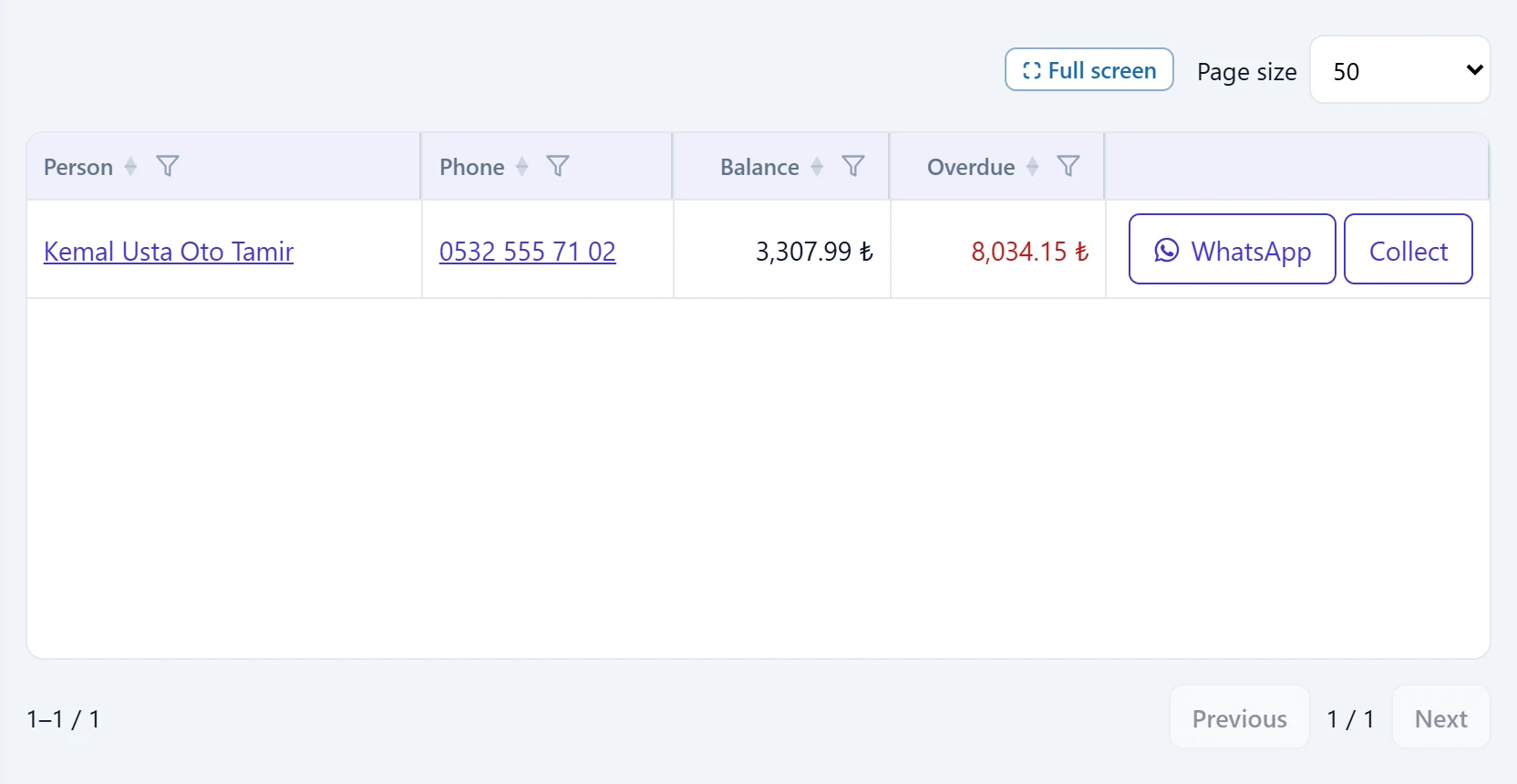
- 1Balance Total debt of the person.
- 2Overdue Overdue part.
- 3WhatsApp Prepares the reminder message in WhatsApp.
- 4Collect Fills the form with a collection from this person.
All people with a debt are listed with their balance and overdue amount.
- WhatsApp: if the person has a phone number, opens the reminder message ready in WhatsApp.
- Collect: fills the new record form as Payment received with this person and their remaining debt.
WhatsApp message template
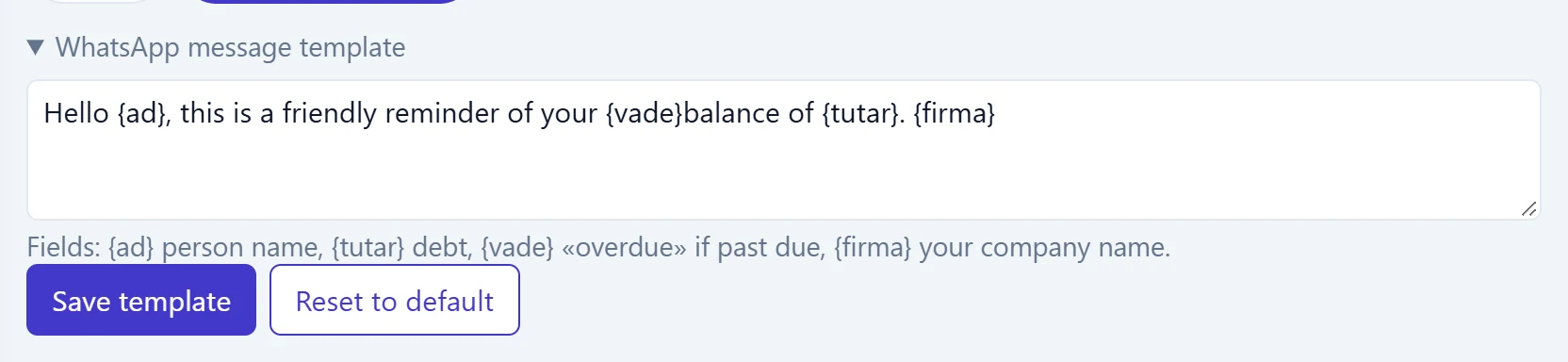
- 1Template Message text; the {ad}, {tutar}, {vade}, {firma} fields are filled automatically.
- 2Save template Saves the template for your company.
- 3Reset to default Returns to the default text.
In the message, is replaced by the person's name, by the debt, by «overdue» when the due date has passed and by your company name. Save template stores it for your company, Reset to default returns to the default text.
Common messages
| Message | Cause | Solution |
|---|---|---|
| Select a cash register or bank account. | No account selected for a type that moves money. | Choose an account in Cash register / bank. |
| Select the source and target accounts. | From / To empty in a transfer. | Choose two different accounts. |
| Please open a cash register or bank account first. | The company has no cash or bank account. | Press Open a cash box or open an account on the Cash screen. |
| A transfer needs at least two TRY accounts (e.g. cash and bank). | Only one TRY account exists. | Open a second account on the Cash screen. |
| A payment was received for this credit sale; to correct it, cancel the collection first or enter the difference as a new record. | You tried to edit a credit sale that has been paid. | Delete the collection or enter the difference as a new record. |
| Only attach a photo (jpg, png, webp) or a PDF. | Another file type was attached to an expense. | Choose a photo or PDF of the receipt. |
| The receipt file can be at most 8 MB. | The file is too large. | Take the photo at a lower resolution. |
| Expense saved but the receipt could not be attached: … | The expense was saved, the file upload failed. | Attach it again from the list with Attach receipt. |
| The person could not be added. | The new person could not be created (e.g. permissions). | Create the person under Accounts and try again. |