
 AsyaTicari
 AsyaRestoran
 AsyaOtel
 AsyaCrm
 AsyaKlinik
 AsyaSpor
 AsyaSSH
 AsyaEmlak
 AsyaFilo
 AsyaPuantaj
 AsyaİSG
 AsyaİHD
 Kolay Öğren
AsyaTicari · General
Today (home screen)
Sales, VAT, collection, payment and expense cards; cash, bank, POS and receivables / payables; cash position by currency; sales and collection charts.
This screen changed recently. Screenshots will be retaken after the code change of 2026-11-19; the text is current, some images may look outdated.
The Today screen is the first screen you see after signing in to AsyaTicari. It shows at a glance the sales, collections and expenses of the selected period; the money held in cash, bank and POS; what customers owe you and what you owe suppliers. Nothing is entered here; clicking a card opens the related screen.
Parts of the screen
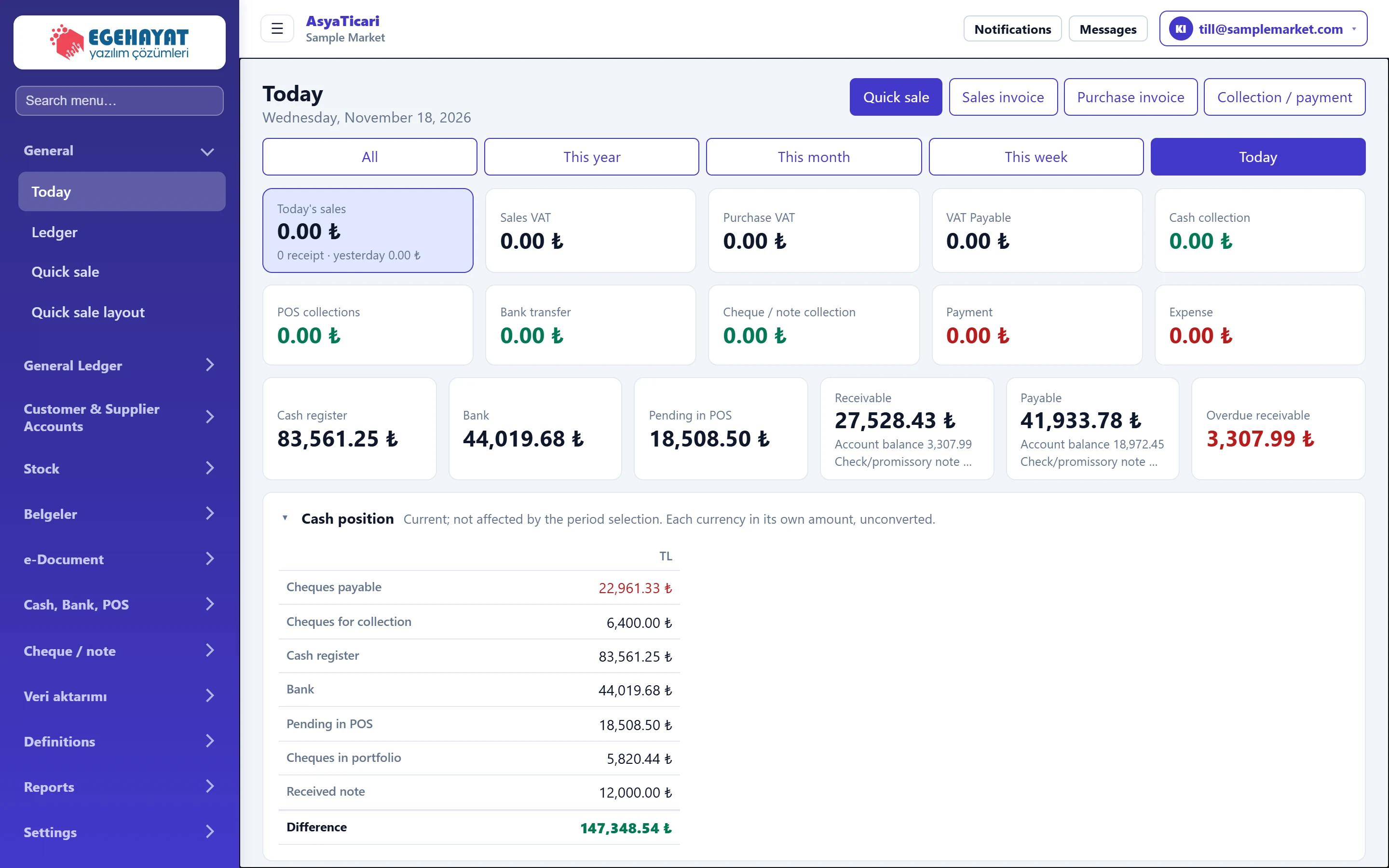
- 1Period title Name of the selected period; below it the date or date range.
- 2Shortcuts Shortcuts to quick sale, sales / purchase invoice and collection-payment screens.
- 3Period selection Chooses which period the cards and charts show.
- 4Period cards Sales, VAT, collection, payment and expense totals.
- 5Balance cards Cash, bank and POS balances and receivables / payables (not tied to the period).
- 6Cash position Cheques, notes, cash, bank and POS, each currency in its own column; Difference at the bottom.
- 7Alerts Critical stock and cheques / notes due within 7 days.
- 8Charts Sales chart, collection breakdown, cash-bank-POS and receivables / payables.
The shortcuts at the top right take you to frequent tasks in one click:
| Button | Opens |
|---|---|
| Quick sale | Barcode / button counter sale |
| Sales invoice | New sales invoice |
| Purchase invoice | New purchase invoice |
| Collection / payment | Cash screen (collection, payment, transfer) |
Choosing the period
Use the buttons under the title to choose All, This year, This month, This week or Today. Today is selected when the screen opens. The choice changes the top row of cards, the sales chart, the collection breakdown and the collection-expense table. The title shows the period name and the line below it the date (or date range).
The period choice is not saved; the screen always starts with Today.
Period cards
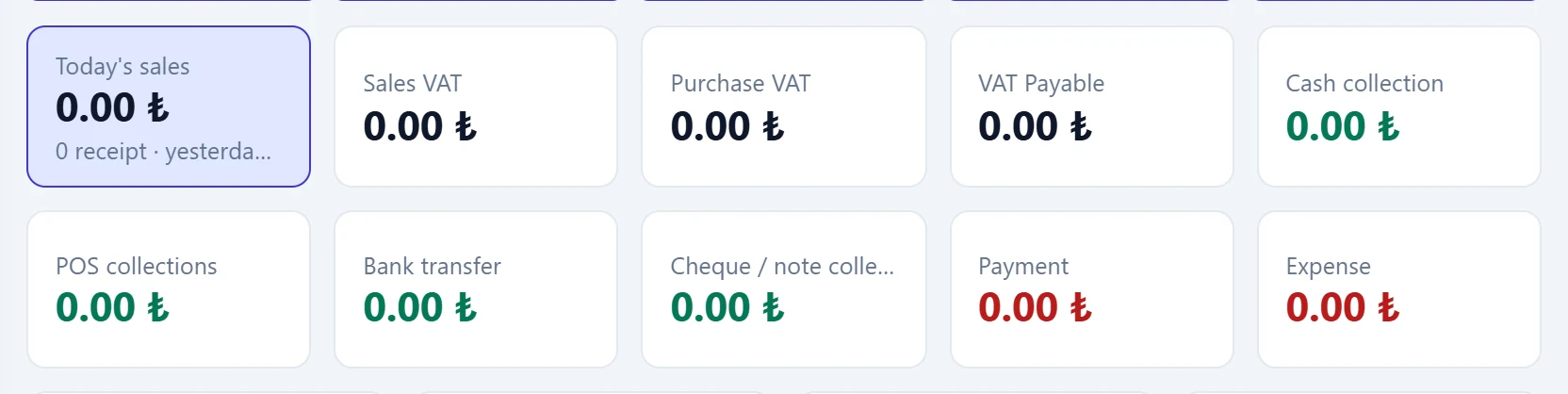
- 1Sales Sales total of the selected period; below it the receipt count and yesterday's sales (when Today is selected) or the net amount.
- 2VAT payable Sales VAT minus purchase VAT; click to open the VAT summary report.
- 3Cash collection Cash collection; click to open the ledger filtered to this period and method.
- 4Payment Payments made in the period.
- 5Expense Expenses entered in the period.
| Card | Shows | Click opens |
|---|---|---|
| Today's sales (by period: «This week sales», «This month sales» …) | Sales total of the period, net of sales returns. With Today selected, the receipt count and yesterday's sales are shown below; for other periods the receipt count and net amount. | — |
| Sales VAT / Purchase VAT | VAT on sales and purchase documents. | — |
| VAT Payable | Sales VAT minus purchase VAT. Red when above zero. | Reports → VAT summary |
| Cash collection, POS collections, Bank transfer, Cheque / note collection | Money received by method. | Ledger, filtered to this period and method |
| Payment | Payments to suppliers and others; with several methods or currencies, a breakdown appears below. A bounced, protested or returned cheque is not counted as a payment. | Ledger, payments |
| Other income | Shown only if there is an income record in the period. | Ledger, income |
| Expense | Expenses entered in the period. | Ledger, expenses |
Balance cards and alerts
The cards in the lower row are not tied to the period; they always show today's position.
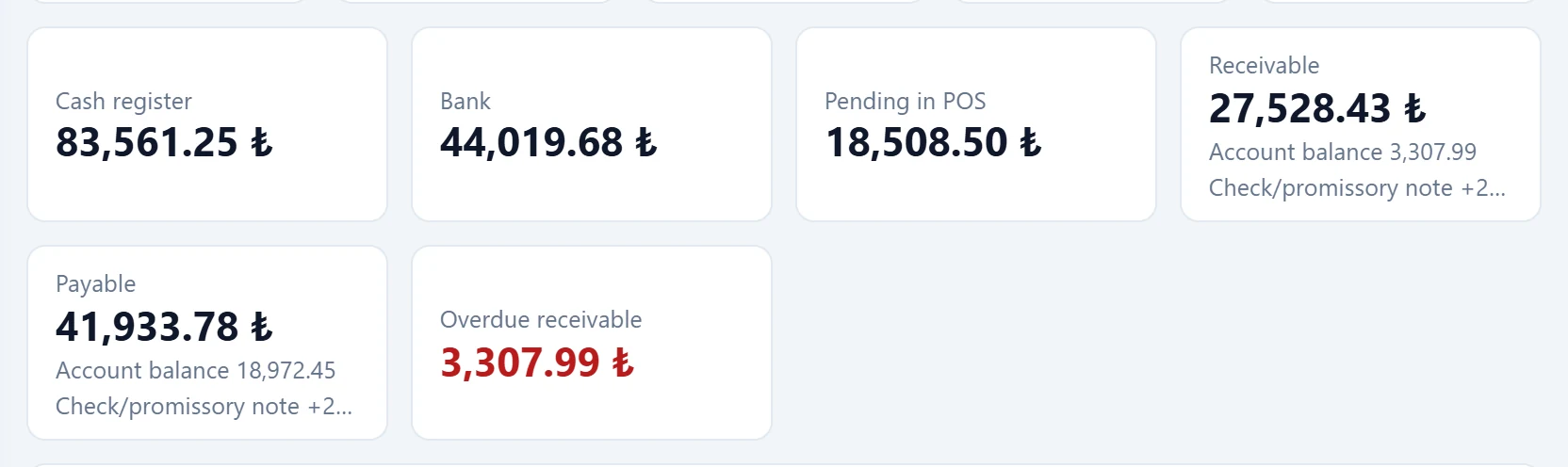
- 1Cash Total of all cash registers (foreign-currency registers at today's rate); opens the Cash screen.
- 2Bank Total of the bank accounts (foreign-currency accounts at today's rate).
- 3Pending at POS Amount taken by POS but not yet paid into the bank.
- 4Receivables What customers owe you; the cheque / note effect is shown separately.
- 5Payables What you owe suppliers.
- 6Overdue receivables Overdue open receivables; click to list these accounts.
- The Cash register and Bank cards are the total of all accounts, inactive ones included. If you have a foreign-currency cash register or bank account, the TRY total uses today's rate and each currency's own amount is shown below the card (e.g. «5,000.00 $»).
- The Receivable and Payable cards may show the account balance and the cheque / note effect separately: uncollected received cheques are added to receivables, unpaid issued cheques to payables.
- Overdue receivable is red when above zero; clicking it opens the account list filtered to overdue accounts.
Below the cards a blue alert strip appears when needed:
- «… products are at critical stock level.» — opens Stock status.
- «… cheque / note due within 7 days …» — open cheques and notes falling due in the next 7 days from today (including those at the bank for collection or as collateral); foreign-currency amounts in TRY at today's rate. This line is the header of a collapsible panel: click it to open / close the panel, which lists due date, type (received / issued cheque or note, at the bank for collection / as collateral), account, serial no and amount. Click a serial number to open the cheque / note card; the Due date calendar link below the panel opens all due dates.
To hide cards with a zero value, tick Sıfır Bugün kartlarını gizle under Settings → Control panel → Ticaret tercihleri and save. Cards and chart slices with a zero value are then hidden.
Cash position
The Cash position table below the balance cards shows cheques, notes, cash, bank and POS with each currency in its own column, unconverted. The table is not tied to the period either; it shows today's position. Rows with no amount in any currency and currencies with no amount are not shown; with no records at all the table does not appear. The table is a collapsible panel: click the header to close / open it; your choice is remembered in this browser.
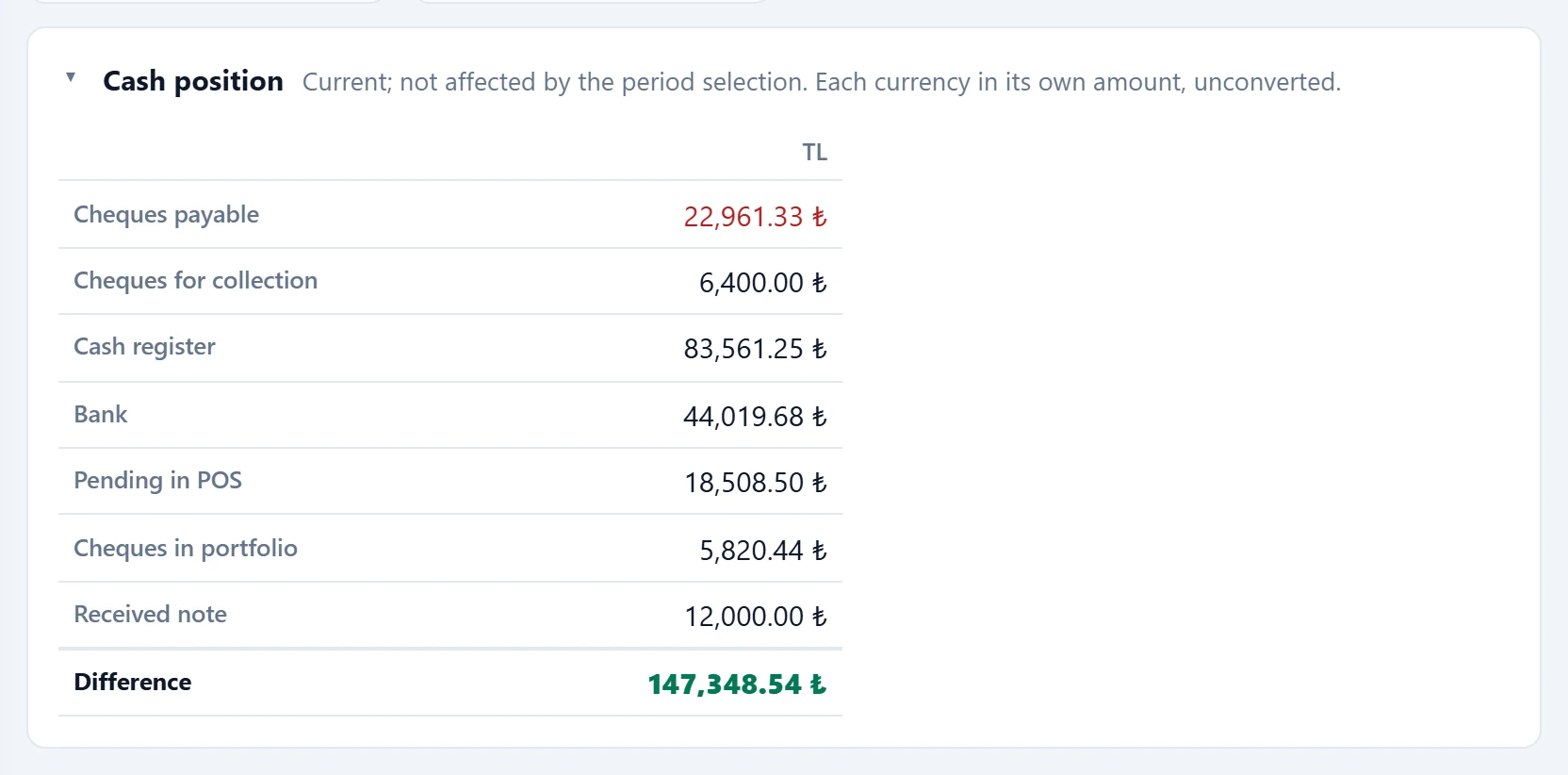
- 1Currency Each currency in its own column, unconverted.
- 2Cheques payable Issued cheques not yet paid; deducted in Difference.
- 3Cheques for collection Cheques given to the bank for collection.
- 4Difference Cheques and notes payable are deducted from receivables, cash, bank and POS; red if negative.
| Row | Shows |
|---|---|
| Cheques payable / Notes payable | Cheques and notes you issued that are not yet paid. |
| Cheques for collection | Cheques you gave to the bank for collection. |
| Cheques as collateral | Cheques you gave to the bank as collateral. |
| Cash register / Bank | Balance of the cash registers and bank accounts in that currency. |
| Pending in POS | POS collections not yet transferred to the bank. |
| Cheques in portfolio | Customer cheques you hold. |
| Notes received | Customer notes not yet collected. |
| Difference | Cheques for collection and as collateral + cheques in portfolio + notes received + cash + bank + POS − cheques and notes payable. Red when negative. |
Click a row name to open the related screen: cheque and note rows open the Cheque / note list; Cash register, Bank and Pending in POS open their own screens.
Endorsed cheques and account balances are not in this table; for account receivables and payables see the Receivable and Payable cards.
Charts
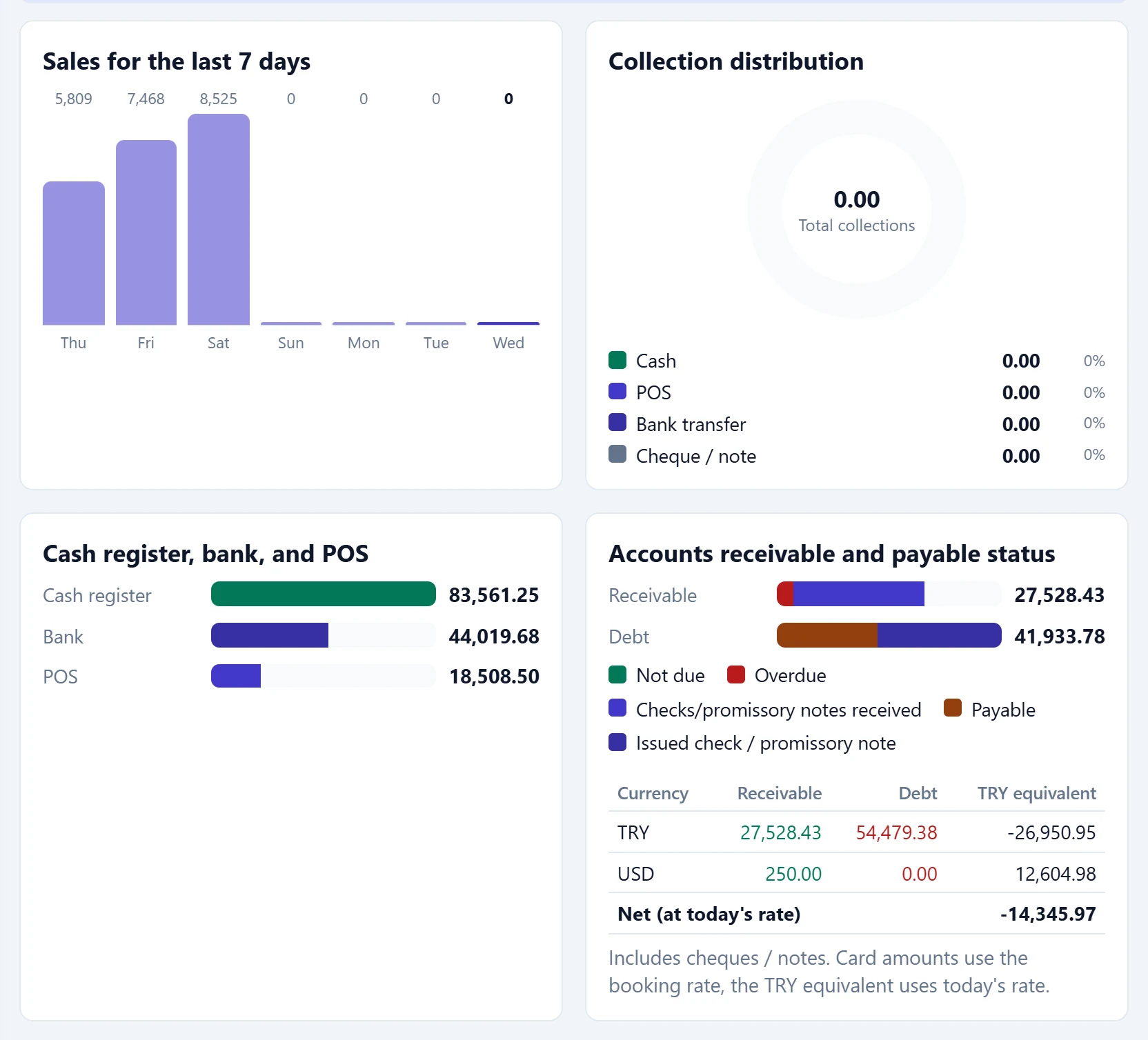
- 1Sales chart Daily sales for Today and This week, monthly for This year.
- 2Collection distribution Collections split into cash, POS, transfer and cheque / note.
- 3Cash register, bank, and POS Cash, bank and pending POS side by side.
- 4Accounts receivable and payable status Receivables not yet due / overdue, payables and cheques / notes.
- Sales chart: the last 7 days for Today, the days for This week and This month, months for This year, month-year for All. The last bar is darker. Hover a bar to see the date and amount.
- Collection distribution: shares of cash, POS, bank transfer and cheque / note; total collection in the centre. Money a partner / owner puts in with “Deposit” and repayments to the partner are not counted as collections or payments; they only show in the cash / bank balance.
- Cash register, bank, and POS: the three balances compared.
- Accounts receivable and payable status: receivables not yet due and overdue, received cheques / notes; payables and issued cheques / notes. With foreign-currency accounts, a table per currency with receivable, payable and the TRY equivalent at today's rate appears below.
Collection-expense table and best sellers
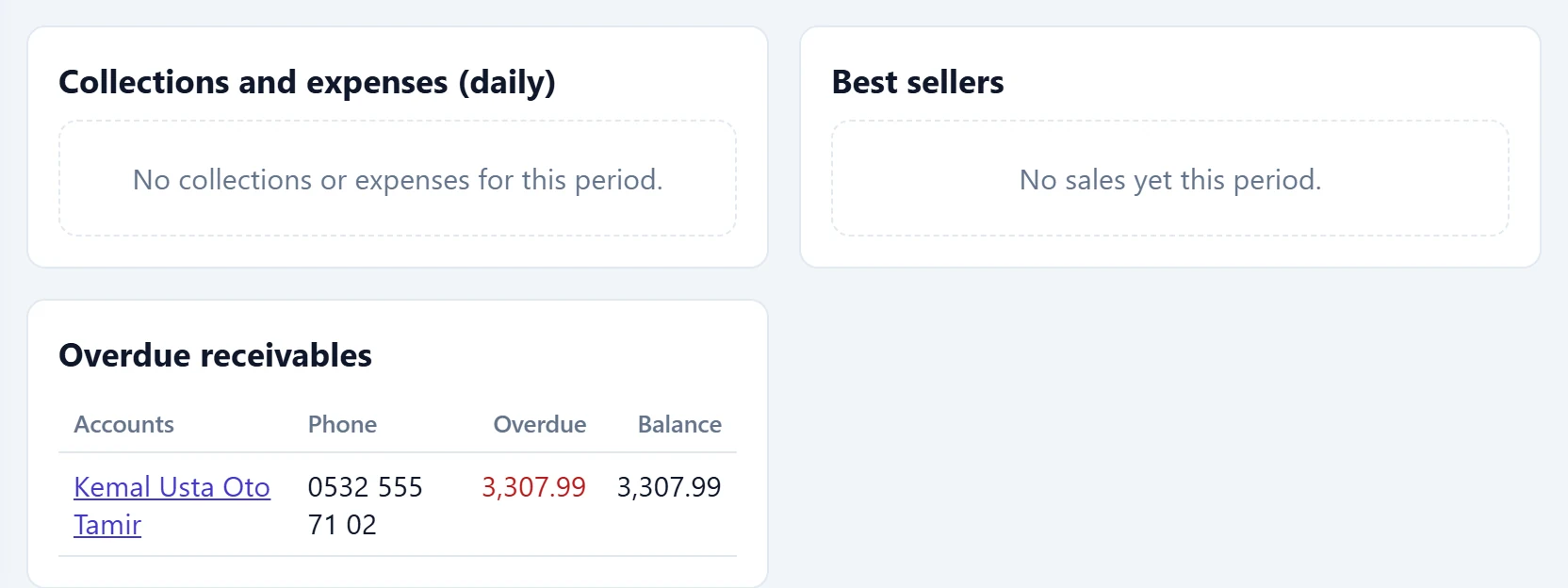
- 1Collections and expenses (daily) Collections, expenses and net day by day (or month by month).
- 2Best sellers Best-selling products of the period with quantity and amount.
- Collections and expenses: collection, expense and net per day for short periods, per month for the year and All. Collections include other income. The last row is the total.
- Best sellers: the best-selling products of the period with quantity and amount.
- Overdue receivables: shown as a separate card when accounts have overdue debt; click an account name to open its card.
Daily use: step by step
- Start the day on Today; if Overdue receivable is red, click the card and call these customers.
- If the alert strip mentions critical stock, click the link and order the missing products.
- During the day use Quick sale for counter sales and Sales invoice for invoiced sales.
- At the end of the day, with Today selected, compare Cash collection with the money in the till; if there is a difference, record the count under Ledger → Cash count.
- At month end choose This month and click VAT Payable to see the VAT summary.
Common messages
| Message | Cause | Solution |
|---|---|---|
| Could not reach the AsyaTicari API. Please refresh the page. | No connection to the server. | Refresh the page; if it persists, check your internet connection. |
| No collections or expenses for this period. | No collection or expense in the selected period. | Choose a longer period. |
| No sales yet this period. | No sales document in the selected period. | Choose a longer period. |