
 AsyaTicari
 AsyaRestoran
 AsyaOtel
 AsyaCrm
 AsyaKlinik
 AsyaSpor
 AsyaSSH
 AsyaEmlak
 AsyaFilo
 AsyaPuantaj
 AsyaİSG
 AsyaİHD
 Kolay Öğren
AsyaTicari · Settings
Starter template
Previewing ready-made stock card, service, expense type and account group definitions for your sector and loading them into the company in one click.
Starter template gets a newly opened company ready quickly. You choose your sector; the stock cards, services, expense types and account groups commonly used in that sector are listed and added to your company in one click. No sample accounts, documents, movements or stock quantities are written. The screen is only open to users with permission to write card definitions (catalog).
Sector list
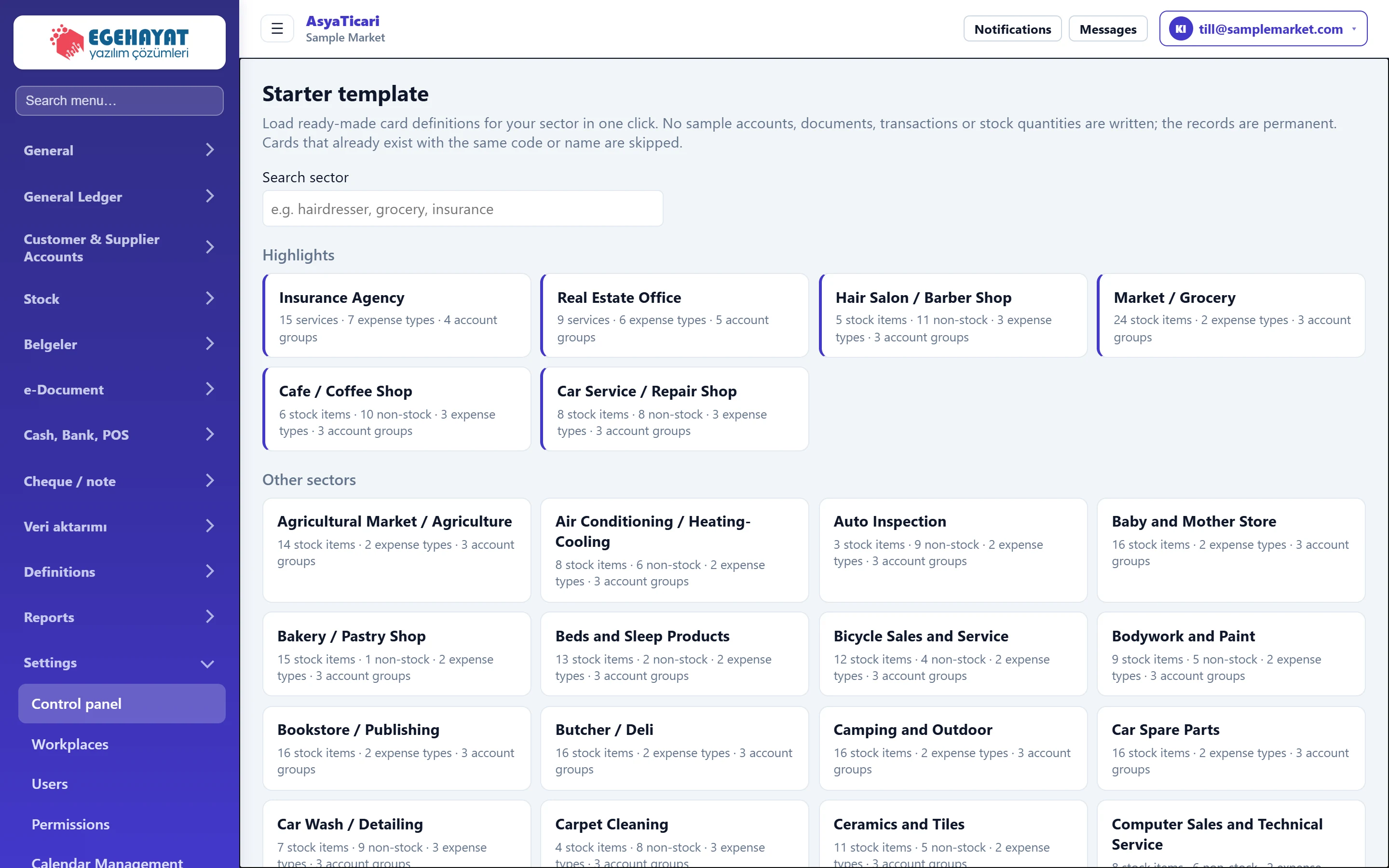
- 1Search sector Type part of the sector name (e.g. market).
- 2Featured The most used sector templates.
- 3Sector tile Opens the template so you can preview its cards (nothing is loaded yet).
- 4Contents Counts of stocked / non-stocked items, services, expense types and account groups in the template.
- Search sector: type part of the sector name (e.g. «hairdresser», «market»); the list narrows.
- Highlights are the most used templates; Other sectors are in alphabetical order.
- Each tile shows the number of stocked items, non-stocked items, services, expense types and account groups in the template.
Clicking a tile only opens the preview; nothing is loaded yet.
Preview and loading
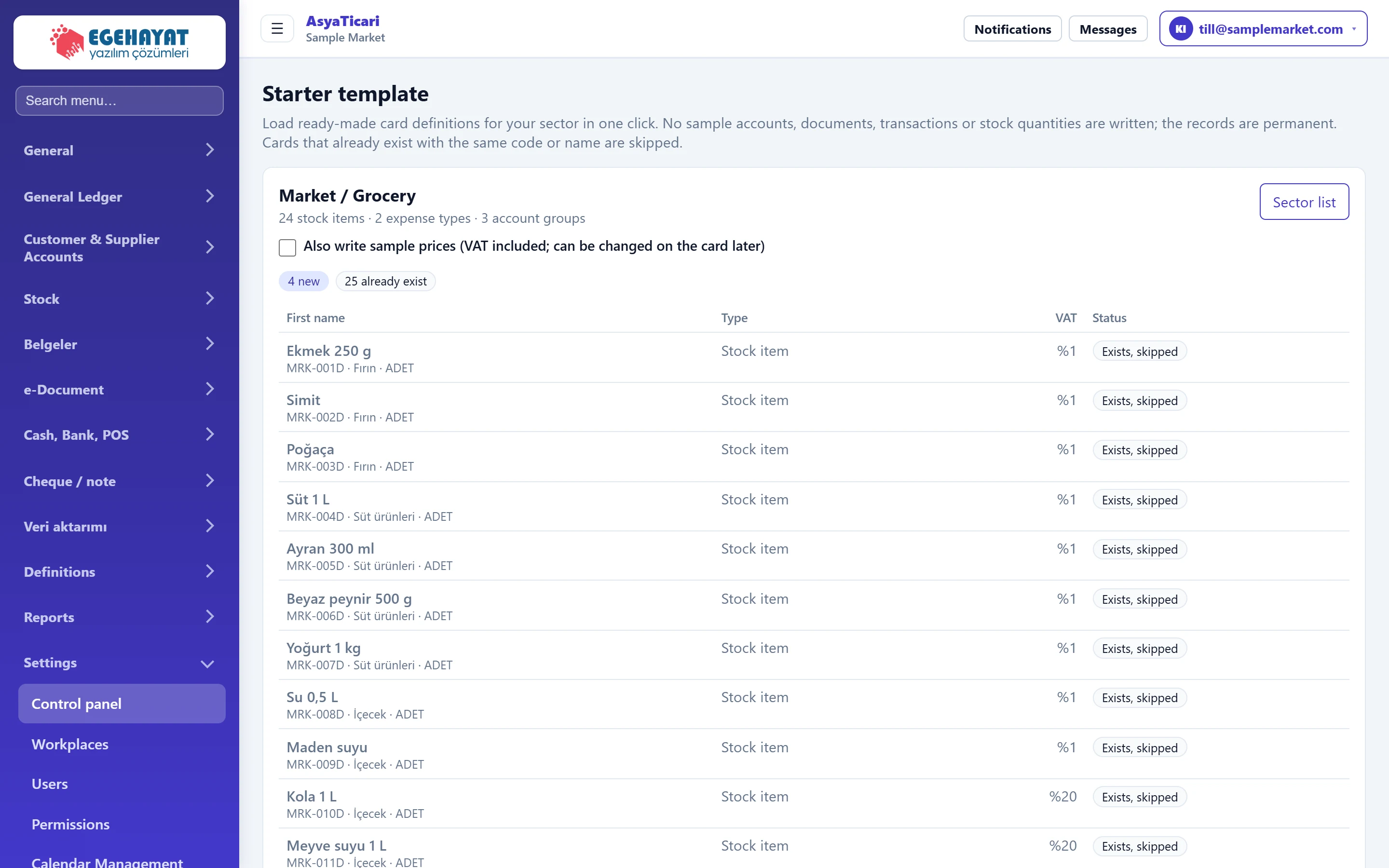
- 1Template Selected sector and content counts.
- 2Sector list Returns to the sector list.
- 3Sample prices If ticked, sample (VAT-inclusive) sales prices are also written to the cards.
- 4Status summary How many records are new and how many already exist in your company.
- 5Card list Cards to be loaded; rows marked «Exists, skipped» are not loaded.
- Also write sample prices: if ticked, sample VAT-inclusive sales prices are written to the cards (a Price column appears). You can change the prices on the card later.
- Status summary: how many records are new and how many already exist in your company.
- Table: name, type (stocked item, non-stocked item, service card, expense type, account group), VAT rate and status of each record. Records that already exist with the same code or name are greyed out as Exists, skipped and are not loaded.
Loading a template: step by step
- Choose your sector in the list.
- Review the cards in the preview and decide whether you want sample prices.
- Press the Load (… records) button.
- A result such as «… records added, … already existed and were skipped.» appears at the top, with the number of new units if any. The statuses in the table change to Added.
- Use Go to stock cards or Go to service definitions to complete the cards (barcode, purchase price, stock quantity).
Loaded records are permanent; there is no bulk undo. Unneeded cards must later be deactivated one by one.
If no new records are left, the message «All definitions in this template already exist in your company.» replaces the load button. Opening the same template again does no harm.
Common messages
| Message | Cause | Solution |
|---|---|---|
| This page requires catalog (card definition) write permission. Please contact your company administrator. | The user has no card definition permission. | The company administrator enables it under Settings → Permissions. |
| No sector matches your search. | The search term is not in any template name. | Try a shorter or different term. |
| Template not found. | The template was removed or the address is wrong. | Go back to the sector list and choose again. |
| … records could not be added; see the list below for details. | Some records could not be loaded. | Fix them according to the note under the Error row in the table. |
| Loading could not be completed. | The server could not finish loading. | Refresh and try again; records already added are skipped. |