
 AsyaTicari
 AsyaRestoran
 AsyaOtel
 AsyaCrm
 AsyaKlinik
 AsyaSpor
 AsyaSSH
 AsyaEmlak
 AsyaFilo
 AsyaPuantaj
 AsyaİSG
 AsyaİHD
 Kolay Öğren
AsyaEmlak · Real estate
Portfolio
Opening new listings, the listing list and listing portal actions.
Portfolio lists the office's listings. The form at the top opens a new listing; each row's menu holds the listing portal actions.
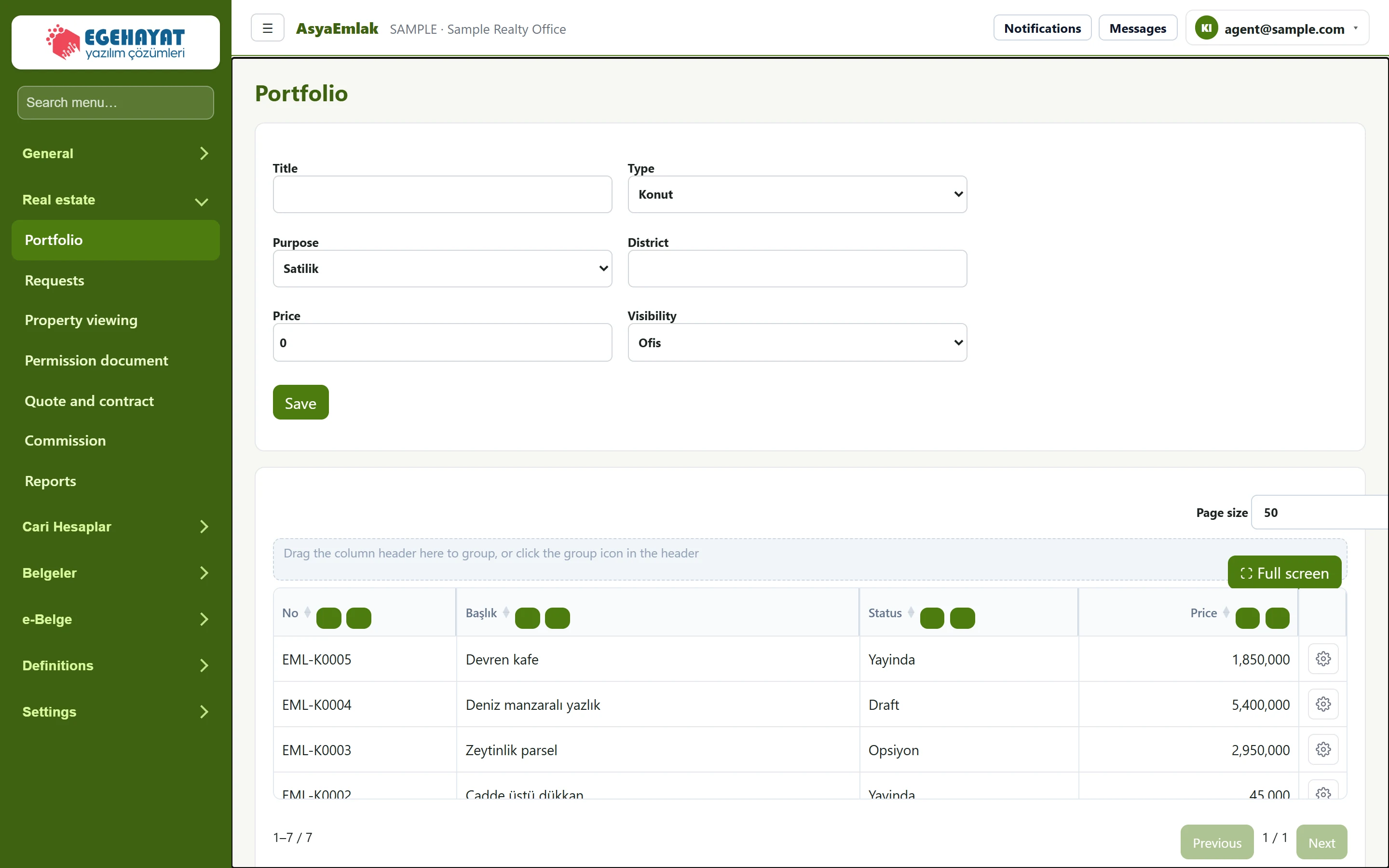
- 1Title New listing: creates the property and a draft listing together.
- 2Page size Search, column selection and export.
- 3Devren kafe Listing number.
- 4Actions Row actions: send to the listing portal and status.
New listing
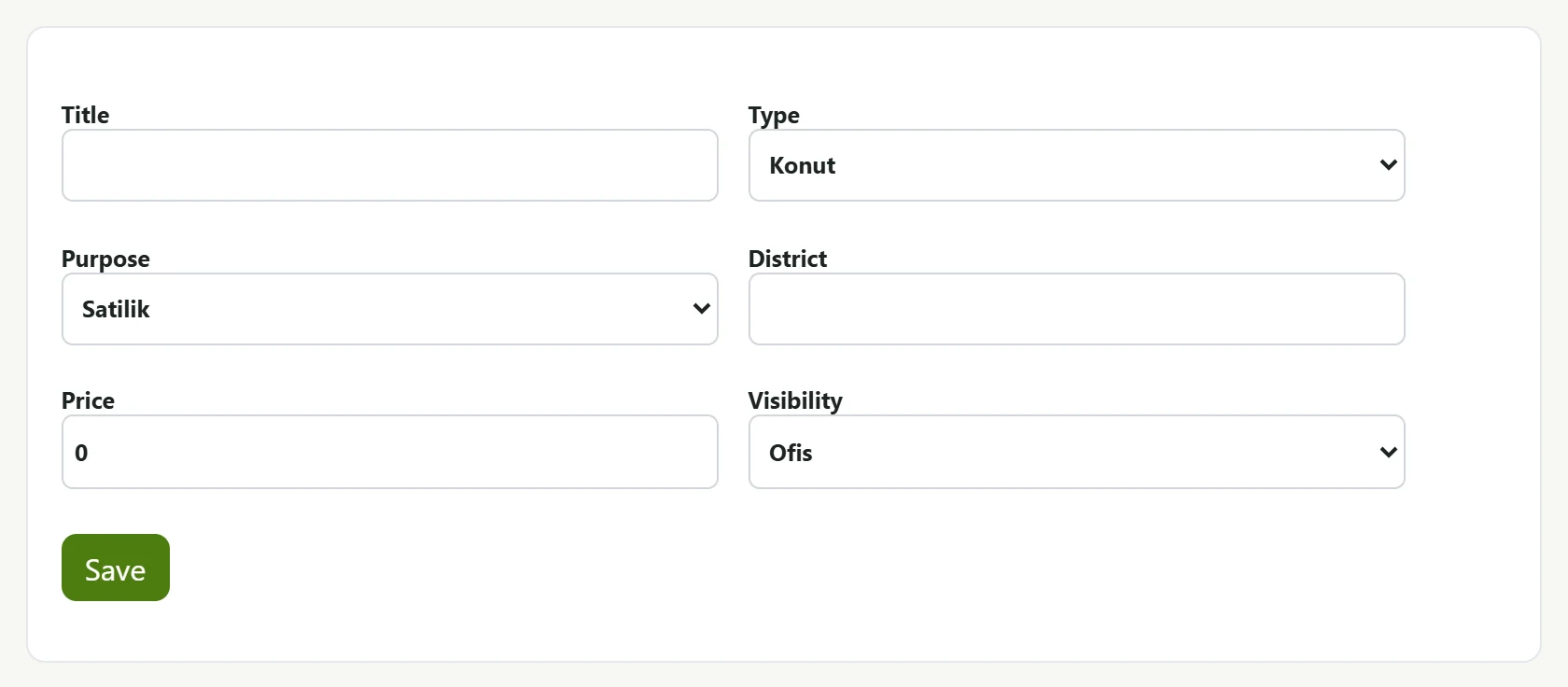
| Field | Sign in | Description |
|---|---|---|
| Title | Text | Display name of the listing (e.g. "3+1 flat with garden"). |
| Type | Choice list | Property type: housing, workplace, land, building, business transfer, holiday home. Options: Konut · IsYeri · Arsa · Bina · Devren · Yazlik |
| Purpose | Choice list | For sale, for rent, transfer sale or transfer rent. Options: Satilik · Kiralik · DevrenSatilik · DevrenKiralik |
| District | Text | District of the property; used for demand matching. |
| Price | Text | Listing price (TRY). |
| Visibility | Choice list | Who sees the record: only me, branch or whole office. Options: Benim · Sube · Ofis |
- Fill in Title, Type, Purpose, District and Price.
- Use Visibility to choose who sees the record: only you, your branch or the whole office.
- Press Save. A property record is created first, then a listing in draft status, which is added to the list.
The user who saves the property becomes its consultant. Records with "only me" visibility are seen only by their consultant.
Listing list
The list has the columns No (listing number, e.g. EML-…), Title, Status and Price. Click a column header to sort, drag it to the grouping area to group.
Row actions
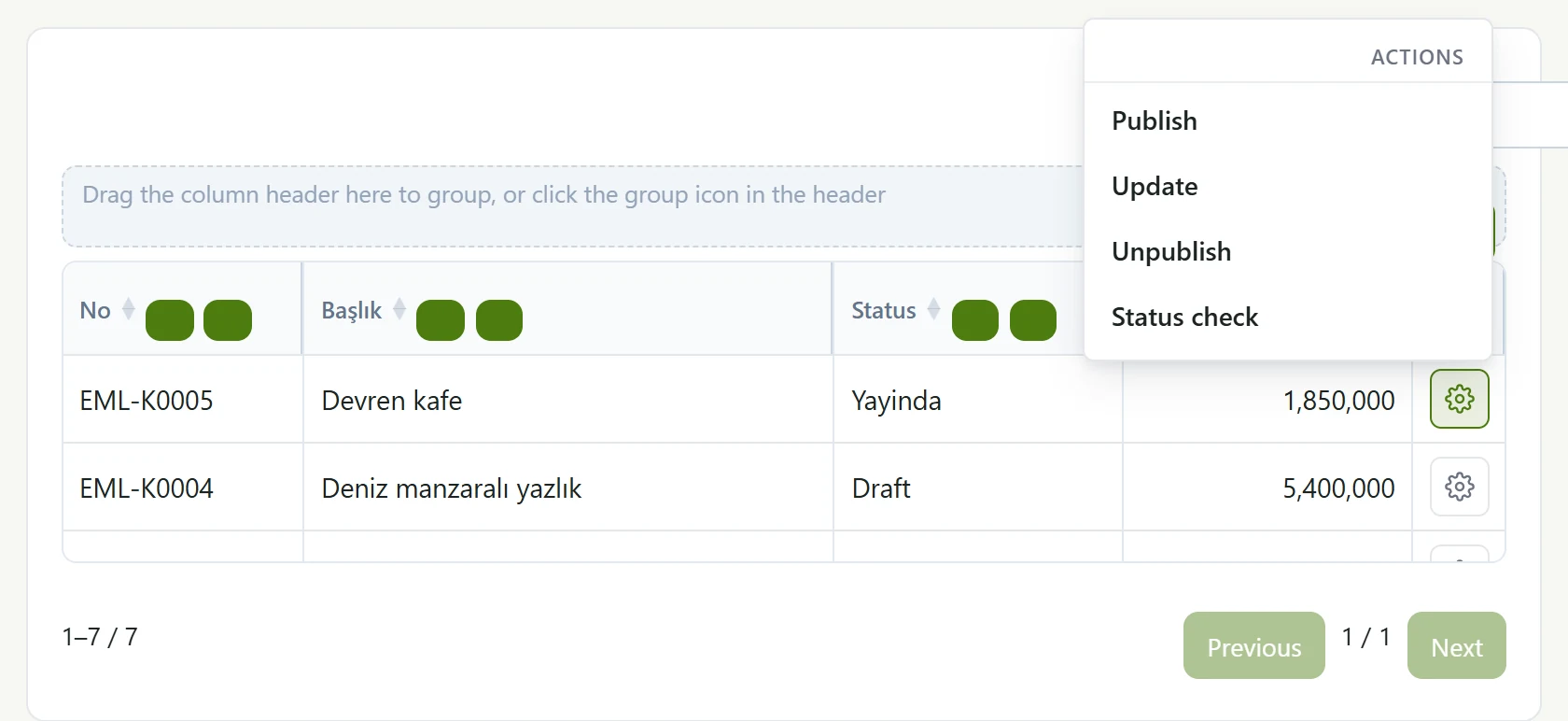
- 1Publish Sends the listing to the connected listing portal.
- 2Update Refreshes the portal listing with current data.
- 3Unpublish Removes the listing from the portal.
- 4Status check Queries the publication status on the portal.
The button at the end of the row opens the listing portal actions: Publish, Update, Unpublish, Status check. The result is shown as a note at the top of the page. The portal connection is set up in the company's integration settings (Settings → Control panel).
Common messages
| Message | Cause | Solution |
|---|---|---|
| Draft ad opened. | The property and the draft listing were saved. | — |
| No record found. | The property or listing could not be saved (e.g. empty title). | Check the fields and press Save again. |