
 AsyaTicari
 AsyaRestoran
 AsyaOtel
 AsyaCrm
 AsyaKlinik
 AsyaSpor
 AsyaSSH
 AsyaEmlak
 AsyaFilo
 AsyaPuantaj
 AsyaİSG
 AsyaİHD
 Kolay Öğren
AsyaCrm · General
Sign-in and management panel
The management panel shown after signing in to AsyaCrm: left menu, top bar, counters, quote statistics, today's meetings, open tasks and recent records.
The Management Panel is the overview screen that opens after you sign in to AsyaCrm. It shows the numbers of accounts, quotes, appointments and tasks, quote charts and the latest records at a glance. The dashboard view permission is required.
Signing in
- Open the AsyaCrm address; the Sign in screen appears.
- Enter your e-mail or user code and password, then click Sign in.
- If your user belongs to several companies or workplaces, choose them on the next screen. With one company and one workplace this step is skipped.
If the company's user quota is full, sign-in is rejected; wait for a session to end or ask your administrator for more seats.
Screen layout
The menu is on the left, the company / workplace and user bar at the top and the current screen in the middle.
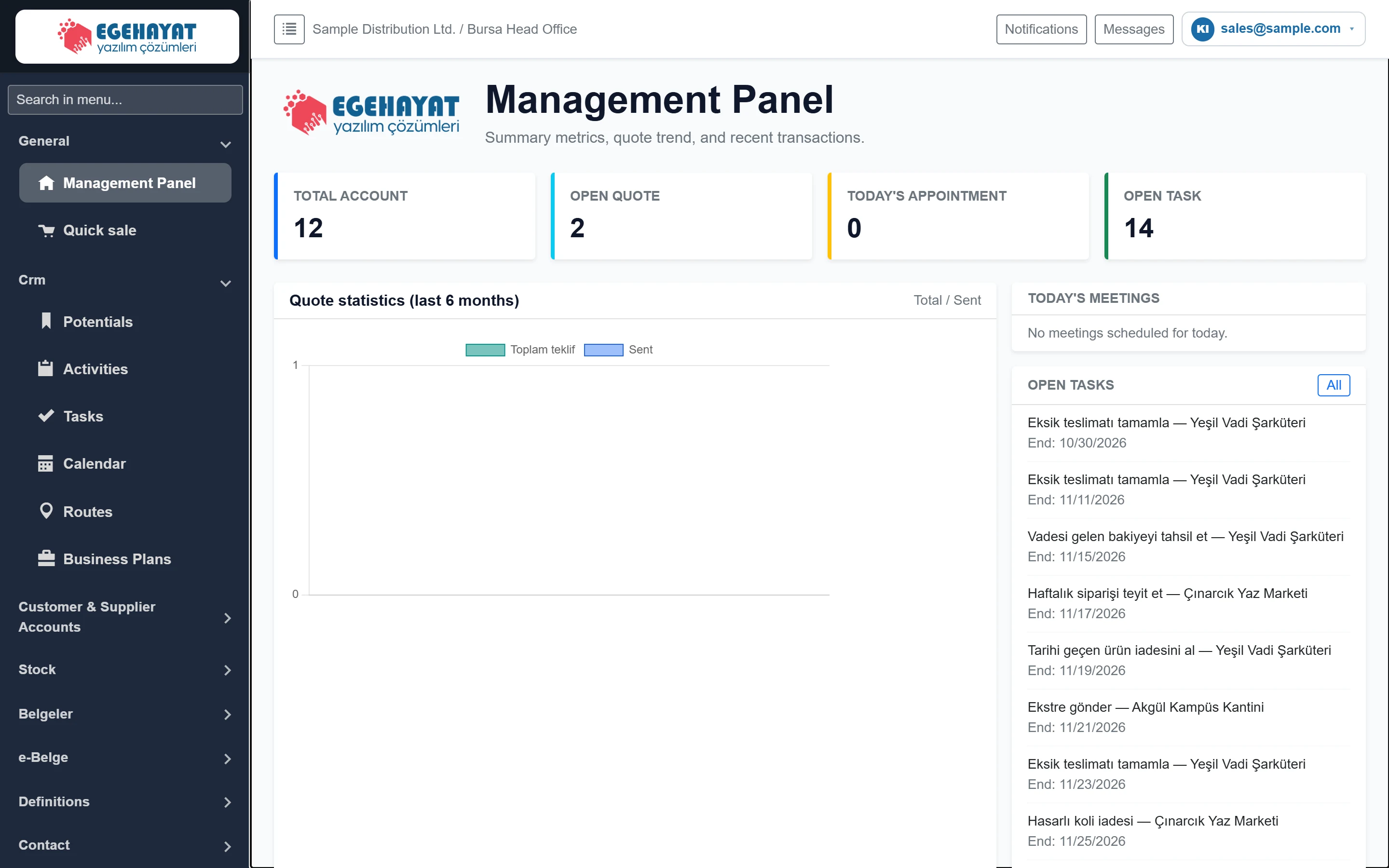
- 1Search menu Type a few letters of a screen name; matching menu links are listed.
- 2Crm Menu groups expand and collapse when you click the heading.
- 3Collapse menu Hides or shows the left menu.
- 4Company / workplace The company and workplace you are working in.
- 5Task Notifications System notifications (task assignments etc.).
- 6Messages Messages between users.
- 7User menu Change password, choose language and sign out.
- 8Counters Counts of accounts, open quotes, today's appointments and open tasks.
The menu is grouped (General, Crm, Customer & Supplier Accounts, Definitions, Contact, Reports, Settings …). Click a group heading to expand or collapse it. Screens of modules that are not enabled for your company (Route Planning, Work Plans, E-mail, Question Sets) or that you have no permission for are hidden.
Type a few letters of a screen name (e.g. «route») into Search menu. All groups expand and only matching links remain.
Counters

- 1TOTAL ACCOUNT Number of account cards that are not deleted.
- 2OPEN QUOTE Draft or sent quotes that are not yet concluded.
- 3TODAY'S APPOINTMENT Meeting / appointment activities dated today.
- 4OPEN TASK Tasks that are not Completed, Closed or Cancelled.
The counters are recalculated each time the screen opens and refer to the signed-in company.
Quote statistics, meetings and open tasks
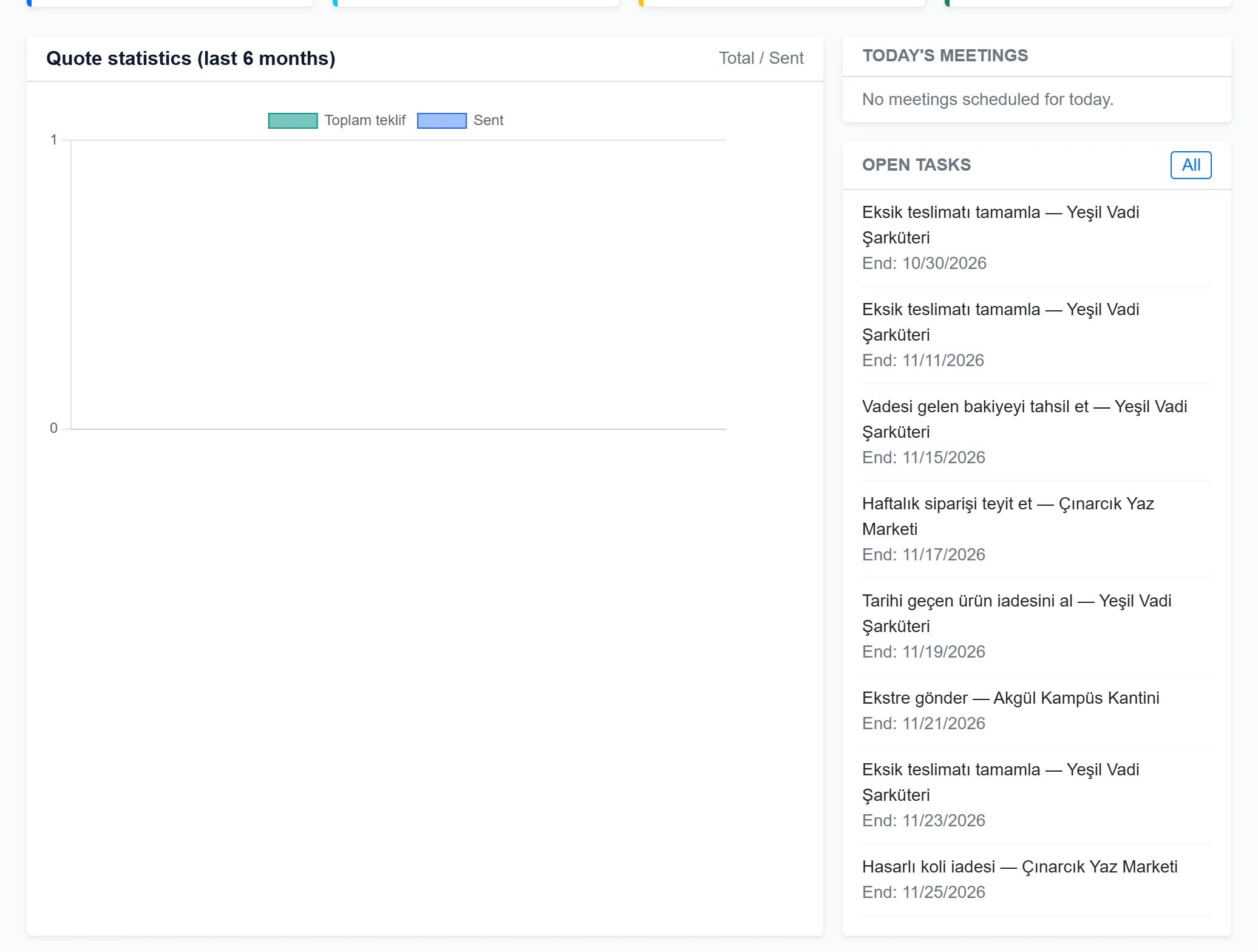
- 1Quote statistics Quotes created and sent over the last 6 months.
- 2Today's meetings Meetings scheduled for today.
- 3All Opens the Tasks screen.
- 4Open task Click the title to open the task form; the due date is shown below.
- Quote statistics (last 6 months): quotes created and sent per month.
- Today's meetings: meeting activities dated today with their times.
- Open tasks: the first open tasks and their due dates. Click a title to open the task; All opens the Tasks screen.
Charts
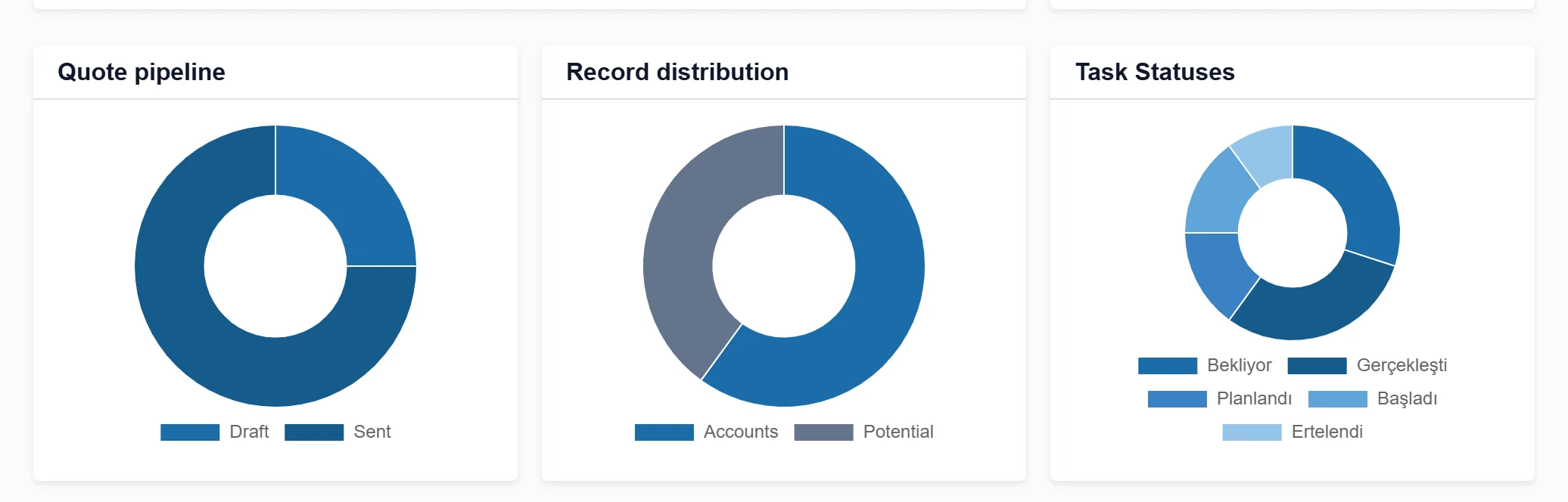
- 1Quote pipeline Distribution of quotes by status.
- 2Record distribution Ratio of accounts, leads, activities and tasks.
- 3Task statuses Number of tasks per status.
Recent records
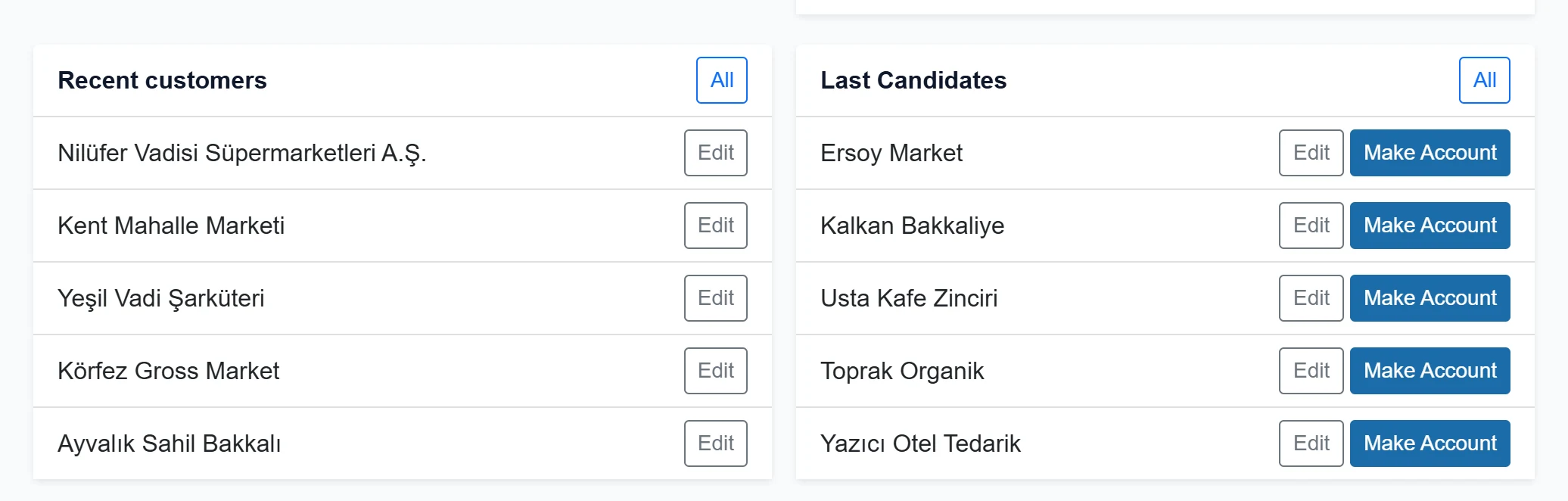
- 1All Opens the account list.
- 2All Opens the leads list.
- 3Latest account The most recently added accounts; click a name to open the card.
The lists Recent quotes, Recent activities, Recent customers and Recent leads are at the bottom. All opens the related screen; click a record to open it.
Common messages
| Message | Cause | Solution |
|---|---|---|
| Invalid email or password. | E-mail / user code or password is wrong. | Check your details; ask your administrator if you forgot the password. |
| Email and password are required. | One of the fields is empty. | Fill in both fields. |
| Kullanıcı kotası dolu. (user quota full) | More sessions are open than the company licence allows. | Close unused sessions or increase the quota. |
| No meetings scheduled for today. | There is no meeting activity dated today. | For information only. |