
 AsyaTicari
 AsyaRestoran
 AsyaOtel
 AsyaCrm
 AsyaKlinik
 AsyaSpor
 AsyaSSH
 AsyaEmlak
 AsyaFilo
 AsyaPuantaj
 AsyaİSG
 AsyaİHD
 Kolay Öğren
AsyaCrm · Crm
Calendar
Month / week / list calendar of activities, tasks and route plans; type and staff filter, day summary, closing and reopening days for records.
The Calendar shows activities, tasks and route plans in one calendar by their planned dates. Click an entry to open its form; click a day number to open the day menu.
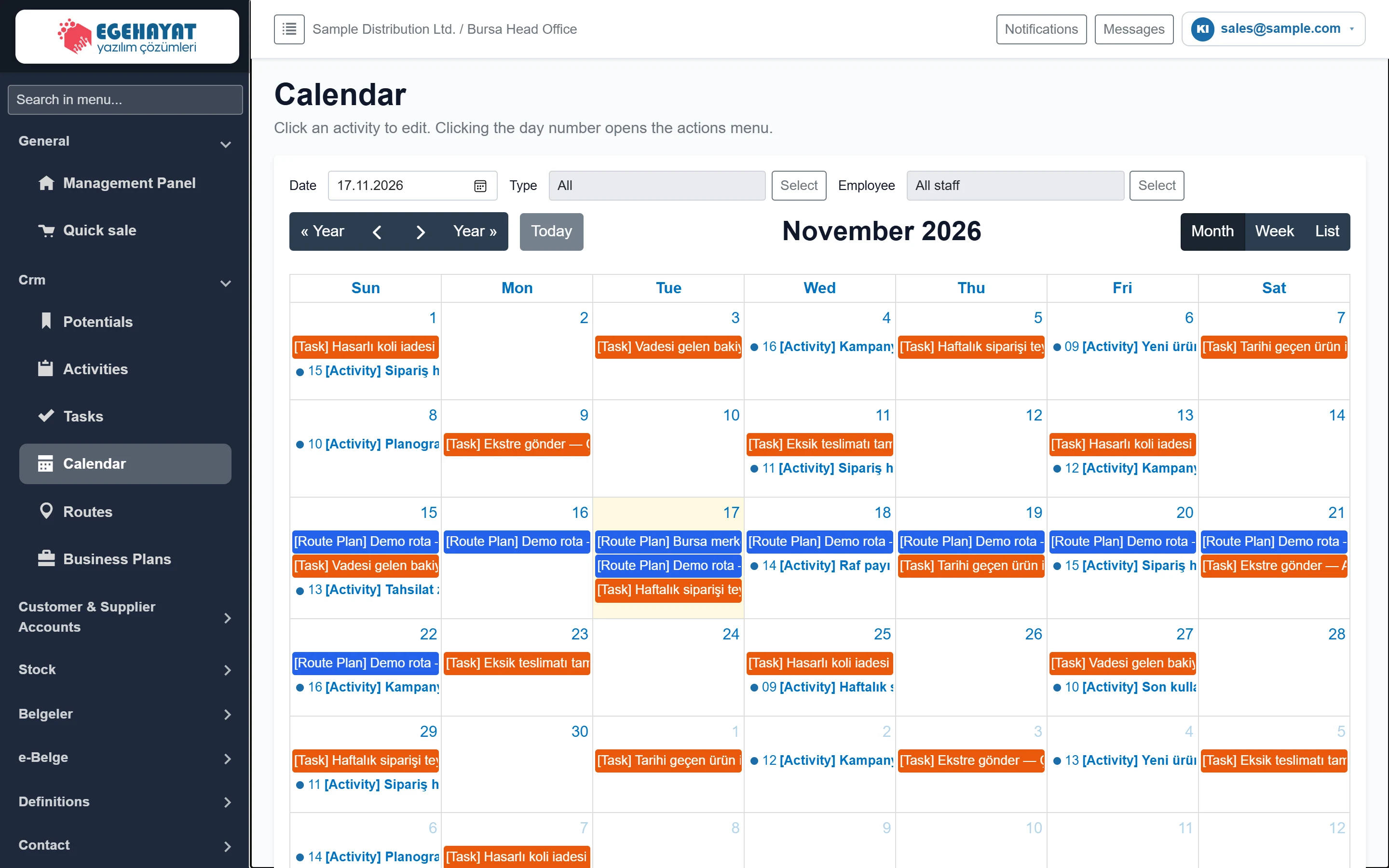
- 1Filter bar Go to date, filter by type and staff.
- 2Navigation Previous / next year and month, Today.
- 3View Month, Week or List.
- 4Day number Click to open the day menu.
- 5Record Activity (blue), task (orange) or route (purple); click to open its form.
Colours: blue activity, orange task, purple route task / route plan, green contracted organisation. Closed days appear grey (manually closed) or pink (closed for sales), official / special holidays with a yellow background. The legend is below the calendar.
Filter bar

- 1Select Opens the type list.
- 2Select Opens the staff list.
| Field | Sign in | Description |
|---|---|---|
| Date | Date | Jumps to the selected date. |
| Type | Date | Activities, Organisations, Tasks; several can be selected. If none is selected, all are shown. |
| Employee | Date | Only records assigned to the selected users. If none is selected, all staff. |
Navigate with « Year, ‹, ›, Year » and Today above the calendar; Month, Week and List on the right change the view.
Day menu
In month view click a day number.
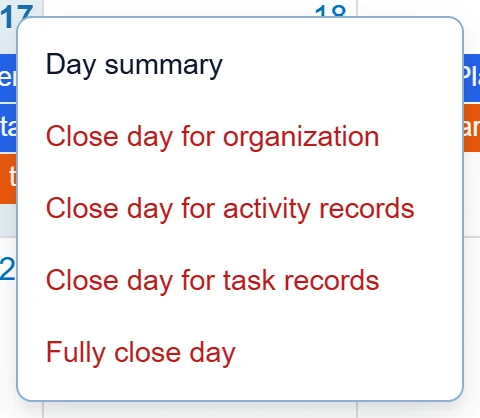
- 1Day summary Lists the day's activities and tasks in a window.
- 2Close the day Closes the day for the chosen record type (reason required).
Options other than Day summary are only shown to users who may edit activities. If the day is closed, the matching «open» option, the user who closed it, the time and the reason are shown.
Day summary
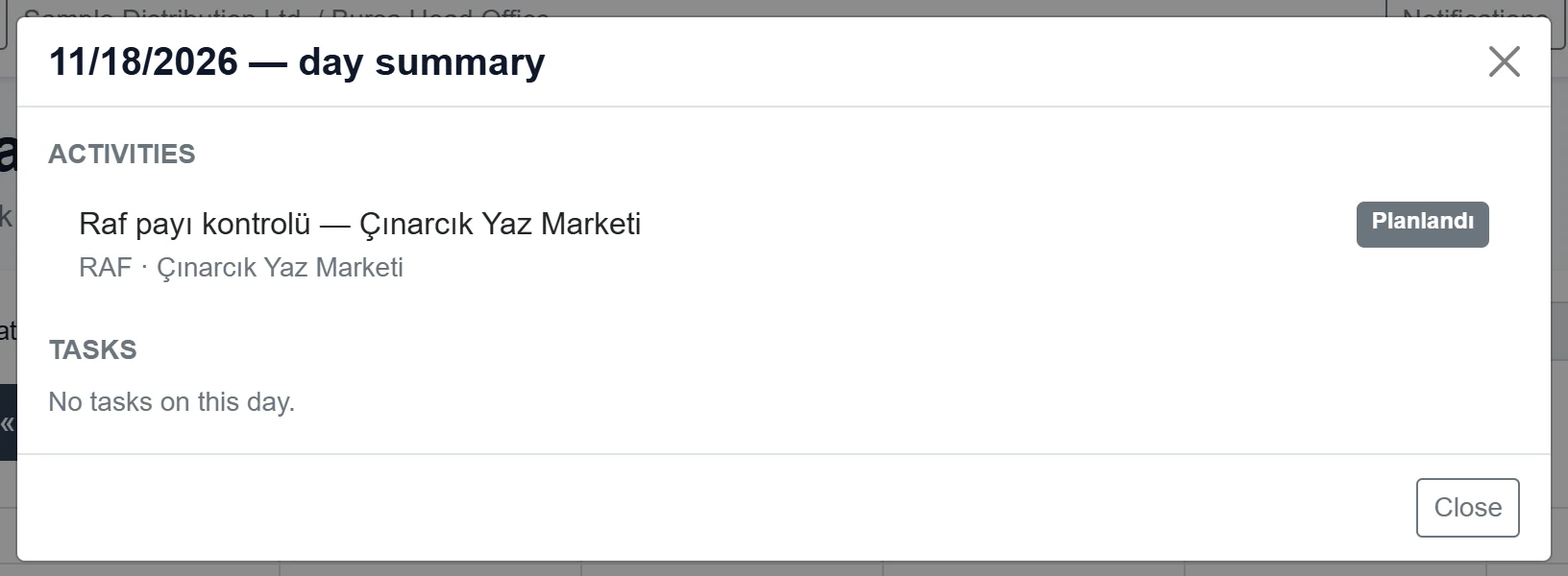
- 111/18/2026 — day summary The selected day.
- 2ACTIVITIES The day's activities; click to open the form.
- 3TASKS The day's tasks and route tasks.
Closing a day: step by step
On holidays, meetings or stock-taking days you can close a day for new records.
- Click the day number.
- Choose Close day for activity records, Close day for task records, Close day completely (or, with the organisation feature, Close day for organisations).
- Enter the closure reason in the window; optionally choose a colour tone.
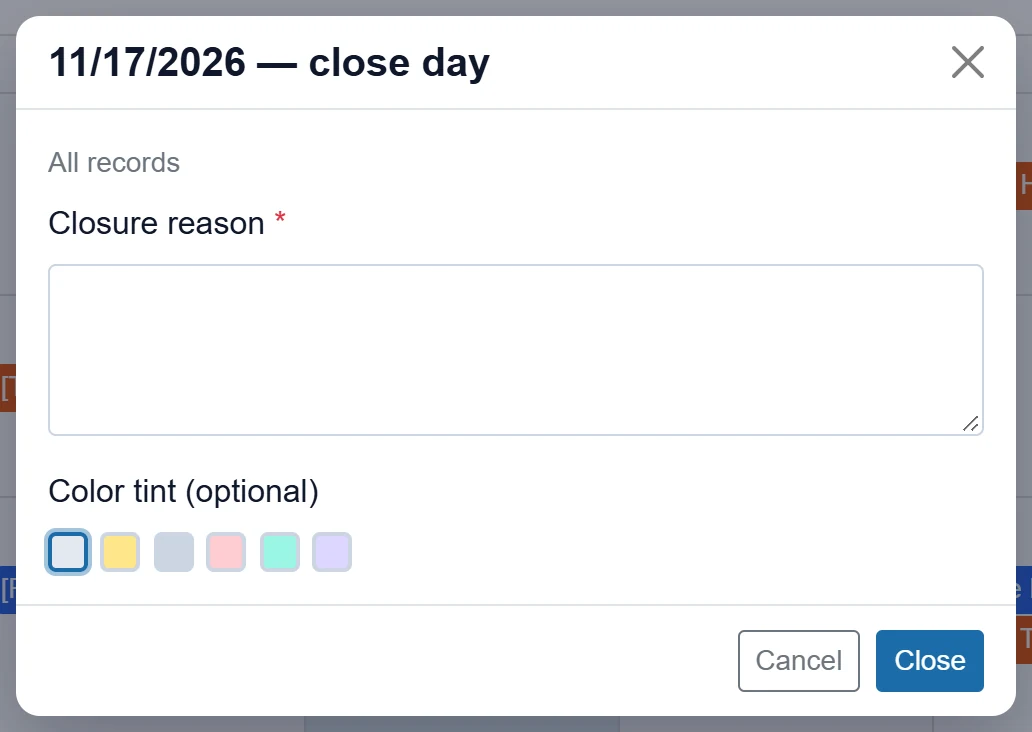
- 1Close Asks for confirmation and closes the day.
- 2Cancel Leaves without closing.
| Field | Sign in | Description |
|---|---|---|
| Closure reason required | Long text | Required. Shown in the day menu and day summary (e.g. «Public holiday», «Dealer meeting»). |
| Color tint (optional) | Long text | Background colour of the closed day in the calendar. |
- Click Close and confirm.
If someone tries to save a new activity or task on a closed day, a message such as «This day is closed for activity records.» appears. Use the matching open option in the day menu to reopen the day.
Closing a day does not delete or move existing records; it only blocks new records on that day.
Common messages
| Message | Cause | Solution |
|---|---|---|
| Closure reason is required. | The reason is empty. | Enter a short reason. |
| Could not save the closure. | The server could not save the closure. | Try again. |
| Could not open the day. | The server could not save the reopening. | Try again. |
| Session not found. | The session expired. | Sign out and sign in again. |
| Day closed. / Day opened. | The action is done. | For information only. |