
 AsyaTicari
 AsyaRestoran
 AsyaOtel
 AsyaCrm
 AsyaKlinik
 AsyaSpor
 AsyaSSH
 AsyaEmlak
 AsyaFilo
 AsyaPuantaj
 AsyaİSG
 AsyaİHD
 Kolay Öğren
AsyaCrm · Definitions
Question Sets
Defining the checklists filled in during field visits (question set, questions, answer types, options).
On the Question Sets screen you prepare the checklists filled in during field visits (e.g. “Field visit checklist”, “Shelf audit”). For an activity type bound to a set, the user answers the questions when closing the activity; answers are collected in Reports → Control List. The screen is in the menu when the company has the Question Sets / Control List module.
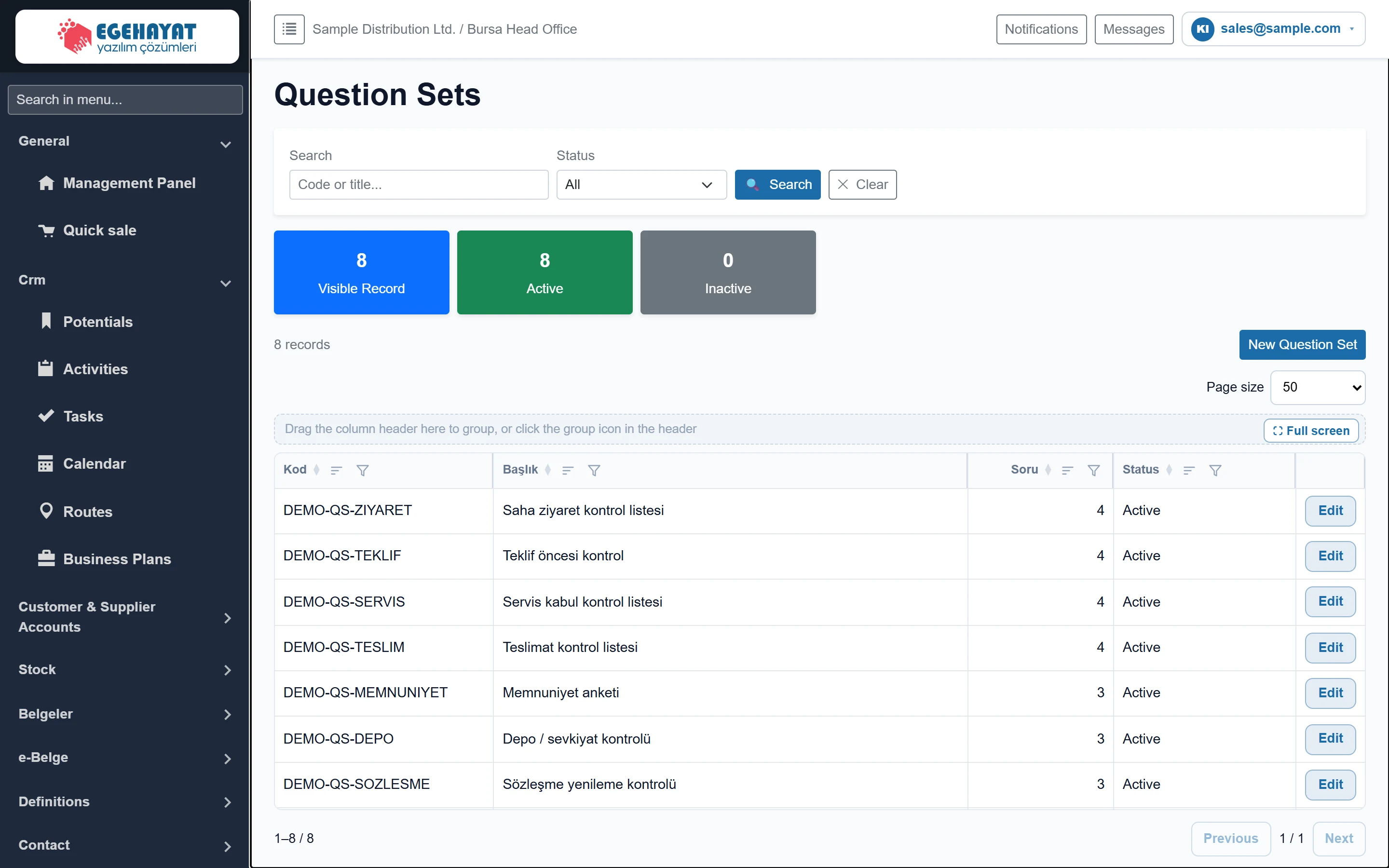
- 1Filter Search by code / title and filter by status.
- 2Counters Number of visible, active and inactive sets.
- 3New Question Set Creates a new question set.
- 4Question Number of questions in the set.
- 5Edit Opens the set in the edit screen.
Use the filter to search by code or title and to separate active and inactive sets. The Question column shows the number of questions.
Editing a set
Edit on the row opens the set. The set details are at the top; each question has its own card below.
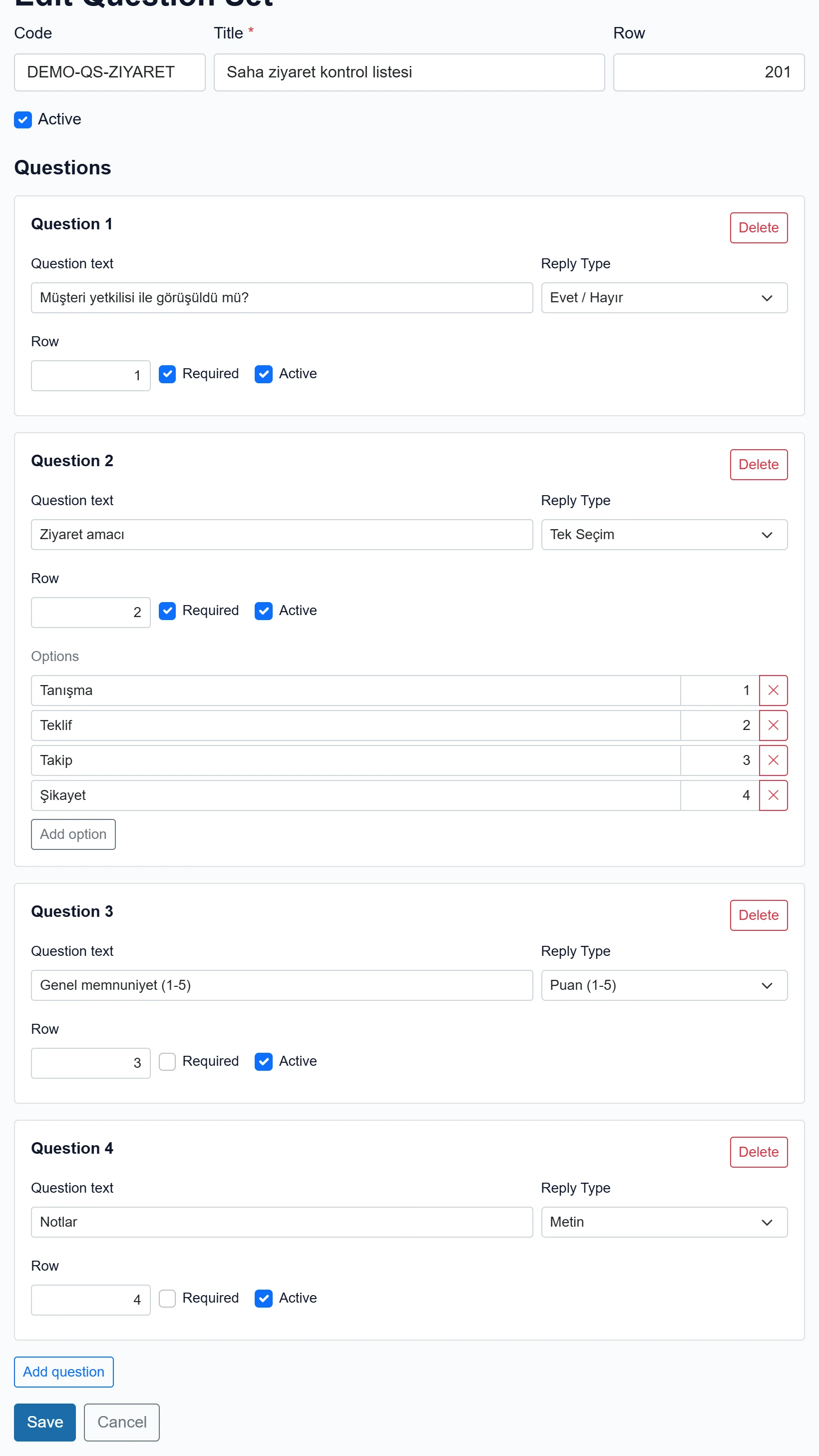
- 1Question header Number of the question.
- 2Delete Removes the question from the set (deleted when you save).
- 3Add question Adds a new question to the set.
- 4Save Saves the set and all questions.
| Field | Sign in | Description |
|---|---|---|
| Code | Text | Short code of the set (optional, max. 50 characters). |
| Title required | Text | Set name shown in activities and reports. Required; max. 200 characters. |
| Row | Text | Order in the set list. |
| Active | Checkbox | An inactive set is not asked in new activities. |
| Question text | Text | The question asked to the user in the field. |
| Reply Type | Choice list | Yes / No, single choice, multiple choice, text, number, date or rating (1-5). Options: Evet / Hayır · Tek Seçim · Çoklu Seçim · Metin · Sayı · Tarih · Puan (1-5) |
| Required | Checkbox | If ticked, the activity cannot be closed without an answer. |
| Options | Text | Only shown for single and multiple choice; each row is one option and its order. Placeholder: «Option text» |
Creating a question set: step by step
- Click New Question Set.
- Fill in the Title; optionally a Code and Order.
- Click Add question to open a question card; enter the question text and choose the answer type.
- For single or multiple choice, add the options one by one with Add option.
- Tick Required for questions that must be answered before closing.
- Click Save when done; you return to the list.
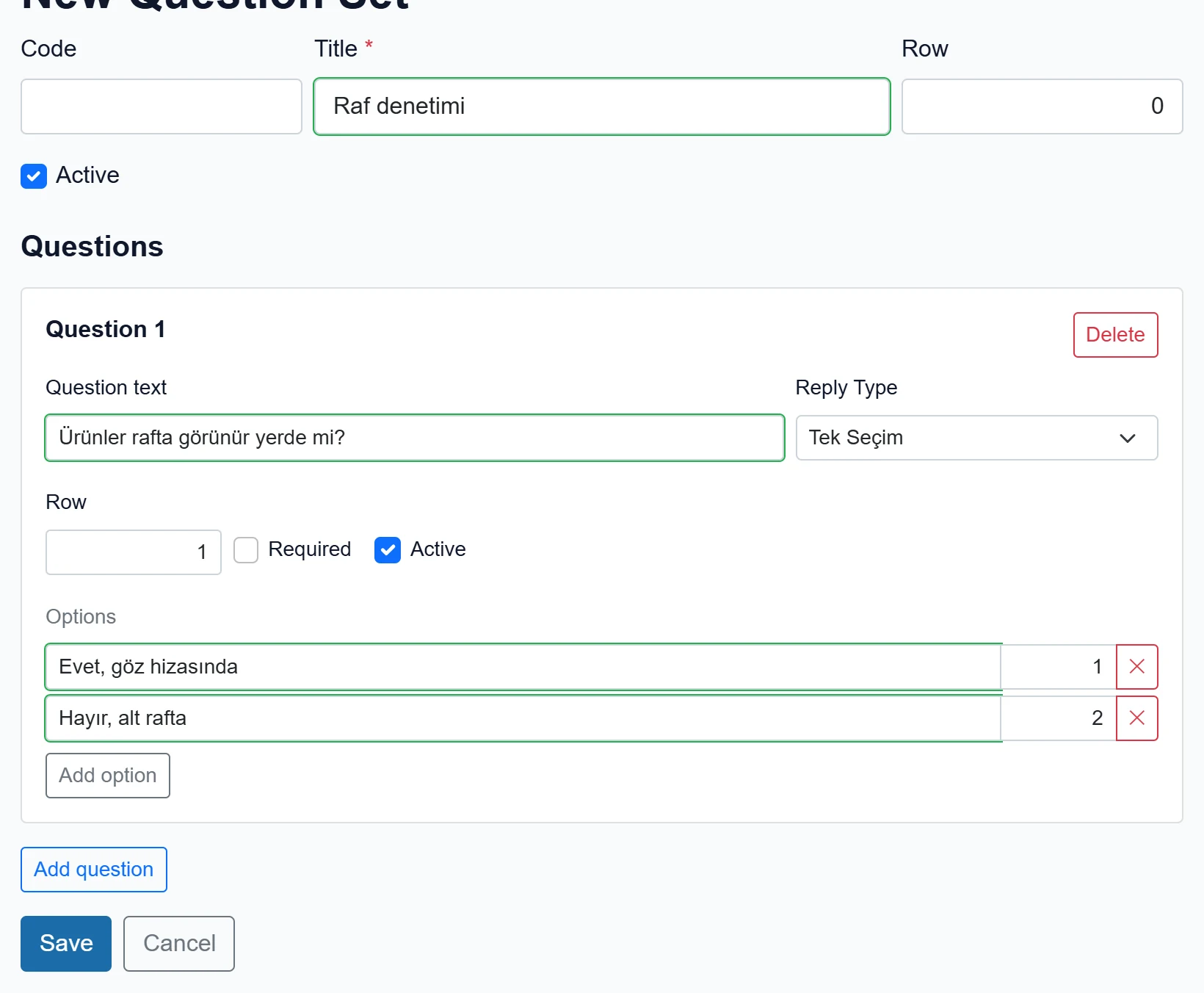
- 1Answer type Choosing single or multiple choice opens the options area.
- 2Option Option text and order; ✕ removes the option.
- 3Add option Adds a new option row.
To stop asking a question temporarily, untick Active on its card instead of deleting it; earlier answers stay in the report.
Delete on a question card and ✕ on an option become permanent when you click Save. If you change the answer type away from single / multiple choice, that question's options are deleted on save.
Common messages
| Message | Cause | Fix |
|---|---|---|
| Required-field message for Title (red box above the form) | The title is empty. | Enter the title and save again. |
| Record not found. | The set was deleted. | Go back to the list and select it again. |
| No question added yet. | The set has no questions (information). | Add questions with Add question. |