
 AsyaTicari
 AsyaRestoran
 AsyaOtel
 AsyaCrm
 AsyaKlinik
 AsyaSpor
 AsyaSSH
 AsyaEmlak
 AsyaFilo
 AsyaPuantaj
 AsyaİSG
 AsyaİHD
 Kolay Öğren
AsyaCrm · Crm
Routes
Daily visit routes for the field team: adding stops, nearest-neighbour sorting, distance and time schedule, approval, task creation and map.
On the Routes screen you plan the accounts and prospects a field employee visits in one day as an ordered route. Once a route is approved, a task can be created for each stop. The screen appears in the menu only when the Route planning module is enabled.
Route list
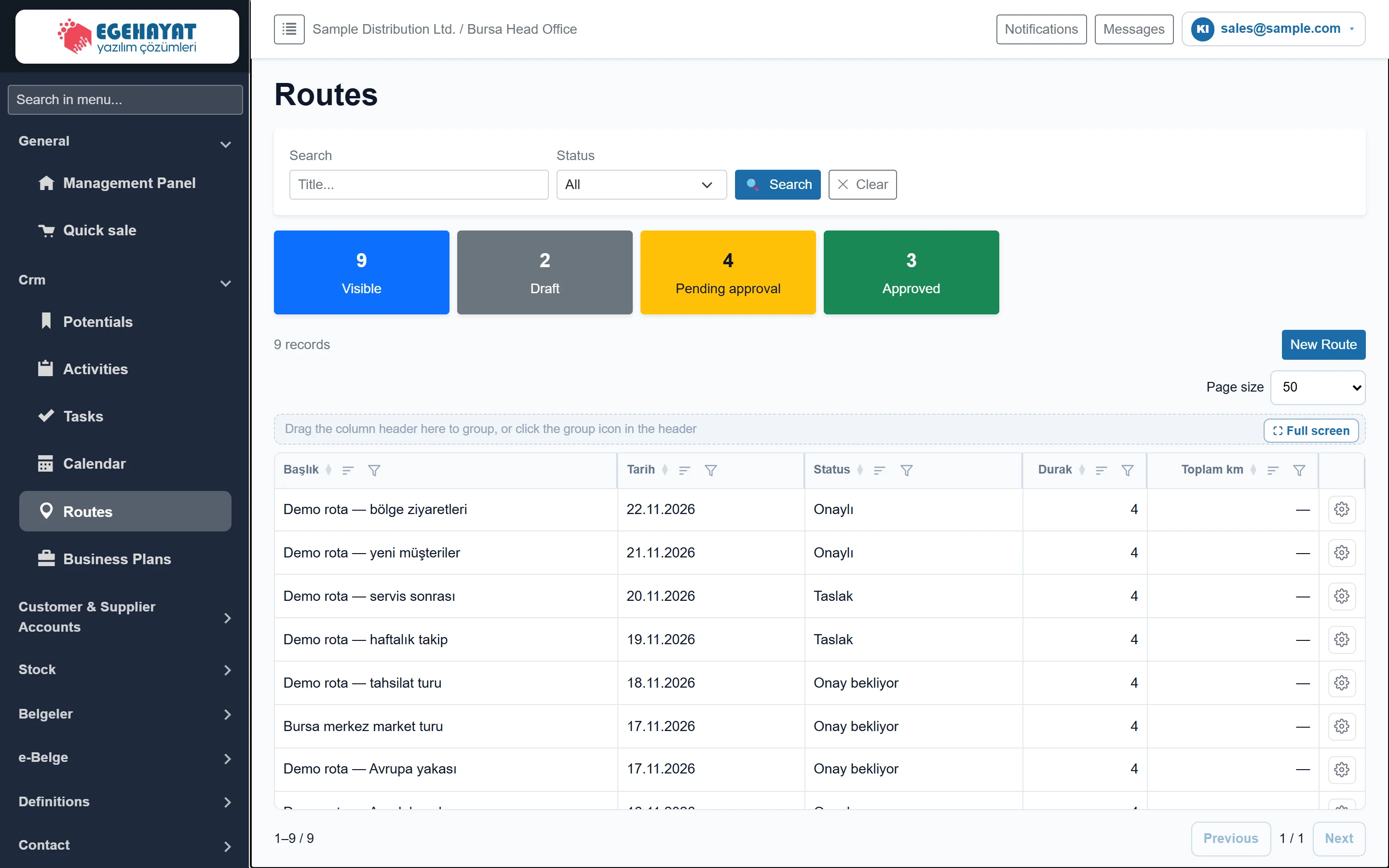
- 1Filter Search by title and status filter.
- 2Status counters Number of filtered records per status.
- 3New Route Opens the new record form.
- 4Grid tools Page size, grouping and full screen.
- 5Column header Click to sort; the funnel icon filters the column.
- 6Actions Row action menu (Edit, Map …).
The list is sorted by plan date, newest first. Stops shows the number of visits; Total km shows the road distance found with Calculate distance — “—” if it has not been calculated yet.
Filter and status counters

- 1🔍 Search Applies the filter.
- 2✕ Clear Resets the search and status filter.
| Field | Sign in | Description |
|---|---|---|
| Search | Text | Part of the route title; the list narrows as you type. Placeholder: «Title...» |
| Status | Choice list | Shows Draft, Pending approval, Approved or Cancelled routes separately; All shows every route. Options: All · Taslak · Onay bekliyor · Onaylı · İptal |
The coloured cards below the filter count the filtered routes by status.
New Route and Edit are visible only to users allowed to manage routes (or the company admin). Other users can see the list and the map.
Route form
Click New Route, or Edit in a row's action menu. For a new route, first enter the Title and date and Save; the sort, distance, schedule and approval buttons appear after saving.
General details

- 1Title Required field.
- 2Status Approval status of the route.
| Field | Sign in | Description |
|---|---|---|
| Title required | Text | Name of the route (e.g. “City centre store tour”). Required, up to 200 characters. |
| Plan date | Text | Day the route is driven. The time schedule and task dates are based on this day. Placeholder: «mm/dd/yyyy» |
| Status | Choice list | Draft, Pending approval, Approved, Cancelled. The approval buttons change the status themselves. Options: Taslak · Onay bekliyor · Onaylı · İptal |
The Notes box below is for free text about the route (up to 2000 characters).
Stops
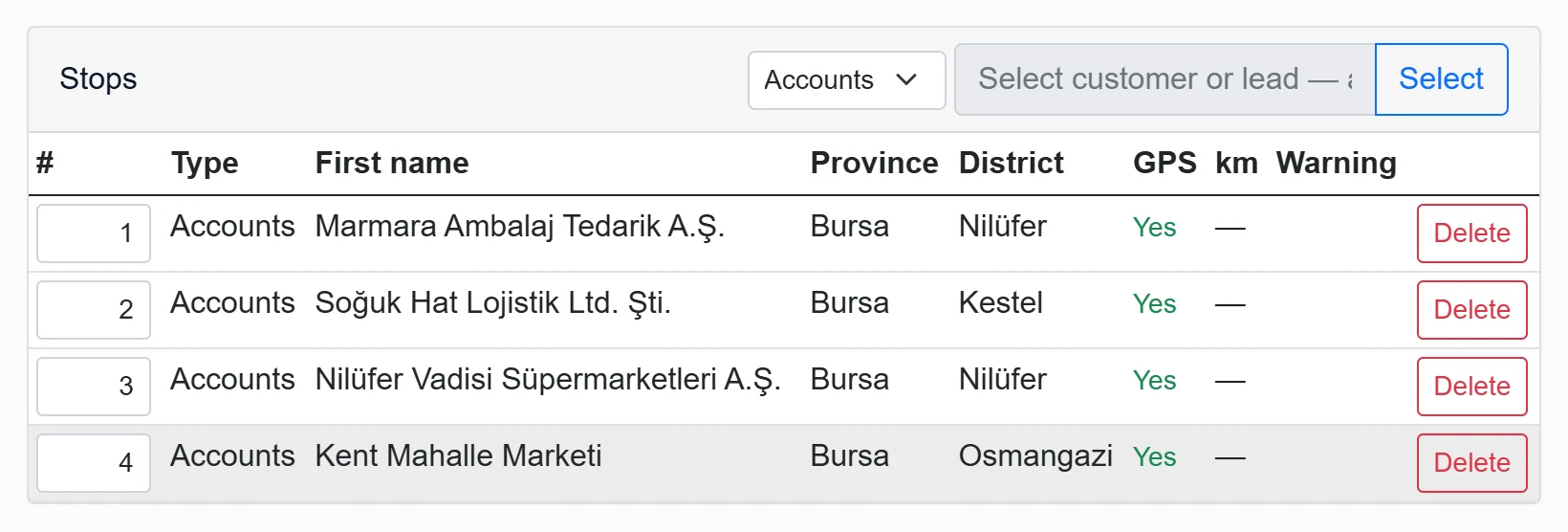
- 1Stop type Whether the stop to add is an account or a prospect.
- 2Select account / prospect Type a name and select; the record is appended as a stop.
- 3Order Stop order; change the number and save to reorder.
- 4GPS Shows “Yes” if the card has a location, otherwise “Missing”.
- 5km Road distance from the previous point (filled by Calculate distance).
- 6Delete Removes the stop (becomes permanent on Save).
- Choose the stop type in the header: account or prospect.
- Type a few letters in the box next to it and find the record with Select. The record is added to the end of the list.
- Change the order with the # column or use Sort by proximity.
- Remove unwanted stops with Delete.
- Click Save.
City, district and location come from the account / prospect card. If GPS says “missing”, the card has no coordinates; that stop is handled according to the GPS missing mode and is not shown on the map.
GPS / distance settings
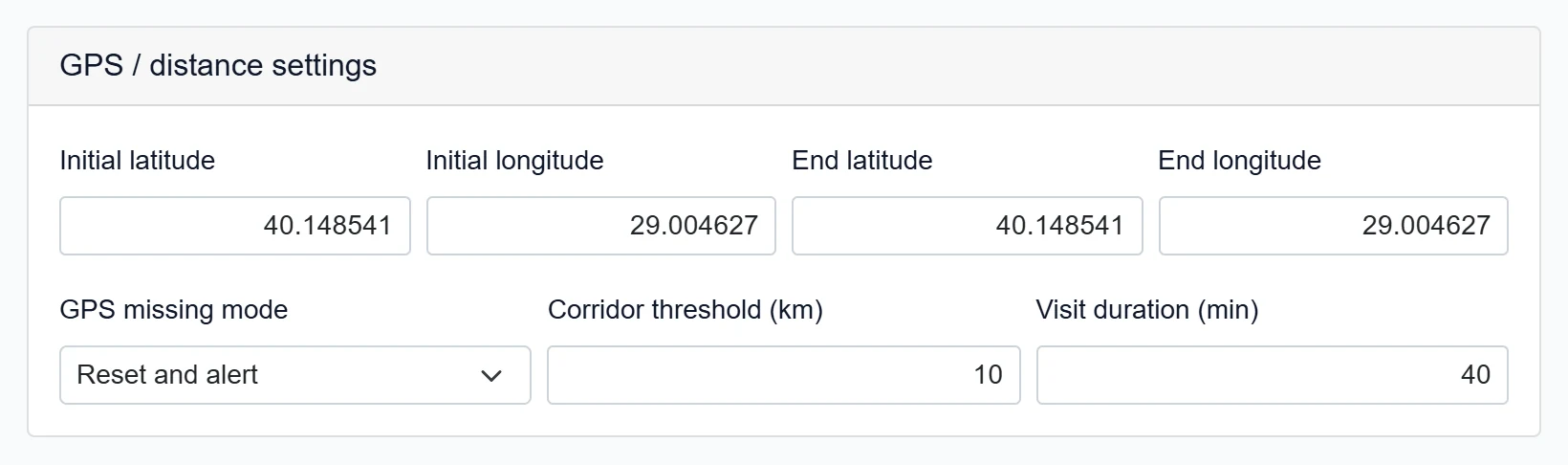
| Field | Sign in | Description |
|---|---|---|
| Initial latitude | Text | Latitude of the route's starting point (e.g. warehouse). If empty, distance starts at the first stop. |
| Initial longitude | Text | Longitude of the starting point. |
| End latitude | Text | Latitude of the end point of the day (e.g. return to warehouse). |
| End longitude | Text | Longitude of the end point. |
| GPS missing mode | Choice list | For a stop without location: “Reset and warn” counts the leg as 0 km with a warning; “Exclude from total” leaves it out of the total. Options: Reset and alert · Exclude from total |
| Corridor threshold (km) | Text | A warning appears on the stop if it is farther than this from the route line. |
| Visit duration (min) | Text | Time spent at each stop; used in the time schedule. |
A new route starts with a visit time of 45 min, a corridor threshold of 80 km and the “Reset and alert” mode; start and end coordinates are empty.
Assigned personnel

- 1Employee Checked users drive the route; tasks are created for them on approval.
Check the users who will drive the route. At least one person is required to send for approval and to approve.
Action buttons

- 1Save Saves the route.
- 2Sort by proximity Orders stops by nearest neighbour.
- 3Calculate distance Calculates road km between stops and the total.
- 4Time schedule Works out planned start / end times for each stop.
- 5Send for approval Sends the draft route for approval; approvers get an e-mail.
- 6Confirm Approves the route; tasks are created according to the settings.
- 7Cancel route Cancels the route.
All buttons except Save first save the form and then run the action:
- Sort by proximity: orders the stops by nearest neighbour and recalculates corridor warnings.
- Calculate distance: calculates the road distance of every leg (km column) and the total, shown at the top as “Total distance: … km”.
- Time schedule: works out planned start / end times (see below).
- Send for approval (Draft only): the route becomes “Pending approval”; approvers get a notification e-mail.
- Confirm (Draft or Pending approval): the route becomes “Approved”. Depending on the “task creation on approval” setting in Route settings, tasks are not created, you are asked, or they are created automatically.
- Cancel route: after a confirmation, the route is cancelled.
Time schedule preview
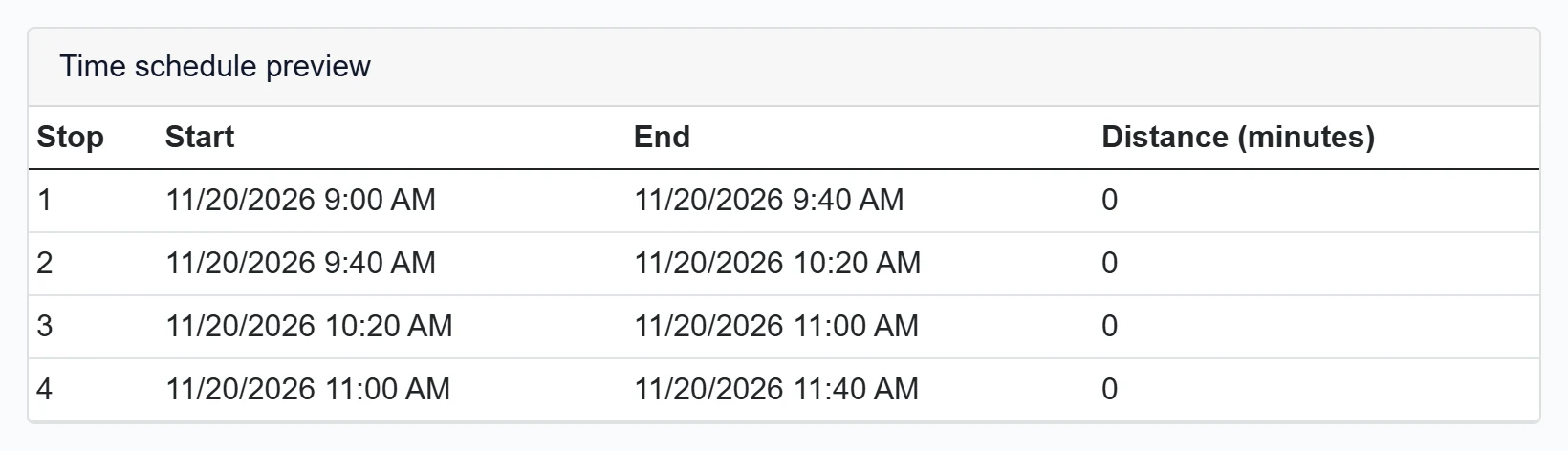
- 1Start Planned arrival time at the stop.
- 2Travel (min) Travel time from the previous point (at the speed in route settings).
The schedule starts at the working start time in route settings, reserves the visit time for each stop and calculates travel time between stops from the travel speed. If distances have not been calculated, Travel (min) is 0.
Route map
Show on map at the top of the form, or Map in the list, opens the route on a map.
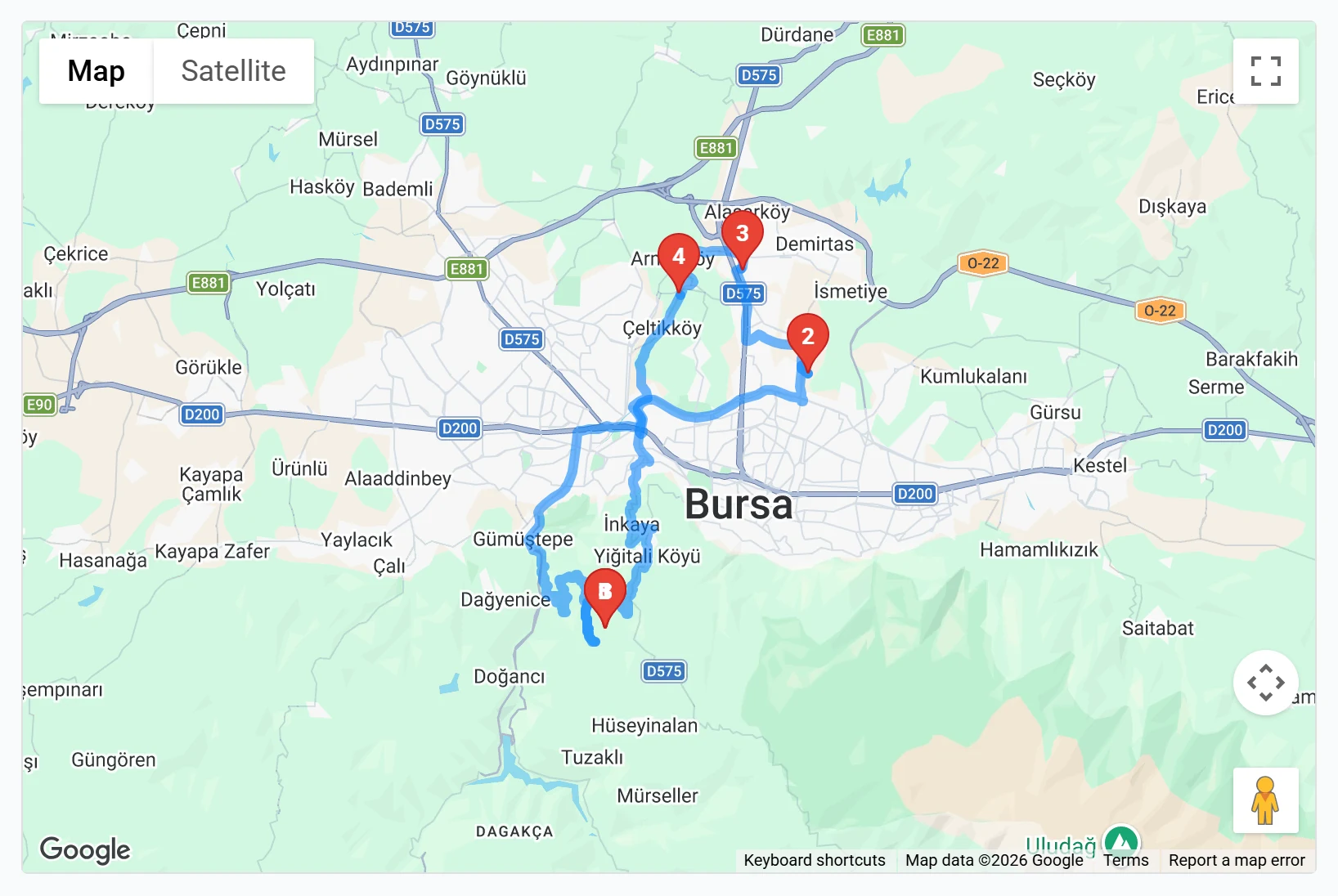
- 1Map Stops are numbered in order; stops without GPS are not shown.
Stops are numbered and joined by the road line. The number of stops without GPS is shown below the map as a warning.
Step by step: planning and approving a route
- Click New Route, enter Title and Plan date and Save.
- Add the stops and check the Assigned personnel.
- Use Sort by proximity and Calculate distance to get the order and km.
- Check the day's times with Time schedule.
- Click Send for approval; the approver clicks Confirm and the tasks are created.
Tasks created from an approved route appear in the employee's Tasks list. Cancel route also sets the tasks created from this route's stops to “Cancelled”; there is no undo.
Common messages
| Message | Cause | Solution |
|---|---|---|
| Onaya göndermek için en az bir personel atanmalıdır. | No assigned personnel. | Check at least one user under Assigned personnel. |
| Onaya göndermek için en az bir durak eklenmelidir. | The stop list is empty. | Add stops and try again. |
| Bu durumdaki rota onaya gönderilemez. | The route is Approved or Cancelled. | Such routes cannot be sent again; create a new route if needed. |
| Onay için en az bir personel atanmalıdır. | Approving a route without personnel. | Assign personnel and click Confirm. |
| Route approved. Create tasks? | The route setting is “Ask”. | OK creates a task per stop; Cancel only approves. |
| {0} GPS coordinate missing for the station; may not be displayed on the map. | Some cards have no location. | Enter latitude / longitude on the cards. |
| Map could not be loaded: … | The map service could not be reached. | Check the internet connection and reload. |
The first four messages come from the server and are currently shown in Turkish in every interface language.