
 AsyaTicari
 AsyaRestoran
 AsyaOtel
 AsyaCrm
 AsyaKlinik
 AsyaSpor
 AsyaSSH
 AsyaEmlak
 AsyaFilo
 AsyaPuantaj
 AsyaİSG
 AsyaİHD
 Kolay Öğren
AsyaCrm · Crm
Leads
List of prospective customers who are not accounts yet, the lead form (addresses, location, source, status, contacts) and converting a lead into an account card.
On the Potentials screen you keep people and companies you are following up who are not customers yet. You can open activities and tasks for leads, add them to routes and convert them into an account card with one click once a sale is made.
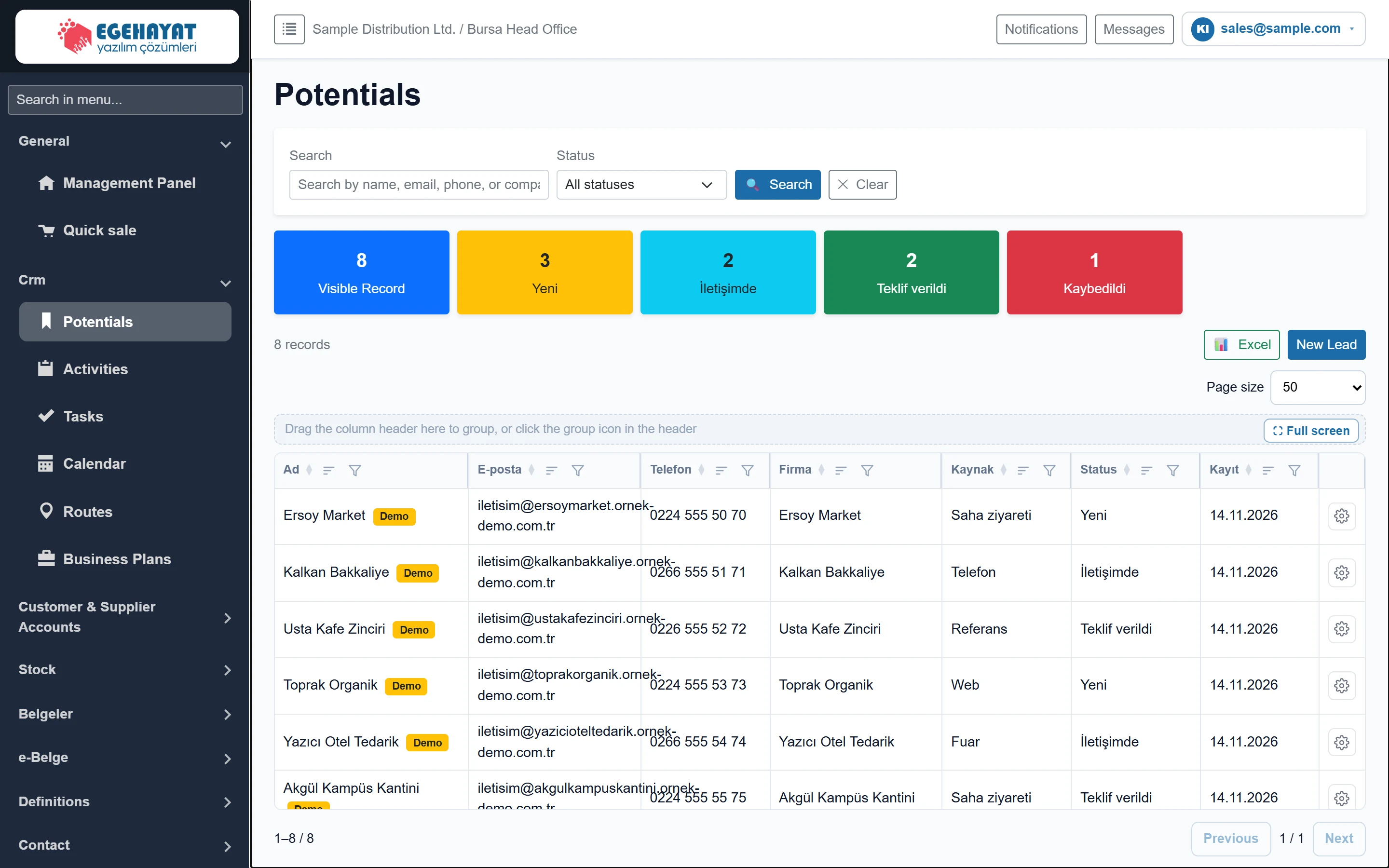
- 1Filter Search by name, e-mail, phone, company and filter by status.
- 2Status counters Visible records and counts per status.
- 3📊 Excel Downloads the visible list as an Excel file.
- 4New Lead Opens the new lead form.
- 5Grid tools Page size, grouping and full screen.
- 6Actions Edit, Convert to account, Delete.
Search and filter

- 1🔍 Search Applies the filter.
- 2✕ Clear Clears the search and status.
| Field | Sign in | Description |
|---|---|---|
| Search | Text | Part of the name, e-mail, phone, company, source or status. The list narrows as you type. Placeholder: «Search by name, email, phone, or company...» |
| Status | Choice list | One of the statuses used in the records (e.g. New, In contact). «All statuses» removes the filter. Options: All statuses · İletişimde · Kaybedildi · Teklif verildi · Yeni |
The coloured cards below the filter show the number of visible records and the distribution by status. Statuses come from the text you enter in the lead's Status field.
Row actions

- 1Edit Opens the lead form.
- 2Make Account Converts the lead into an account card.
- 3Delete Asks for confirmation and deletes the record.
The Demo badge marks records loaded with sector demo data; they are never sent to the ERP.
Lead form
Click New Lead or Edit in the row menu.
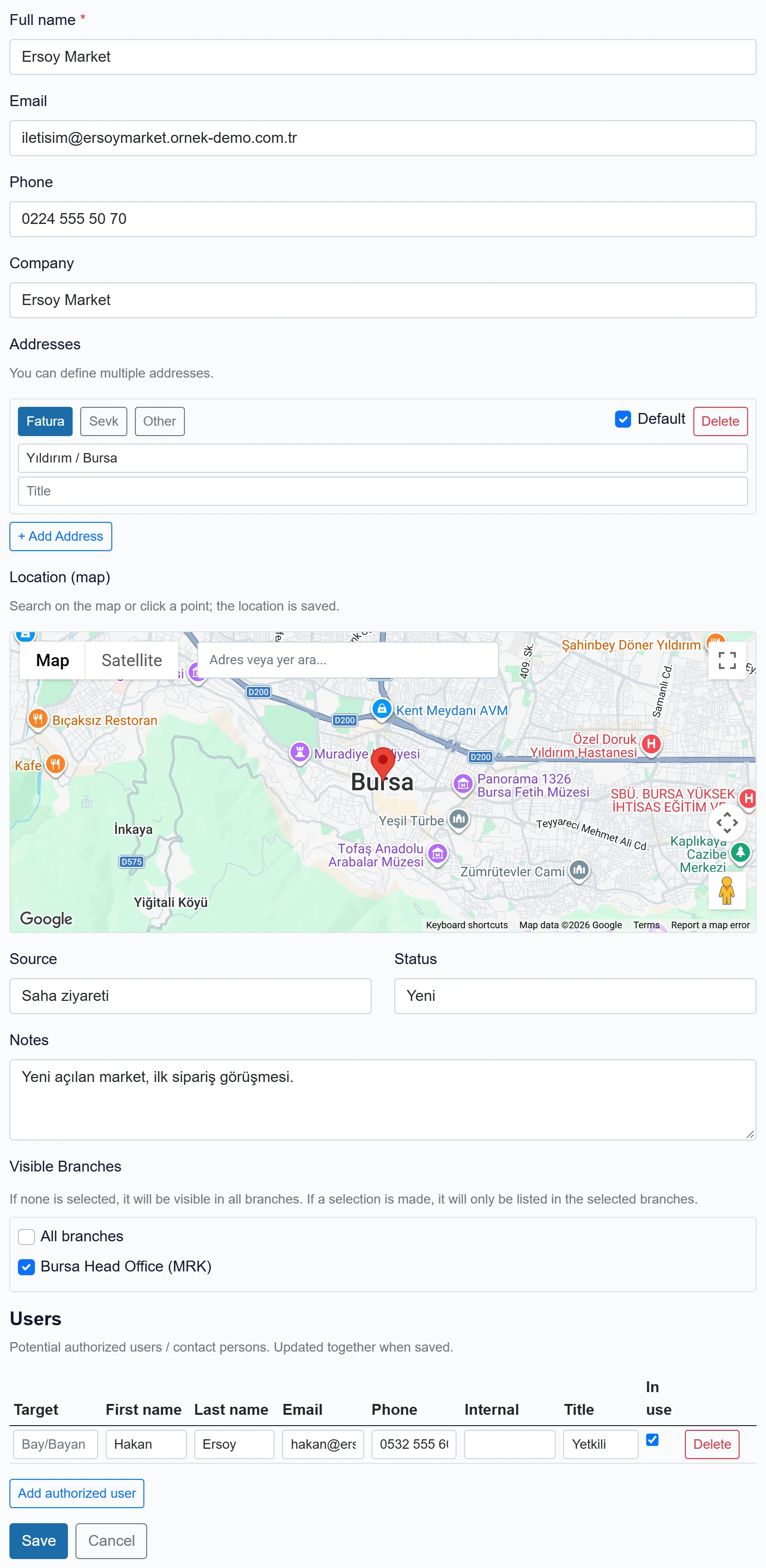
- 1Full name Required field.
- 2Address Choose the address type with the Invoice / Shipping / Other buttons.
- 3+ Add Address Adds a new address row.
- 4Status Stage text; used in the filter and counters.
- 5Contacts The lead's contact persons; edited row by row.
- 6Save Saves the lead together with its contacts.
| Field | Sign in | Description |
|---|---|---|
| Full name required | Text | Person or company name. Required, up to 200 characters. |
| A valid e-mail address (name@company.com). An invalid one blocks saving. | ||
| Phone | Text | Contact phone. |
| Company | Text | The company the person works for; shown in its own column in the list. |
| Addresses | Checkbox | Several addresses of type Invoice, Shipping or Other. The one marked «Default» comes first. |
| Default | Checkbox | This address is the lead's default address. |
| Location (map) | Text | Search on the map or click a point; latitude / longitude is saved and used for route planning. Placeholder: «Adres veya yer ara...» |
| Source | Text | Where the lead came from (e.g. Web, Referral, Trade fair). Placeholder: «e.g. Web, Referral» |
| Status | Text | Free-text stage (e.g. New, In contact, Quoted, Lost). The status filter and counters in the list are built from it. Placeholder: «e.g. New, In contact» |
| Notes | Long text | Meeting notes; up to 2000 characters. |
| Visible Branches | Checkbox | Which workplaces list this card. If none is selected it is visible in all branches. |
| All branches | Checkbox | If ticked, the card is visible in all workplaces. |
| Bursa Head Office (MRK) | Checkbox | A workplace of the company; if ticked the card is listed there. |
Entering a new lead: step by step
- Click New Lead.
- Fill in the name (required) and, if available, e-mail, phone and company.
- Add an address row with + Add address, choose its type (Invoice / Shipping / Other) and type the address.
- Search the address on the map or click a point; the location is used for route planning.
- Enter Source and Status (e.g. «Trade fair», «New»).
- Add contact persons to the contacts table.
- Click Save; the list is shown again.
Status is free text. Use the same spelling across the team (e.g. always «Quoted»); the filter and counters are split by spelling.
Converting a lead into an account
Choose Make Account in the row menu.
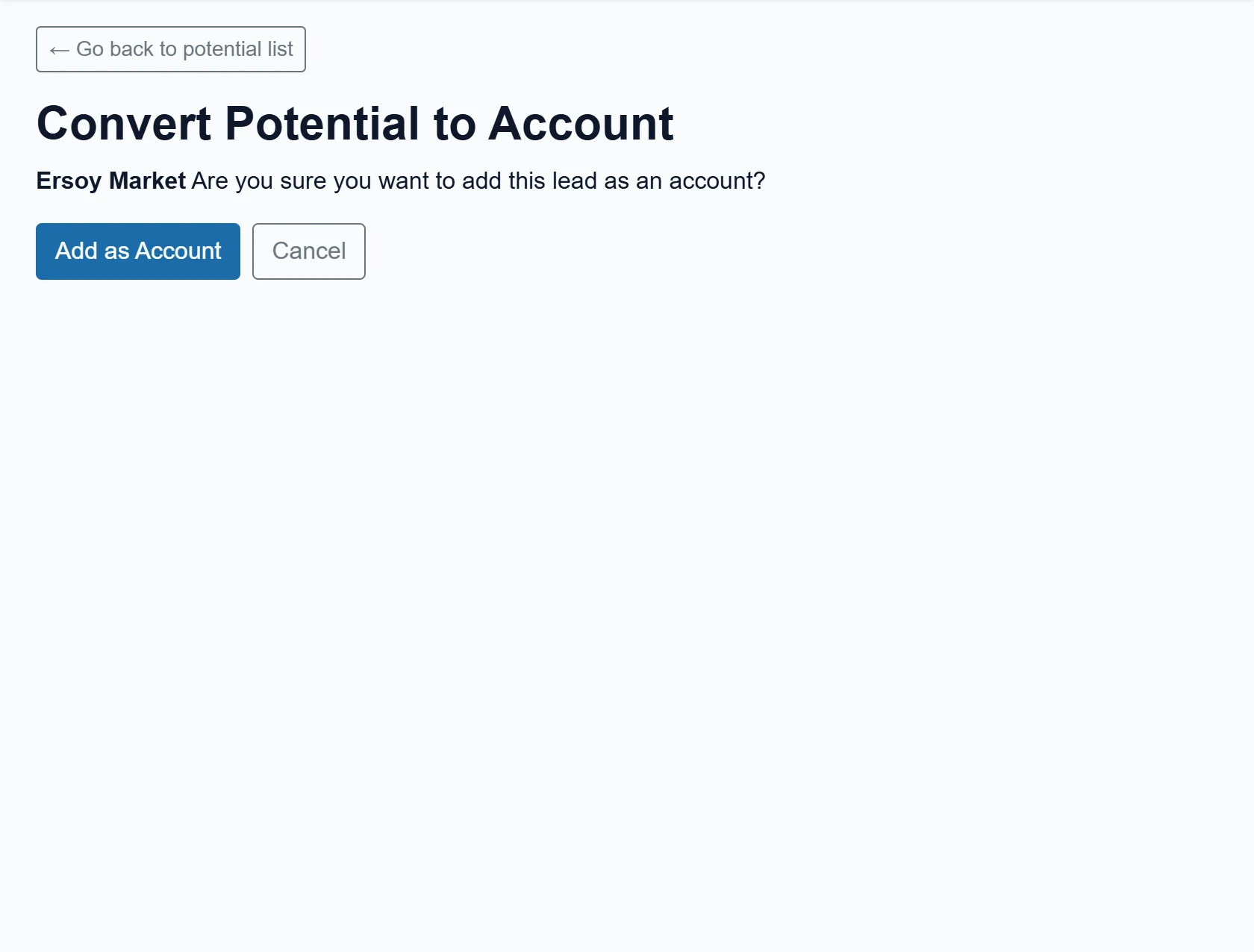
- 1Add as Account Creates the account card; the lead is removed from the list.
- 2Cancel Returns to the list without converting.
- On the confirmation screen click Add as Account.
- A new account card is created with the name, company, contact and address details.
- Use Edit Account to complete tax number, commercial and risk details.
After conversion the lead is removed from the list. This cannot be undone; if you converted the wrong record, delete the created account card manually.
Common messages
| Message | Cause | Solution |
|---|---|---|
| Ad Soyad gereklidir (name required) | The name field is empty. | Fill in the field. |
| Geçerli bir e-posta adresi girin (enter a valid e-mail) | The e-mail format is wrong. | Use name@company.com or leave it empty. |
| Potential record not found. | The record was deleted or converted. | Refresh the list. |
| Are you sure you want to delete this {0} record? | Delete confirmation. | Confirm if it should be deleted. |
| Aday bulunamadı. (lead not found) | The record to convert no longer exists. | Refresh the list. |