
 AsyaTicari
 AsyaRestoran
 AsyaOtel
 AsyaCrm
 AsyaKlinik
 AsyaSpor
 AsyaSSH
 AsyaEmlak
 AsyaFilo
 AsyaPuantaj
 AsyaİSG
 AsyaİHD
 Kolay Öğren
AsyaCrm · Crm
Tasks
Kanban and list of personal and team tasks; scope, priority and assignee filters; the task form, assignment notification and checklist.
On the Tasks screen you assign work to yourself or colleagues and follow it up (collect payment, pick up a return, confirm an order …). The screen opens in Kanban view by default.
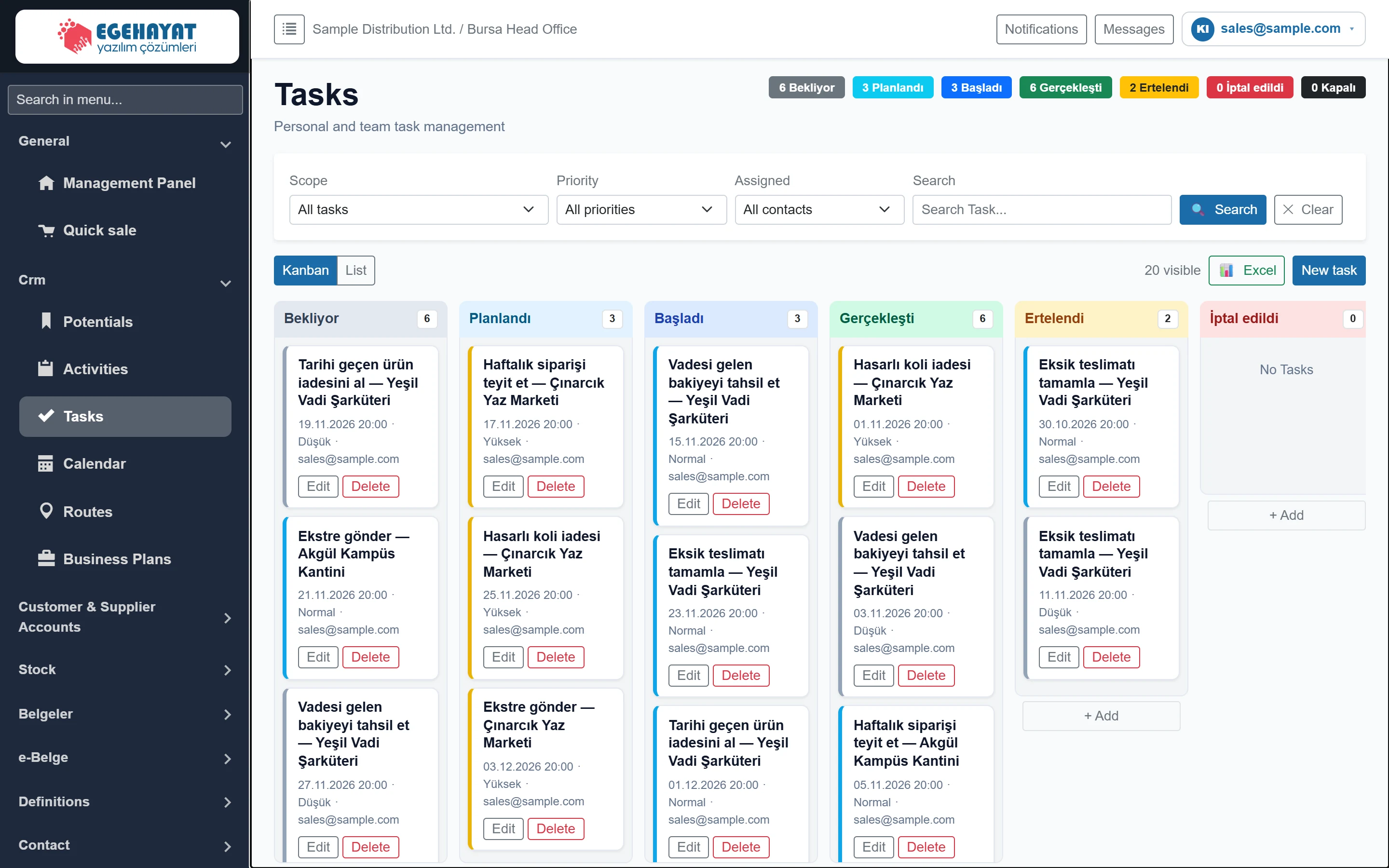
- 1Status counts Number of filtered tasks per status.
- 2Filter Scope, priority, assignee and search.
- 3View Kanban (default) or list.
- 4New task Opens the new task form.
- 5Task card Title, due date, priority and assignee. Drag it to another column to change the status.
- 6+ Add Opens a new task with this status.
Drag a card to another column to change the task's status. The card's left edge colour shows the priority.
Filter
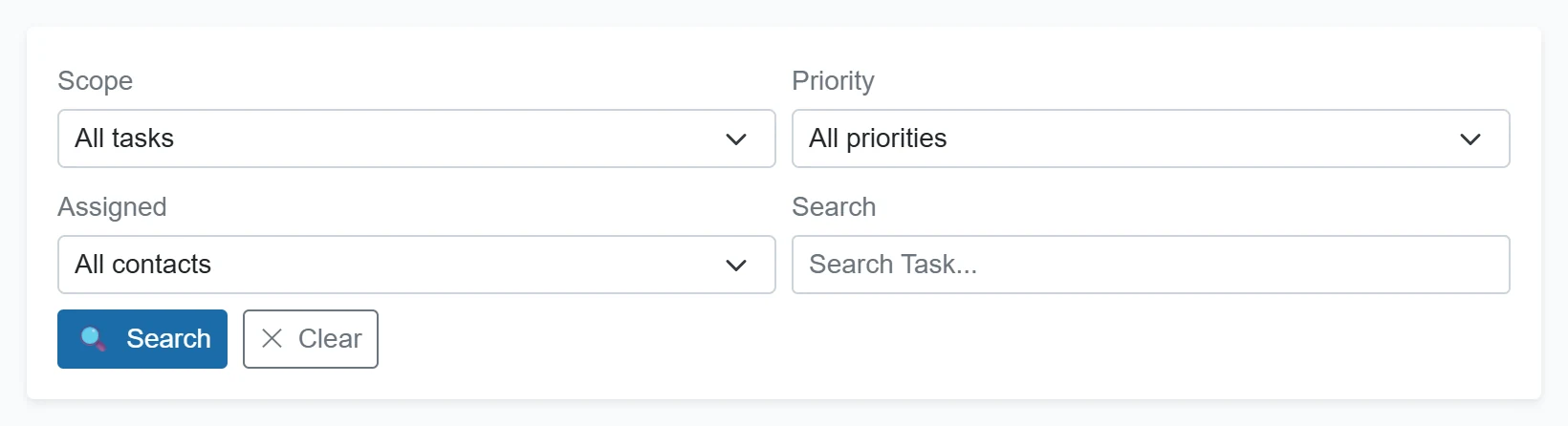
- 1🔍 Search Applies the filter.
- 2✕ Clear Clears all filters.
| Field | Sign in | Description |
|---|---|---|
| Scope | Choice list | All tasks, Assigned to me, Created by me, Due today or Overdue (past due, not closed). Options: All tasks · Assigned to me · Opened by me · Expiring today · Overdue |
| Priority | Choice list | Tasks with Low, Normal or High priority. Options: All priorities · Low · Normal · High |
| Assigned | Choice list | Tasks assigned to the selected user. Options: All contacts · sales@sample.com |
| Search | Search | Part of the title, description or assignee name. Placeholder: «Search Task...» |
The screen loads the newest 5,000 tasks; if the database holds more, an orange note appears next to the count. Use the filter for older tasks.
List view
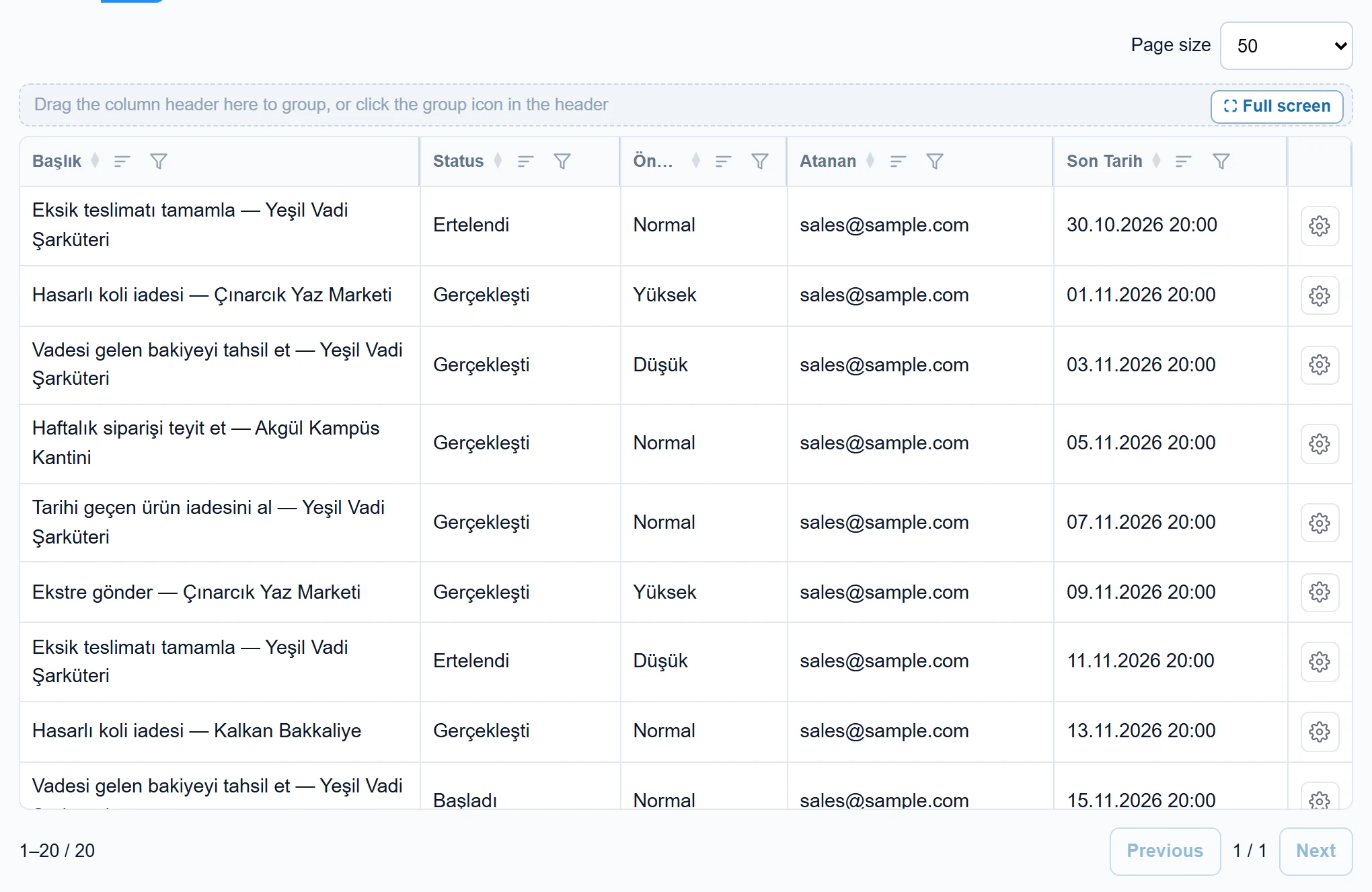
- 1Column header Click to sort; the funnel icon filters the column.
- 2Grouping area Drag a column header here to group the list by that column.
- 3Actions Edit, Delete.
Task form
Click + New task or Edit on a card.
General
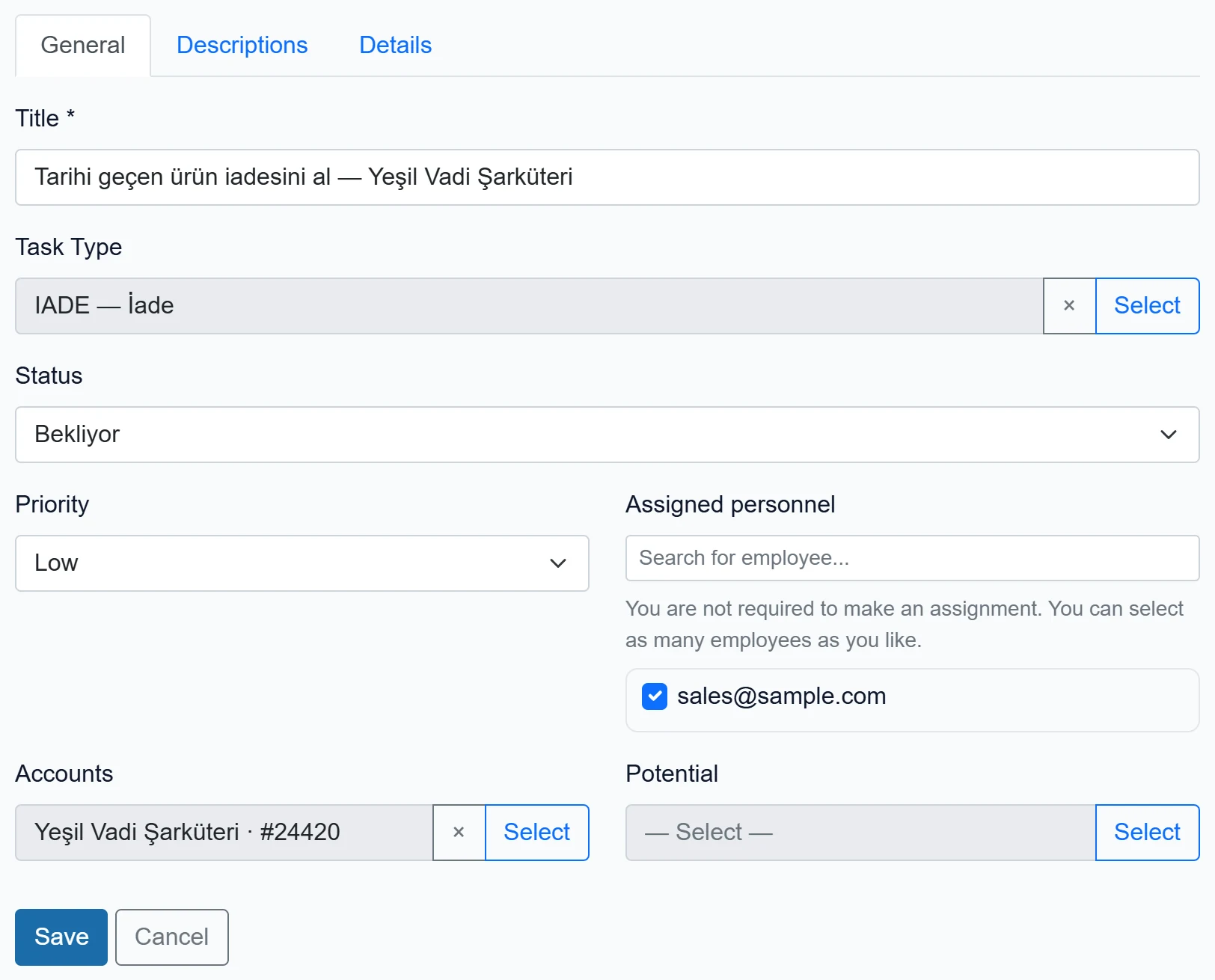
- 1General Title, type, status, priority, assignee and account / lead.
- 2Descriptions Description and status-dependent notes.
- 3Details Due, planned and actual dates / durations.
- 4Save Saves the task and notifies the assignees.
| Field | Sign in | Description |
|---|---|---|
| Title required | Text | Short name of the task. Required. |
| Task Type | Text | One of the task types from Type Definitions (e.g. Collection, Return). Placeholder: «— Select —» |
| Status | Choice list | Waiting, Planned, Started, Completed, Postponed, Cancelled, Closed. Options: — Select — · Bekliyor · Planlandı · Başladı · Gerçekleşti · Ertelendi · İptal edildi · Kapalı |
| Priority | Choice list | Low, Normal or High; the kanban card's edge colour follows it. Options: Normal (default) · Low · Normal · High |
| Assigned personnel | Text | Users who will do the task; newly assigned users get a notification and e-mail. Placeholder: «Search for employee...» |
| sales@sample.com | Checkbox | A user of the company; ticked users are assigned to the task. |
| Accounts | Text | The account the task relates to. Placeholder: «— Select —» |
| Potential | Text | The lead the task relates to. Placeholder: «— Select —» |
Details
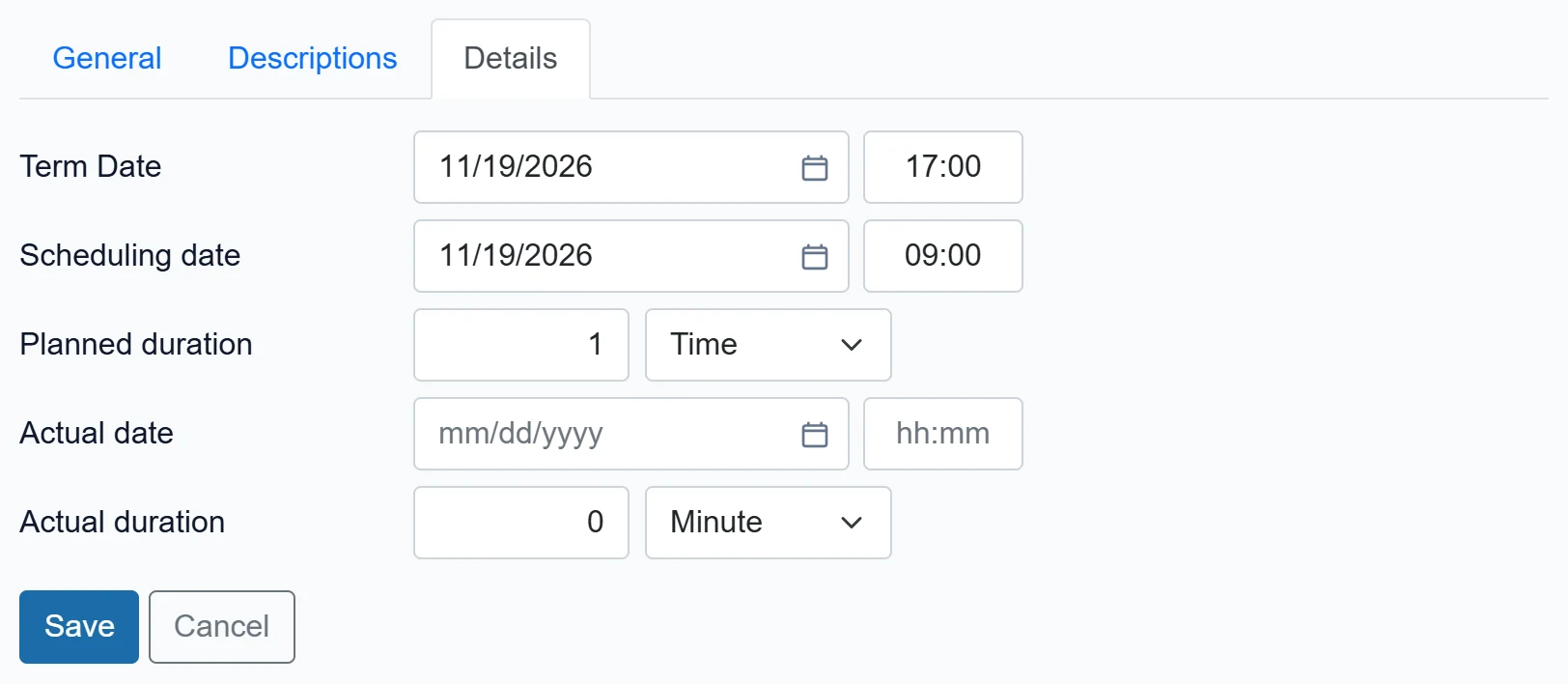
| Field | Sign in | Description |
|---|---|---|
| Term Date | Text | The task's due date; the «Overdue» and «Due today» filters use it. Placeholder: «mm/dd/yyyy» |
| Scheduling date | Text | Date the task will be done; it appears on this day in the calendar. Placeholder: «mm/dd/yyyy» |
| Planned duration | Text | Estimated duration (hours : minutes). |
| Actual date | Text | The date it was actually done; filled automatically when Completed is chosen. Placeholder: «mm/dd/yyyy» |
| Actual duration | Text | Time actually spent. |
The Descriptions tab works as in the activity form: description and, depending on status, a postponement, cancellation or result note.
On a saved task the Checklist questions (if a question set applies) and, if the account / lead has a location, a map appear below the form. Linked contracts are listed under Linked contracts.
Assigning a task: step by step
- Click + New task.
- Fill in the Title (required), choose Task type and Priority.
- Tick the people under Assigned staff.
- Choose the Account or Lead if relevant.
- Enter the Due date on the Details tab.
- Click Save. Each newly assigned person gets an in-app notification and, if e-mail settings are configured, an e-mail.
Use Assigned to me and Overdue in the scope filter to see what must be done first.
Delete removes the task permanently. Set abandoned work to Cancelled instead.
Common messages
| Message | Cause | Solution |
|---|---|---|
| Başlık gereklidir. (title required) | The title is empty. | Enter a title. |
| This day is closed for task records. | The planned day is closed for tasks in the calendar. | Choose another day or reopen it. |
| Zorunlu soru cevaplanmadı: … (required question not answered) | A required-on-close checklist is incomplete. | Answer the required questions and save. |
| Task could not be saved. | The server could not complete the save. | Try again. |
| Görev bulunamadı. (task not found) | The task was deleted. | Refresh the list. |
| Are you sure you want to delete task {0}? | Delete confirmation. | Confirm if it should be deleted. |