
 AsyaTicari
 AsyaRestoran
 AsyaOtel
 AsyaCrm
 AsyaKlinik
 AsyaSpor
 AsyaSSH
 AsyaEmlak
 AsyaFilo
 AsyaPuantaj
 AsyaİSG
 AsyaİHD
 Kolay Öğren
AsyaCrm · Definitions
Excel upload
Bulk upload of material and account cards, opening stock and opening balances from a single Excel file.
The Excel upload screen lets you load material and account cards from a prepared Excel file instead of creating them one by one. The same file can also contain the opening stock of materials and the opening balance of accounts.
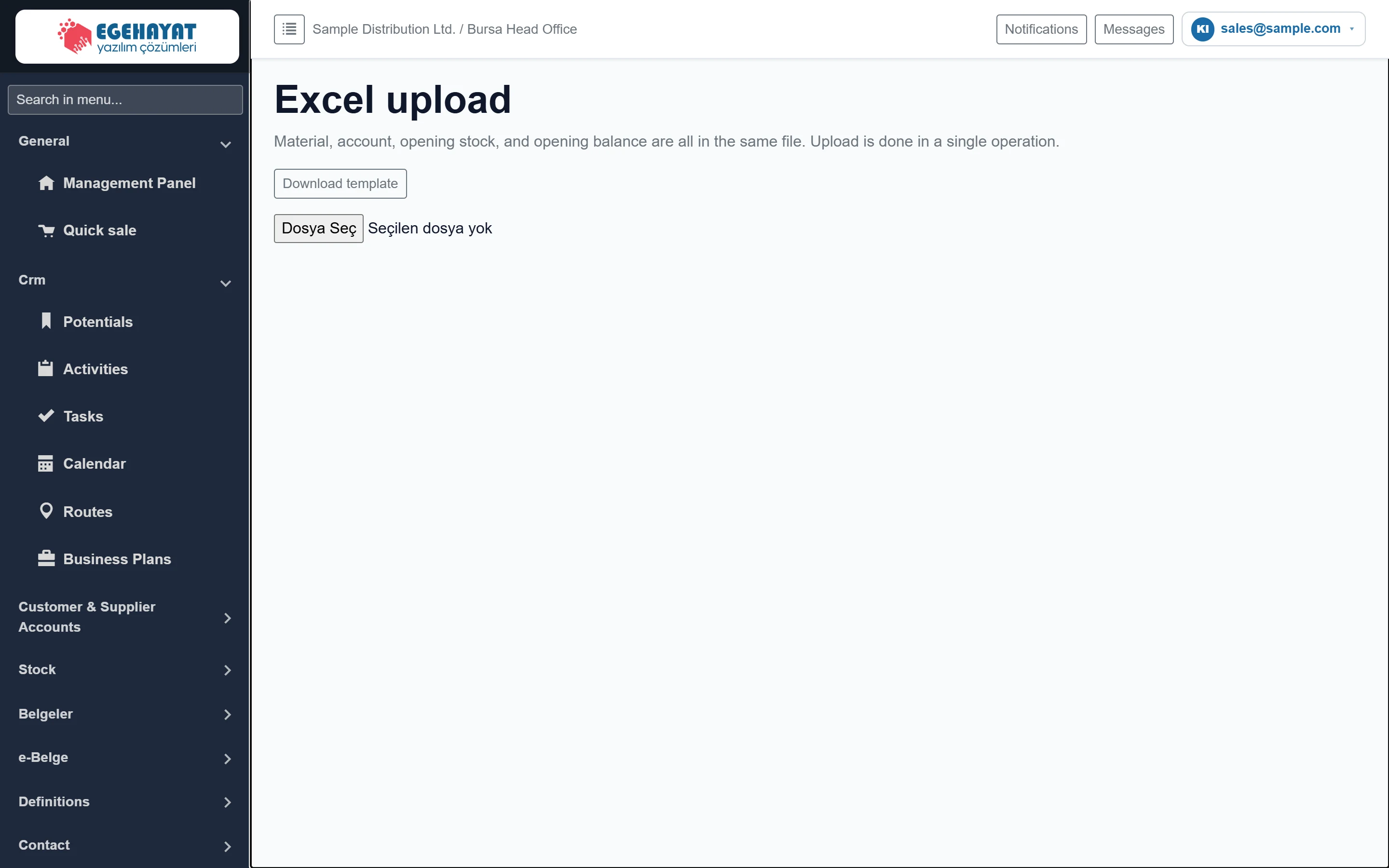
- 1Excel upload Screen title and what the file may contain.
- 2Download template Downloads the empty Excel template with the Materials and Accounts sheets.
- 3Choose file Choose your completed .xlsx file; the upload starts as soon as you select it.
Template layout
Download template gives you an empty file with two sheets. The first row is the header; data starts on row 2.
Materials sheet (columns: Code, Name, Unit, VAT, Sales price, Purchase price, Barcode, Type, Opening quantity):
| Column | Description |
|---|---|
| Code | Material code. Required. If a material with this code exists it is updated, otherwise a new one is created. |
| Name | Material name. Required. |
| Unit | Unit code (e.g. AD, KOLI). If it does not exist, a unit with this code is created. |
| VAT | VAT rate; 20% if empty. |
| Sales price | List sales price; 0 if empty. |
| Purchase price | Purchase price; also used as the unit cost of the opening stock. |
| Barcode | Product barcode (optional). |
| Type | Material type; trade goods if empty. |
| Opening quantity | If greater than 0, an opening stock entry is written with today's date. |
Accounts sheet (columns: Name, Kind, Tax no., E-mail, Phone, Opening balance):
| Column | Description |
|---|---|
| Name | Account name. Required. |
| Kind | A value containing “tedarik” or “Supplier” = supplier, “her” or “Both” = both; customer if empty. |
| Tax no. | If filled, the account is matched by this number, otherwise by name; a match is updated. |
| Account e-mail. | |
| Phone | Account phone. |
| Opening balance | A positive amount is written as a debit, a negative amount as a credit opening voucher with today's date (no invoice). |
Uploading: step by step
- Get the empty template with Download template.
- Fill in the material and account sheets; leave a sheet empty if you do not need it and do not rename the sheets.
- Save the file as .xlsx (max. 8 MB).
- Choose the file with the file picker. The upload starts immediately.
- A summary (“… rows received, … rows with errors.”) appears at the top and a Sheet / Row / Result table below. Fix the failed rows and upload again; rows that were already imported are updated, not duplicated.
Try a file with a few rows first; the result table shows row by row which column is wrong.
Opening quantity and opening balance are written again on every upload. If you upload the same file twice, opening stock and balances are entered twice; clear these columns before re-uploading.
Common messages
| Message | Cause | Fix |
|---|---|---|
| Kod ve ad zorunlu. (code and name required) | A material row has no code or name. | Complete or delete the row. |
| Cari adı zorunlu. (account name required) | An account row has no name. | Enter the name or delete the row. |
| Company session not found. | The session expired or no company is selected. | Sign out and sign in again. |